4 min
4 min 
Many WooCommerce stores use products from AliExpress or other suppliers. The reviews on those product pages can help build trust with shoppers.
You can import those reviews into your own store, but it needs to be done correctly, not just copied and pasted.
This post explains how to import AliExpress reviews, show them on your site using a tool like WiserReview, and use them to support sales.
Prerequisites & planning
Before you bring in any reviews from AliExpress, your WooCommerce store should be ready to handle them properly.
Technical requirements
To start importing and displaying reviews smoothly, ensure you have the necessary tools and access to them.
This ensures the process works without errors and lets you fully manage how reviews appear on your store.
You’ll need:
- A WooCommerce store set up and running on WordPress
- Admin access to your WordPress dashboard
- A browser extension or plugin to import reviews from AliExpress
- A review management tool like WiserReview to organize, customize, and publish those reviews on your site
Review sourcing considerations
AliExpress reviews can boost trust, but not all of them are a good fit for your store.
It’s essential to look closely at what you’re importing to avoid cluttering your product pages with poor or confusing content.
Keep these points in mind:
- Some reviews may be in other languages or written poorly
- Many image reviews include watermarks or logos from other sellers.
- Not every review is honest, helpful, or relevant to your audience.
Using a tool like WiserReview helps you filter and manage reviews before they go live, so only high-quality feedback appears on your site.
Choosing your method
If you’re planning to use reviews from AliExpress, the most reliable and flexible way with WiserReview is through CSV import.
This method gives you complete control over what reviews you bring in and how they appear on your WooCommerce store.
Once you’ve downloaded your reviews as a CSV file from AliExpress or prepared it using any other tool and made sure it includes key details like product name, review text, rating, image URL (if available), and reviewer name, you’re ready to begin with WiserReview.

All your reviews in one place
Collect reviews, manage every response, and display them where they matter most.Import reviews using a CSV file
The best way to import AliExpress reviews into WooCommerce using WiserReview is through a CSV file upload.
This method gives you complete control over which reviews to bring in, how they’re matched to your products, and how they appear on your store.
Step 1: Prepare Your CSV File

Start by downloading your reviews from AliExpress using any tool or extension that supports CSV export.
If you’re creating the file manually, make sure your CSV includes the following columns:
- review_text – The actual review content.
- Rating – Star rating (1 to 5).
- reviewer_name – Name of the reviewer.
- image_url – If the review includes a photo.
- product_id – This must match the WooCommerce Product ID in your store.
Make sure each row clearly connects to the correct product by using the exact product ID from your WooCommerce catalog.
How to Find WooCommerce Product ID

To find the product ID for each item in your WooCommerce store:
- Go to your WordPress admin dashboard
- Click on Products in the left menu.
- You’ll see a list of all your products.
- In the product list, look at the “ID” column next to the product title.
- Note down or copy that number. This is your Product ID.
If you don’t see the ID column:
- Click on Screen Options (top right corner of the Products page)
- Check the box labeled ID.
- Click Apply now, and the ID column will be visible.
Step 2: Upload the CSV into WiserReview
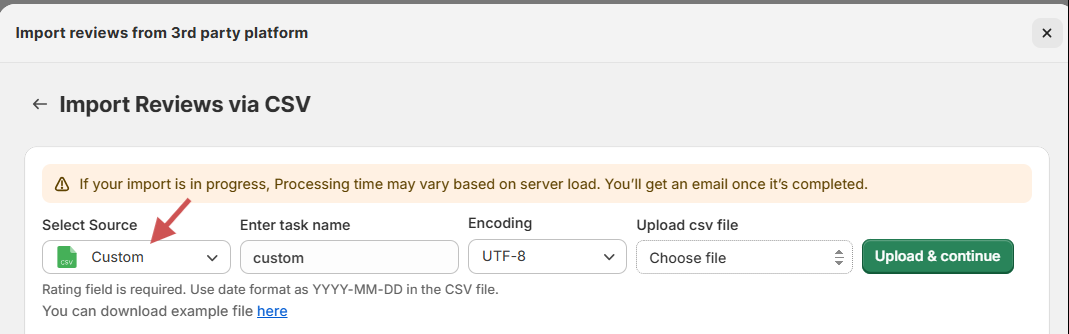
Once your CSV is ready:
1. Open your WiserReview dashboard
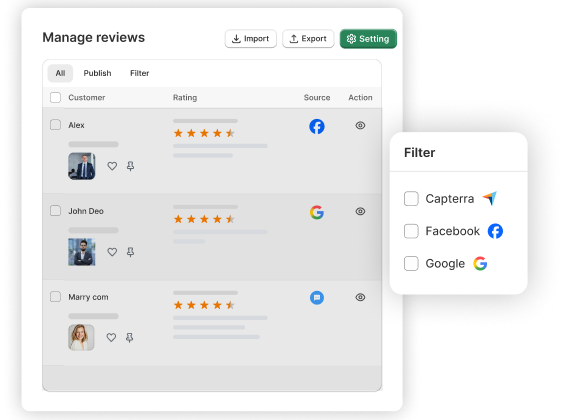
2. Go to the Manage Reviews section.
3. Click Import via CSV
4. Upload your file
During field mapping, match each column in your CSV with the correct WiserReview fields:
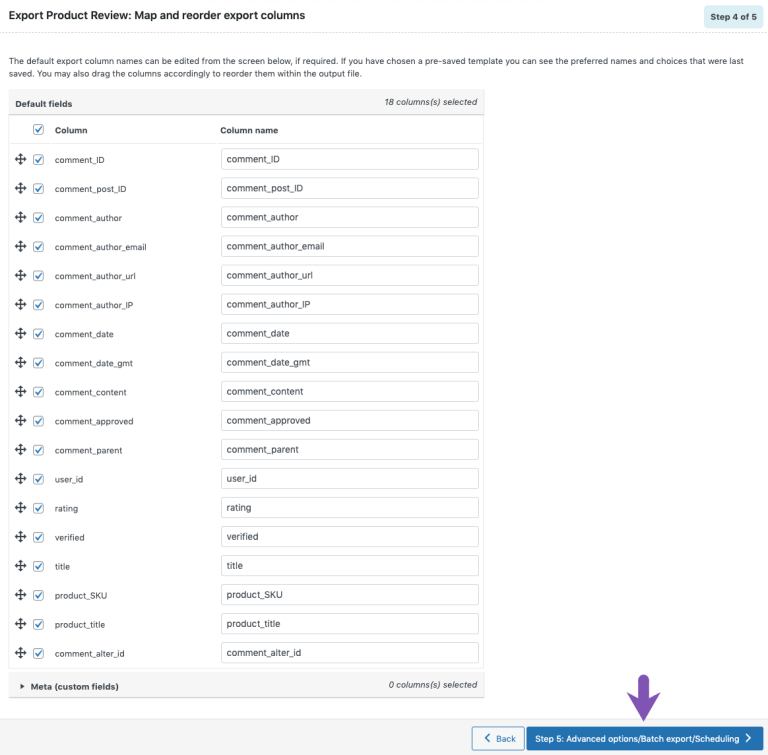
- Review Text → review_text
- Rating → rating
- Reviewer Name → reviewer_name
- Image → image_url
- Product → product_id
5. Complete the import
6. Go to each product in WiserReview to confirm the reviews are linked correctly.
How to display imported reviews
Once your AliExpress reviews are imported through CSV, the next step is to show them on your store in a way that builds trust and supports sales.
This is where the WiserReview plugin becomes a powerful tool for WooCommerce users.
WiserReview doesn’t just store your reviews; it gives you a complete set of tools to moderate, style, organize, and publish them anywhere on your site using widgets.
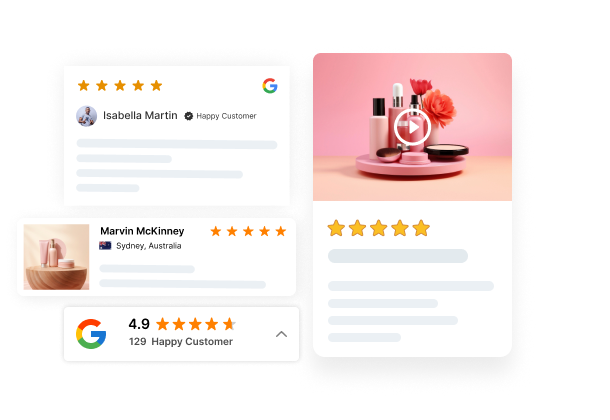
WiserReview offers customizable widgets to display imported reviews on product pages, landing pages, or pop-ups.
How It Works:
1. Go to the Widgets module in WiserReview
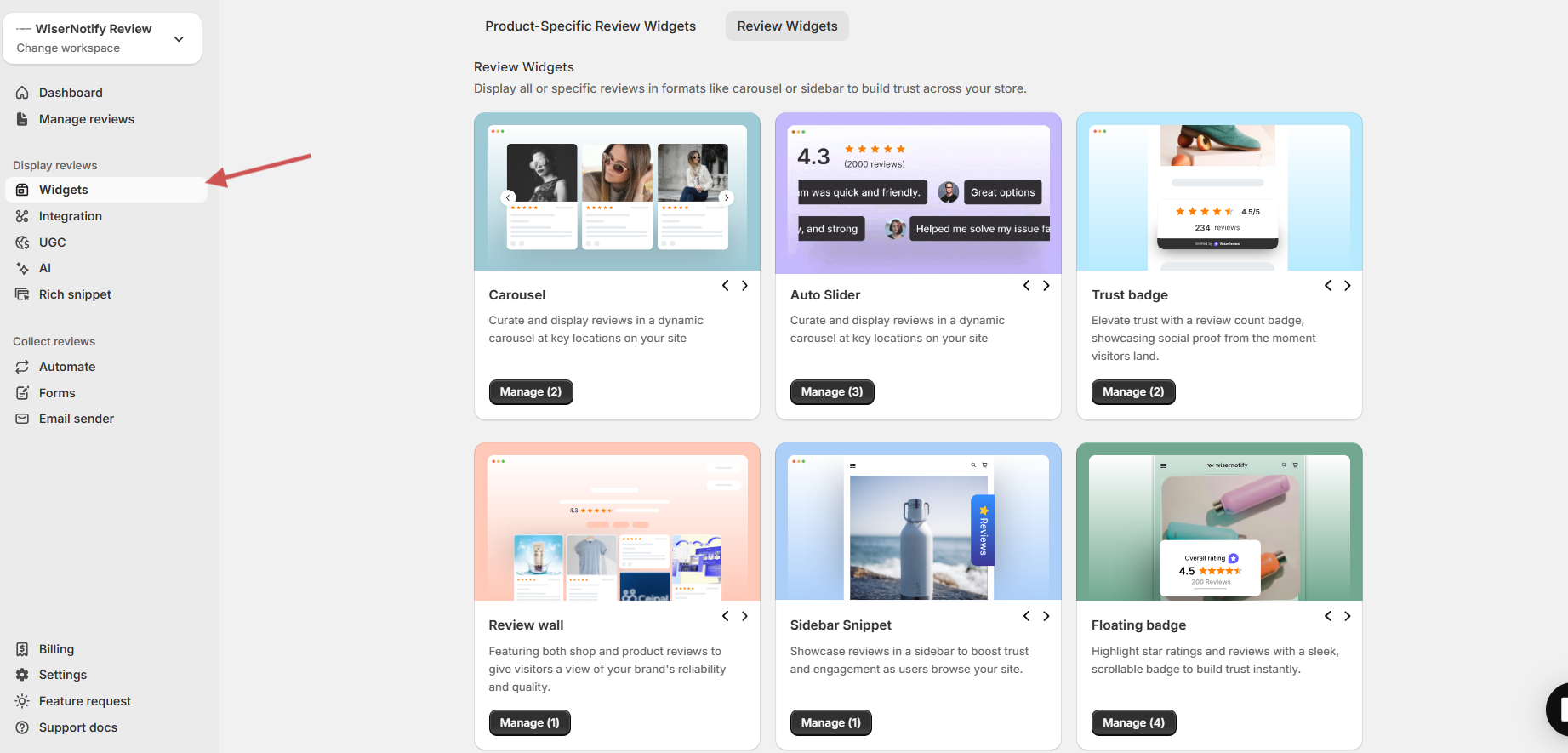
2. Choose from types like:
- Carousel Widget – A horizontal scroll slider
- Floating Popup – A small box that pops up on the side of the screen
- Trust Badge – A compact star rating badge
- Review Wall – A full-page layout showing multiple reviews
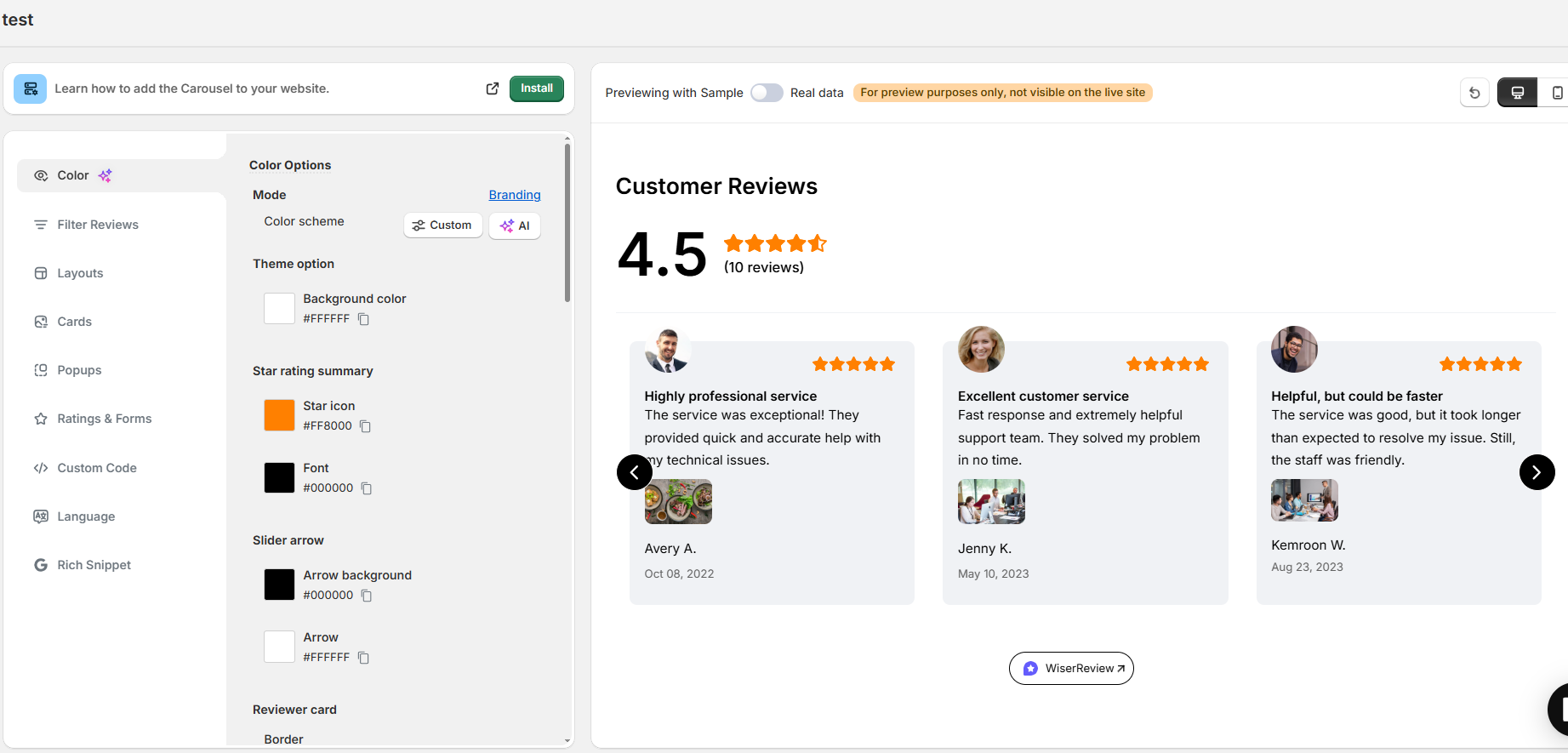
3. Customize font, layout, colors, and what type of reviews show (e.g., with images, by tag)
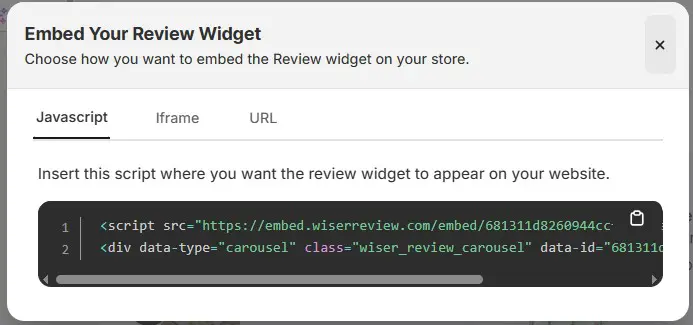
4. Embed using shortcode or auto-install if you’re on Shopify/WooCommerce.
5. Preview and save
Key Benefits:
- Works instantly with your imported reviews
- Fully customizable look and feel.
- Increases trust with visuals, stars, and social proof
- Built-in moderation and tagging
Use Cases:
- Ecommerce stores: Show social proof under product pricing
- Coaching or digital offers: Highlight client results via carousel widget
- B2B: Use the floating pop-up to display testimonial quotes sitewide

All your reviews in one place
WiserReview helps you collect, manage, and display reviews without high costs.
How to optimize imported reviews for your store
Once your reviews are imported and displayed, it’s worth taking a little extra time to polish them. Here are a few simple ways to make the most of them:
Filter for quality
Start by reviewing the imported content. Not every review is worth showing. Some may be too short, poorly written, or irrelevant to your audience.
You can:
- Remove low-star or spammy reviews
- Highlight reviews that include photos
- Filter based on keywords or languages
This helps you present only helpful and relevant feedback.
Moderation and editing
Editing can make a big difference. Fix grammar issues, shorten overly long reviews, or translate content if needed.
It keeps things readable and professional without changing the reviewer’s message.
Display design
How reviews are shown matters just as much as what they say. Use a layout that fits your site and makes reviews easy to scan, whether it’s a slider under the product info or a wall of reviews on a dedicated page.
Look for features that let you:
- Choose what details to display (name, rating, photo, date)
- Match colors and fonts to your store’s style.
- Decide how many reviews show at once
SEO benefits
Well-structured reviews can help your site show up more in search engines.
When reviews are marked up correctly, Google can display star ratings in search results, which can improve clicks to your store.
Ongoing review collection
Imported reviews are a good start, but fresh feedback from your actual customers adds more value over time.
Set up a system to collect reviews automatically after purchase by email, SMS, or even through WhatsApp, and consider offering a small incentive to encourage responses.
Tools like WiserReview make this easier by combining moderation, layout control, automation, and SEO support in one place.
However, whichever tool you use, staying consistent with review collection and presentation is what makes the difference.
Common pitfalls & troubleshooting

Plugin compatibility issues
- Check if the import plugin works with your WordPress version
- Some themes may conflict with the review display.
Review import mismatches
- Imported reviews may not link to the right product.
- CSV headers might not match your plugin’s requirements.
Performance issues
- Large volumes of reviews can slow down your site.
- Use lazy loading or limit reviews per page with WiserReview’s widget settings.
Legal or credibility concerns
- Always check if imported reviews follow local business laws.
- Don’t claim they came from your customers if they didn’t
- Use tagging (via WiserReview’s Tag List module) to label imported reviews clearly.
Conclusion
Importing reviews from AliExpress can boost your WooCommerce store’s credibility fast.
But for long-term success, you need tools that help you moderate, display, and grow honest, high-quality customer feedback.WiserReview is built for that.
From beautiful widgets to smart automation and moderation filters, it helps you turn imported and genuine reviews into social proof that sells.
Frequently asked questions
Yes. WooCommerce does not support this by default, but you can import AliExpress reviews using a CSV file and then upload them into a plugin like WiserReview for proper display and moderation.
Yes. Each review must include the correct WooCommerce product ID so the system knows which product the review belongs to. Without this, your reviews will not link properly.
Go to Products in your WordPress dashboard and check the ID column next to each product title. If the ID is not visible, enable it from Screen Options at the top of the page.
Yes. After importing the CSV into WiserReview, you can edit text, adjust formatting, remove low-quality reviews, and filter content before making it public.
You can create a widget inside WiserReview, choose how you want the reviews to look, and place it on your product pages using a shortcode or auto‑install option. This lets you display reviews in sliders, popups, badges, or full-page layouts.

Krunal