4 min
4 min 
When you move your store from Etsy to WooCommerce, your reviews should move with you.
Reviews build trust and help new customers feel confident about your products, so keeping them is important.
This guide shows how to transfer Etsy reviews into WooCommerce step by step.
You’ll learn how Etsy stores reviews, what WooCommerce needs, and how to import everything with WiserReview using a simple CSV file.
Understanding the basics

What counts as a review and where it lives on Etsy
A review on Etsy includes the rating, review text, customer name, review date, and optional photos. Etsy stores these reviews inside your Etsy account.
You can export them as a CSV file if you want to move them to another platform.
How WooCommerce handles reviews
WooCommerce stores reviews directly inside WordPress as comments with star ratings. Each review links to a product through its product ID.
If the product ID does not match, the review will not show up on the right product page.
Key terms & tools to know
- CSV file: A spreadsheet used to export and import review data
- Product ID/SKU: The unique number that links a review to the right product
- WiserReview plugin: A review platform that lets you import reviews and show them with clean widgets.

All your reviews in one place
Collect reviews, manage every response, and display them where they matter most.Prepare your store for import
Before you move your Etsy reviews into WooCommerce, your store needs a quick check so the import goes smoothly and is clean. A little setup here saves a lot of fixing later.
1. Audit your Etsy reviews
Download your Etsy review export. Check for missing names, empty text, or broken dates. Remove anything you do not want to display.
2. Ensure matching products in WooCommerce
Every review needs to match the correct WooCommerce product. Make sure each item in your CSV has the WooCommerce product ID or SKU in place.
3. Backup your store and reviews
Create a quick backup of your WordPress database.
This gives you a safe copy in case you want to undo changes later.
Step-by-Step Method for Importing Etsy Reviews
Before you import reviews into WooCommerce, you need the review file from Etsy. Etsy allows sellers to download all reviews as a CSV file through the Shop Manager.
How Etsy sellers export their reviews
Etsy gives you a built-in option to download your reviews. The process is simple:
- Log in to your Etsy account
- Open Shop Manager
- Go to Settings
- Click Download Data
- Select Reviews from the export options.
- Click Download CSV
This file contains the rating, review text, buyer name, date, and any media details. It does not include WooCommerce product IDs, so you will add them while preparing the file.
You already have the Etsy CSV file exported. Now you only need to prepare it and import it into WooCommerce using WiserReview.
Step 1: Prepare your CSV file

Open your CSV file and follow these steps. And if you’re creating the file manually, make sure your CSV includes the following columns:
- review_text – The actual review content.
- Rating – Star rating (1 to 5).
- reviewer_name – Name of the reviewer.
- image_url – If the review includes a photo.
- product_id – This must match the WooCommerce Product ID in your store.
Make sure each row clearly connects to the correct product by using the exact product ID from your WooCommerce catalog.
How to Find WooCommerce Product ID

To find the product ID for each item in your WooCommerce store:
- Go to your WordPress admin dashboard
- Click on Products in the left menu.
- You’ll see a list of all your products.
- In the product list, look at the “ID” column next to the product title.
- Note down or copy that number. This is your Product ID.
If you don’t see the ID column:
- Click on Screen Options (top right corner of the Products page)
- Check the box labeled ID.
- Click Apply now, and the ID column will be visible.
Step 2: Upload the CSV into WiserReview
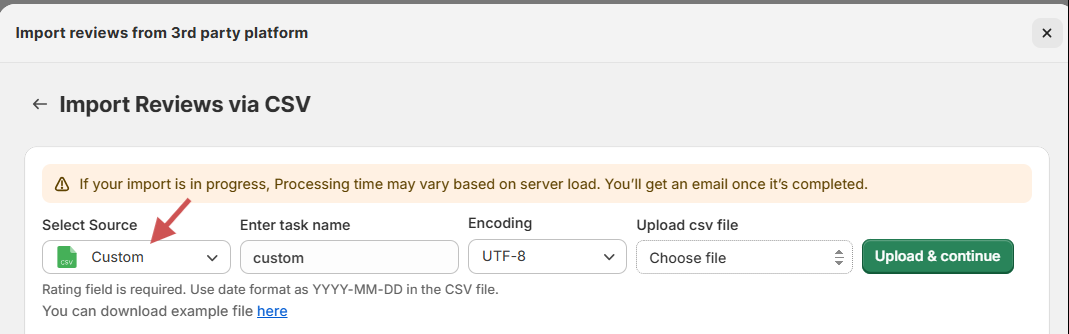
Once your CSV is ready:
1. Open your WiserReview dashboard
2. Go to the Manage Reviews section.
3. Click Import via CSV
4. Upload your file
During field mapping, match each column in your CSV with the correct WiserReview fields:
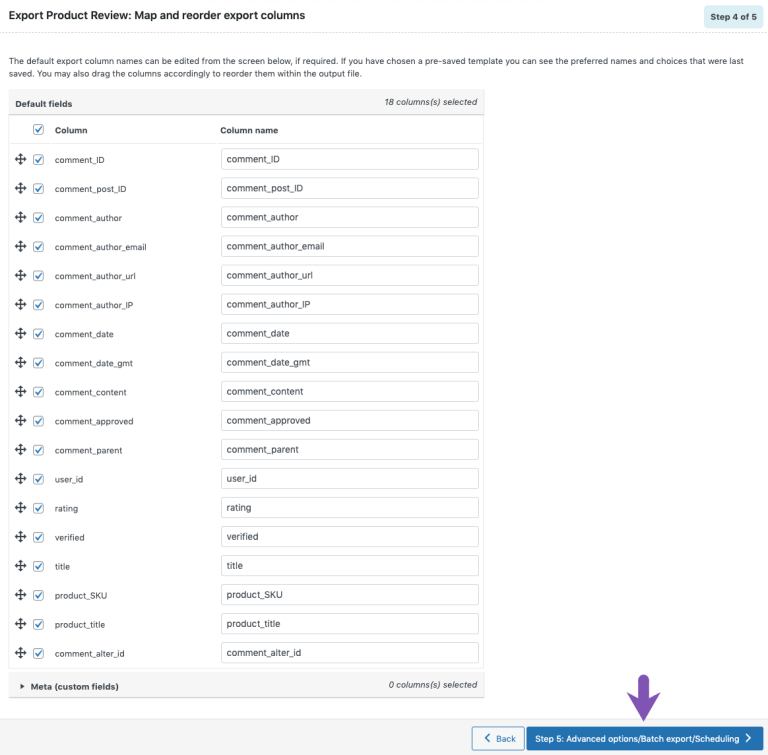
- Review Text → review_text
- Rating → rating
- Reviewer Name → reviewer_name
- Image → image_url
- Product → product_id
5. Complete the import
6. Go to each product in WiserReview to confirm the reviews are linked correctly.
WiserReview will process the file, match reviews with products, and insert them into your review system.
Step 3: Display imported reviews
Once your Etsy reviews are imported through CSV, the next step is to show them on your store in a way that builds trust and supports sales.
This is where the WiserReview plugin becomes a powerful tool for WooCommerce users.
WiserReview doesn’t just store your reviews; it gives you a complete set of tools to moderate, style, organize, and publish them anywhere on your site using widgets.
WiserReview offers customizable widgets to display imported reviews on product pages, landing pages, or pop-ups.
How It Works:
1. Go to the Widgets module in WiserReview
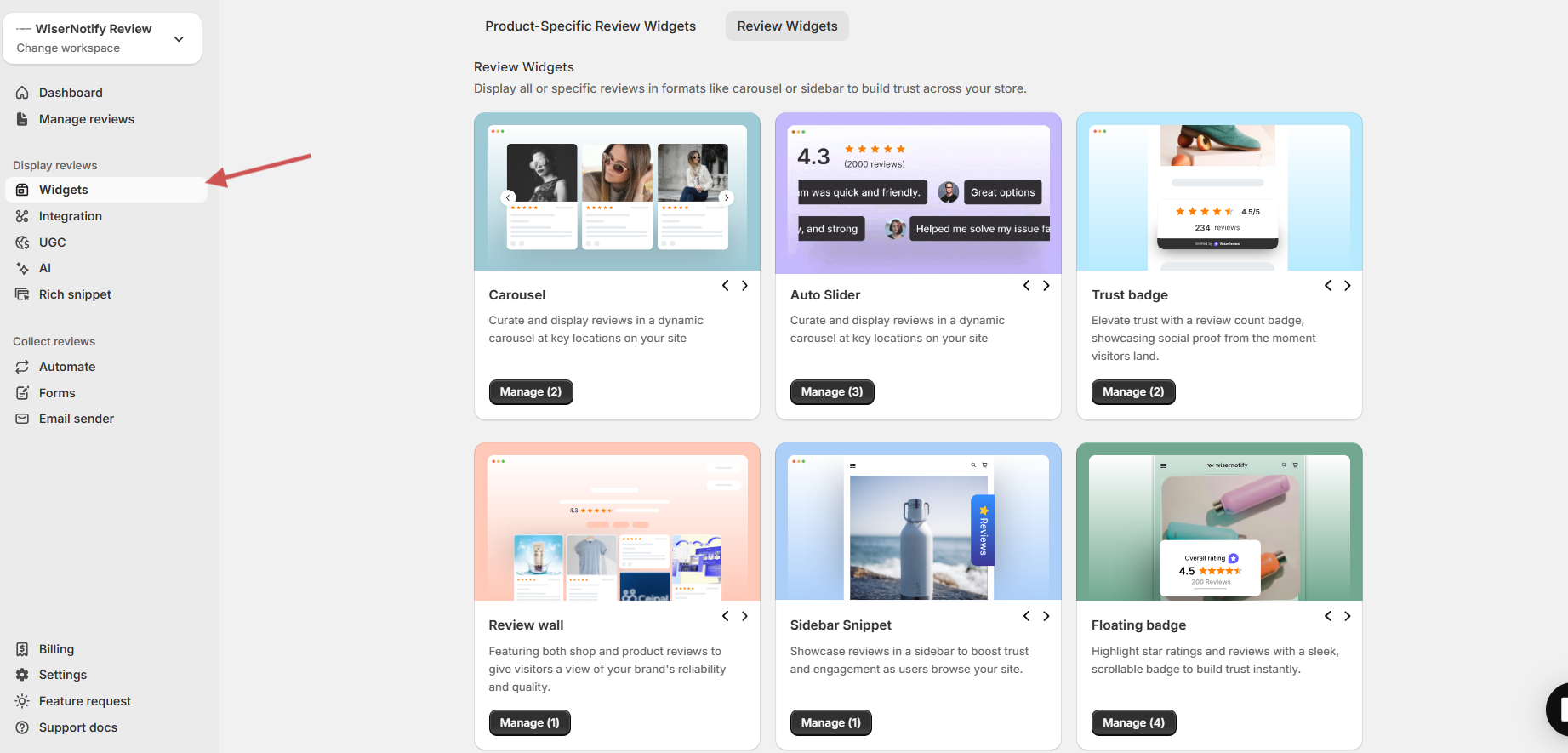
2. Choose from types like:
- Carousel Widget – A horizontal scroll slider
- Floating Popup – A small box that pops up on the side of the screen
- Trust Badge – A compact star rating badge
- Review Wall – A full-page layout showing multiple reviews
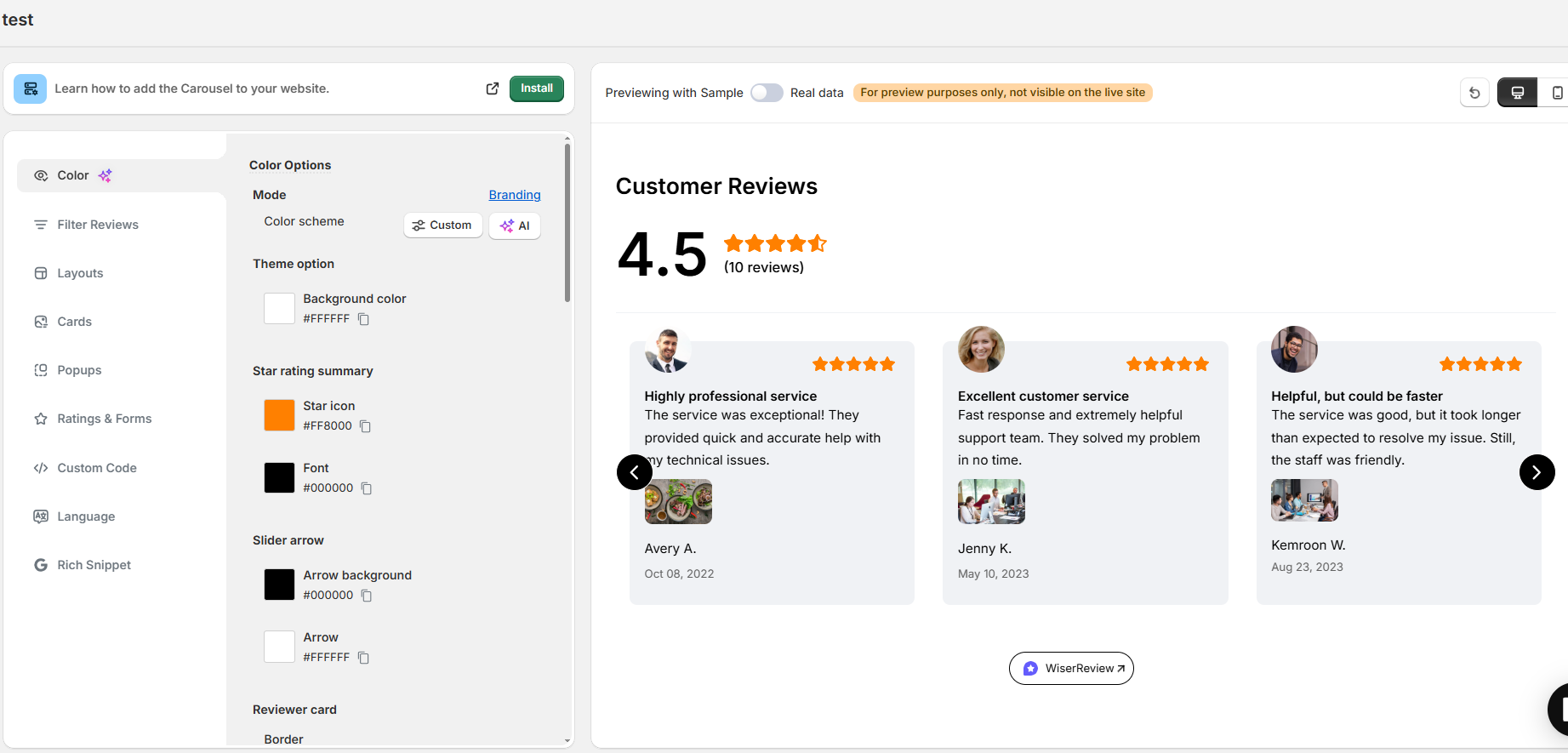
3. Customize font, layout, colors, and what type of reviews show (e.g., with images, by tag)
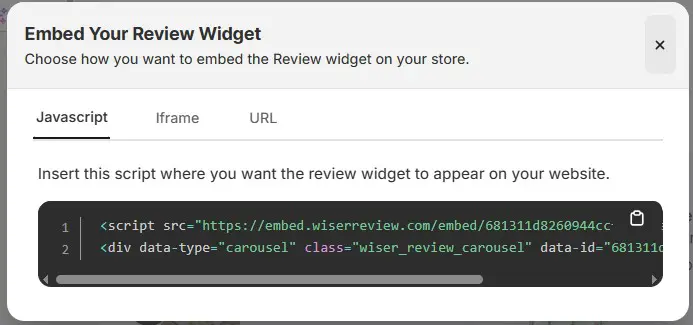 4. Embed using shortcode or auto-install if you’re on Shopify/WooCommerce.
5. Preview and save.
You can also display reviews through the WiserReview plugin settings.
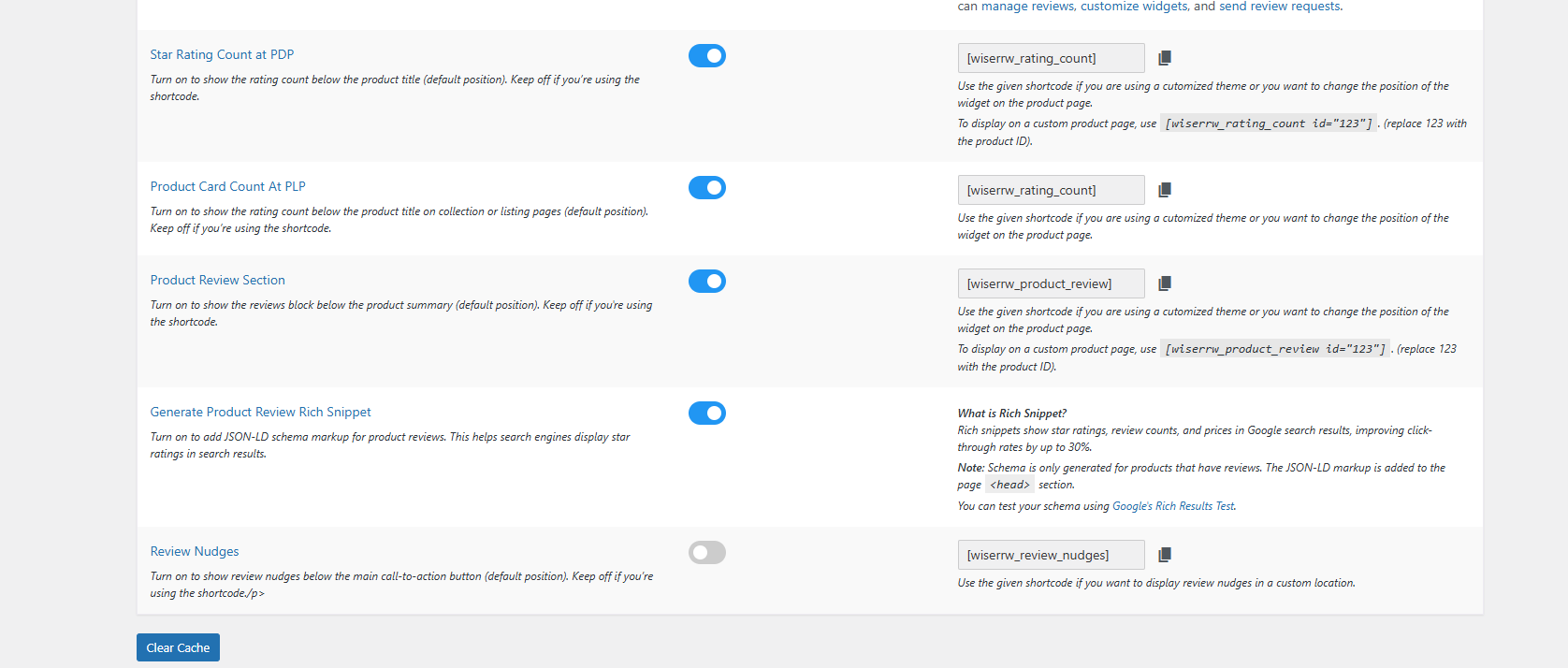
If you do not want to place widgets manually, WiserReview can show your imported reviews automatically using its built-in options.
These settings control the star rating, review section, rich snippets, and more. You only need to turn them on once, and the plugin will handle the placement on your product pages.
Here’s what you can enable:
- Star Rating Count at Product Page – Shows the total rating below the product title.
- Product Card Rating Count at Listing Pages – Shows rating on category or collection pages.
- Product Review Section – Displays the whole review block under the product summary.
- Review Nudges – Adds small review highlights near the add-to-cart button.
- Rich Snippet Markup – Adds schema data so Google can show star ratings in search results.
All these options work with your imported Etsy reviews. Once you switch them on, the reviews will appear in the right places without adding any shortcode.
These settings save time, especially if you have many products or use a theme that follows WooCommerce’s default layout.
Step 4: Check the output
Visit a few product pages to make sure the reviews display correctly.
Check for:
- Correct text
- Proper rating
- Customer name
- Photo/video attachments


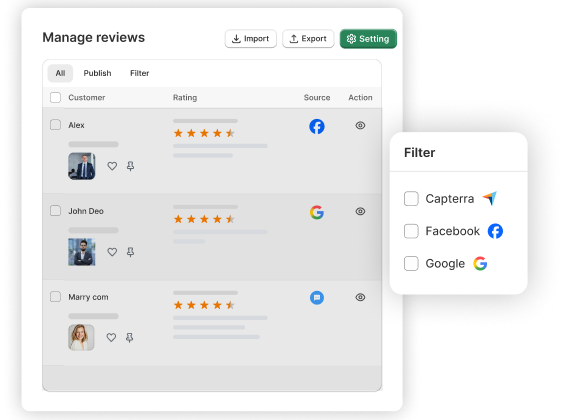
All your reviews in one place
WiserReview helps you collect, manage, and display reviews without high costs.
Where to Place Imported Reviews on Your Site
On individual product pages
This is the best place to show your Etsy reviews.
Shoppers look for proof before buying, so placing the review block near the description or add-to-cart button helps them trust the product.
WiserReview displays ratings, text, and media in a clean layout that works with most themes.
On the homepage or landing pages
You can show a small slider or a few top reviews on your homepage.
This helps new visitors feel more confident when they first arrive.
Pick reviews that highlight quality or service.
In the marketing materials or testimonials section
A testimonials page is a good place to show a long list of reviews.
This works well for buyers who want more details before they decide.
If your Etsy reviews include photos or videos, this is the right place to display them.
5 Common Issues & Troubleshooting

1. Wrong product IDs cause missing or misplaced reviews
If the product ID in the CSV does not match the WooCommerce product ID, the review will not show.
Recheck product IDs and reimport.
2. Duplicate reviews appear after repeated imports
If you import the same CSV twice, you might see duplicates.
Remove old entries or clean your CSV before importing again.
3. Widget shows, but reviews aren’t in the backend
Make sure the reviews are imported into WiserReview, not the default WooCommerce review system.
4. Plugin issues caused by old Etsy API settings.
Since you are using CSV import, this issue does not affect you. The Etsy API does not matter during CSV import.
5. Reviews vanish after product ID or SKU changes.
If you change the product ID or SKU after import, reviews lose their link.
Update your CSV and reimport, or restore the product ID.
When to consider migration or an upgrading approach
If your Etsy store has many products or a large number of reviews, the import process needs a bit more planning.
Bigger stores often deal with long CSV files, mixed SKUs, and older product data, so preparing everything properly helps avoid mistakes.
Using mapping tools to match SKUs and product IDs can save time, especially when product names on Etsy and WooCommerce are not the same. Bulk editors also help you clean and format your CSV quickly.
For very large imports, WiserReview can make the process easier because it reads bigger CSV files smoothly, maps fields clearly, and shows errors if something is missing.
The system also helps you organize imported reviews, group them by product, and manage media files without manual work.
If you still feel the file needs deeper cleanup or you have many variations, getting help from a developer can speed up the setup.
A clean and well-prepared structure always gives better results during import and display.
Wrap up
Importing Etsy reviews to WooCommerce is easy when you understand how both systems store reviews.
You only need a clean CSV file, correct product IDs, and an easy tool like WiserReview.
Once you import your data and place the widgets, your store will show trusted reviews right away.
Frequently asked questions
You can import reviews manually through the database, but it is slow and risky. Using a plugin like WiserReview is safer because it handles mapping, images, product IDs, and display widgets for you.
No. Etsy only exports the rating, review text, buyer name, date, and media details. You must add the matching WooCommerce product IDs to your CSV before importing.
The review will not appear on the correct product page. Fix the product ID in the CSV and reimport the file. WiserReview will update the review to the right product.
Yes. If your Etsy export includes image URLs, WiserReview can import them. Make sure the image link is in the right column before uploading the CSV.
Yes. When you enable rich snippets in WiserReview, your product ratings can show in Google search results. This improves trust and may increase clicks.

Krunal