5 min
5 min 
You’ve spent time collecting customer reviews, but they’re not appearing on your store.
Frustrating, right? This happens more often than you think, and the good news is that most Yotpo reviews reveal issues delaying from a handful of common causes.
Whether it’s an installation pause, unpublished reviews, or a product ID mismatch, we’ll walk you through exactly how to identify and fix the problem.
Let’s solve it one by one so your store shows all the reviews you’ve earned.
6 Main reasons Yotpo reviews don’t show up with fix
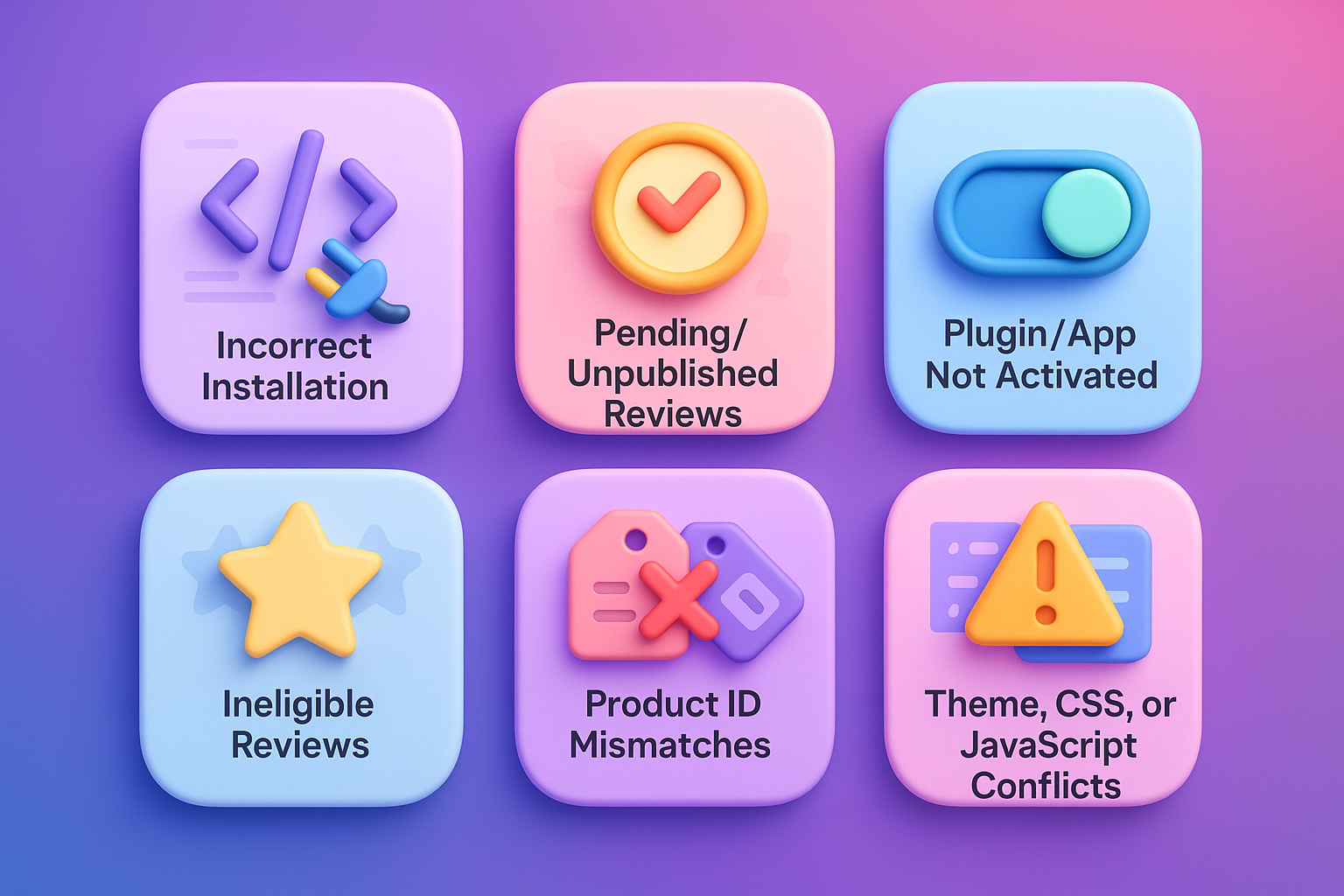
Understanding why your Yotpo reviews aren’t displaying is the first step to fixing them. Below are the most common issues store owners face, along with clear solutions.
1. Incorrect installation or wrong app key
The main JavaScript code linking your store to Yotpo might be missing or using the wrong account key. The Yotpo script isn’t in your site’s source code, or it’s got the wrong app key in there.
Fix:
Verify the App Key: Take a look at the source code on one of your product pages – just right-click and pick “View page source”. Then use Ctrl+F (or Command+F) to search for “Yotpo”. Make sure your app key is in there and correct.
Reinstall the Code: If the key is wrong or missing, you must reinstall the main JavaScript and the Reviews Widget code.
Follow the specific installation guide in the Yotpo Help Center for your e-commerce platform (Shopify, WooCommerce, etc.). Ensure the Yotpo module/plugin is activated in your platform’s backend.
All your reviews in one place
Collect reviews, manage every response, and display them where they matter most.
2. Reviews are unpublished or pending
Reviews need to be published within your Yotpo Admin to be visible on your storefront.
Note: Newly published reviews can take up to 4 hours to appear.
Fix:
- Log in to your Yotpo Reviews admin.
- Navigate to the Moderation panel.
- Locate the missing reviews and ensure their status is set to Published.
- For automatic publishing, go to Emails > Email Setup and check your auto-publish settings.
- Clear your cache (browser, site, and CDN cache) after publishing to ensure the fastest update.
For more information about moderating reviews and publishing them, see here.
3. Yotpo plugin/app not activated
Honestly, this one is pretty self-explanatory. The connection between your store and Yotpo can’t happen if the plugin or app is disabled in your e-commerce admin panel.
If disabled, Yotpo cannot pull order data to send review requests or inject the necessary code onto your product pages to display existing reviews.
Fixes by Platform
Follow the steps for your specific platform to ensure the plugin or app is correctly activated:
For WooCommerce / WordPress Users
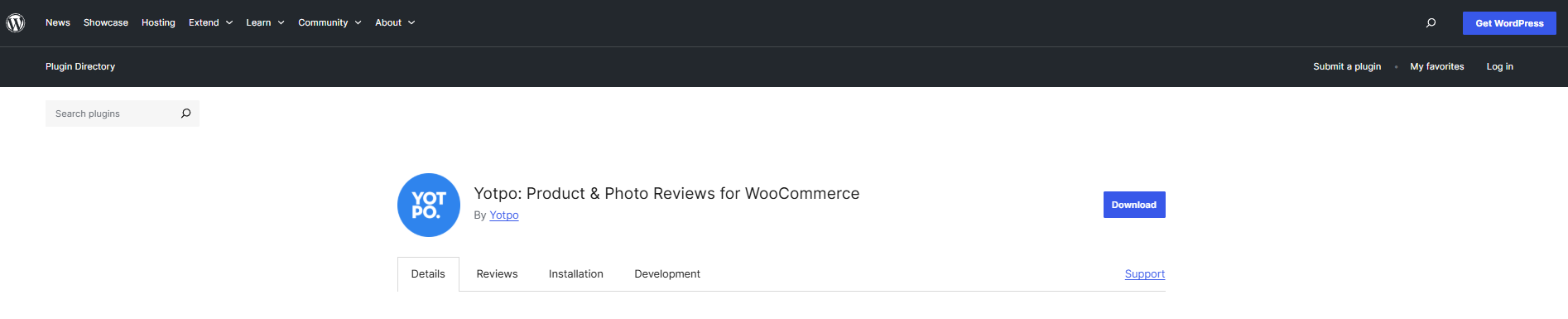
- Log in to your WordPress/WooCommerce admin panel.
- Navigate to Plugins > Add Plugins.
- Search to find “Yotpo: product and photo review for WooCommerce.”
- Verify that the status is listed as Active. If you see an “Activate” prompt, click it to enable the plugin.
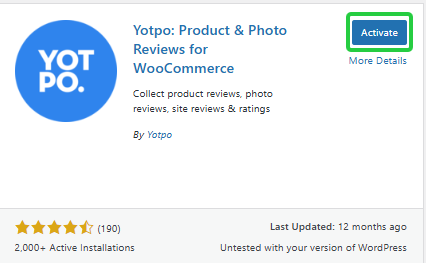
5. After activation, check the Yotpo settings in your WooCommerce menu to ensure your App Key and Secret Key are correctly entered and that the settings are saved.
For Shopify Users
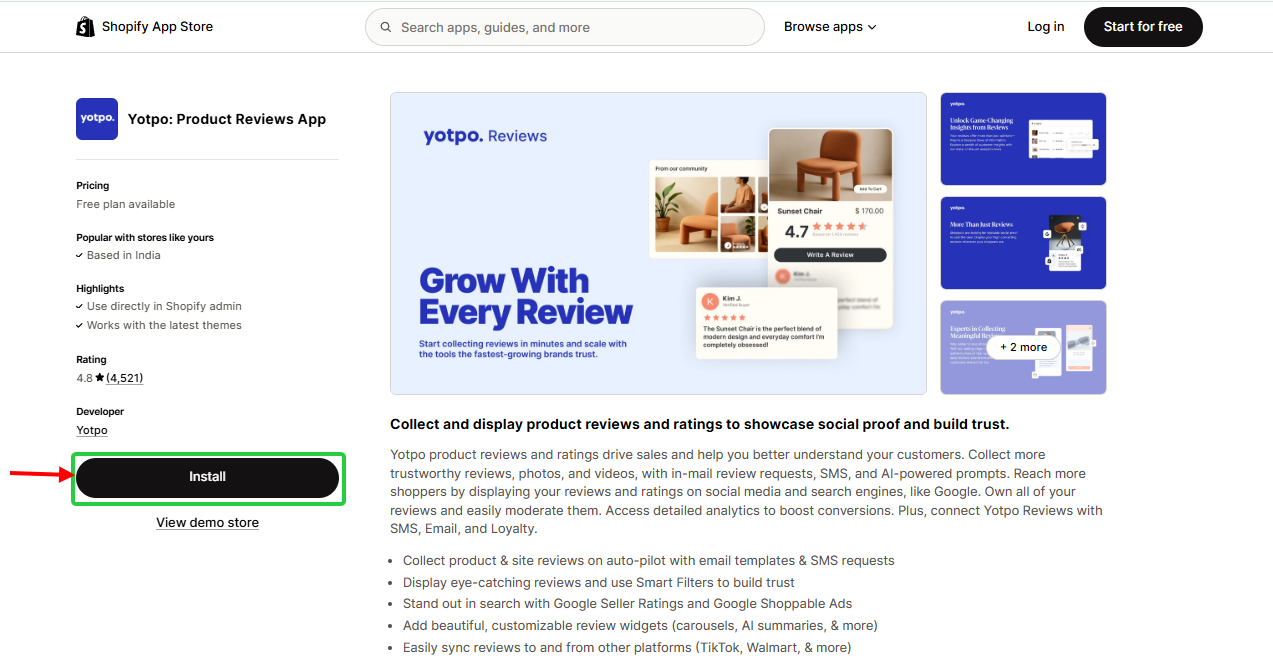
- Log in to your Shopify admin. Go to Apps.
- Ensure the Yotpo Product Reviews & UGC app is present and installed.
- Navigate to Online Store > Themes.
- Click Customize for your current theme.
- In the theme editor, click the menu in the top-left corner and select App embeds (or Theme Settings > App embeds).
- Locate the Yotpo Reviews embed block and ensure the toggle is switched to “On”.
- Click Save in the top right corner.
4. Not enough or ineligible reviews
Most of the time, the main Reviews widget on a product page shows an “empty state” or prompts visitors to leave a review even when there are none.
However, some of your secondary widgets – like the Reviews Carousel or Smart Filters – might need a certain number of reviews (e.g., 3 reviews) before they’ll show up.
Enable “Empty State” Display
Fix:
- Go to On-site Widgets > Star Rating in your Yotpo Admin.
- Select the widget for the relevant page type (e.g., Product Page or Category Page).
- Scroll to the Empty State section.
- Toggle “Show when there are no reviews” to On.
- Save changes and clear your website cache.
Verify Review Eligibility for Specific Widgets
If reviews appear in your Moderation panel but don’t appear in a specific carousel or filter, check the eligibility criteria.
Fix:
- The Reviews Carousel requires at least three published reviews.
- Reviews in the carousel must be at least 60 characters long.
- Ensure reviews are product reviews, not site reviews, if the widget is configured for product-specific content.
- Verify the reviews are actually published in your Moderation panel (see previous fixes).

All your reviews in one place
Collect reviews, manage every response, and display them where they matter most.5. Product ID mismatches after product updates
This is one of the trickiest issues. If you updated a product and its ID changed, your existing reviews are still linked to the old ID. The product ID might change, disassociating existing reviews from the current product page.
Fix:
- Identify the current, correct product ID on your e-commerce platform.
- In your Yotpo Admin, use the provided Yotpo guide to update the product ID for the missing reviews. This moves the reviews to the current product ID.
- Alternatively, ensure your theme files use the correct dynamic variable for the product ID (e.g., %%GLOBAL_ProductId%% for BigCommerce, product.id for Shopify).
6. Theme, CSS, or JavaScript conflicts
New themes, custom code, caching tools, or other apps can inject scripts that conflict with Yotpo.
This often causes the widget to load, then disappear, remain blank, or be hidden by CSS rules such as display: none. A minor script conflict is usually all it takes to block the widget from showing.
Fix:
- Clear All Cache: Clear your browser cache, your website’s cache (e.g., WordPress, Shopify), and any CDN cache (e.g., Cloudflare).
- Disable Conflicts: Temporarily disable any recently added plugins/apps, speed optimization services, or custom code snippets. Check if reviews appear when these conflicts are off.
- Use Official Installation: Make sure you’ve installed the Yotpo widget code via the official app/plugin integration (this is usually automatic). Don’t manually paste it into your theme files twice.
- Check for “Display: None” CSS: Use your browser’s “Inspect Element” tool to look for display: none applied to the Yotpo widget container (yotpo-widget) that might be hiding it. Remove or override this CSS.
These technical conflicts are where many store owners get stuck. If you’re not comfortable editing code, platforms like WiserReview offer more straightforward widget customization that works with any properly coded theme without requiring manual code edits.
Wrap up
Yotpo reviews often fail to appear for a few reasons, and most are easy to fix once you know where to look. Check your install, publish your reviews, confirm your product IDs, and rule out any theme or script conflicts.
If you want a smoother setup with fewer technical issues, you can move to a tool like WiserReview. It works clean with modern themes, loads fast, and shows your reviews without extra code fixes.
The goal stays simple. Every review you earn should show on your store and help your products convert.
Frequently asked questions
They are likely unpublished. Open your Yotpo Moderation panel and set them to Published. If needed, turn on auto-publish.
Newly published or imported reviews may take up to 4 hours to appear on the Reviews Widget.
Yes. You can enable the empty state in your Yotpo widget settings so the section shows even when there are no reviews.
This happens when product IDs change. Update the product ID inside Yotpo so the reviews link to the correct product.

Krunal