Running a website on Weebly makes it easy to launch your online presence, but building trust with visitors is a different challenge.
Shoppers want more than polished designs; they want proof from real customers that your business delivers.
Without showcasing reviews, you risk losing credibility. Research shows that 89% of consumers read reviews before buying, and 74% say good Google ratings increase their trust.
Embedding Google reviews directly on your Weebly site with WiserReview helps you create instant trust and guide visitors toward conversions.
Why add the Google review widget to Weebly?
Weebly is popular with small businesses, local pros, and entrepreneurs who need simple yet effective websites. Adding a Google review widget on Weebly can:
Boost trust instantly: Over 80% of consumers turn to Google reviews before engaging with a business.
Increase revenue: Businesses with 25+ reviews see 108% more revenue compared to those with few.
Enhance local SEO: Google review signals (recency, volume, and quality) contribute ~20% to local ranking factors.
Offer social proof: Whether you’re a local shop, freelancer, or service provider, reviews provide confidence that your business is reliable.
For Weebly site owners, embedding Google reviews can turn visitors into paying customers by reducing hesitation.
Build trust with every visitor
In just minutes, display your Google reviews on your Weebly site.
Ok, now that you know the benefits of adding Google reviews, let’s go through the steps to add them to any website or online store.
First, sign up for WiserReview. It has a free plan, and paid plans start at just $9/month.
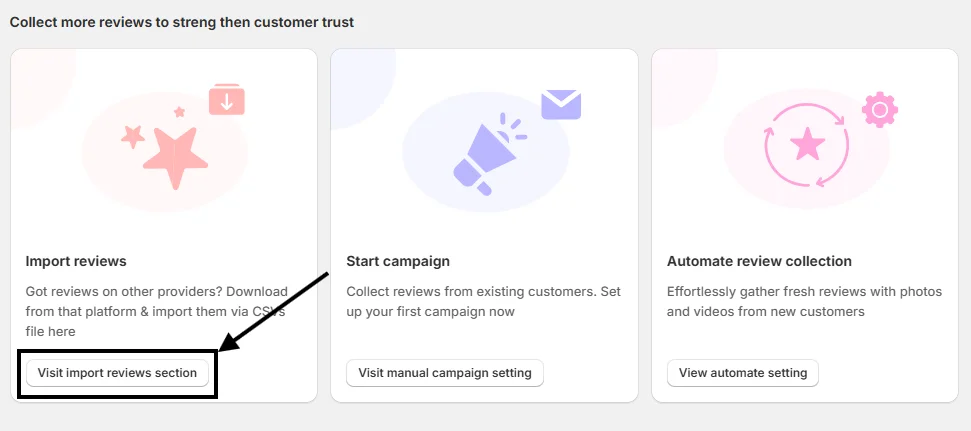
Once your account is created, you’ll land on the WiserReview dashboard. Scroll down a bit, and you’ll see this option:
Click on “Visit Import Reviews Section.”
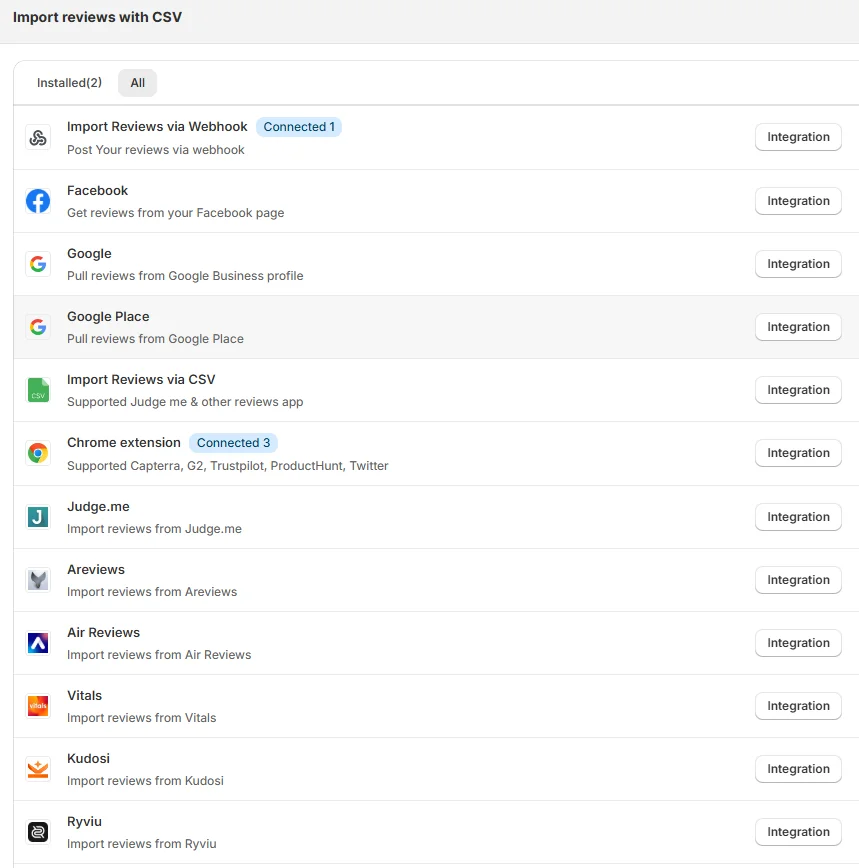
From there, you’ll find many options to pull in reviews. Choose the integration method that works best for you.
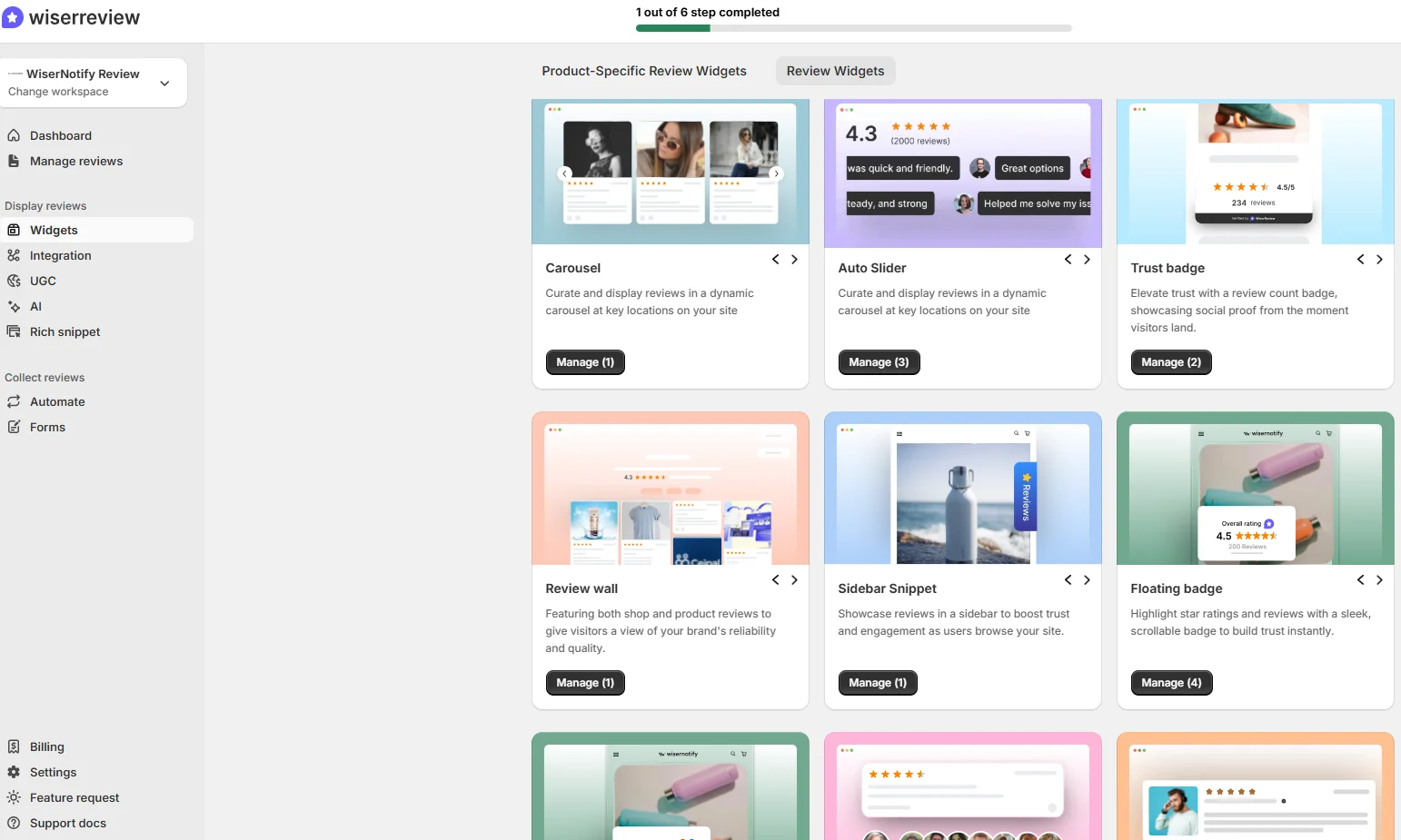
After connecting successfully, go to the Widgets section and select any widget you like.
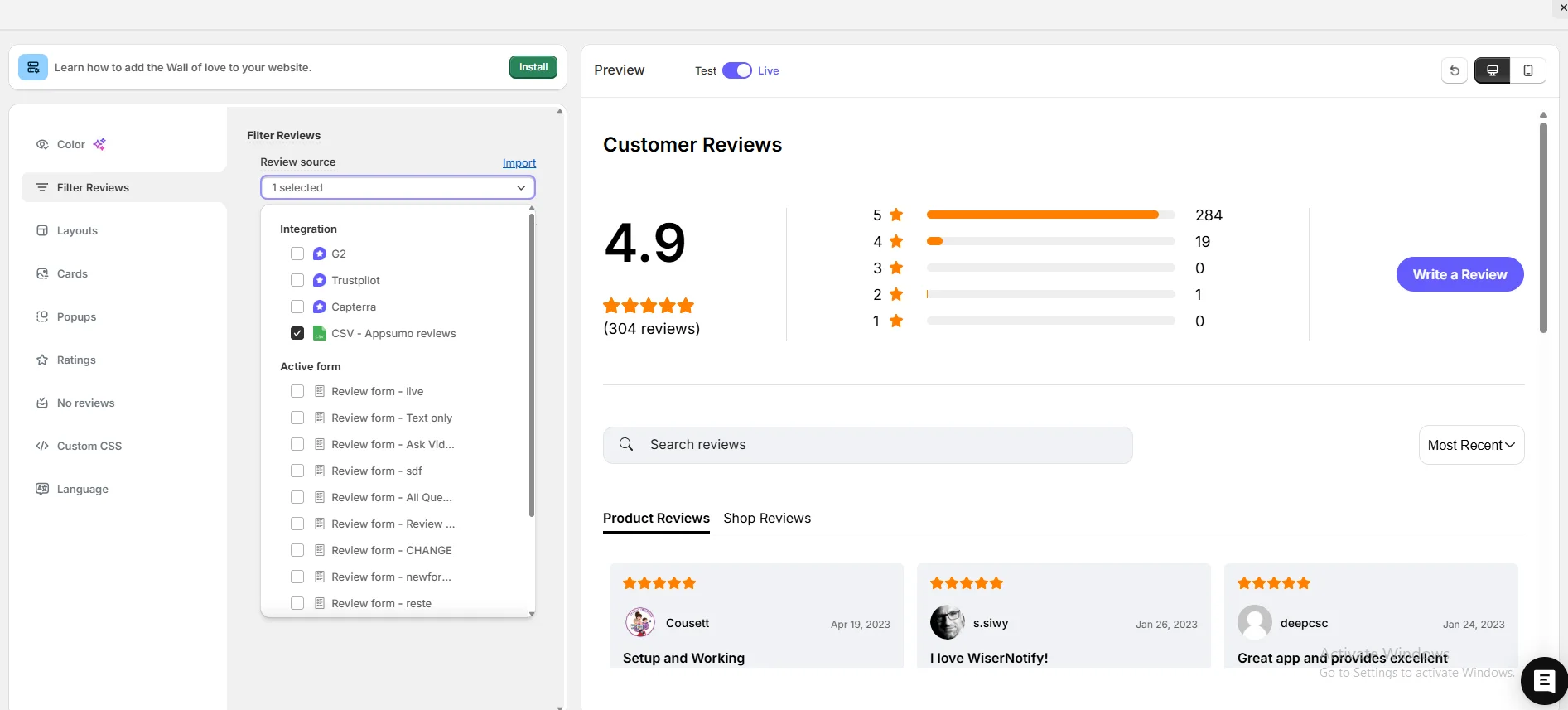
Next, go to Filter Review Options, pick your review source, and start customizing your widget.
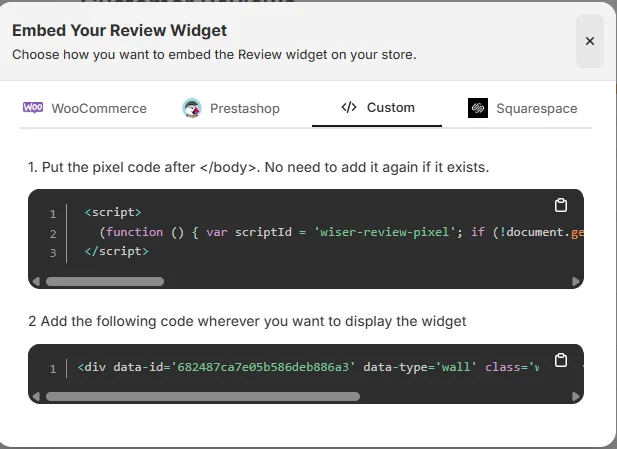
When you’re done customizing, click on Install in the upper-left corner. Copy the code and paste it where you want the Google review widget to appear on your site.
That’s it, your widget is now live and helping build trust and credibility for your site.
And here’s the best part: WiserReview offers multiple Google review widget styles you can choose from.
Plus, WiserReview doesn’t just display Google reviews; it also helps you collect and manage them. It’s a complete Google review management tool.
Here’s a video guide for reference:
How to embed Google reviews in Weebly
Once you’ve created your Google review widget code using WiserReview, embedding it into Weebly is simple:
Log in to the Weebly Dashboard: Open your Weebly editor.
Navigate to the Page Editor: Choose the page where you want reviews to appear.
Drag and Drop an Embed Code Element: From the left-hand panel, drag the Embed Code element onto your page.
Paste the WiserReview Code: Insert the embed code into the HTML box.
Adjust Placement: Position the element where reviews should display (e.g., homepage, service pages, or footer).
Publish Your Site: Click Publish to make the reviews live.
This approach ensures your reviews display responsively and fit seamlessly into your Weebly site design.
Other method to add a Google review
Besides WiserReview, there are a couple of alternative methods:
1. Manual iframe embedding
Benefit: Free and quick.
Problem: Limited customization, poor mobile responsiveness, and requires manual effort.
2. Weebly third-party apps
Benefit: Some apps allow review integrations.
Problem: Many focus on internal testimonials or product reviews, not Google reviews, and can add unnecessary site weight.
WiserReview is a better choice because it syncs reviews automatically, offers customization, and is optimized for Weebly performance.
3 Best Google review widget examples
Now let’s look at the best Google review widget examples from real websites.
1. WiserReview
WiserReview’s Wall of Love showcases a modern, interactive widget. It combines star ratings, written feedback, and even video reviews from users.
Tabs and filters (like Pricing or Support) help visitors explore reviews by category.
This setup not only builds credibility but also makes it easy to highlight different aspects of customer experience.
2. Hotel Tashidelek
This example shows how Hotel Tashi Delek uses a clean Google review widget to display guest feedback.
The section highlights an overall rating of 4.4 stars from 1,458 reviews and showcases individual guest stories.
The design blends well with the hotel’s branding while making it easy for visitors to read reviews or write their own.
3. Perfect Gift
PerfectGift.com uses a Google Verified Reviews widget to build trust.
The layout features a bold headline, overall star rating, and multiple customer reviews displayed in a grid format.
It also includes a call-to-action button that encourages new customers to leave reviews, helping the brand continue to generate fresh feedback.
5 Google review best practices for Weebly
To make the most of Google reviews on your Weebly site, follow these best practices:
Place reviews on high-impact pages: Showcase reviews on your homepage, contact page, and service/product pages to reduce hesitation.
Customize widget design: Align review widget colors and fonts with your Weebly template for a polished look.
Display recent reviews first: Fresh feedback matters more to shoppers than outdated comments.
Engage with customers: Responding to reviews shows professionalism. Businesses that reply to reviews see a 16% boost in conversions.
Use carousels for multiple reviews: Instead of overwhelming visitors with too many reviews, rotate them in a slider format for cleaner presentation.
Build trust with every visitor
In just minutes, display your Google reviews on your Weebly site.
Avoid these mistakes when showcasing reviews on your Weebly site:
Only showing 5-star reviews: A mix of positive and occasional neutral reviews looks more authentic.
Forgetting mobile optimization: Many Weebly sites attract mobile visitors. Non-responsive review embeds hurt trust.
Overusing third-party widgets: Too many add-ons can slow down Weebly’s performance. Stick with one reliable tool like WiserReview.
Wrap-Up
Embedding Google reviews on your Weebly site is one of the fastest ways to boost trust, improve SEO, and increase conversions.
While manual iframes and apps exist, they lack customization and reliability. WiserReview offers a seamless, mobile-friendly, and customizable solution designed for Weebly users.
Ready to showcase your best reviews? Use WiserReview today and turn customer feedback into a powerful trust-builder for your Weebly site.
Frequently asked questions
Yes. With WiserReview, you just copy and paste an embed code into Weebly’s drag-and-drop editor.
Yes. WiserReview syncs with your Google Business Profile to display fresh reviews in real time.
Yes. You can place them on homepages, sidebars, service pages, or footers.
No. WiserReview widgets are lightweight and optimized for speed.
Yes. All widgets are responsive and adapt automatically to Weebly templates.
Article by
Krunal
Krunal Vaghasia is the founder of WiserReview and an eCommerce expert in review management and social proof. He helps brands build trust through fair, flexible, and customer-driven review systems. Read more.

 4 min
4 min