6 min
6 min 
Online shoppers heavily depend on product reviews to make informed purchase decisions. Positive feedback builds trust and credibility, while negative or missing reviews can lead to hesitation, or even cart abandonment.
For eCommerce store owners, leveraging Google Product Reviews is a powerful way to showcase social proof and influence buying behavior.
In this article, we’ll explore how to collect, display, and optimize Google Product Reviews to enhance your store’s reputation, improve visibility on Google Shopping, and ultimately drive more sales.
Understanding Google Product Reviews feeds
Google Product Reviews are verified customer ratings and feedback that appear on Google Shopping and in search results.
They are an authentic representation of what real people think of your products, and they help shoppers make buying decisions with confidence.
What are Google Product Reviews & product ratings
| Feature | Google Product Ratings | Google Product Reviews |
|---|---|---|
| What it is | The average star rating (like ★★★★☆ 4.5) based on all customer reviews. | The written feedback and comments from verified customers. |
| Purpose | Provides an at-a-glance view of customer satisfaction. | Shares detailed opinions and authentic experiences. |
| Where it appears | On Google Shopping ads and free product listings. | On Google Shopping listings, business profiles, or linked product pages. |
| How it’s collected | Calculated automatically from submitted review data (requires at least 50 eligible reviews). | Collected directly through Google Customer Reviews or approved third-party partners. |
How they work together;
- Ratings and reviews are closely connected; individual reviews collectively contribute to the overall rating.
- A good star rating, backed by positive reviews, provides social proof that shoppers are onto a good thing, making them more likely to click and buy.
Google Customer Reviews & store ratings
Google Customer Reviews collects feedback from verified customers after they purchase from your store. You’ll get ratings and comments from customers who received a follow-up email from Google.
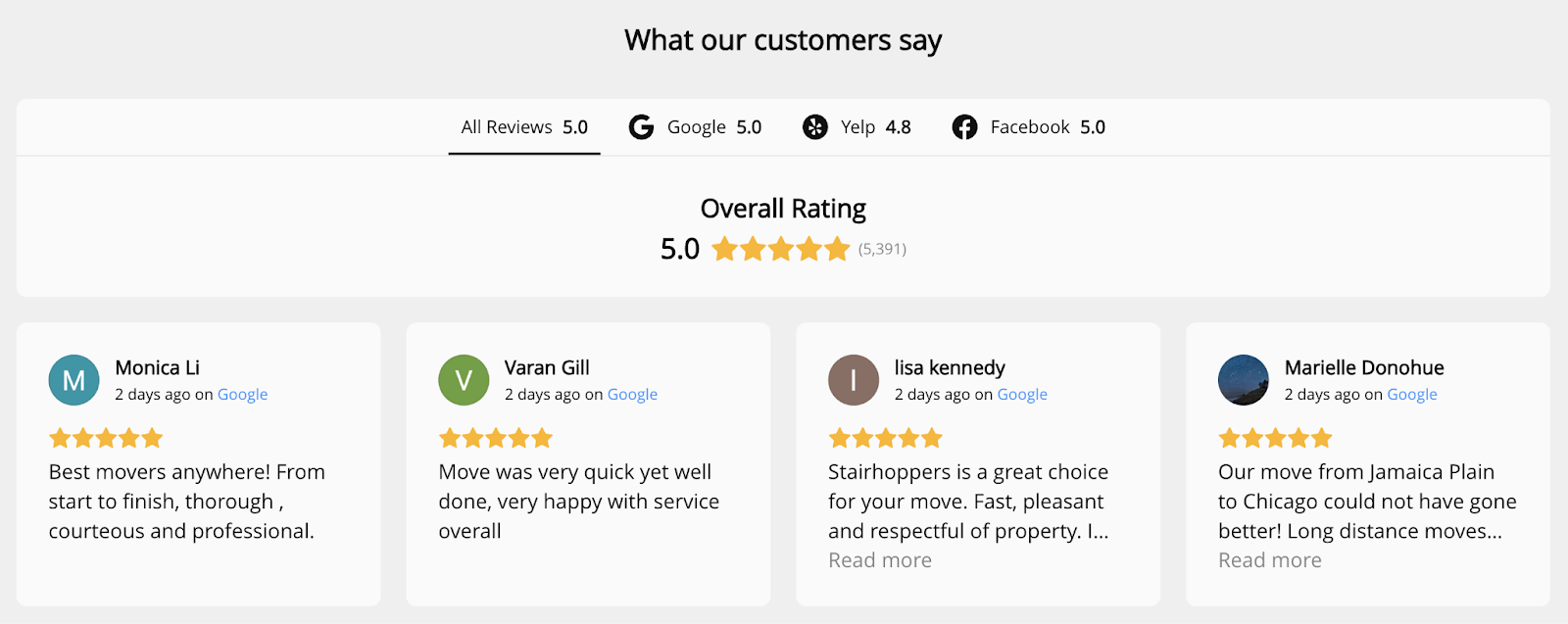
Store Ratings show the overall average rating of your business across all the different review sites on which you’re listed, including Google, Trustpilot, and others. They appear in Google Ads and Shopping listings to help shoppers trust your store before making a purchase.

Google’s policies, eligibility, and best practices
Google’s policies and best practices are pretty straightforward – you have to follow the content standards, protect user data, and play by the rules.
Policies & Eligibility
To show product ratings on Google Shopping, your store must meet Google’s eligibility rules and review policies.
You need an active Google Merchant Center account with Shopping ads, at least 50 total product reviews, and a minimum of 3 reviews per product to display ratings. Product data must include accurate identifiers, such as GTIN, Brand, and MPN (or a valid SKU).
Only verified customer reviews are allowed, and they must be a mix of positive and negative feedback, all in line with Google’s content standards, no fake reviews, spam, or filtered content.
Best Practices
- Ensure that you’re asking every customer to leave a review, not just the satisfied ones.
- Keep your review data up to date by submitting updates on a weekly basis.
- Utilize schema markup to enhance your reviews’ visibility.
- Keep an eye on what people are saying about your products and services, respond to Google reviews, show you care, and build shopper trust.
- Respond to feedback; it shows you’re listening and builds trust with shoppers.

All your reviews in one place
Collect reviews, manage every response, and display them where they matter most.
Start Free →How to collect Google Product Reviews (for your store)
Getting reviews into Google’s system is a bit more involved than just hoping customers will leave feedback on their own. You need a strategy to automate and streamline review collection.
Enroll in Google’s Product Reviews/Product ratings program.
This free Google program helps merchants collect verified customer feedback and display ratings on their products and store listings.
Step-by-Step Setup
1. Enable the feature
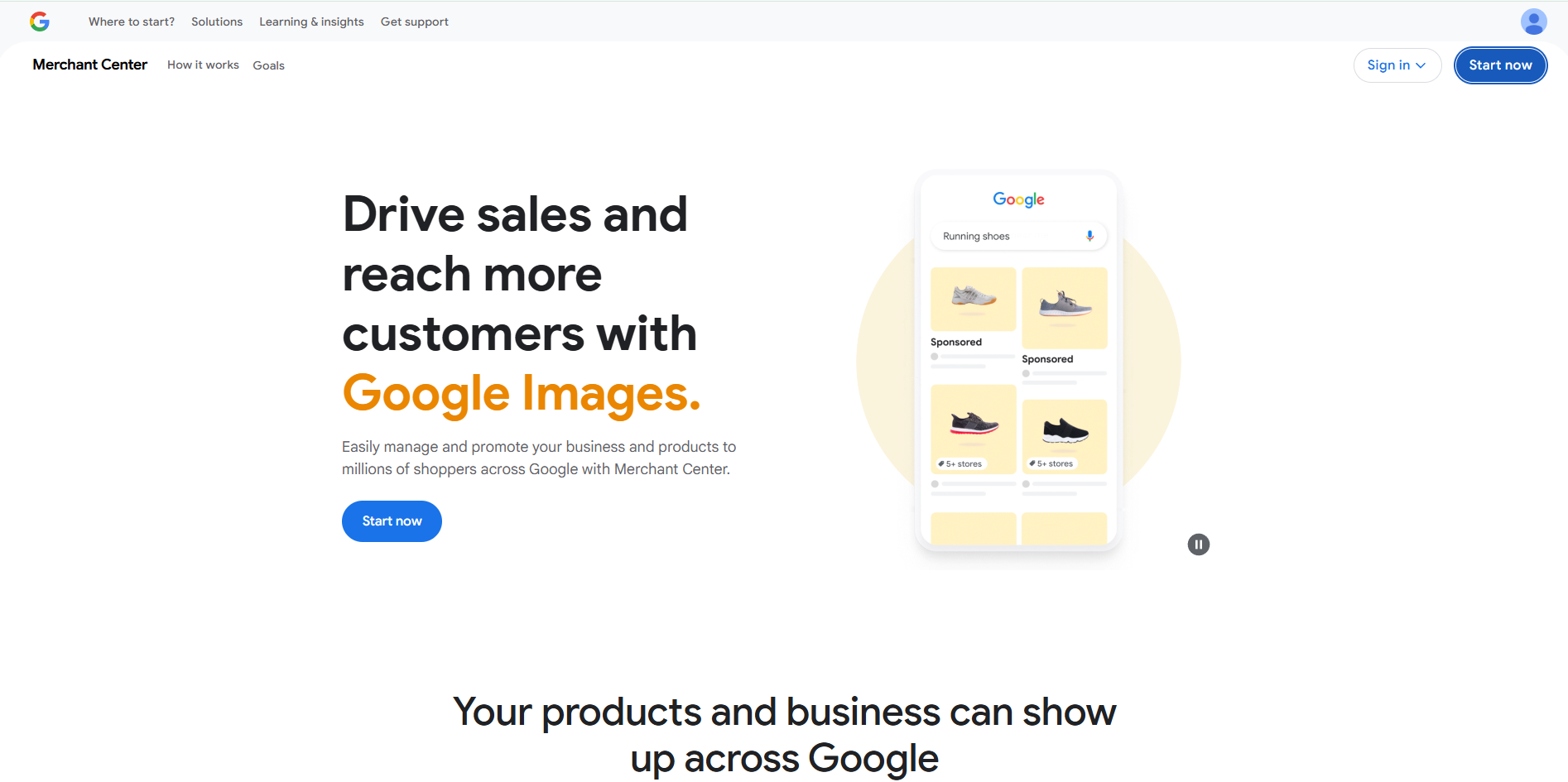
Log in to your Google Merchant Center, go to Growth → Manage programs (or Settings → Add-ons), and click on the Google Customer Reviews card. Then click “Get Started” or “Activate” to turn it on.
2. Integrate the opt-in code.
After activation, Google provides a JavaScript snippet.
Add this code to your checkout confirmation page (also known as the thank-you page).
This shows a survey opt-in box to customers after they place an order.
Setup instructions → https://support.google.com/merchants/answer/14629305
3. Collect reviews via email
Once an order is marked as delivered, Google automatically sends a survey email to the customer asking for feedback and a star rating. To make this work, your store must share customer email addresses and estimated delivery dates with Google.
4. Add product-specific reviews
If you want reviews tied to individual products, add an extra parameter in your opt-in code that includes the product’s Global Trade Item Number (GTIN). This helps Google show item-level ratings on your Shopping listings.
5. Display your reviews
Once enough reviews are collected, you can display the Google Customer Reviews badge on your store.
The badge displays your aggregate store rating, helping to build shopper trust.
6. Wait for onboarding approval.
After setup, Google reviews your integration and the quality of your reviews.
The onboarding process usually takes 7–10 days before ratings start appearing on Shopping ads and listings.
Set Up a Product Review Feed
1. Get accepted into the Product Ratings / Product Reviews program
Submit the Product Ratings Interest Form in your Google Merchant Center. You need at least 50 reviews across all products.
2. Create & Format Feed
Use the XML format with the required fields (GTIN, Brand, MPN, ratings, review text, and date).
Sample Product Review Feed (XML)
<?xml version="1.0" encoding="UTF-8"?>
<feed xmlns:xsi="http://www.w3.org/2001/XMLSchema-instance"
     xsi:noNamespaceSchemaLocation="https://www.google.com/shopping/reviews/schema/product/2.3/product_reviews.xsd">

  <version>2.3</version>

  <aggregator>
    <name>Your Company or Platform Name</name>
  </aggregator>

  <publisher>
    <name>Your Store Name</name>
  </publisher>

  <reviews>
    <review>
      <review_id>12345</review_id>
      <reviewer>
        <name>John D.</name>
      </reviewer>
      <review_timestamp>2025-09-15T10:00:00Z</review_timestamp>
      <title>Excellent quality!</title>
      <content>The product arrived on time and works perfectly. Highly recommend!</content>
      <review_url type="permalink">https://yourstore.com/reviews/12345</review_url>
      <ratings>
        <overall min="1" max="5">5</overall>
      </ratings>
      <products>
        <product>
          <product_ids>
            <gtin>1234567890123</gtin>
            <mpn>SKU-1001</mpn>
            <brand>ExampleBrand</brand>
          </product_ids>
          <product_name>Example Product Name</product_name>
          <product_url>https://yourstore.com/products/example-product</product_url>
        </product>
      </products>
    </review>
  </reviews>
</feed>
1. Upload or Schedule Feed
Go to Merchant Center → Marketing → Product Reviews → Feeds. Upload your feed or set up a scheduled fetch (via URL, SFTP, or aggregator).
2. Update Regularly
Update your feed at least once a month to keep it fresh.
3. Monitor Feed Status
Check for errors in the Merchant Center (missing data, format issues) and fix them.
4. Wait for Ratings
After approval, product ratings will appear in your listings. Onboarding takes 2–4 weeks.
Use WiserReview
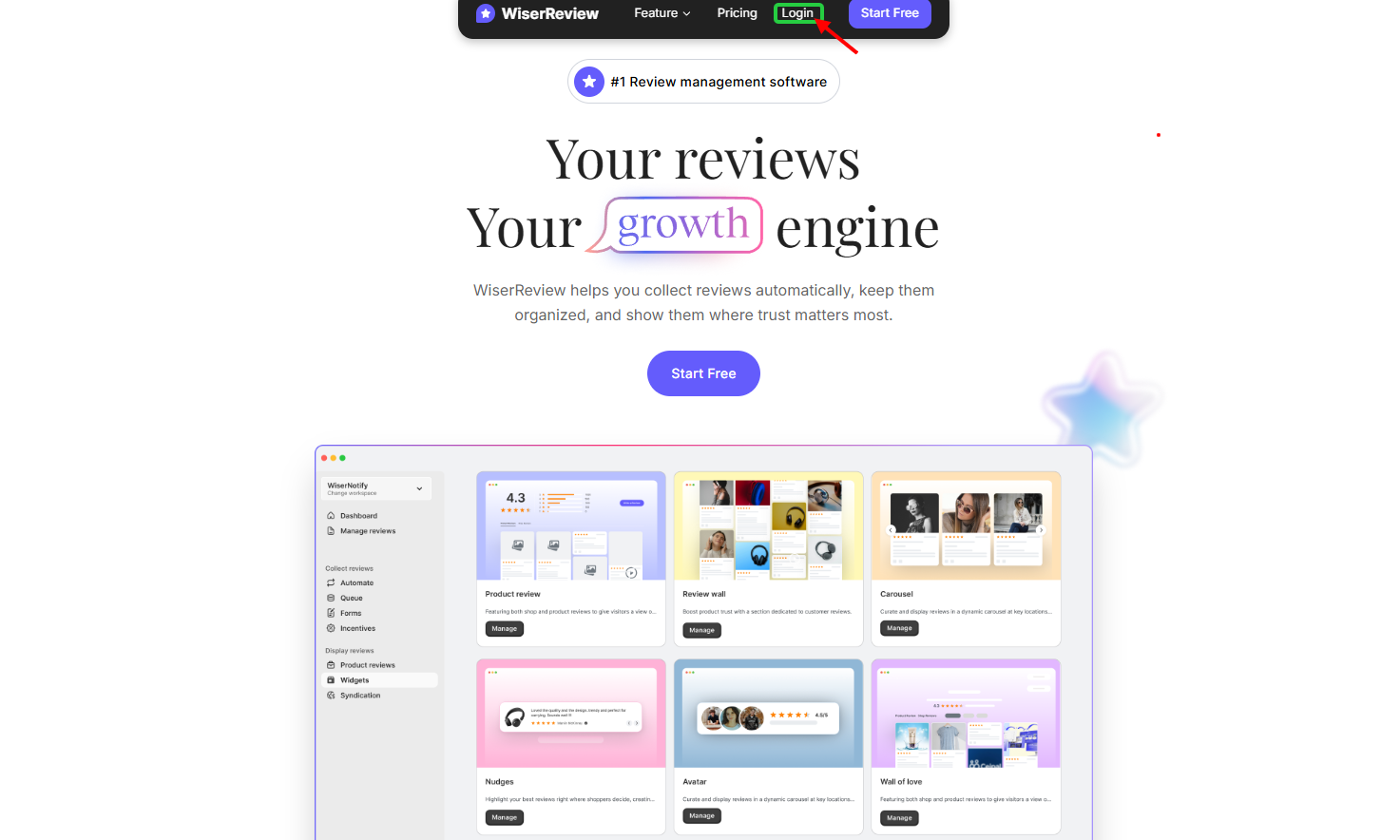
1. Sign Up and Set Up Your WiserReview Account
- Go to “WiserReview” and click Login.
2. Enable Google Review Integration
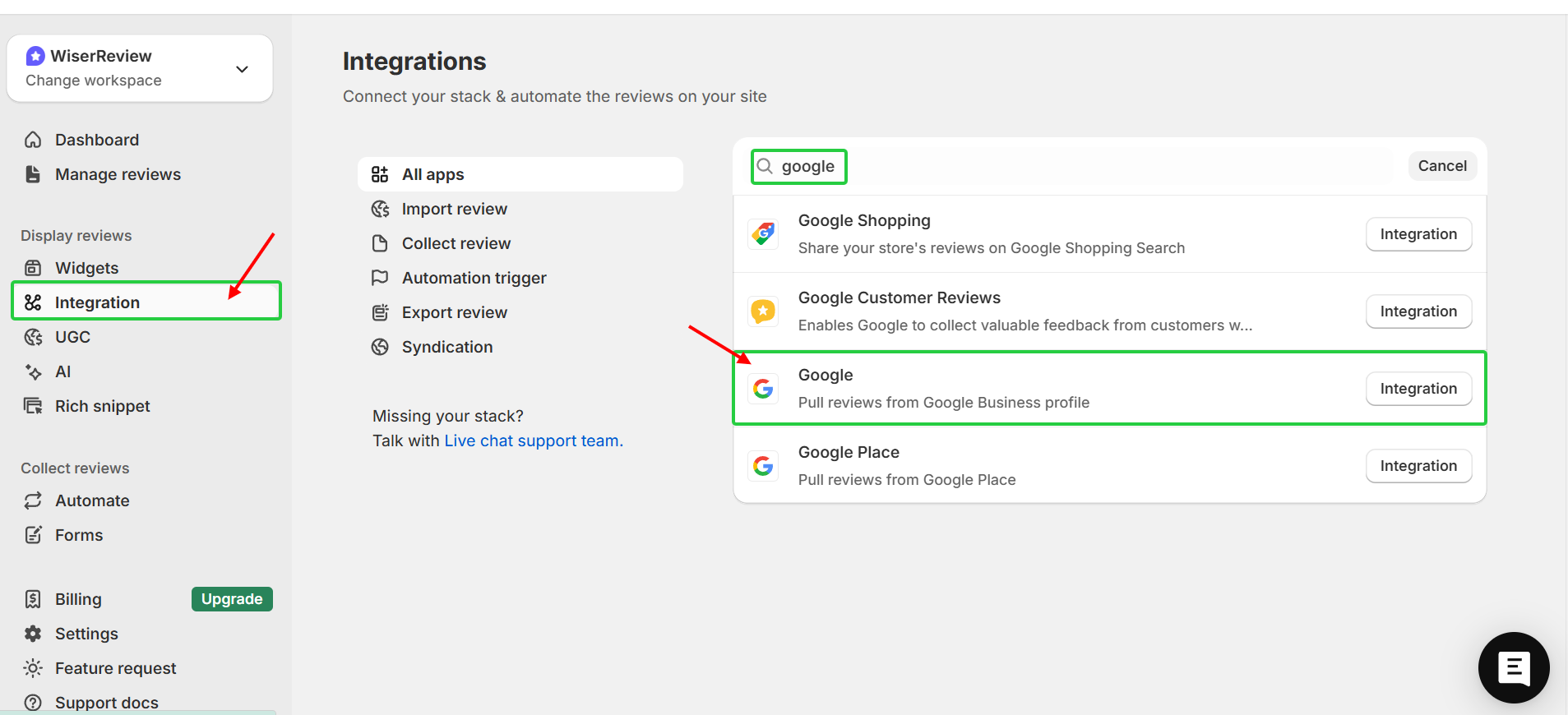
In your WiserReview dashboard, click on “Integration” and select Google Product Reviews, then follow the instructions to link your Google Merchant Center account.
3. Set Up Automated Review Requests
In the Automation section of WiserReview, configure your automated review requests via Email, Sms, and WhatsApp. You can customise the messages that will be sent via email, SMS or WhatsApp to get customers to leave feedback on their purchases.
4. Add Product-Specific Review Request Forms
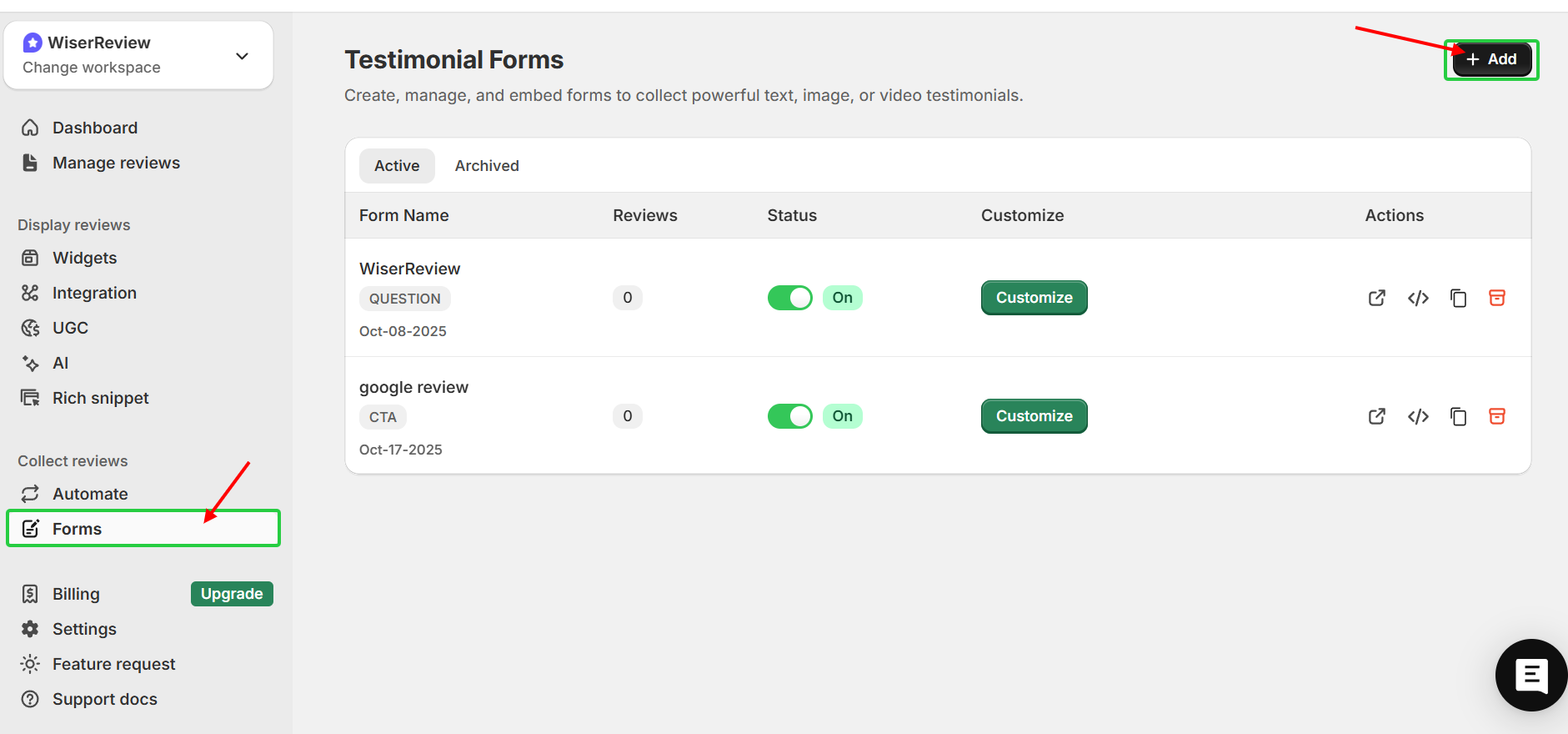
- Add the Google Product Review form to your product pages or order confirmation pages.
- In the forms section of WiserReview, click on “add”, then add your form name and “create form”. Create and customise the form to suit your needs.
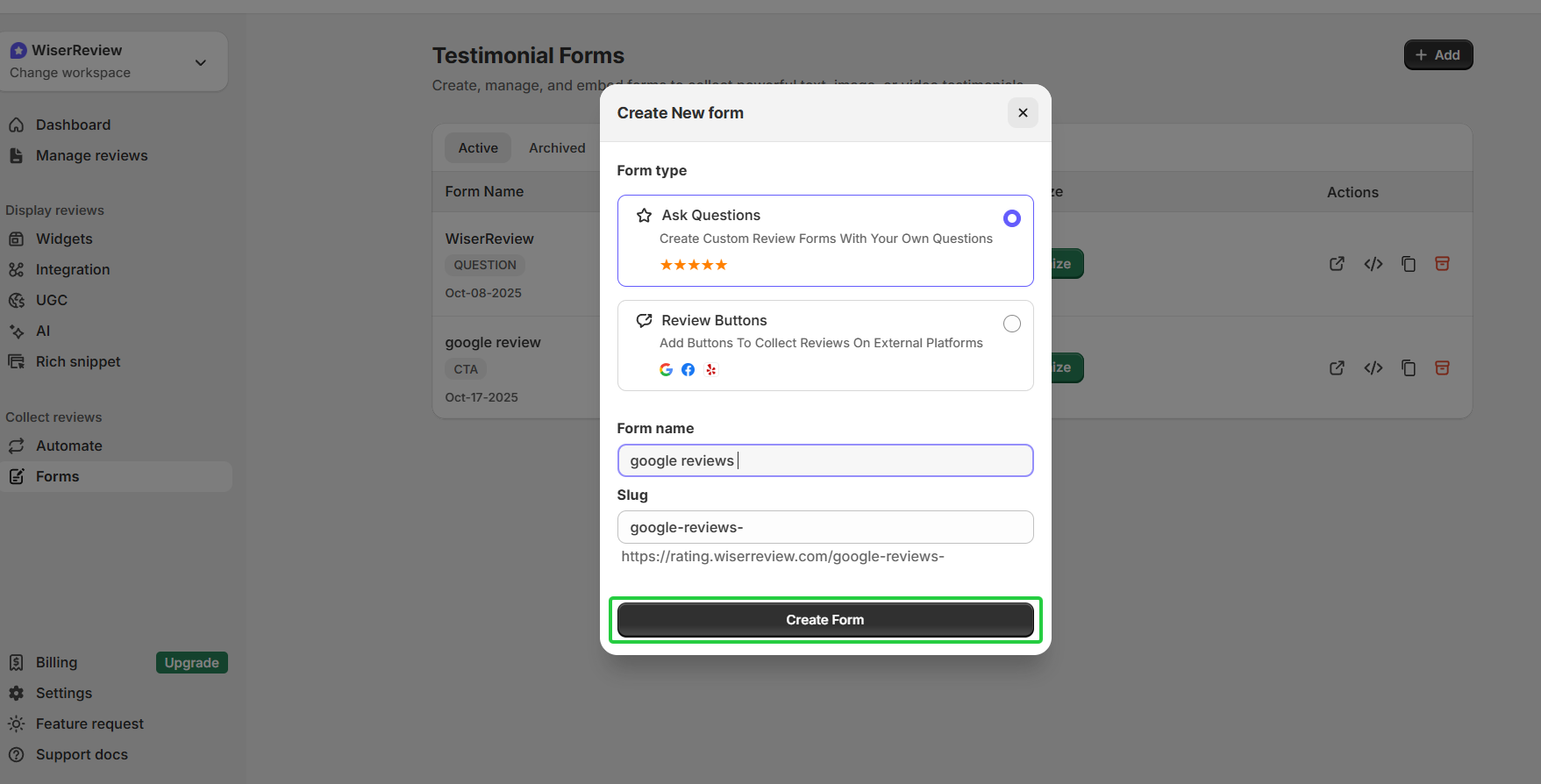
- WiserReview will automatically capture the necessary product data (such as GTIN and MPN) and prompt customers to leave a review for the specific product they bought.
5. Share Google Review QR Codes
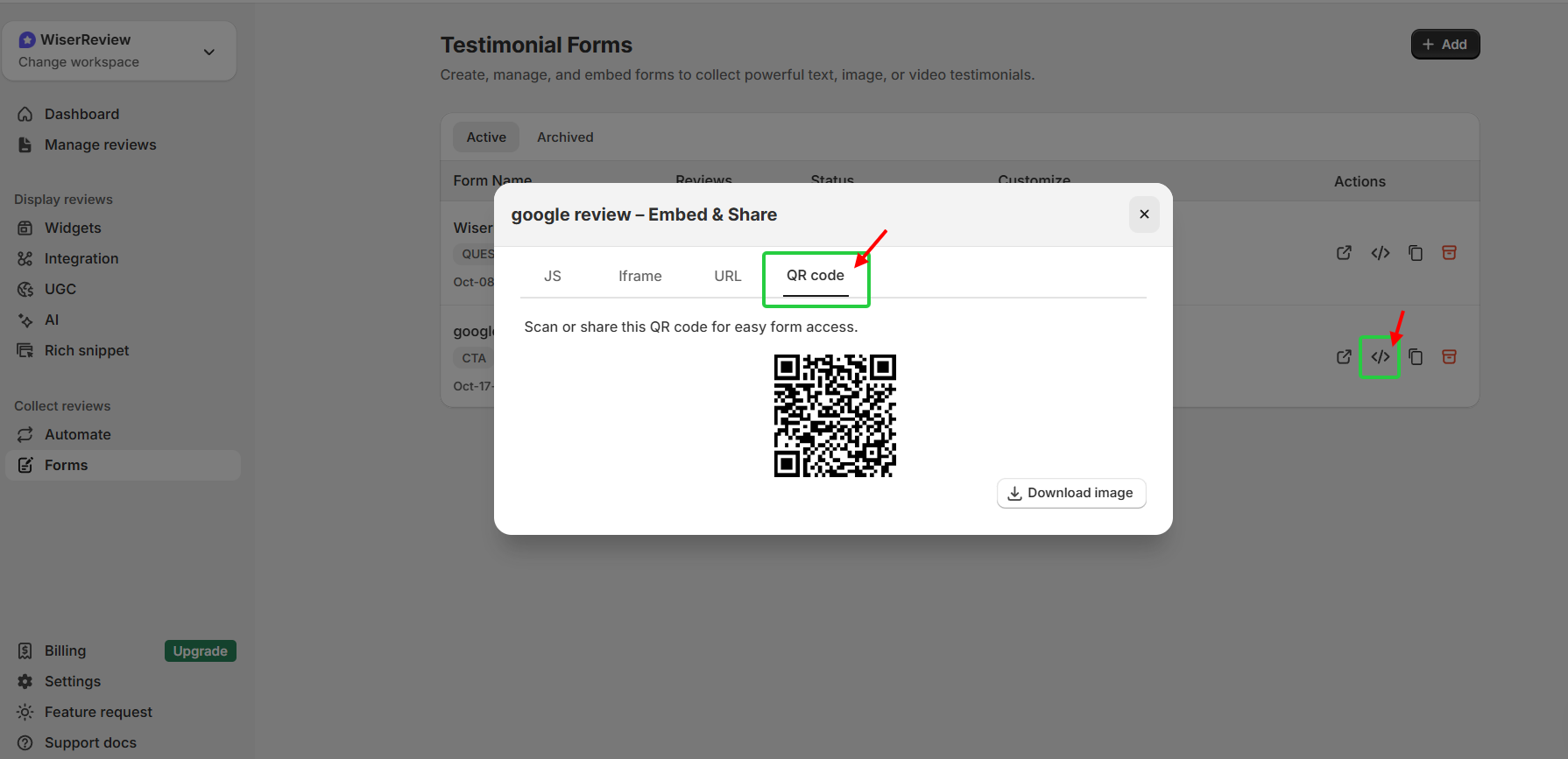
Generate QR codes via WiserReview and display them on your product packaging, receipts, or in-store signs. Customers can then scan these codes to leave reviews on your Google Business Profile.
6. Display Reviews on Your Website
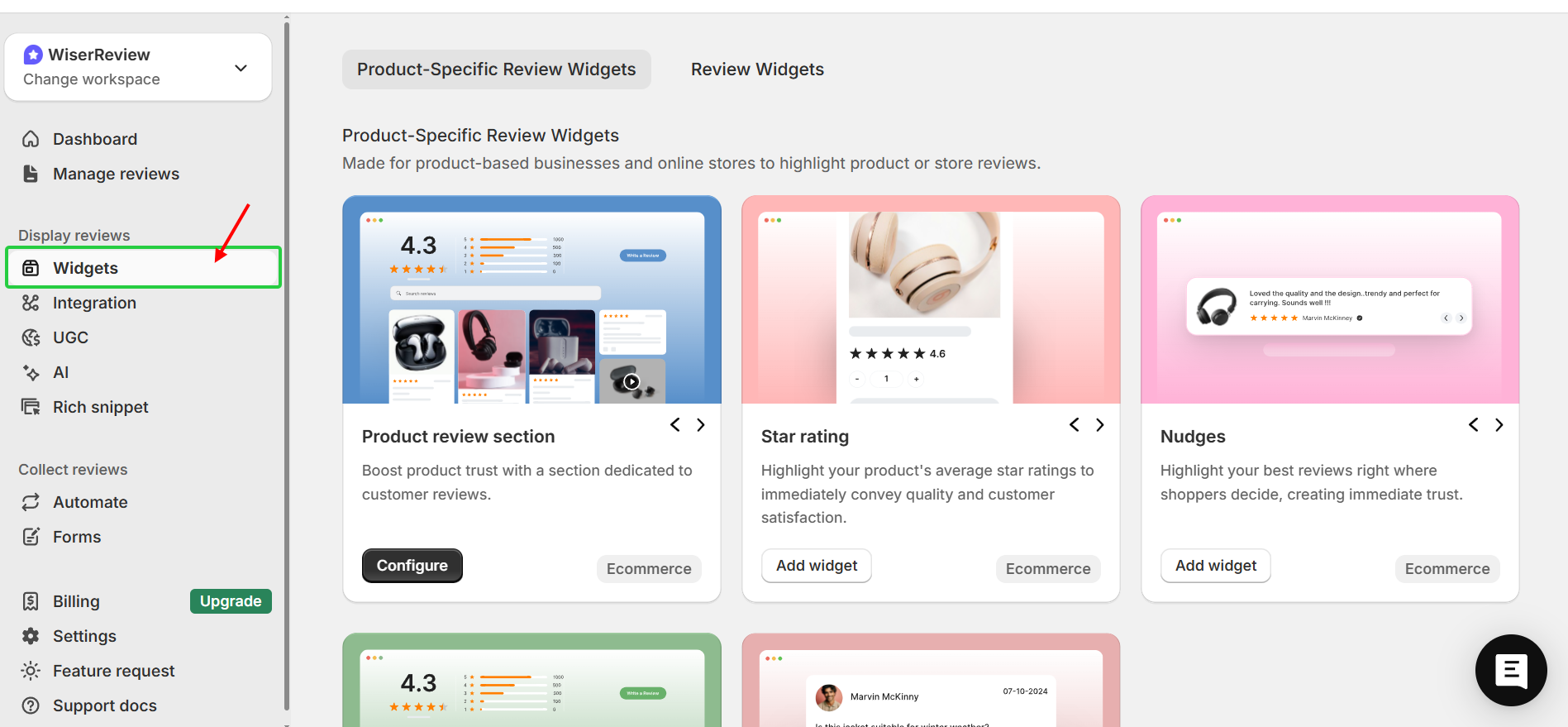
Use WiserReview’s customizable widgets to showcase the reviews you’ve collected on your site.
All your reviews in one place
Collect reviews, manage every response, and display them where they matter most.
Start Free →Encourage customers to leave product reviews
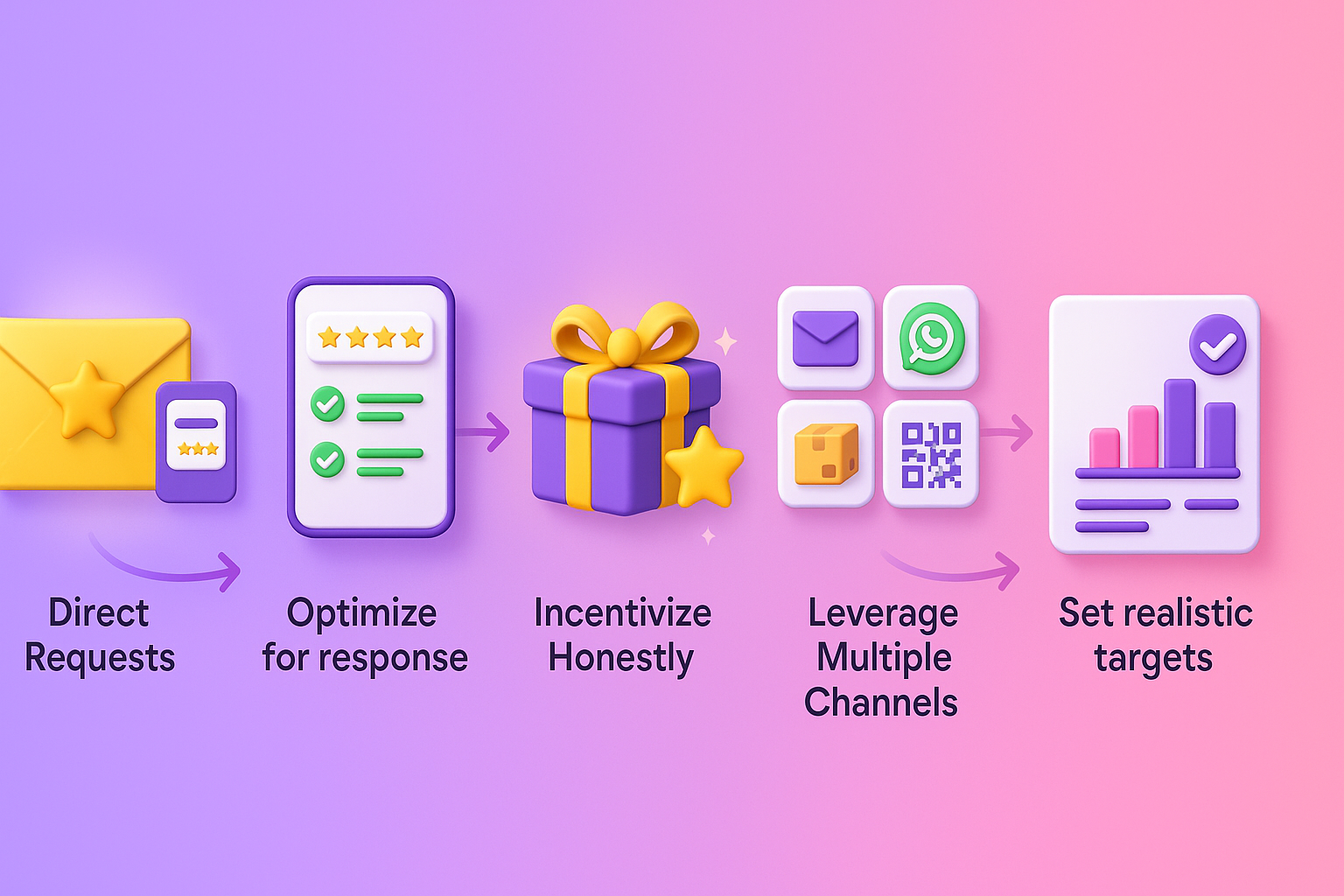
Getting people to leave more Google reviews is the key to making this all work. Here’s what you can try:
- Direct Requests:
Send review requests 2-3 days after delivery, with a direct link to the review page, a personalized touch that’ll grab their attention. Use the product name and order number to make it really relevant. - Optimize for Response:
Keep review forms short (3-5 questions) and allow star ratings with optional feedback. Make the form mobile-friendly and enable customers to add photos easily. - Incentivize Honestly:
Offer small rewards, such as discounts or free shipping, but never tie them to specific ratings. Disclose incentives in your review feed using the <incentivized_review> attribute. - Leverage Multiple Channels:
Use email, WhatsApp, QR codes on packaging, and post-purchase landing pages to request reviews. These channels increase engagement and remind customers. - Set Realistic Targets:
Don’t expect too much – aim for 5-10% of customers to leave reviews. For 10,000 orders a year, aim for 500 to 1,000 reviews – it may be ambitious, but it’s doable, and you’ll easily hit the minimum of 50 reviews.
How to display Google Product Reviews feeds

Collecting reviews is only half the battle. They need to appear where customers will see them and where Google can use them. Here’s how:
Using WiserReview
To display Google Product Reviews using WiserReview, follow these pretty straightforward steps:
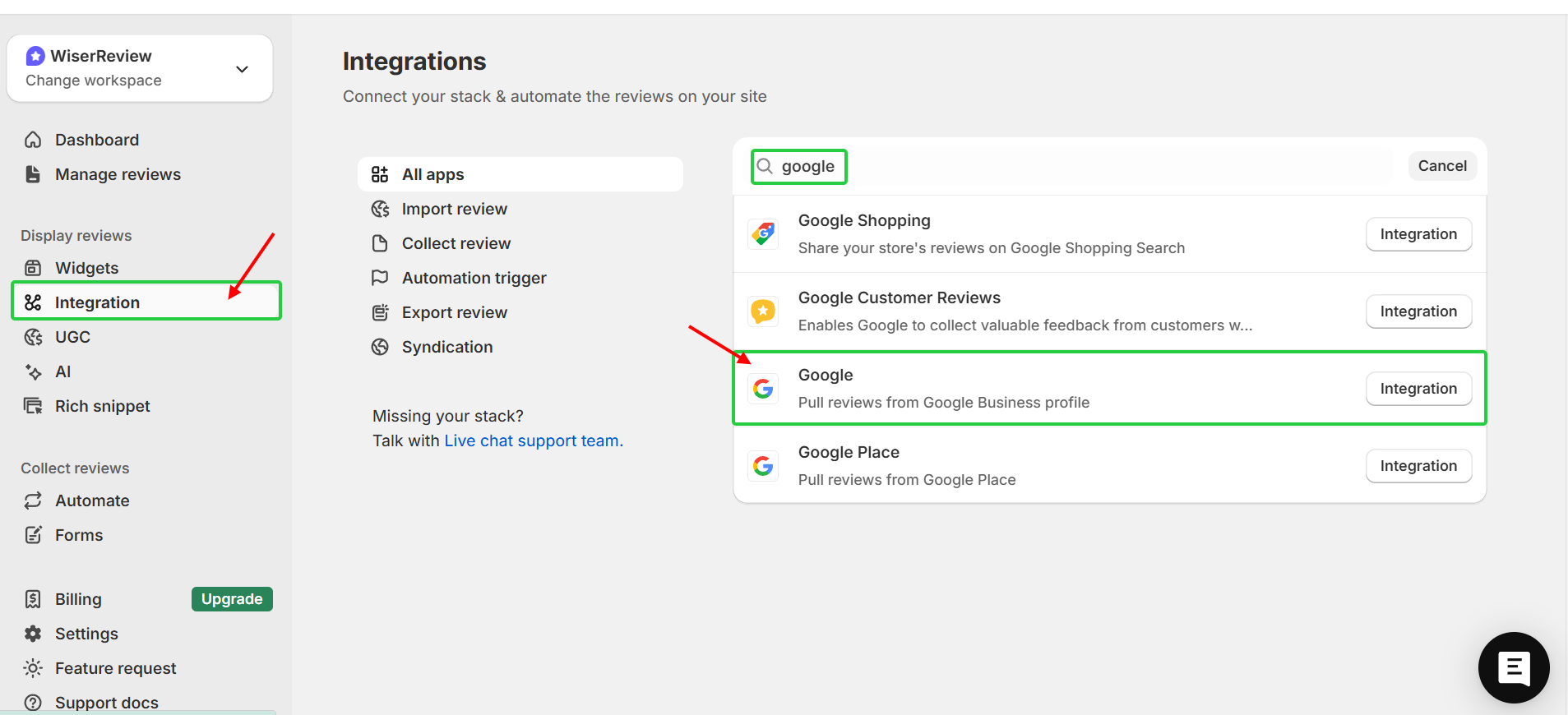
1. Connect Your Google Business Profile
Log in to your WiserReview account, navigate to Integrations, and select Google Business Profile. Authenticate and link your Google Business Profile to WiserReview.
2. Choose a Review Widget
In the WiserReview dashboard, go to Widgets.
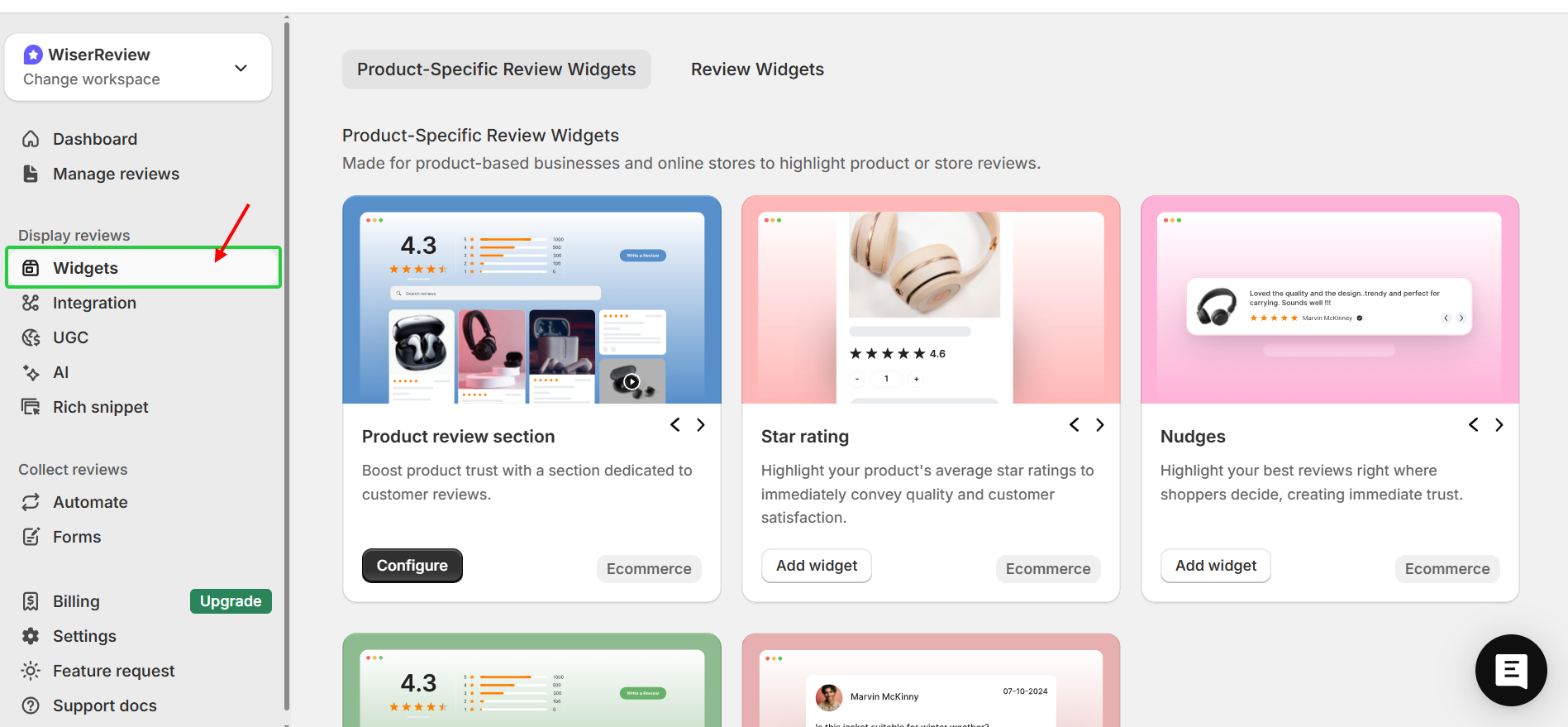
Select a widget type:
- Carousel: Displays reviews in a rotating slider.
- Wall: Shows reviews in a grid layout.
- Popup: Presents reviews in a modal window.
- Floating Badge: Displays a persistent review badge on your site.
3. Customize the Widget
Select any widget, click on it, and then create and customize it according to your needs.
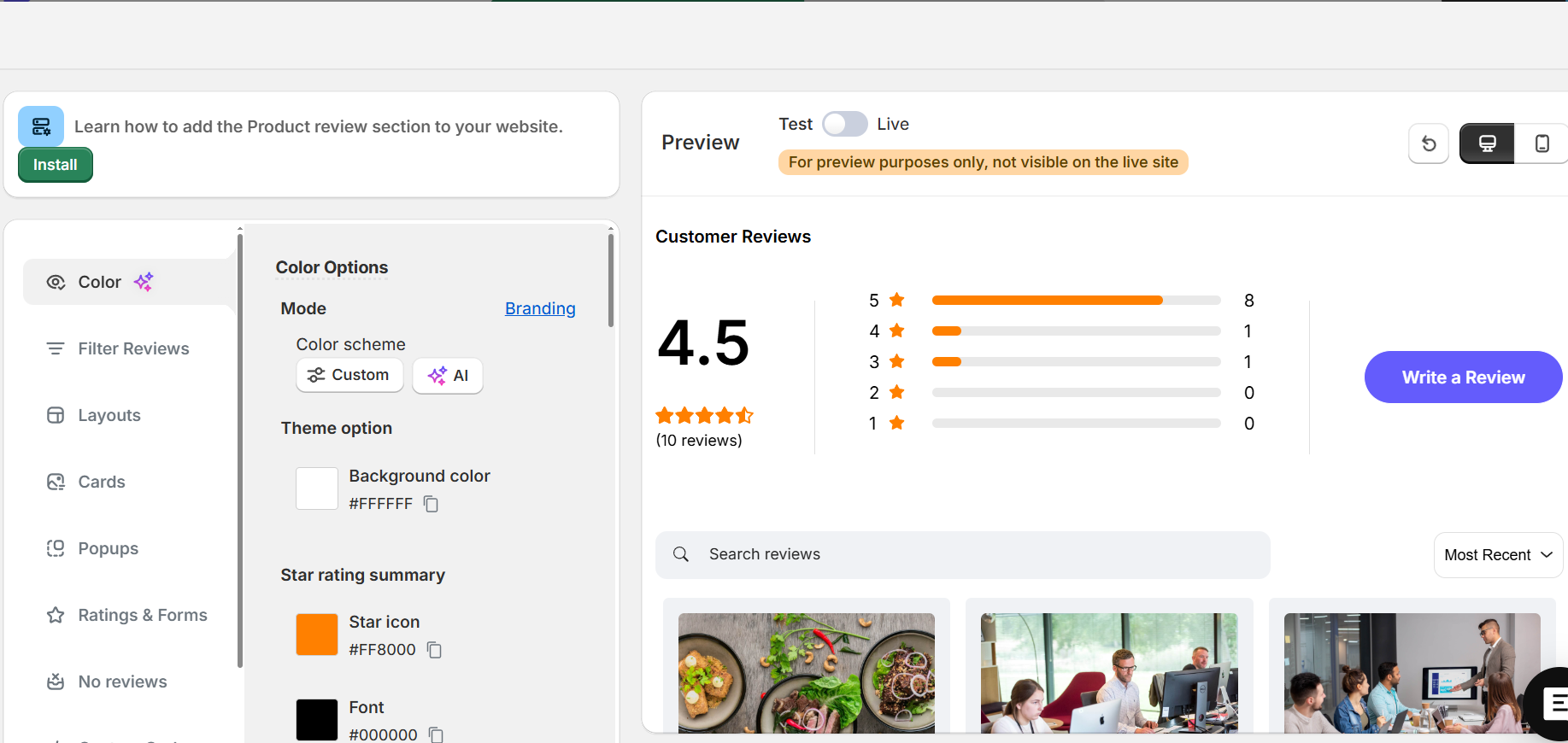
- Adjust the widget’s appearance to match your website’s branding.
- Set filters to display specific reviews (e.g., 4- or 5-star reviews).
- Configure the widget’s position on your site (e.g., header, footer, sidebar).
4. Embed the Widget on Your Website
Copy the provided embed code from WiserReview and paste it into the desired location on your website’s HTML.
5. Monitor and Update
Regularly check the WiserReview dashboard for new reviews, and ensure the widget displays the most recent reviews.
All your reviews in one place
Collect reviews, manage every response, and display them where they matter most.
Start Free →Add Schema Markup
Schema markup is just a fancy way of saying “code that helps search engines understand your page’s data,” including product reviews and other important info. It means your reviews will appear just as they should in search results and on Google Shopping.
If you use WiserReview, you’re in luck – the platform does it all for you, so you don’t need to lift a finger.
For manual implementation, use JSON-LD format. Here’s an example:
{
  "@context": "https://schema.org",
  "@type": "Product",
  "name": "Running Shoes",
  "aggregateRating": {
    "@type": "AggregateRating",
    "ratingValue": "4.5",
    "reviewCount": "156"
  }
}
- Add this code to the <head> section of your product pages.
- Use Google’s Structured Data Testing Tool to validate the markup before going live.
Use Google Merchant Center (Product Ratings Program)
Once your feed is ready, submit it to Google Merchant Center:
1. Submit the Product Ratings Interest Form
In your Google Merchant Center account, head to Growth → Manage programs, find Product Ratings, and click Get Started. Fill out the form and submit it for approval; this may take up to 2-4 weeks.
2. Upload Your Product Reviews Feed
Once you’re approved, navigate to Analytics → Reviews → Product Reviews in Merchant Center and click ‘Add product reviews.
Choose your feed method:
- Scheduled fetch: Enter the URL of your XML file and set a schedule for fetching it.
- Upload a file: Manually upload your XML file.
- SFTP: Use secure FTP to upload your file.
Make sure your XML file includes:
- Product identifiers (GTIN, Brand, MPN).
- Review details (rating, review count, review date, reviewer name).
- Review URL (link to the source of the review).
3. Maintain Regular Updates
- Update your review feed at least once a month to keep your ratings up to date.
- Ensure the feed is accurate and complete to remain eligible.
How product reviews help your Google Shopping Ads

Understanding the impact of reviews on ad performance helps you prioritize this effort. The numbers are compelling.
Increased Click-Through Rates (CTR): Products with star ratings and review counts in ads get more clicks, plain and simple. You can boost your ad’s CTR by 24% by displaying ratings, bringing in more traffic.
Improved Conversion Rates: Positive reviews build trust, which in turn boosts conversion rates. Higher ratings lead to more purchases as customers feel more confident.
Enhanced Ad Visibility: Displaying ratings makes ads stand out in search results, improving visibility and making your products more appealing.
Lower Cost Per Click (CPC): Higher CTR from positive reviews can improve your ad’s Quality Score, which in turn lowers your CPC and makes ads more cost-effective.
Competitive Advantage: Products with high ratings and reviews outperform the competition, making your product stand out and encouraging more customers to choose it.
Validation, testing & maintaining your review system

Getting reviews displayed is just the start. You have to maintain your review management system. You need ongoing systems to keep them fresh, relevant, and compliant.
Monitoring feed status, errors & disapprovals
Continue to monitor your review feed health to ensure your reviews remain active and visible. Platforms like Google Merchant Center show feed status as Active, Needs Attention, or Disapproved.
The feed status indicates whether your review data was accepted or rejected. A “Disapproved” status indicates that validation failed, while “Needs Attention” flags missing or weak identifiers, such as product IDs or review IDs.
What to monitor:
- Disapproved reviews or feed errors
- Feed fetch or parsing issues
- Missing or mismatched identifiers
- Policy or content violations
Fixing issues:
- Find the cause in the diagnostics report.
- Correct missing or invalid data (like wrong IDs or formats).
- Resubmit or reprocess the feed.
- Confirm status changes to “Active” or “Ready to Serve.”
Testing structured data & rich snippets
Structured data (schema markup) tells Google how to interpret your review data. If structured data is incorrect, your ratings might not display. You need to test your structured data to ensure that search engines read it correctly and that your pages can display rich snippets.
Key tools to use:
- Rich Results Test (by Google): Enter your page URL or structured data code. It shows which rich results your page might qualify for and highlights errors and warnings.
- Schema Markup Validator: Checks your markup against schema.org rules (syntax, property usage) without focusing only on Google-rich features.
- Search Console > Rich Result Reports: After Google crawls your site, this report shows the number of valid/invalid structured items it found, as well as the errors that are blocking rich results.
Things to watch out for:
- Google’s rich result rules don’t support some schema types, so Rich Results Test may not show them even if your markup is valid.
- If your structured data is generated dynamically (via JavaScript on the client side), ensure it appears in the final HTML that Google crawls.
- Always fix red errors first before working on warnings.
Keeping reviews fresh & relevant
Keep your reviews up to date so they reflect your current product and service quality. Ask for new reviews regularly through follow-up emails or reminders. This helps your profile stay active and trusted.
Show the most recent reviews first. People care more about what others say lately than what was said years ago.
If older reviews no longer match your current version or service, hide or mark them as outdated.
Add sorting options, such as “Most Recent” or “Most Helpful,” so users can easily find relevant opinions.
Check reviews often to remove spam or irrelevant ones. When your product changes, ensure that older reviews remain relevant.
Moderation, handling negative reviews & policy compliance

Your review system isn’t just about collecting praise; it’s about authentically managing all feedback.
Google’s moderation process combines AI and human review to ensure the content on its platform is authentic and in line with its rules. They’ve designed their system to prevent abuse and ensure that reviews are genuinely helpful and reliable for users.
How the moderation system works:
- Automatic checks: As soon as you post a review, it is sent to a moderation system that uses AI to scan for various signals, including suspicious activity from the person leaving the review, spam, and offensive language.
- Human analysts: Human moderators review content that is too nuanced for AI to catch, such as local slang or cultural context.
- Ongoing analysis: Even after a review has gone live, Google’s system continues to monitor the review and look for any irregular activity.
- Community flagging: Businesses and consumers can flag reviews they believe violate Google’s rules, and a human will evaluate them.
Handling negative reviews
- Thank them for their feedback and stay calm.
- Address the specific problems they mentioned and explain how you’ll fix them.
- Don’t delete the review; that’s not very ethical.
- If the review is actually spam or fake, remove it (after confirming it is).
- Offer a solution or ask to discuss the problem further in private.
Preventing policy violations
Businesses should adopt ethical practices to avoid Google penalties and build a trustworthy reputation.
- Do not incentivize reviews: Never offer compensation, discounts, or free products in exchange for positive reviews. This is a policy violation.
- Avoid review gating: Do not selectively solicit reviews only from customers who had a positive experience. This is a deceptive practice that Google prohibits.
- Train your team: Educate your staff on Google’s guidelines and how to handle customer dissatisfaction before it escalates into a public review.
- Use legitimate tools: If using review management software, ensure it complies with Google’s policies regarding bulk requests and incentivized campaigns.
All your reviews in one place
Collect reviews, manage every response, and display them where they matter most.
Start Free →Wrap up
Your Google product reviews are key to building trust with your customers. They help people make decisions and get your shop showing up on Google Shopping and search.
Please keep your review system running smoothly and ensure it’s up to date with Google’s latest guidelines. Utilize tools like WiserReview to make the process easier.
Frequently asked questions
After approval, onboarding takes about 7–10 days. Once your feed is active, new reviews usually appear within 24–48 hours.
No. Google requires all reviews, positive or negative. Removing or filtering them violates policy. Instead, respond professionally to build trust.
You need at least 50 total reviews across all products and a minimum of 3 reviews per product to show ratings.
Not directly. Google only accepts reviews you collect or import from approved partners such as Bazaarvoice, Yotpo, or WiserReview.
At least once a month, though weekly updates are better. Tools like WiserReview can automate this process for you.

Krunal