3 min
3 min 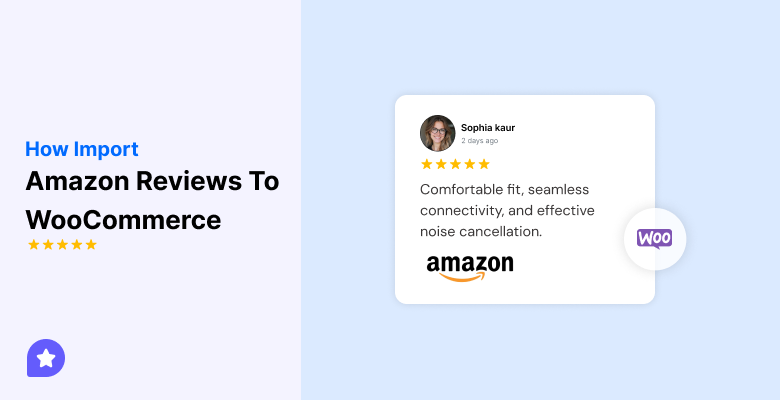
You can import Amazon reviews to WooCommerce to show real buyer proof on your product pages.
These reviews help new shoppers trust your products fast and make quicker decisions.
Many stores use Amazon reviews when they launch a new product or have very few reviews in WooCommerce. It fills the page with real feedback and makes the product look more reliable.
This guide shows the exact steps to import Amazon reviews, choose the right method, and keep the reviews clear and honest on your store.
Why Import Amazon Reviews to WooCommerce

You import Amazon reviews to show real proof on your product pages. These reviews help buyers understand the product, trust the quality, and make quick decisions.
The main reason:
Amazon already has detailed reviews for many products. When you bring these reviews into WooCommerce, your product page looks complete from day one.
What it solves:
- Empty product pages that push shoppers away
- Slow review collection on new stores
- Low trust when a product has no feedback
What you gain:
- Strong social proof
- Better product credibility
- Higher chances of conversion
In short, you import Amazon reviews because it give your WooCommerce store instant trust and removes the pressure of waiting for new reviews.



All your reviews in one place
Collect reviews, manage every response, and display them where they matter most.
Method 1 – Manual import (low-tech)
Manual import is the easiest way to bring a small number of Amazon reviews into WooCommerce.
You collect the review details yourself and upload them using a CSV file. This method gives you complete control and does not require a plugin.
Here is the Step-by-Step Process
Step 1: Copy the reviews from Amazon
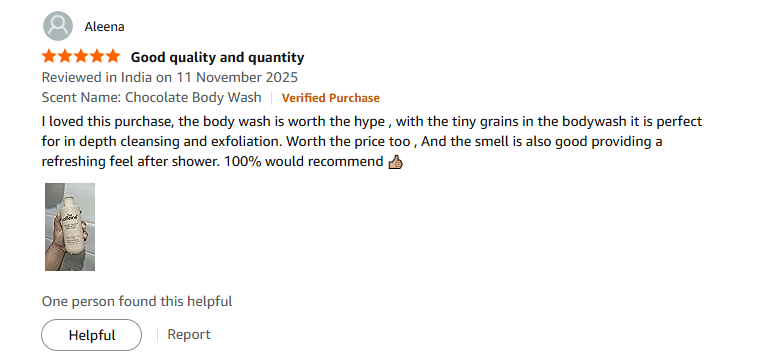
Open the Amazon product page.
Copy these details for each review:
- Reviewer name
- Rating
- Review text
- Review date
Paste everything into a simple sheet.
Step 2: Find the WooCommerce product ID
 Open your WooCommerce dashboard.
- Go to Products → All Products.
- Hover over the product name.
- You will see the Product ID.
Add this Product ID to each review row in your sheet.
Step 3: Format your sheet for CSV

Create these columns in your sheet:
- review_title (optional)
- review_text
- reviewer_name
- rating
- review_date
- product_id
Keep the file clean. Avoid extra spaces, symbols, or formulas.
Step 4: Export your sheet as CSV
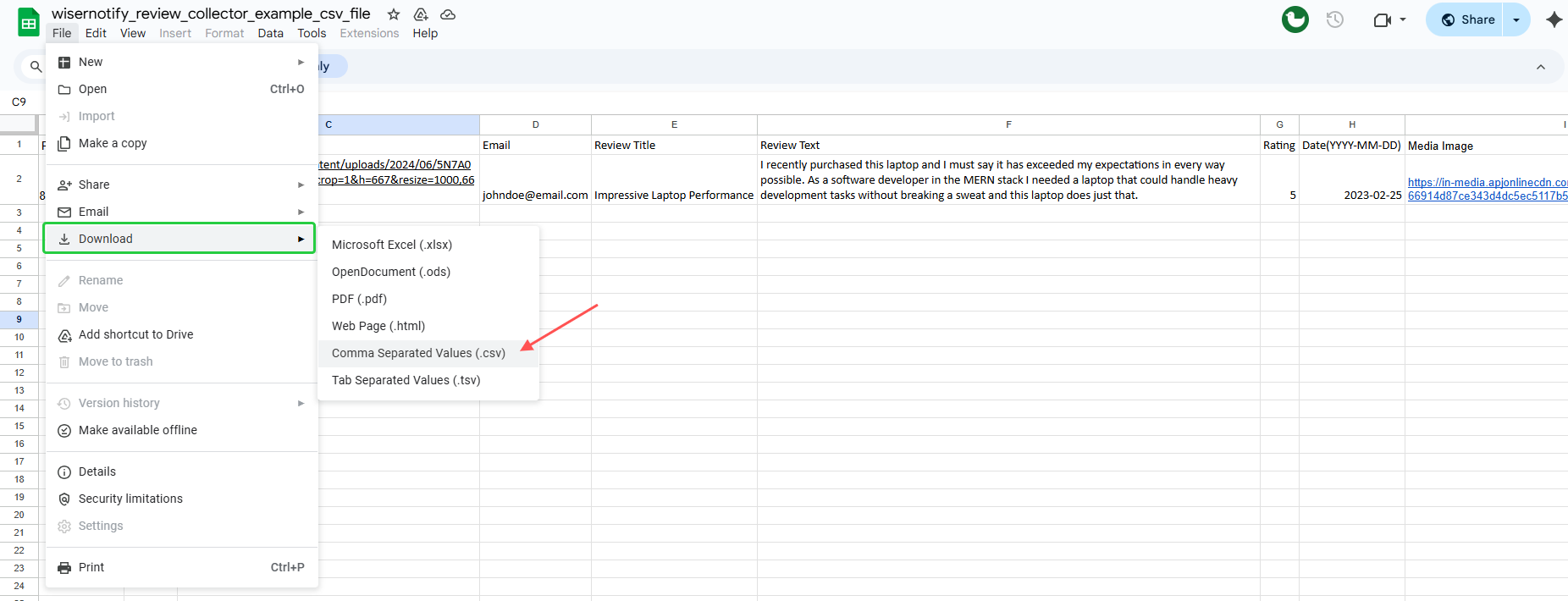
Click File → Download → CSV
Save the file to your computer.
Step 5: Import the CSV into WooCommerce
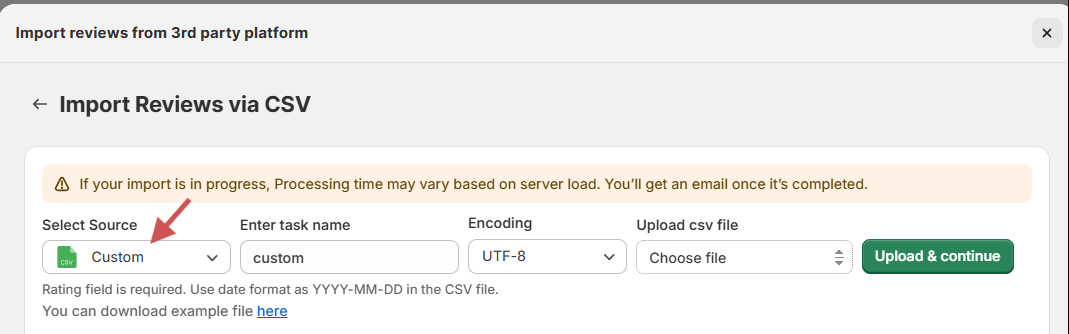
In your WordPress admin:
- Go to Tools → Import
- Select the review import option (depending on your setup, select source, otherwise choose custom).
- Upload the CSV file.
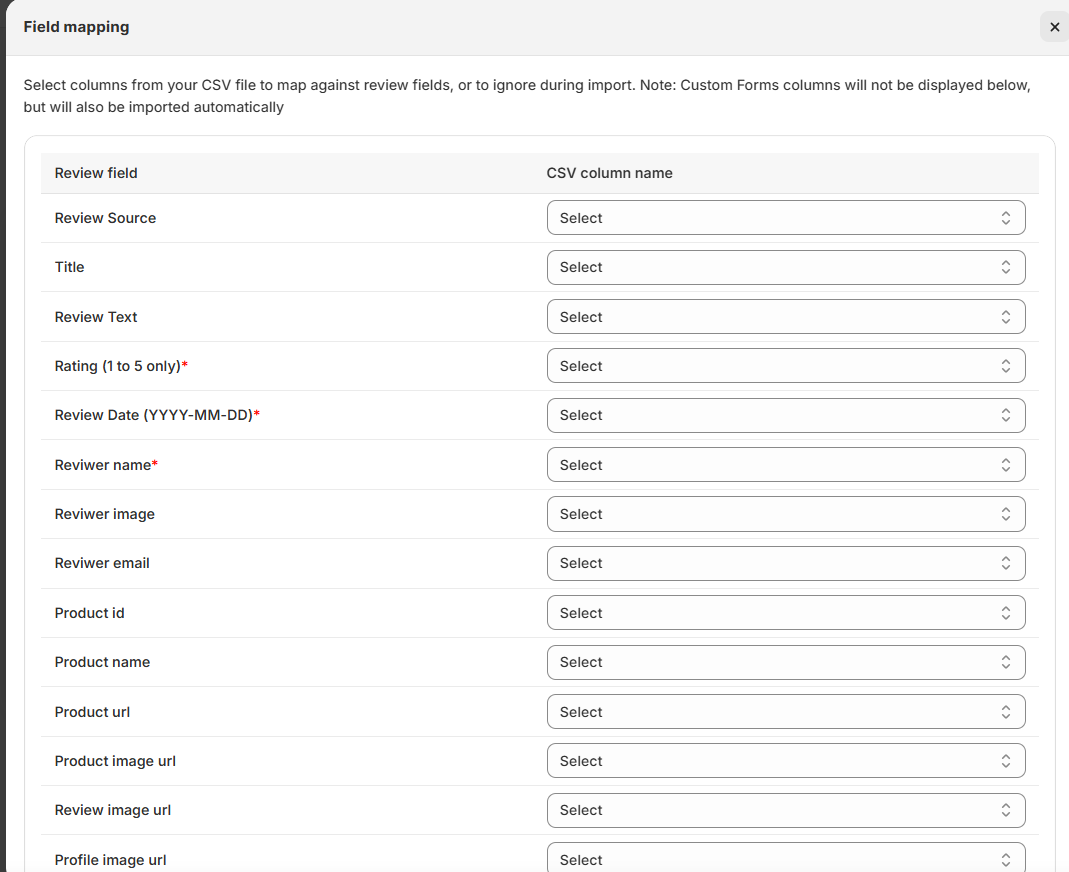
- Map each column from your CSV to the correct field in WooCommerce.
Step 6: Confirm the import
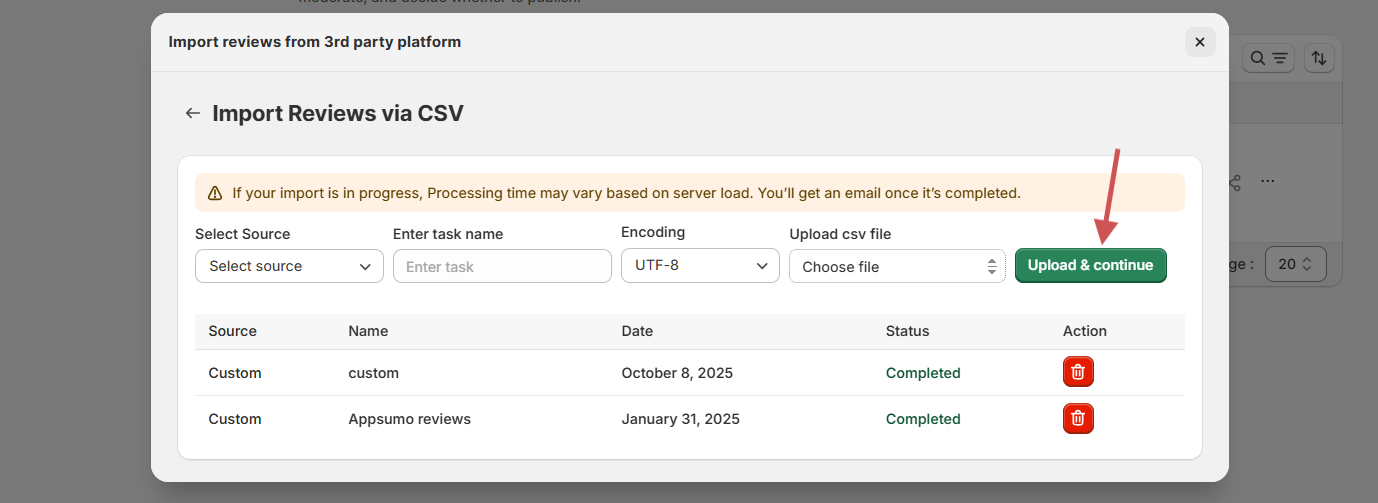
WooCommerce will show a quick preview.
Check that:
- Product IDs match the right products
- Ratings are correct
- Review text looks clean
- Dates are in the proper format
Click Import to finish.
Step 7: Check the reviews on your product pages
Open the product page on your store.
Scroll to the review section.
Confirm that:
- Reviews appear under the right product
- Star ratings show correctly
- Text and reviewer names are correct
If anything looks wrong, edit the review in WooCommerce or adjust your CSV and re-import.
6 Best Practices for Displaying Imported Reviews

You get stronger trust and cleaner product pages when you display imported Amazon reviews the right way.
These practices help shoppers read reviews fast, understand the product better, and feel confident about buying.
1. Display star ratings clearly
Star ratings help buyers understand product quality within seconds. Place the rating close to the product title so shoppers notice it without scrolling.
Use a clean size and color that match your page. Clear star ratings build quick trust and guide shopper decisions faster.
2. Credit the source
Always show that the review came from Amazon. A simple label like “Imported from Amazon” keeps your store transparent and avoids confusion.
When buyers know the source, they trust the review more because they see it as real feedback, not something edited or created by the store.
3. Show a mix of positive and critical reviews
A product with only perfect reviews feels unreliable. Real buyers know that every product receives mixed opinions.
Show both strong and average feedback so shoppers get a complete picture.
This balance helps buyers make confident decisions and reduces doubts during checkout.
4. Make sure reviews are readable and accessible
Reviews should be easy to read on all devices. Use simple fonts, proper spacing, and clean formatting. Avoid long blocks of text that feel heavy.
Keep the layout mobile-friendly so shoppers can scroll through reviews smoothly. Good readability improves engagement and keeps buyers on the page longer.
5. Maintain branding and layout consistency
Your review section should match the rest of your store design. Use the same colors, fonts, spacing, and style.
A consistent layout helps buyers feel comfortable and makes reviews look like a natural part of the product page.
A mismatched review block can break trust and distract buyers.
6. Keep reviews updated
Fresh reviews create a strong sense of activity and reliability. Import new reviews often so the product page never looks outdated.
Updated reviews show buyers that the product is still used and liked by real customers.
Regular updates also help search engines understand that your content stays active.
When Importing Isn’t the Best Option
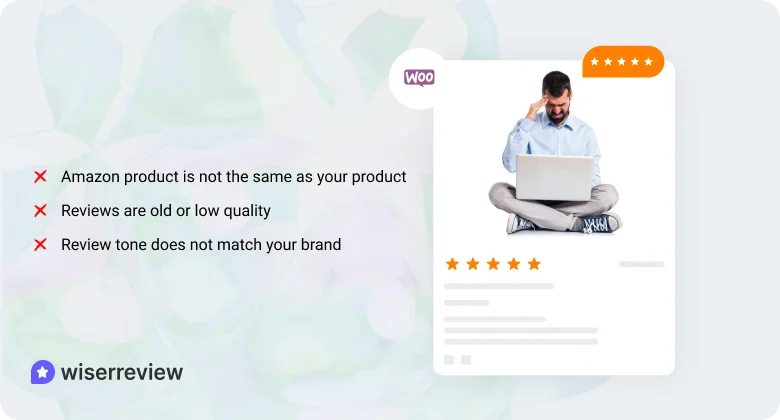
These points explain when it’s better to avoid importing.
1. The Amazon product is not the same as your product
When your product has a different model, size, or feature set than the Amazon version, the reviews may mislead buyers.
- Reviews may describe features you don’t offer
- Complaints or praise may not match your product
- Buyers may lose trust if details feel different
2. The reviews are old or low quality
If the Amazon listing has outdated or weak reviews, it brings little value to your page.
- Old reviews make your product look inactive
- Feedback may mention issues you already fixed
- Low-quality reviews can hurt your brand image
3. The review tone does not match your brand
Amazon reviews come from many writing styles that may not fit your store.
- Tone may feel off compared to your product page
- Mixed styles can break the reading flow
- The section may look disconnected from your brand

All your reviews in one place
Collect reviews, manage every response, and display them where they matter most.Wrap up
You import Amazon reviews to add instant trust to your WooCommerce products. Use a manual CSV import for small tasks or a plugin for scale.
Show reviews clearly, credit the source, and keep them updated. Avoid importing when the product is different or the reviews are outdated.
This approach keeps your pages clean, honest, and helpful for buyers.
Frequently asked questions
Yes, you can, as long as you keep the review text, rating, and meaning unchanged and clearly credit Amazon as the source.
They can improve user trust, but they do not always count as structured review data for search engines.
No. You should not change the wording or rating. Keep the review exactly as it appears.
Import enough to make the product page feel complete. Most stores add 10–30 reviews per product.
Avoid it when the Amazon product is different, the reviews are outdated, or the tone does not fit your brand.

Krunal