2 min
2 min 
Customer reviews can help build trust, but sometimes you need to remove or manage reviews that are spammy, irrelevant, or harmful.
Whether it’s one review or hundreds, this guide will show you how to delete reviews in PrestaShop, along with innovative alternatives and tips to manage them the right way.
1. Delete individual reviews via the product comments module
PrestaShop comes with a built-in Product Comments module.
This lets you manage and delete reviews one at a time from the admin dashboard.
Steps to delete a single review
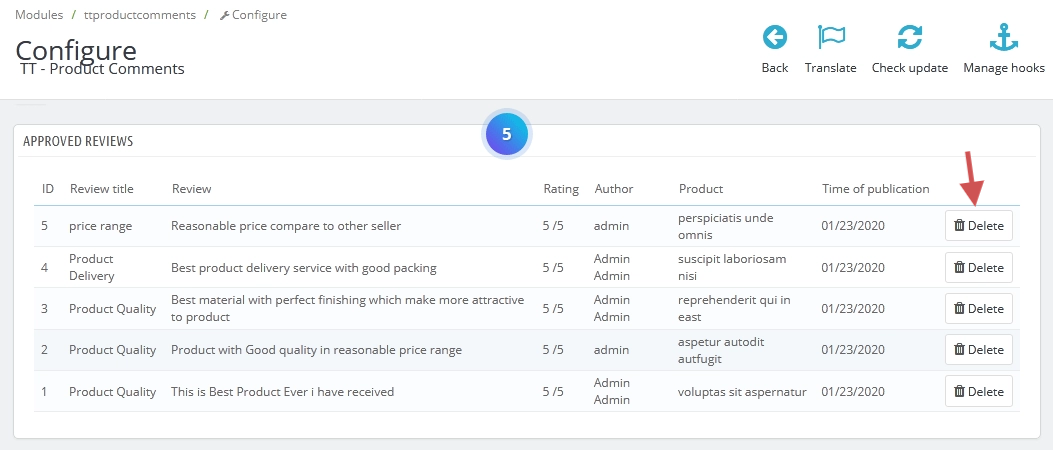
- Log in to your PrestaShop Admin Panel.
- Go to Modules → Module Manager.
- Search for Product Comments and click Configure.
- Scroll down to the list of reviews.
- Find the review you want to delete.
- Click the trash bin icon or Delete next to the review.
The deleted review will be permanently removed from your store.
2. Bulk delete reviews
PrestaShop doesn’t offer a bulk delete option directly in the admin panel for reviews.
However, you can do it by accessing the database using phpMyAdmin.
Warning: This method requires technical access. Always back up your database before making changes.
Steps to bulk delete reviews
1. Log in to your hosting control panel (like cPanel).
2. Open phpMyAdmin.
3. Select your PrestaShop database.
4. Find the table named ps_product_comment.
5. Click on the table.
6. Use the checkboxes to select reviews, or run a SQL command to delete multiple rows at once.

Alternatives to deleting reviews
Sometimes, it’s better to manage a review rather than delete it. Here are some innovative alternatives
Hide instead of delete
Many modules (such as WiserReview) let you hide reviews on your storefront without removing them.
This helps keep a record of the review while preventing it from being publicly visible.
When to use:
- Review is off-topic
- Customer is no longer relevant.
- You want to keep a backup for legal or support reasons.
Respond to reviews publicly
Instead of deleting a negative review, you can reply professionally.
This shows your brand is active, listens to feedback, and cares about customer experience.
When to use:
- Review has a complaint, butit is genuine.
- You can explain your side or offer help.
- Builds trust for future buyers.
Archive reviews
Some review systems allow you to archive or move reviews to a hidden state.
This keeps your data safe for reports or future reference.
Use archiving when:
- You’re updating products.
- The review is outdated but still functional.
- You want to reduce clutter without losing data.
Best practices for review management
Managing customer reviews is not just about deleting the bad ones.
It’s about making smart decisions that protect your store’s reputation while staying transparent and professional.
Here are some best practices every PrestaShop store owner should follow.
When to delete reviews
Only delete a review when it meets specific reasons that could harm your brand or mislead customers.
Delete reviews that are:
- Fake or spammy: Posted by bots or fake accounts.
- Abusive or offensive: Contains hate speech, foul language, or personal attacks.
- Irrelevant or off-topic: Not related to the product (e.g., general complaints or random text).
- Duplicate reviews: Same content posted more than once.
Deleting these types of reviews keeps your store clean and trustworthy.
When NOT to delete
Not every bad review is harmful. In fact, some can help build trust if handled well.
Do not delete reviews that are:
- Negative but honest: A 2-star review with real feedback shows transparency.
- Related to service delays: These can highlight areas for improvement and demonstrate that you care.
- Constructive criticism: Useful comments that point out flaws can help you improve your products.
Shoppers trust stores more when they see a mix of good and bad reviews—along with your responses.
Backup before deleting
Before deleting reviews, especially in bulk, make a backup of your data.
This helps you avoid permanent data loss and enables data restoration if needed.
How to back up:
- Use your hosting control panel (like cPanel or Plesk) to download a database backup.
- Or, use a PrestaShop backup module that allows quick backups before changes.
- If using phpMyAdmin, export the ps_product_comment table.
Backups take only a few minutes but can save you from major mistakes.

All your reviews in one place
Collect reviews, manage every response, and display them where they matter most.
Start Free →Conclusion
Deleting PrestaShop reviews is simple when done carefully. You can remove a single review using the Product Comments module, or delete multiple reviews using your database.
But in many cases, it’s better to hide, respond, or archive the review instead.
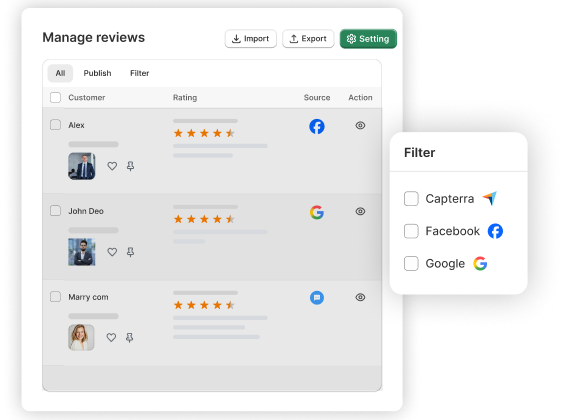
Using tools like WiserReview makes review management easier, with options to filter, tag, moderate, and automatically display reviews.
Frequently asked questions
Go to the Product Comments module in your admin panel, find the review you want to remove, and click the delete (trash) icon next to it.
Yes, but not from the admin panel. You’ll need to access your database using phpMyAdmin and remove reviews directly from the ps_product_comment table.
The review is permanently removed and will no longer appear on your product pages or in your database, unless you restore it from a backup.
Not always. Honest negative reviews can help build trust. Only delete reviews that are fake, offensive, spammy, or unrelated to the product.
Use a review management tool like WiserReview. It lets you hide reviews from your store while keeping the data safe in your dashboard.

Krunal