5 min
5 min 
Managing WooCommerce product reviews can be exhausting, particularly when they fill up pages, attract spammers, or fail to meet the purpose of your store. The good news is that you can disable product reviews in a matter of minutes.
With WooCommerce, you can disable reviews store-wide or on individual products, giving you complete control over where reviews appear.
This article provides you with each simple method, from fundamental setting changes to more advanced code methods, so you can clean up your product pages and ensure your store continues to run smoothly.
Why disable product reviews in WooCommerce?
Not every store needs product reviews. While reviews build trust for many businesses, they can create more problems than they are worth in certain situations. Understanding when to disable product reviews helps you make informed choices for your store.
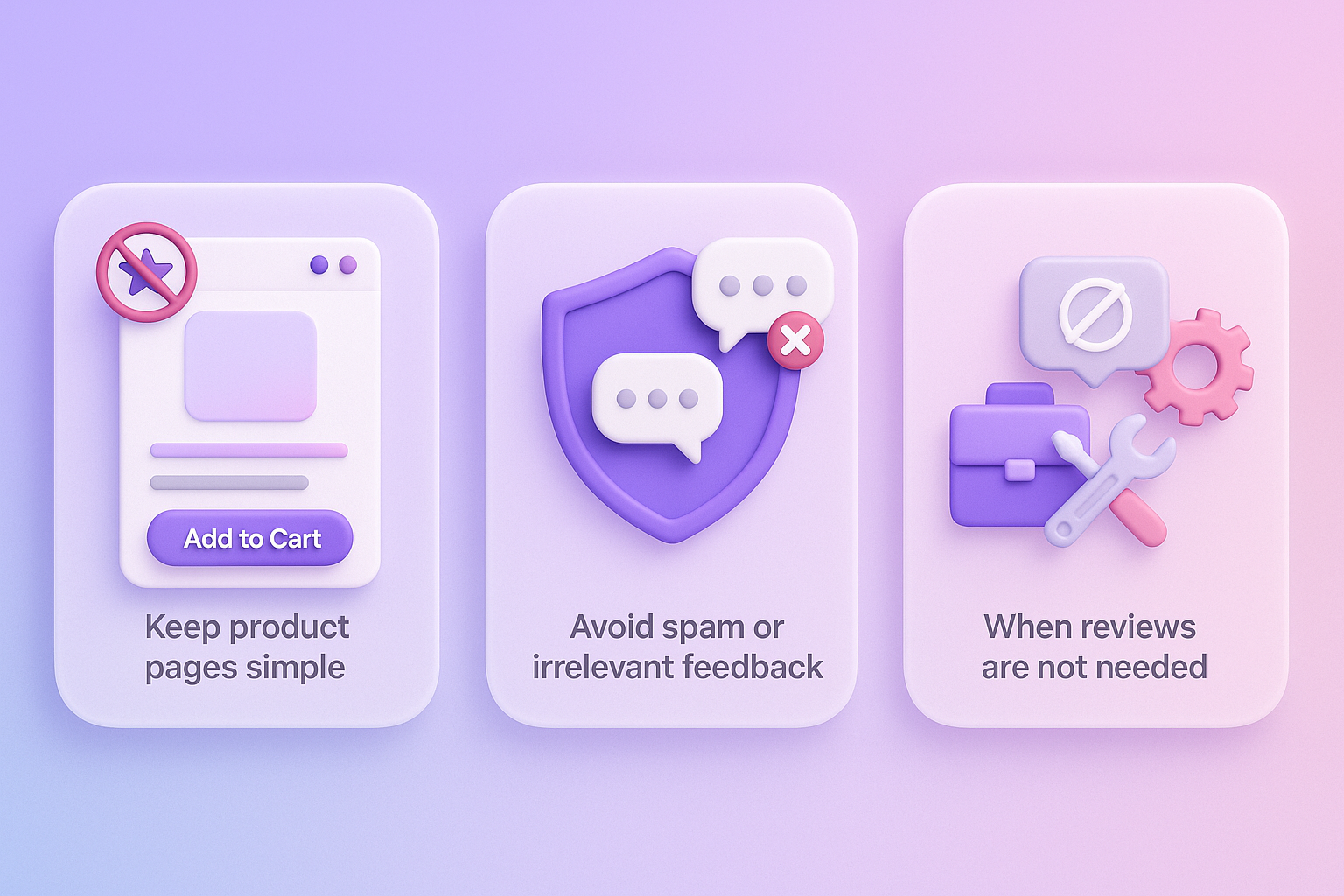
To keep product pages simple
Clean product pages convert better. When you’re selling B2B products, services, or digital downloads, reviews often add unnecessary noise.
Some stores prefer clean product pages that focus on the essentials. Removing the review stars and comment box reduces clutter, helping shoppers focus on the product details and the ‘Add to Cart’ button.
To avoid spam or irrelevant feedback
Handling reviews takes time. Many small stores deal with spam reviews or off-topic comments that add no value.
Competitors sometimes leave fake negative reviews. Unrelated comments waste your time. Disabling reviews eliminates this headache.
When reviews are not needed
Reviews are not beneficial for every type of store. B2B shops or stores that sell technical or standard products often rely on specifications rather than public feedback.
Pre-order items, limited editions, or brand-new products currently have no reviews. Service-based WooCommerce stores selling consultations don’t need product ratings.
Skip reviews when selling:
- Pre-launch or pre-order products
- Services and consultations
- Memberships or subscriptions
- Products with custom specifications

All your reviews in one place
Collect reviews, manage every response, and display them where they matter most.
Method 1: Disable reviews from WooCommerce settings
This method removes reviews from your entire store in three quick steps. Using built-in WooCommerce settings is the easiest and fastest way to disable reviews.
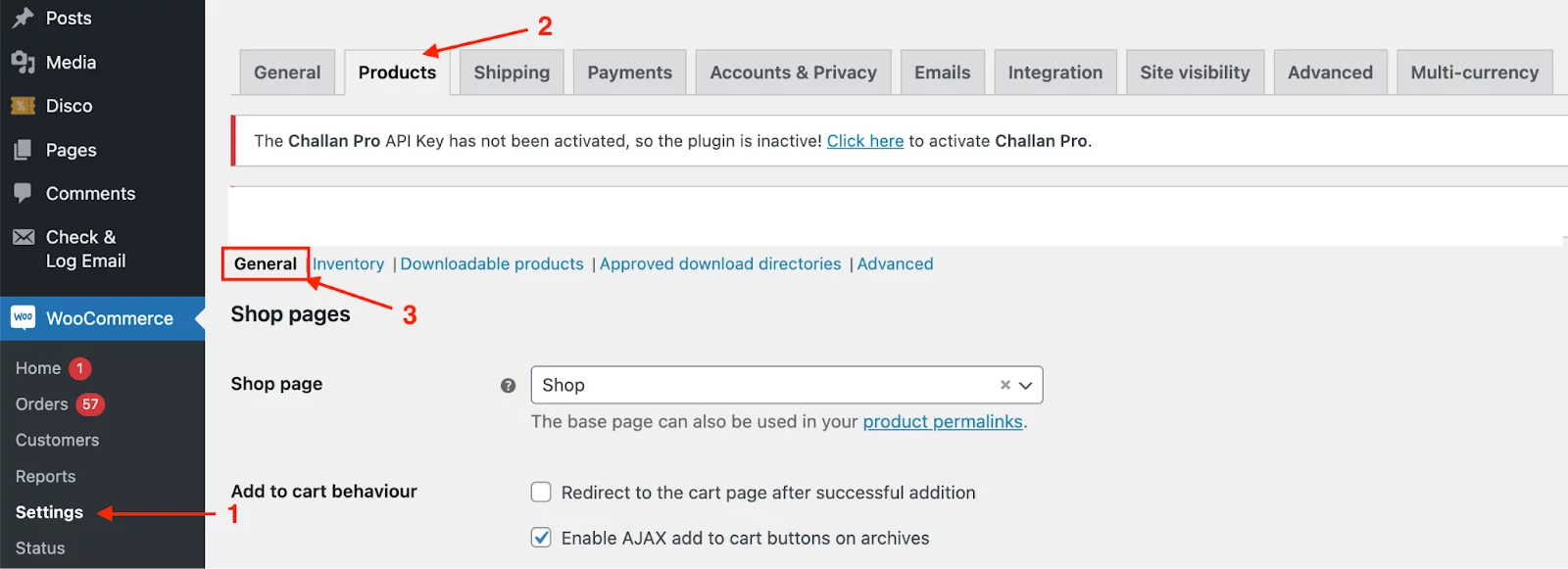
Step 1: Open the WooCommerce settings
Log in to your WordPress dashboard. Navigate to WooCommerce → Settings → Products in the left sidebar. This takes you to the main products configuration page, where you control store-wide review settings.
Step 2: Turn off reviews globally
Now scroll down to the bottom of the Products tab. You will find a checkbox labeled “Enable product reviews.” To disable product reviews on all products, unselect the checkbox.
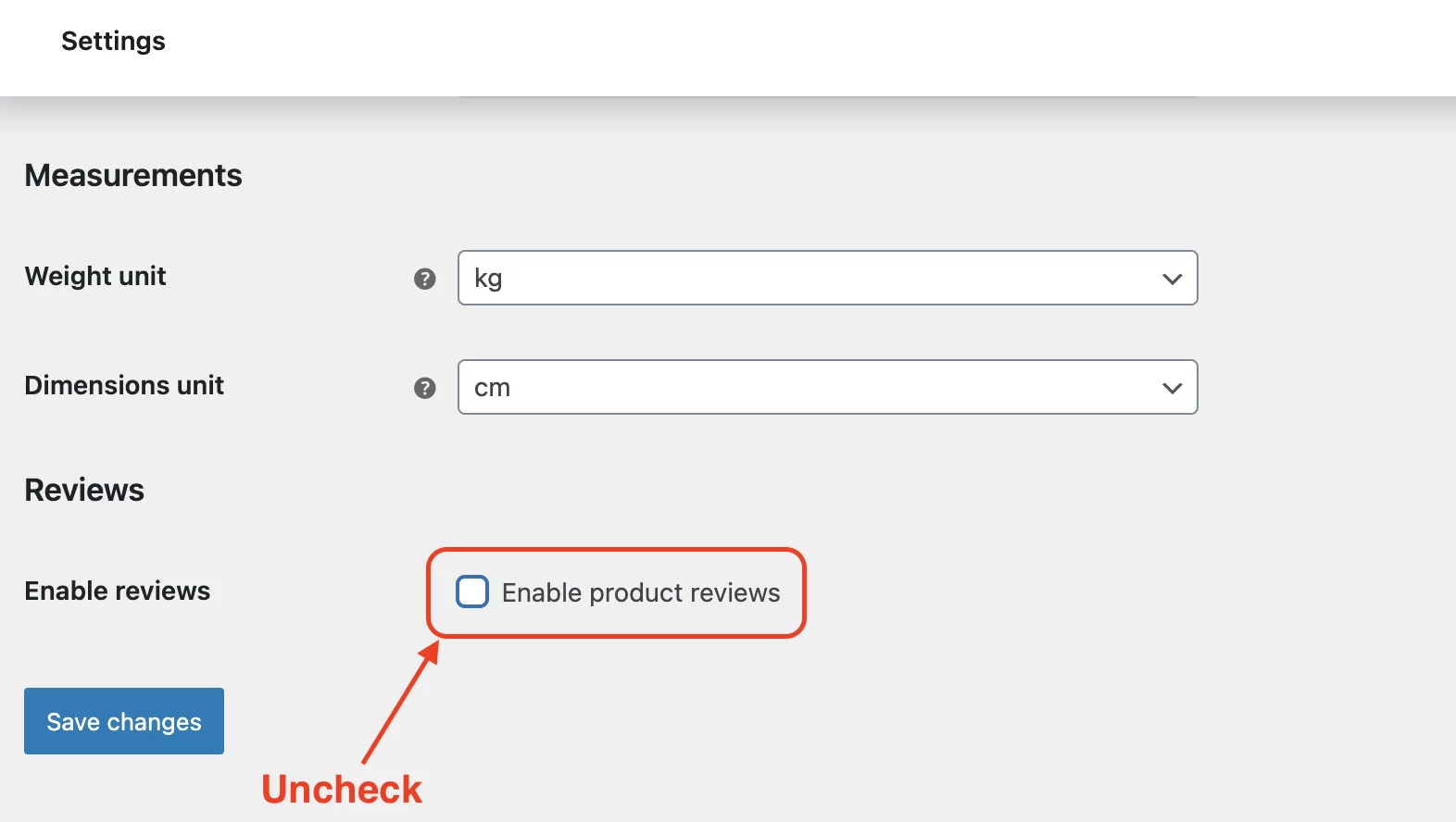
Finally, select Save changes at the bottom. This will simultaneously remove the reviews tab from the products and any reviews listed on the product pages. The reviews will still be in the database, but will not show for sale on the UI of your
Step 3: Verify changes
Visit any product page on your store’s front end. The Reviews tab should no longer appear. Check your shop page, star ratings should be gone too.
If reviews still appear, clear your site cache. Use your caching plugin’s clear cache button.
Method 2: Disable reviews for specific products
You can disable reviews for individual products by editing product settings in the Product Data meta box. This method works when you want reviews on some products but not others.
Step 1: Edit the product
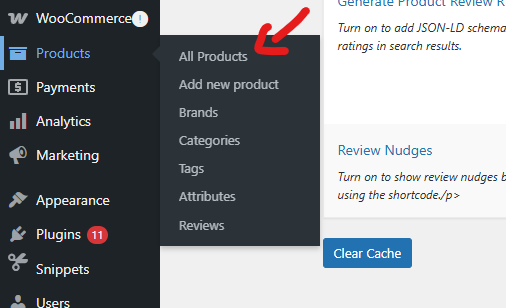
Go to Woocommerce → Products → All Products in your WordPress dashboard. Find the product where you want to disable reviews.
Click the product title to open the edit screen, or click “Quick Edit” for faster changes.
Step 2: Find the product data section
Scroll down to the Product Data meta box on the edit screen. Click the Advanced tab on the left side. This section contains additional product settings, including review controls.
In Quick Edit: The “Enable Reviews” checkbox appears directly in the Quick Edit panel without opening the full product page.
Step 3: Uncheck “Enable Reviews”
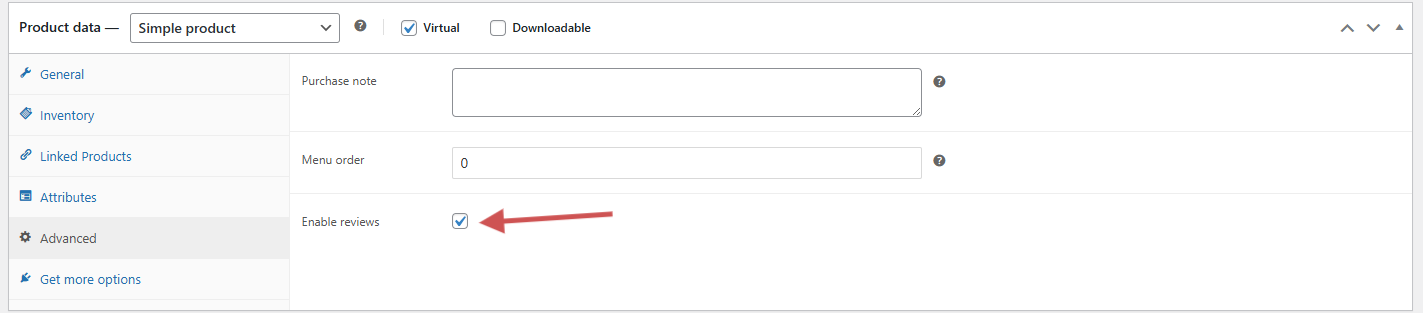
Locate the “Enable reviews” checkbox. Uncheck it to disable reviews for this specific product. Click “Update” or “Update Product” to save your changes.
Important note: If a product already has reviews, star ratings may still appear in the catalog view even after disabling new reviews. To delete stars, delete existing reviews for that product.
Method 3: Remove reviews using code
Using code gives you complete control over review functionality. You can disable reviews by removing post type support using the remove_post_type_support function. This method works for developers who are comfortable editing theme files.
Add Code to functions.php
Access your theme’s functions.php file through Appearance → Theme File Editor. Add this code at the bottom:
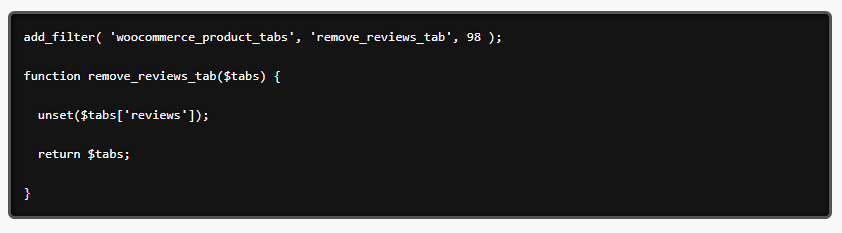
Save the file. This code removes review support from the product post type entirely.
Alternative: Using a code snippet plugin
The Code Snippets plugin is safer than editing functions.php directly. It prevents syntax errors from crashing your site and organizes custom code in a single location.
Steps to use Code Snippets:
- Install the free Code Snippets plugin from WordPress.org
- Go to Snippets → Add New
- Give your snippet a descriptive title like “Disable WooCommerce Reviews”
- Paste the code (without opening/closing PHP tags)
- Choose “Run snippet everywhere” from the dropdown
- Click “Save Changes and Activate”
The plugin handles the rest. You can deactivate snippets at any time without needing to edit files.
Common issues after disabling reviews
Even if you disabled WooCommerce product reviews correctly, unforeseen problems may still arise. Below explains how to solve the problems that occur most frequently.
Reviews still showing on product pages
If you have disabled reviews through WooCommerce, and review stars or previous reviews still appear, it is because the default setting disables the ability to submit new reviews but does not remove previously submitted review data.
An additional cause may be that your theme or a plugin overrides or caches the setting. Try refreshing or clearing the cache and testing in a default theme.
Also, check individual products: if the “Enable reviews” box is still checked in the product “Advanced” tab, there will still be reviews for that product.
Missing review tab on new theme
If you switch themes and the reviews tab disappears even though reviews are enabled, your theme may not declare support for WooCommerce or may hide that tab by default.
Fix: In your theme’s functions.php, add:
add_action(‘after_setup_theme’,’yourtheme_add_woocommerce_support’);
function yourtheme_add_woocommerce_support(){
add_theme_support(‘woocommerce’);
}
Additionally, check WooCommerce > Settings > Products to ensure that reviews are enabled and verify that the “Allow reviews” setting is toggled off for each product.
How to Re-enable reviews (If Needed)
Changed your mind? Re-enabling reviews reverses the process quickly. Your existing reviews remain in the database and will reappear when you enable reviews again.
To re-enable globally:
- Go to WooCommerce → Settings → Products
- Check the “Enable product reviews” box
- Click “Save changes”
To re-enable for specific products:
- Edit the product
- Find the Advanced tab in Product Data
- Check “Enable reviews”
- Update the product
If you used code:
Remove or comment out the code snippet

All your reviews in one place
Collect reviews, manage every response, and display them where they matter most.
Start Free →Wrap up
It is easy to disable reviews from WooCommerce once you learn where to look for your settings. Whether you want cleaner product pages, to reduce spam, or simply a better review experience and flow, WooCommerce gives you complete control.
If you still want reviews but with better design, automation, and spam protection, tools like WiserReview offer a smoother way to collect and display feedback. You get clean WooCommerce review widgets, verified reviews, and automated email requests without the noise.
Select the setup that best suits your store. Turn reviews off where they don’t help, and use more innovative tools where they do.
Frequently asked questions
No. Disabling reviews does not harm SEO. Reviews help with trust, but Google does not penalize stores that remove them. Keep your product pages strong with good content and fast performance.
Yes. If a product already has reviews, its star rating can still be displayed in the catalog. To remove stars entirely, delete the existing reviews for that product.
Yes. The “Disable WooCommerce Reviews” plugin instantly disables all reviews. Activate it to remove reviews and deactivate it if you want them back.
Your review settings stay disabled if you used WooCommerce settings or product-level options. If you hid reviews using CSS, you’ll need to reapply the CSS in the new theme.

Krunal