5 min
5 min 
Have you ever felt buried under hundreds of Google reviews, frantically searching for that elusive reference to “delivery issues” or “customer service”?
You’re not the only one. Taking the time to read through reviews manually can be time-consuming and often makes it difficult to accurately gauge the overall magnitude of feedback that customers leave for you.
This guide outlines how to search Google reviews by keyword in a reliable and straightforward manner, allowing you to quickly identify what customers are describing most, pinpoint persistent issues, and take action before they damage your reputation.
Why search Google reviews by keyword or name?
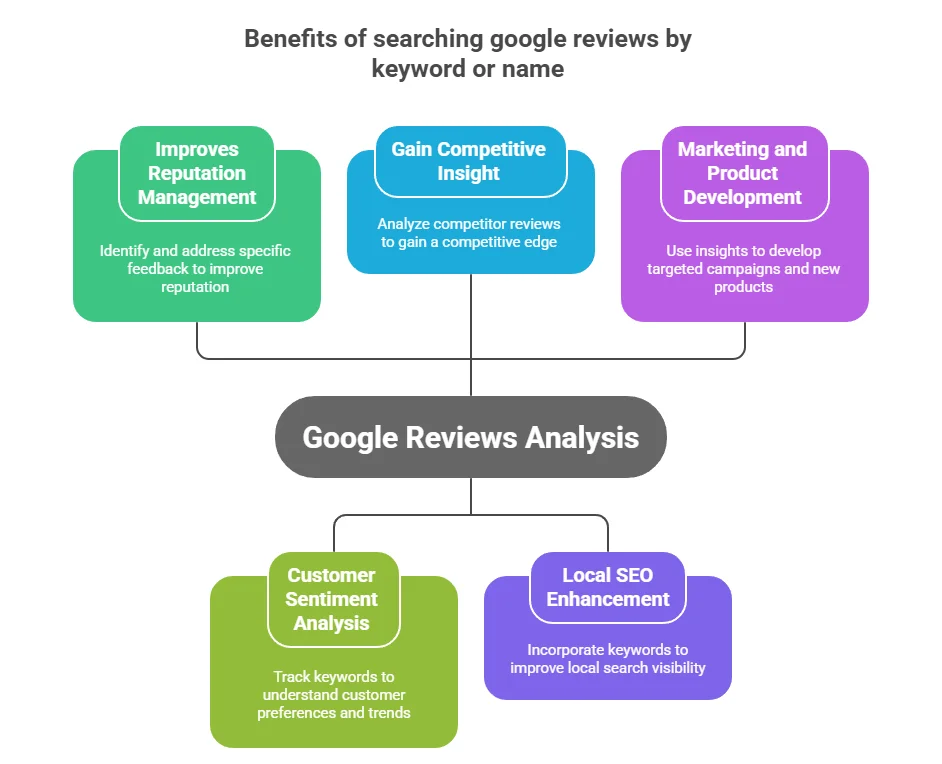
Searching Google Reviews by keyword or name is suitable for both consumers and businesses, as it saves time, pinpoints specific information, and facilitates informed decision-making.
Who benefits most:
- Small businesses need quick insights without expensive tools
- Multi-location chains must compare feedback across different stores
- Local service providers want to track specific service mentions like “plumbing repair” or “haircut”

Search and understand reviews in seconds
Use WiserReview to filter, sort, and analyze Google reviews by keyword without extra effort.
Start Free →How to search Google reviews
You can search Google reviews directly through Google Maps for free, and it’s super easy.
Here’s how to do it on desktop and mobile.
On Desktop
Step 1: Sign in to Google Business Profile
Go to google.com/business and log in using the Google account linked to your business. This will give you full access to view and manage all your reviews.
Step 2: Open your Business on Google Maps
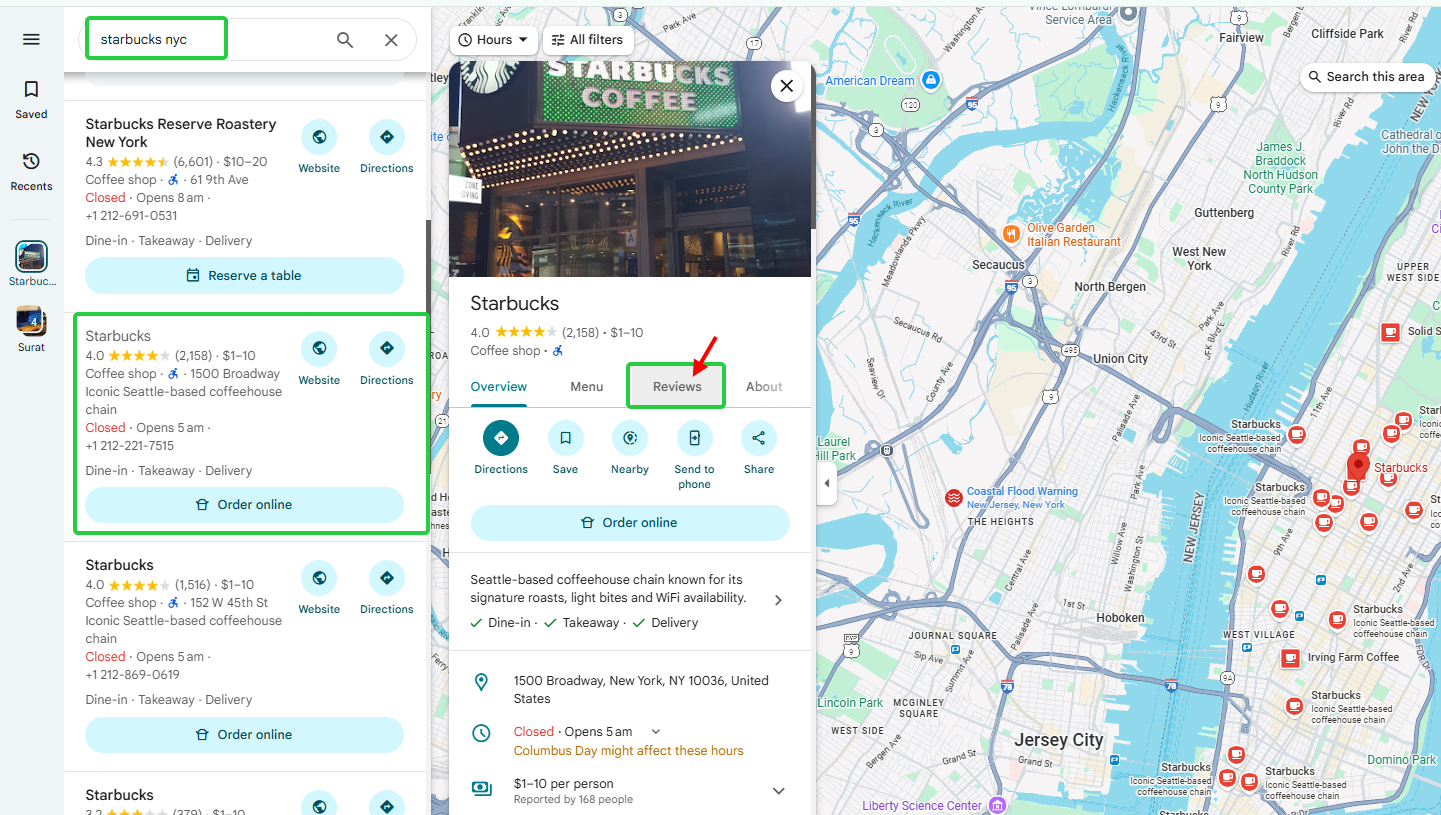
Head over to Google Maps and type your business name in the search bar. To open your public business profile, click on your business listing from the search results.
Step 3: Go to the reviews section
On the left side of your screen, you’ll see a panel with tabs like Overview, photos, and reviews. Click “Reviews“ to view all customer feedback for your business.
Step 4: Use the search icon
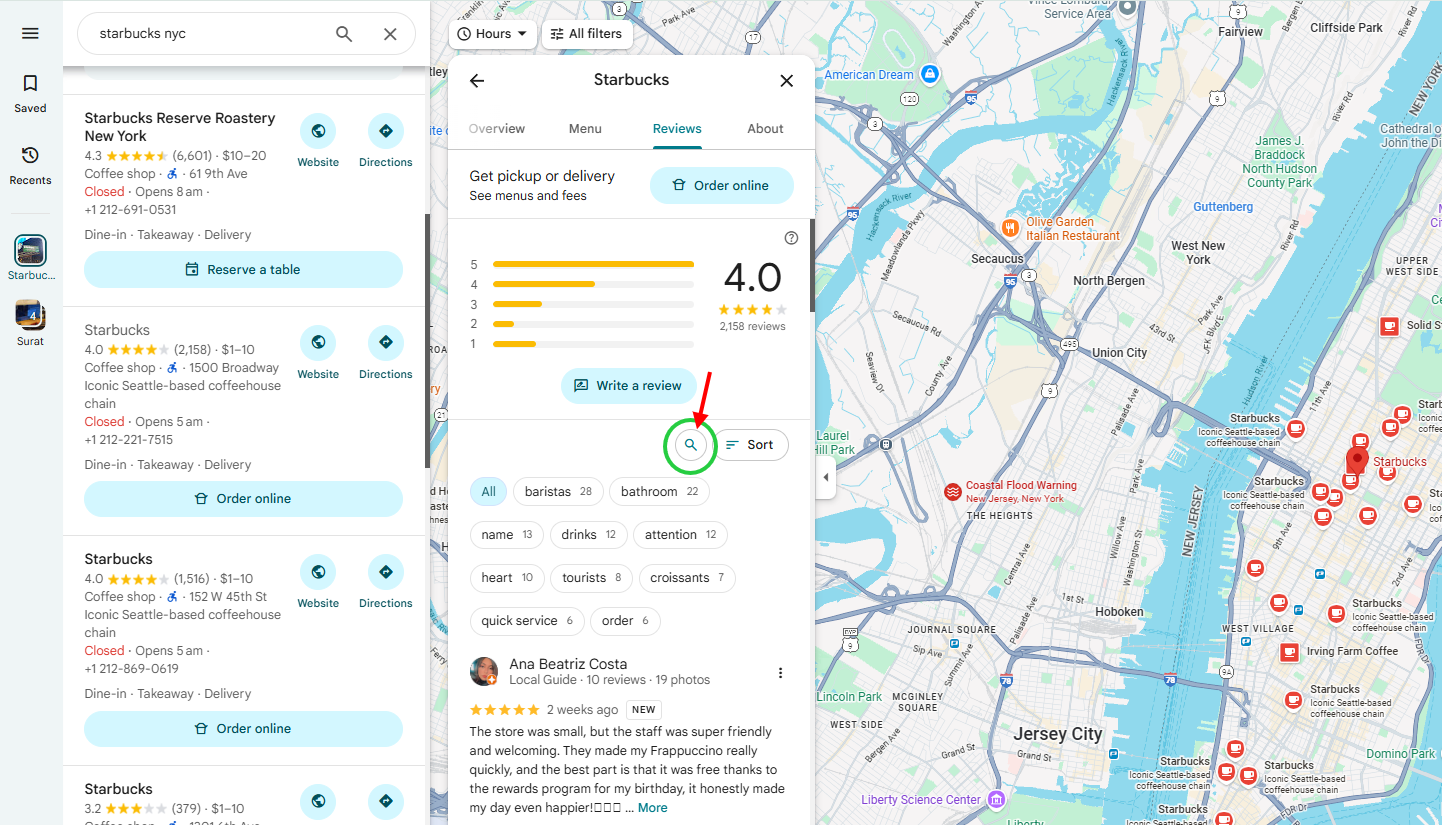
At the top-right corner of the reviews section, look for a magnifying glass icon. Click it to open a small search bar where you can type specific words or phrases.
Step 5: Enter your keyword
Type any word you want to search for—like “delivery,” “refund,” “staff,” or a person’s name. Press Enter, and Google will instantly show all reviews containing that keyword.
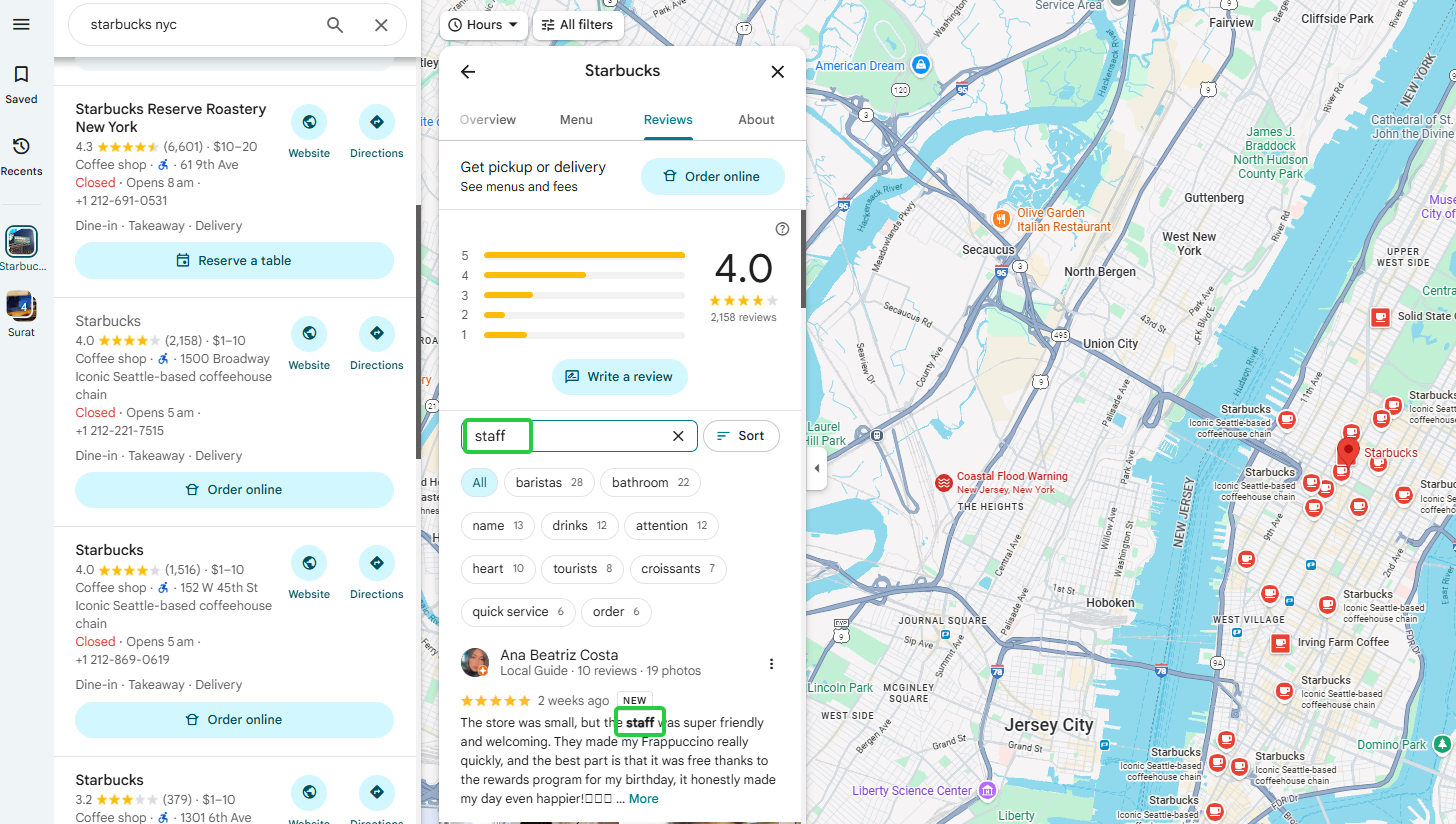
Pro Tip: Google sometimes highlights common topics from your reviews, such as “customer service” or “pricing.” You’ll see these as small clickable tags. Tap any tag to filter reviews automatically by that topic.
On Mobile (Google Maps app)
Step 1: Open the Google Maps app
Ensure you have the latest version of the Google Maps app installed on your iPhone or Android device. Log in with the same Google account connected to your business.
Step 2: Find your Business Profile
Tap the search bar and type your business name. Select your profile when it appears in the results.
Step 3: Tap the reviews tab
Once your profile opens, scroll down and tap ‘Reviews’ to view all customer feedback.
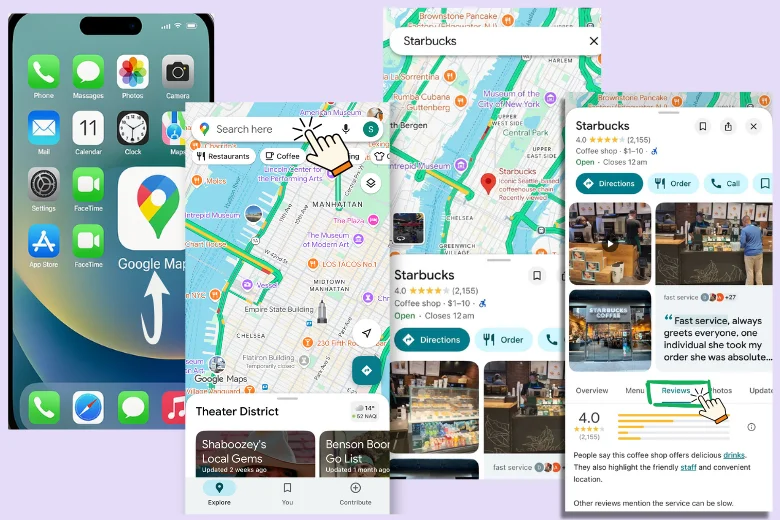
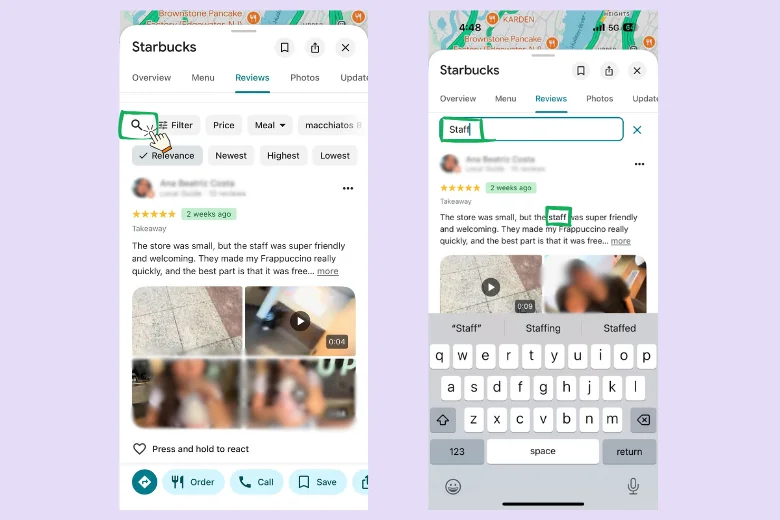
Step 4: Search within reviews
Tap the magnifying glass icon at the top-right corner of the reviews page. Type your keyword and tap Search.
Step 5: View matching reviews
Google instantly filters and shows only the reviews that include your keyword. You can read, reply, or analyze them just like you would on a desktop.
Search and understand reviews in seconds
Use WiserReview to filter, sort, and analyze Google reviews by keyword without extra effort.
Start Free →How to analyze Google reviews using AI?
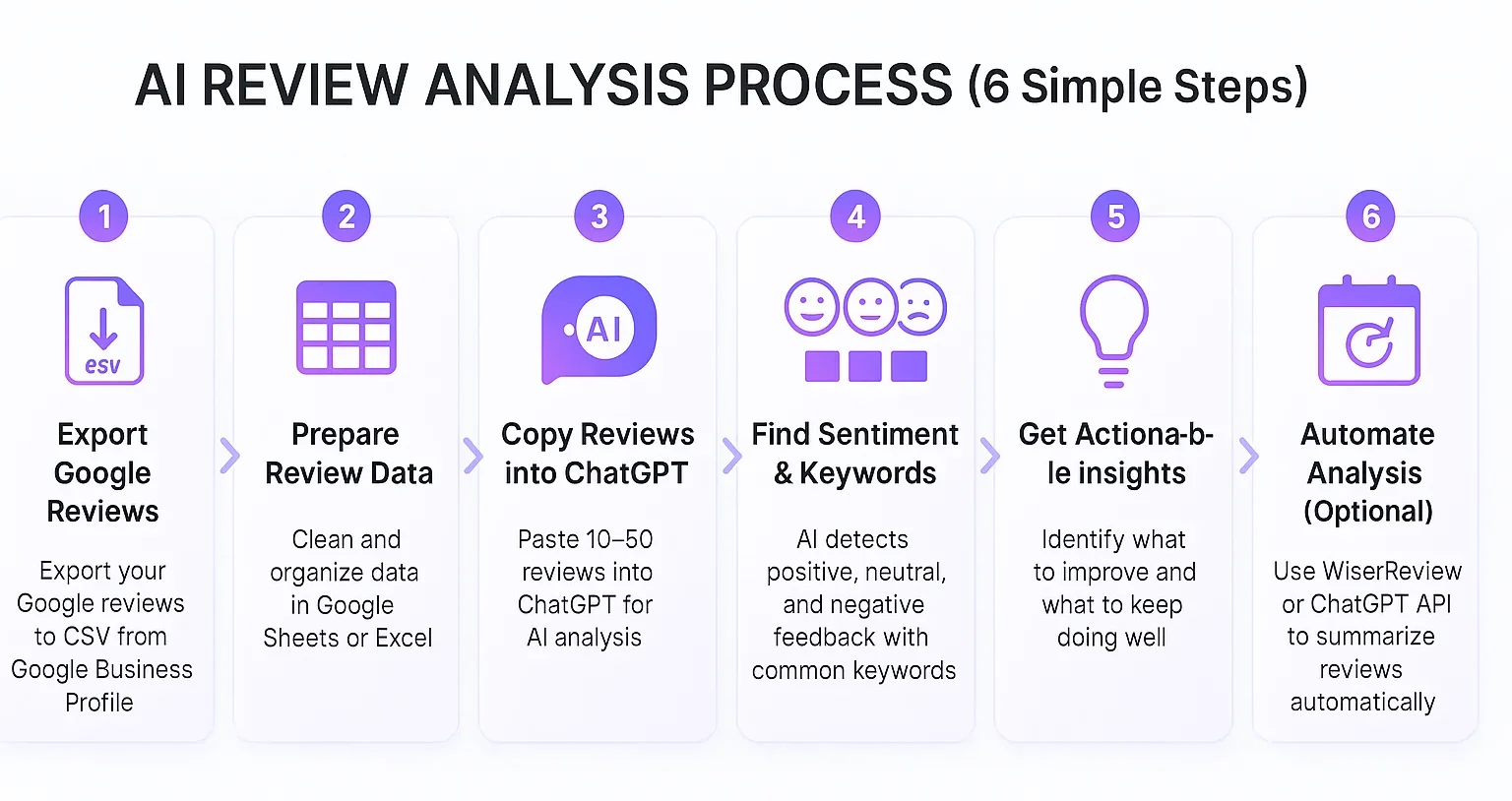
AI transforms hours of manual review reading into minutes of strategic insights. ChatGPT makes this accessible to everyone, regardless of technical skill.
Step 1: Export your Google reviews
Before you can analyze anything, you need your review data in one place.
- Open your Google Business Profile and go to the Reviews section.
- Use tools like WiserReview (a third-party tool) to export all your reviews into a CSV file.
- The file should include the review text, rating, date, and the reviewer’s name.
This gives you a structured dataset that AI can process.
Step 2: Prepare your review data
Open your CSV file in Google Sheets or Excel and check that each review is in its own row.
Clean up unnecessary columns, such as reviewer photo links or profile URLs, and keep only the essentials (text, rating, date).
For deeper insights, you can also add columns for location, product, or service category.
Step 3: Copy your reviews into ChatGPT
Open ChatGPT (you can use GPT-5 or GPT-4).
Copy 10–50 reviews at a time and paste them into the chat box.
Then ask ChatGPT something like:
“Analyze these Google reviews and tell me what customers like most and what issues they often mention.”
ChatGPT will read all reviews and summarize the main themes, such as fast delivery, poor support, or friendly staff.
Step 4: Identify sentiment and keywords
You can go deeper by asking:
“Group these reviews into positive, neutral, and negative categories, and list common keywords under each.”
ChatGPT will detect sentiment patterns and extract recurring words, such as “price,” “quality,” or “delay.” This helps you see which areas drive satisfaction or complaints.
Step 5: Find actionable insights
Now, turn summaries into improvements. Ask:
“Based on these reviews, what should this business improve or continue doing?”
ChatGPT can convert the analysis into practical insights, for example, improving response time, training staff, or keeping quick delivery as a key strength.
Step 6: Automate review analysis (Optional)
If you want to analyze reviews regularly:
- Use WiserReview’s AI dashboard or connect your reviews with Google Sheets and the ChatGPT API.
- This allows you to run automatic sentiment summaries on a weekly or monthly basis, keeping you updated on new trends in customer feedback.
Example Prompt for Quick Use
You can copy and use this directly:
“Here are 30 Google reviews from my business. Please summarize customer sentiment, highlight top complaints and praises, and give me three improvement suggestions.”
AI review analysis with ChatGPT helps you replace hours of manual reading with a few minutes of insight. It’s simple, fast, and accurate, making it perfect for identifying what customers honestly think about your business.
How to add Google reviews to a website with tags
Displaying reviews on your website builds instant trust with visitors. But showing the right reviews to the right people? That’s where tagging makes the difference.
Using “WiserReview” to display tagged reviews
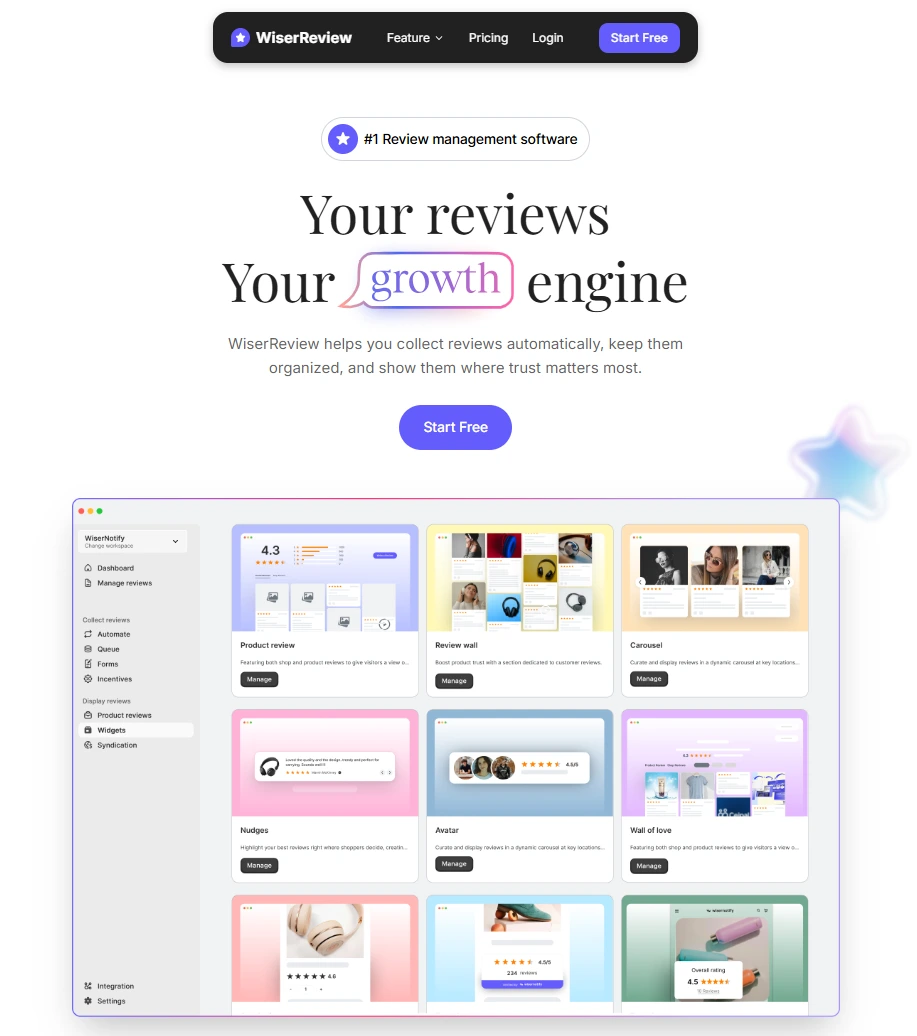
WiserReview makes it easy to collect, organize, and display reviews with custom tags, eliminating the need for coding.
Step 1: Connect your Google reviews to WiserReview
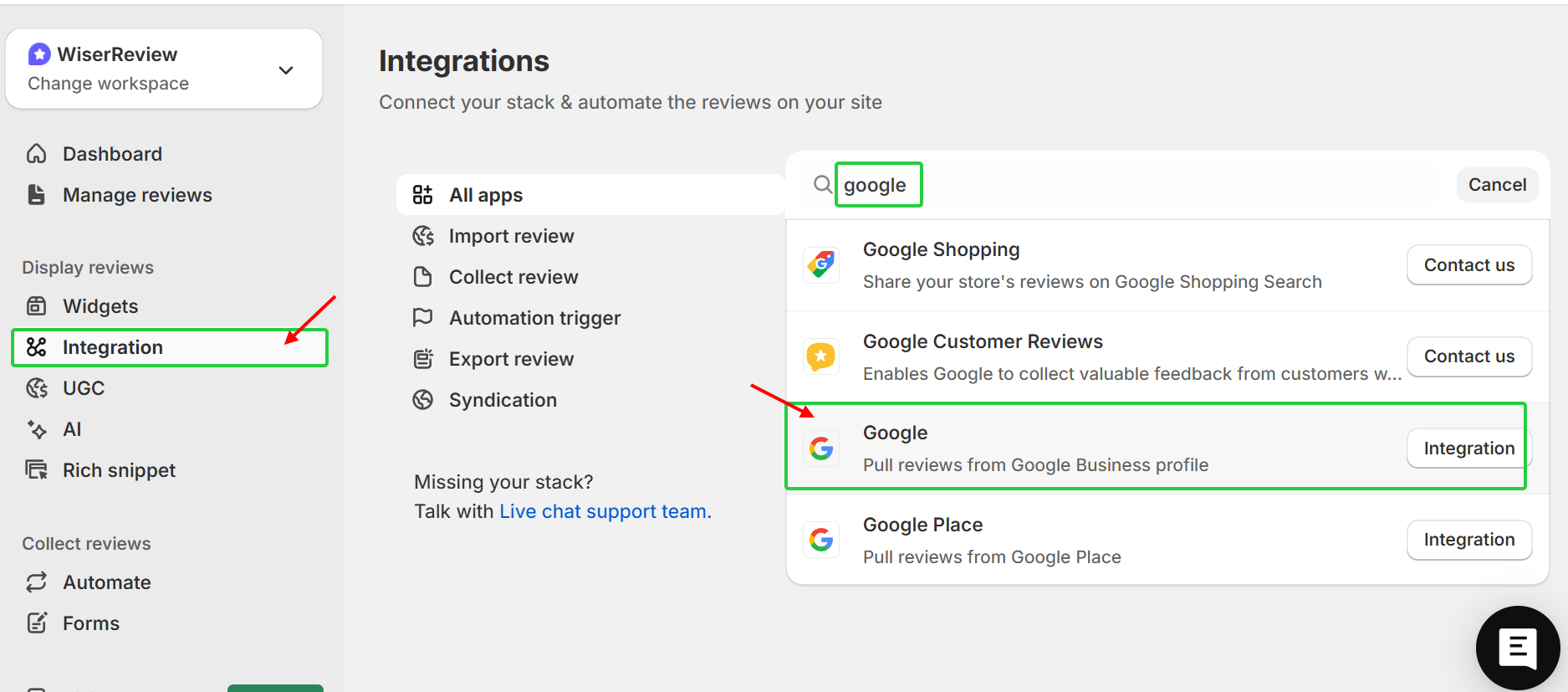
- Create a WiserReview account and log in.
- A dashboard will appear. Then, click on “Integration,” click the search icon, and search for “Google.” There, you’ll see an option labeled “Pill reviews from Google Business Profile.” Click on that and integrate.
- Link your Google Business Profile so it imports all existing reviews. WiserReview will keep them updated automatically.
- This gives you a live feed of reviews to work with.
Step 2: Tag reviews by category
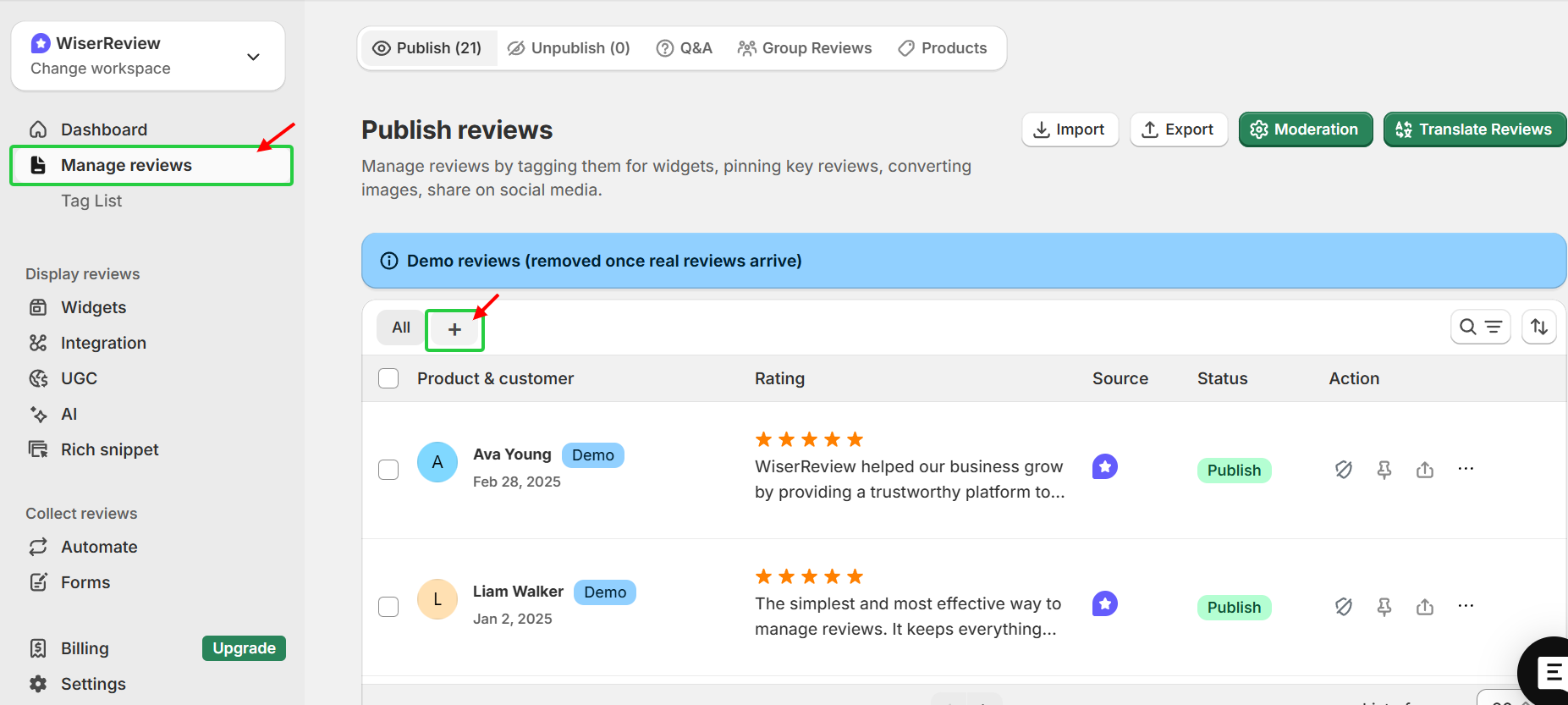
- In the Manage Reviews section, open any review.
- Use the Tag field to assign one or more tags (for example: “Product Quality”, “Fast Delivery”, “Customer Service”)
- You can also create new tags on the fly.
- WiserReview supports automatic tagging based on keywords you define (e.g., reviews containing “late” get the “Delivery Issue” tag).
Step 3: Create tagged review widgets
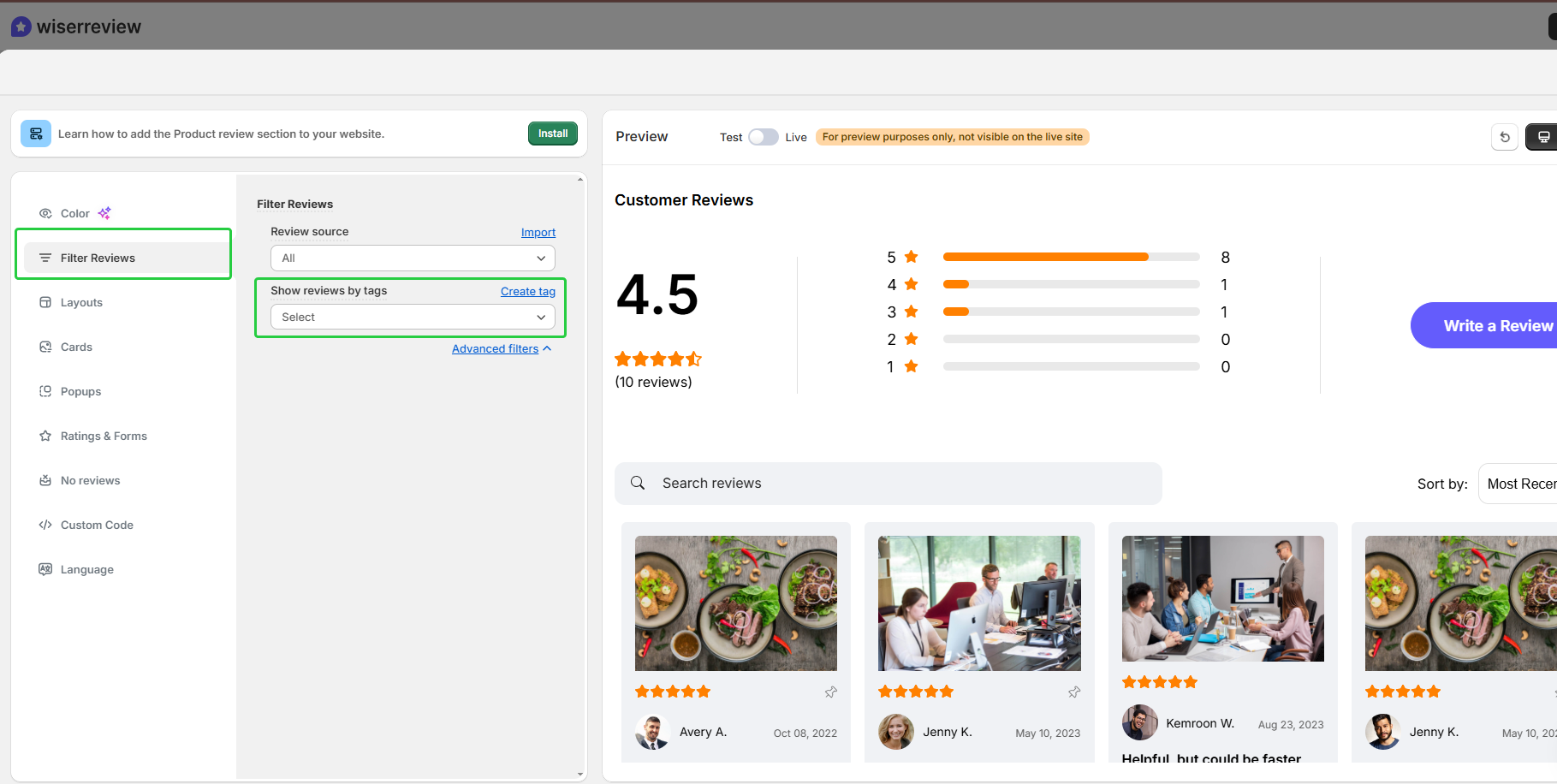
- In the Display reviews section,
- Go to Widgets in WiserReview.
- Create or select a widget type (carousel, wall, sidebar, etc.).
- In widget settings, under Filter Reviews, choose which tags to include. Only reviews with those tags will display.
- For example:
• On your shipping page, use a widget filtered by “Fast Delivery” or “Delivery Issue”.
• On your support page, filter by “Customer Service”.
Step 4: Embed the widget on your website
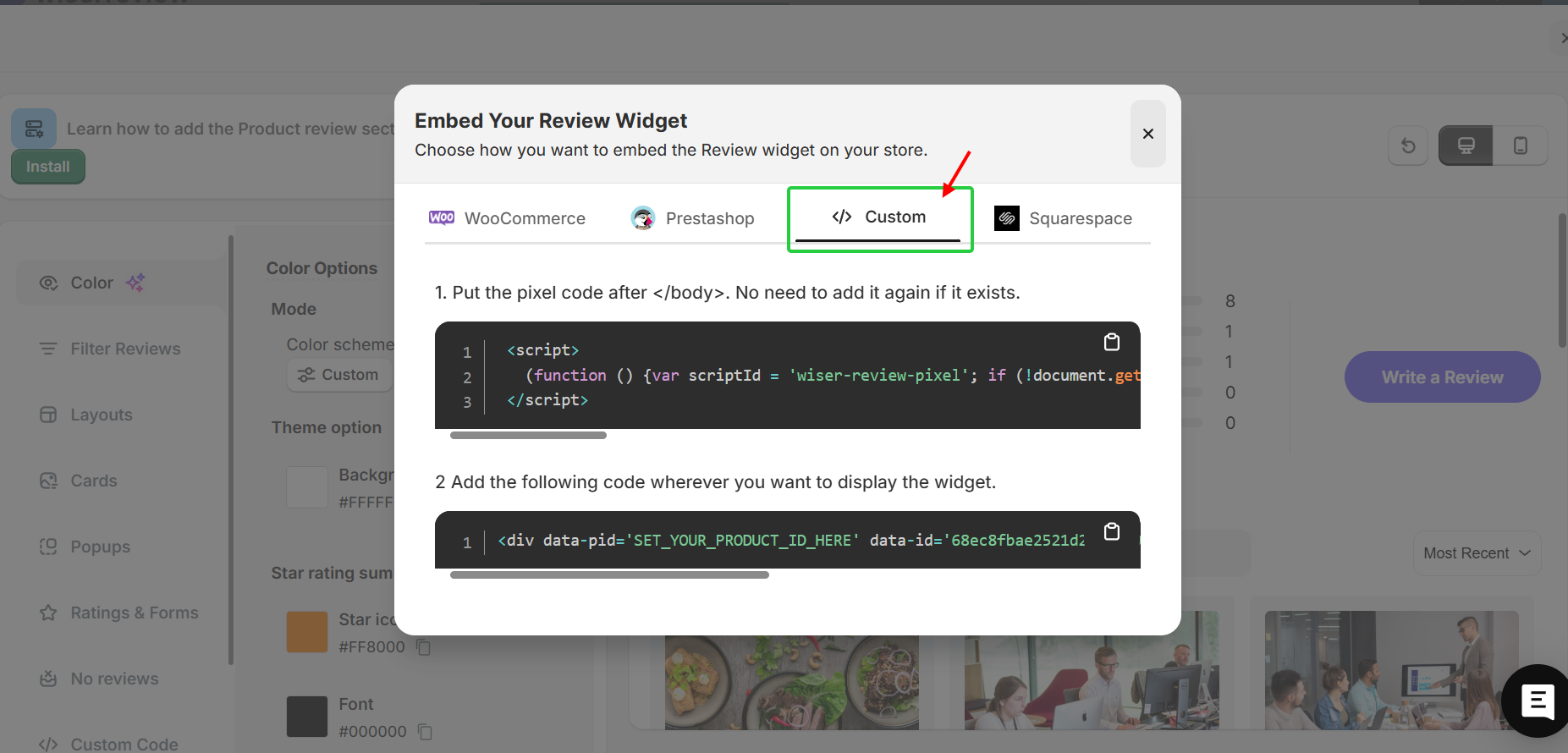
- WiserReview gives you an embed code (JavaScript or iframe).
- Go to widgets, click on “configure”, there you’ll see an option of “Install” click on that and then select “Custom”. You’ll get your embed code.
- Copy and paste the embed snippet into your web page’s HTML where you want the reviews to show.
- It works with common platforms, including Shopify, WooCommerce, Wix, Webflow, and custom HTML sites.
- The Google review widget is responsive, displaying well on both desktop and mobile devices.
Search and understand reviews in seconds
Use WiserReview to filter, sort, and analyze Google reviews by keyword without extra effort.
Start Free →Wrap up
It does not have to be complicated to search, analyze, and display Google reviews.
With the built-in Google Maps search, AI tools such as ChatGPT, and platforms like WiserReview, you can take raw feedback and convert it into usable insights and trust evidence.
Whether you’re tracking customer sentiment or showcasing tagged reviews on your website, these steps help you pinpoint what is essential to your customers and put that towards growing your business.
Frequently asked questions
Yes. Use the magnifying glass icon in the Reviews tab on Google Maps to instantly search for any keyword or name.
You can export your reviews to a CSV file and use ChatGPT or WiserReview’s AI review analyzer dashboard to analyze themes, sentiments, and areas of improvement.
Tagged reviews display in clusters by topic category, i.e., "Support", "Delivery", or "Quality" so that you can show the most relevant feedback for each category on every page.
No! You do not need to know any coding. WiserReview has all the necessary codes ready to embed into your website, ensuring seamless integration with Shopify, WooCommerce, Wix, Webflow, or any custom site.

Krunal