3 min
3 min 
I’ve helped hundreds of business owners find their Google reviews, and most of them had the same problem. They knew the reviews existed. They just couldn’t figure out where Google was hiding them.
Whether you posted a review last week and want to double-check what you wrote, or you run a business and need to see what customers are saying, the steps are simpler than you’d think.
Here’s the quick version:
Personal reviews you wrote: Google Maps → Menu → Your contributions → Reviews
Business reviews from customers: Google Business Profile → Reviews tab (or just Google your business name)
That’s the short answer. But if you need the full walkthrough with screenshots and mobile instructions, keep reading.
How to Find Reviews You’ve Written on Google
Every review you’ve ever posted on Google is tied to your Gmail account. It doesn’t matter if you wrote it three years ago. Google saves all of them in one place.
You just need to know where to look.
On Desktop (PC or Mac)
This takes about 30 seconds once you know the path.
Step 1: Open Google Maps
Go to maps.google.com in any browser. Make sure you’re signed into the Gmail account you used when writing your reviews.
Step 2: Open the menu
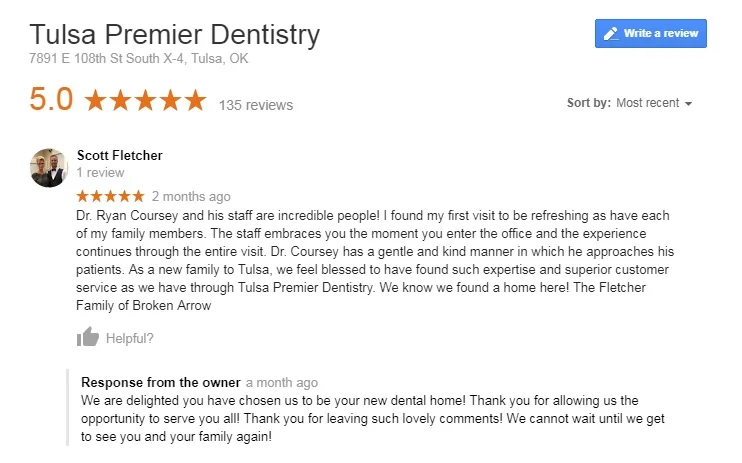
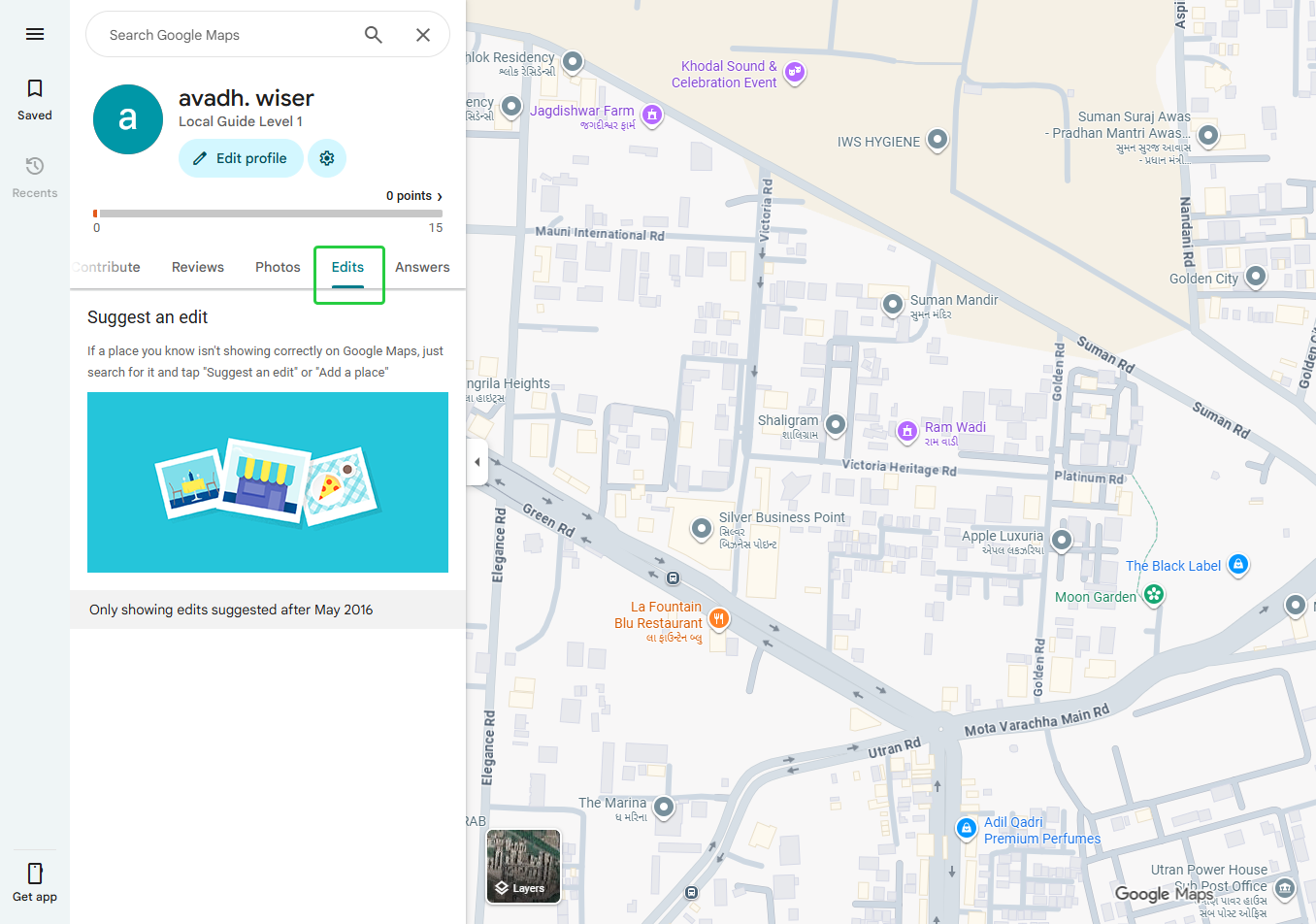
Click the three-line icon (the hamburger menu) in the top-left corner. A side panel slides out.
Step 3: Click “Your contributions”
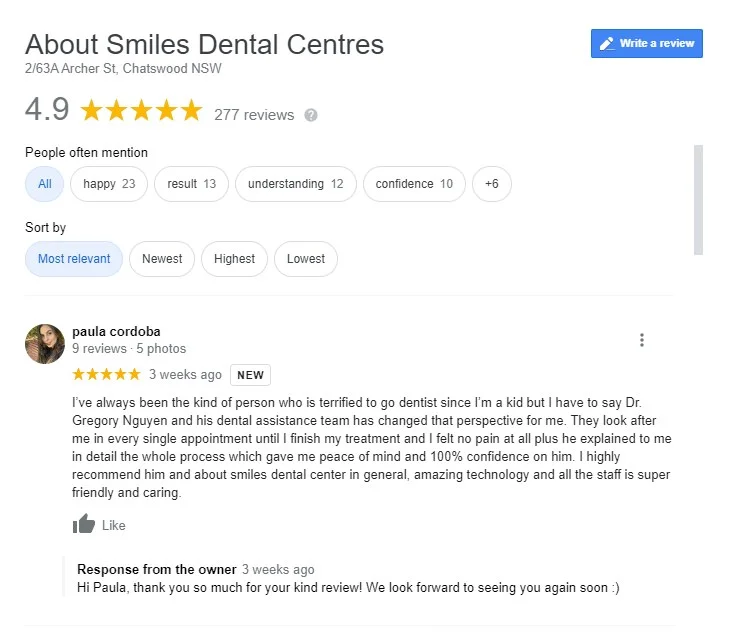
This is where Google stores everything you’ve added to Maps: reviews, photos, edits, all of it.
Step 4: Click the Reviews tab
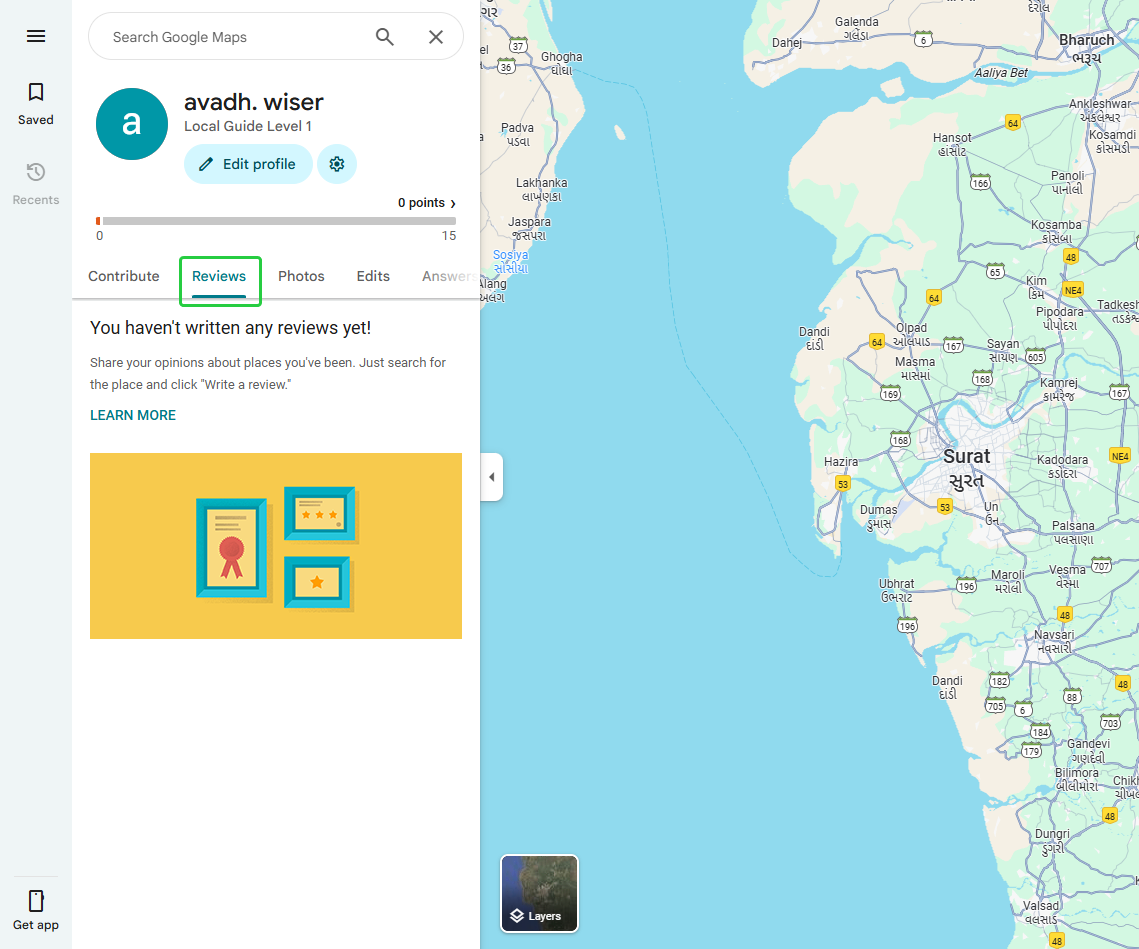
Now you’ll see every review you’ve ever posted. Each one shows the business name, your star rating, the text you wrote, and the date.
If you added photos to your Google reviews, those show up here too.
Also check: How to collect and manage Google Maps reviews easily

All your reviews in one place
Collect reviews, manage every response, and display them where they matter most.
Start Free →On Mobile (iPhone or Android)
The Google Maps app is the fastest way to pull up your reviews on a phone.
Step 1: Open the Google Maps app. (Download it from the App Store or Google Play if you don’t have it.)
Step 2: Tap your profile picture in the top-right corner.
Step 3: Tap Your profile or Your contributions.
Step 4: Tap the Reviews tab.
That’s it. You’ll see every review linked to your account, including the rating, your comments, any photos, and the date you posted.
One thing to watch: if you have multiple Gmail accounts on your phone, make sure you’re signed into the right one. I’ve seen business owners panic because they couldn’t find their reviews. Turns out they were logged into a personal account instead of their business Gmail.
Using Google My Activity (Alternative Method)
This one’s less known but useful if you want a chronological log of your reviews with exact timestamps.
Go to myactivity.google.com and filter your activity by “Maps.” You’ll see a timestamped history of every review you’ve posted, along with other Maps activity.
It’s not as clean as the Google Maps method, but it’s great if you’re trying to find a specific review from a particular date.
How to Edit or Delete a Review You Posted
Changed your mind about a review? Google lets you update or remove it anytime.
To edit:
- Follow the steps above to find your reviews (Google Maps → Your contributions → Reviews)
- Click the three-dot menu next to the review
- Select Edit review
- Change your text, star rating, or photos and save
To delete:
- Same path. Find the review, click the three-dot menu
- Select Delete review
- Confirm the deletion
Quick heads-up: edited reviews show the updated date (not the original). And deleted reviews are gone permanently, from your account and from the business page. There’s no undo button.
Also check: How to delete Google reviews safely in 5 minutes
How to See Reviews for Your Business
If you own or manage a business, your Google Business Profile is where all your customer reviews live.
Every review, rating, photo, and reply is connected to your profile and visible on Google Search and Google Maps.
Method 1: Google Business Profile (Desktop)
Step 1: Go to your Google Business Profile dashboard and sign in with the Gmail account linked to your business.
Step 2: If you manage multiple locations, pick the one you want to check.
Step 3: Click Reviews in the left-side menu.
You’ll see every customer review with their star rating, comment text, photos, and posting date. You can sort by newest first or filter by star rating. That’s helpful when you want to tackle negative feedback first.
Method 2: Just Google Your Business Name
Here’s the faster approach that most people miss: type your exact business name into Google Search.
Your Business Profile panel shows up on the right side of the screen. You’ll see your star rating and total review count right below your business name. Click that number, and it opens your full review feed.
This works on desktop and mobile. No login required to read the reviews (though you’ll need to sign in to reply).
Method 3: Google Maps App (Mobile)
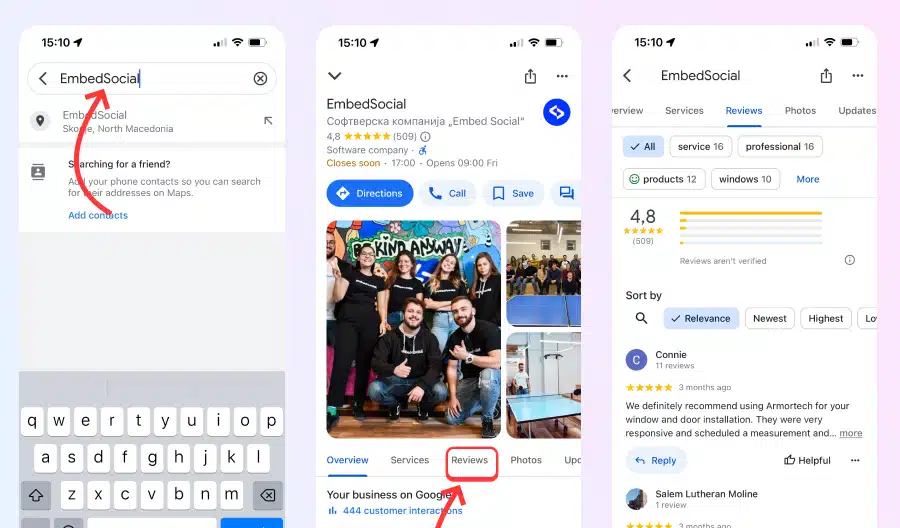
For checking reviews on the go, the Google Maps app is your best option.
Step 1: Open the Google Maps app and make sure you’re signed into the account that manages your business.
Step 2: Tap your profile picture → Your Business Profile.
Step 3: Scroll to the Reviews section and tap it.
Each review shows the customer’s name, their star rating, what they wrote, and when they posted it. You can reply to reviews directly from here.
I use this method myself when I’m away from my desk. It’s quick, and replying fast to reviews actually makes a difference. Customers notice when a business responds within hours instead of weeks.
All your reviews in one place
Collect reviews, manage every response, and display them where they matter most.
Start Free →How to Respond to and Manage Your Business Reviews
Finding your reviews is step one. But if you’re not replying to them, you’re leaving value on the table.
Here’s the basic workflow:
Reply to every review. Positive ones get a genuine thank-you. Negative ones get a calm, professional response that acknowledges the issue and explains what you’re doing about it.
Flag reviews that break the rules. If you spot spam, fake reviews, or content from competitors, click the three-dot menu next to the review and select Report review. Google checks it against their review policy and removes it if it violates their guidelines.
Check reviews daily. I know it sounds excessive, but a quick daily check takes less than 2 minutes and keeps your profile active. Google’s algorithm notices when businesses engage with customer feedback.
The manual approach works for businesses with a handful of reviews. But once you’re getting reviews consistently, it gets time-consuming fast.
That’s where WiserReview comes in. You get instant alerts for new reviews, a single dashboard to reply across locations, and smart filters to surface the reviews that need your attention first. It turns review management from a daily chore into something that actually runs smoothly.
Also check: Best Google review management software for business growth
Troubleshooting: Common Issues When Viewing Google Reviews
Reviews not showing up
This is the most common complaint I hear. A customer says they left a review, but you can’t see it.
Usually, it’s one of three things: Google’s spam filter caught it (new accounts get filtered more often), the reviewer violated a Google review policy without realizing it, or there’s a processing delay. Most new reviews appear within a few hours, but some take up to 72 hours.
Make sure your Google Business Profile is verified. Unverified profiles can have review display issues.
Also check: Why is my Google review not showing? Here’s the fix
Can’t see all reviews on mobile
Try these quick fixes: update the Google Maps app, clear the app cache, and check your internet connection. Also double-check you’re logged into the right Gmail account.
If reviews still won’t load, open your business listing in a mobile browser instead. Sometimes the app glitches, but the web version works fine.
Reviews appearing under the wrong account
This happens when you have multiple Gmail accounts signed in at the same time. The fix is simple: sign out of all accounts, then sign back in with only the account linked to your Google Business Profile.
Clear your browser cache after switching accounts to make sure you’re seeing the right data.
Personal reviews disappeared
If a review you wrote vanished, Google may have removed it for a policy violation. Common triggers include reviews with links, phone numbers, or promotional language. Very short reviews like “Good place” can also get filtered.
Check your review history in Google Maps → Your contributions → Reviews. If the review isn’t there, it was likely removed by Google’s automated system.
All your reviews in one place
Collect reviews, manage every response, and display them where they matter most.
Start Free →Wrap Up
Finding your Google reviews takes less than a minute once you know the path.
For personal reviews, go to Google Maps → Your contributions → Reviews. For business reviews, check your Google Business Profile or just Google your business name.
The harder part isn’t finding them. It’s managing them consistently. Responding to reviews, flagging spam, and keeping your profile active makes a real difference in how Google ranks your business and how customers perceive you.
If you want to automate your review management, WiserReview can handle the heavy lifting. But even without tools, just checking your reviews daily is a habit that pays off.
Now go find those reviews. They’re waiting for you.
Frequently asked questions
Google sometimes hides reviews temporarily while checking for spam or policy violations. Make sure you're signed into the correct Gmail account, and if you're a business owner, verify that your Google Business Profile is fully verified.
Yes. Open Google Maps, go to Your contributions → Reviews, find the review, and tap the three-dot menu. Select Delete review to remove it permanently from both your account and the business page.
Most Google reviews appear within a few hours. But some can take up to 72 hours, especially if they come from new Google accounts or contain content that triggers Google's automated spam filters.
No. Businesses can't delete customer reviews directly. You can only report reviews that contain spam, false information, or policy violations. Google reviews the report and removes the review if it breaks their guidelines.
This happens when multiple Gmail accounts are signed in on the same device or browser. Sign out of all accounts and log back in with only the account you use to post or manage reviews.
Open the Google Maps app, tap your profile picture in the top-right corner, then tap Your contributions and select the Reviews tab. All reviews tied to your Gmail account will appear there.
Sign into your Google Business Profile and click the Reviews tab. Or simply search your business name on Google — your reviews appear in the Business Profile panel on the right side of the search results.

Krunal