2 min
2 min 
Selling on Amazon helps you collect valuable customer reviews, but when you start building your own Shopify store, those reviews don’t follow automatically.
Many store owners want to bring their Amazon reviews to Shopify to build trust, show proof, and improve product conversion rates.
The good news is you can do this quickly using a review import tool like WiserReview.
In this blog, you’ll learn how to export your Amazon reviews and import them into your Shopify store using a CSV file and WiserReview’s easy interface.
Why use WiserReview to import Amazon reviews
Once you have your CSV file, importing reviews into Shopify is easy with WiserReview.
Here’s what makes WiserReview the better choice:
- Fast CSV Upload with field mapping
- Multiple Display Widgets (pop-up, floating badge, carousels, more)
- Auto Tagging and intelligent moderation
- Works with Shopify, WooCommerce, and others
- Starts at just $9/ month, with a free plan available
Whether you’re switching platforms or just want to repurpose your Amazon reviews, WiserReview gives you flexibility and control.
How to import Amazon reviews to Shopify
To import your Amazon reviews, you need to export reviews from Amazon. So let us start.
Step 1: How to export reviews from Amazon
Amazon doesn’t give a native option to download reviews directly from your Seller Central. So you have two options:
1. Use a Third-Party Amazon Review Export Tool:
There are tools like AMZDataStudio, FeedbackWhiz, or browser extensions that allow you to export reviews into a CSV format.
2. Manually Copy Reviews and Build a CSV File:
This takes more time but works well for small volumes. Create a CSV file with columns like:
- product_id
- reviewer_name
- rating
- review_text
- created_at
- media_url (optional)
Step 2: Prepare your CSV file

Start by downloading your reviews from Amazon using any tool or extension that supports CSV export.
If you’re creating the file manually, make sure your CSV includes the following columns:
- review_text – The actual review content.
- Rating – Star rating (1 to 5).
- reviewer_name – Name of the reviewer.
- image_url – If the review includes a photo.
- product_id – This must match the Shopify Product ID in your store.
Make sure each row clearly connects to the correct product by using the exact product ID from your Shopify catalog.
How to Find Shopify Product ID
This is the easiest method.
Steps:
-
Log in to your Shopify Admin.
-
Go to Products → All Products.
-
Click on the product you want.
-
Look at the URL in your browser.
You will see something like:
The long number at the end is the Product ID.
Step 3: Log in to the WiserReview dashboard
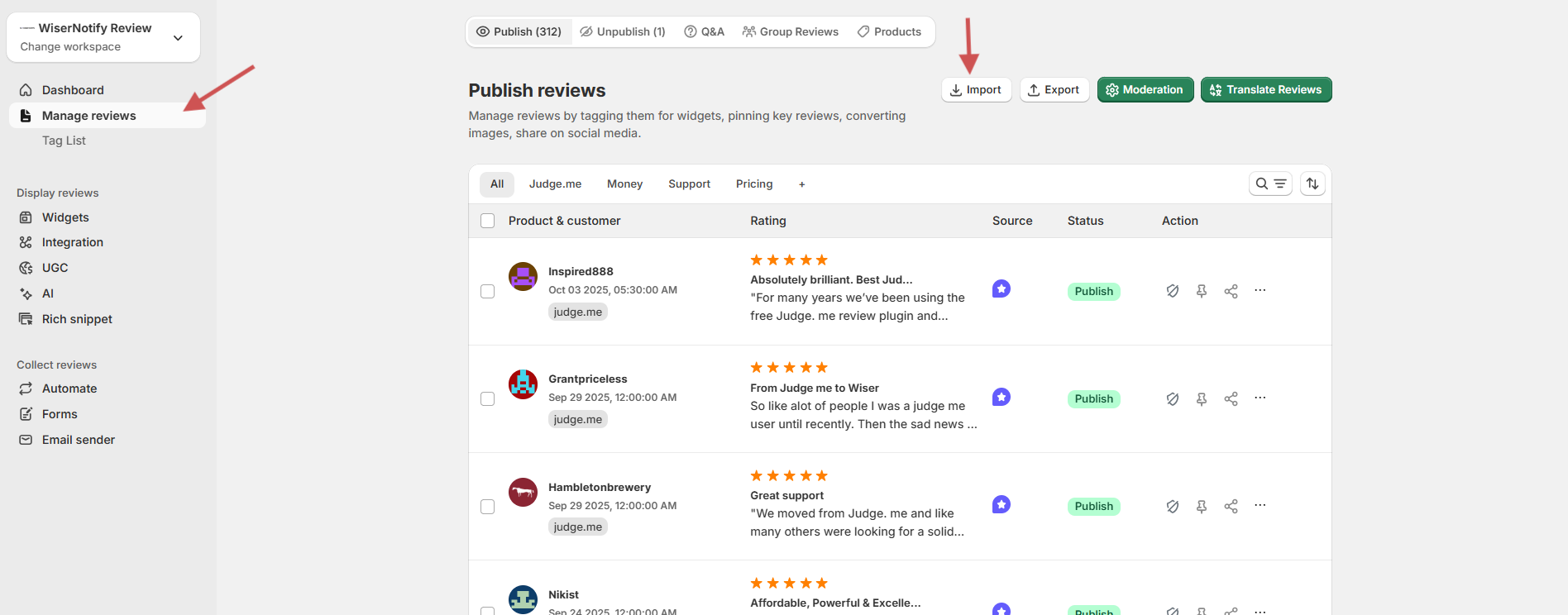
- Visit WiserReview
- Log in or create a free account.
- From the dashboard, go to Manage Reviews.
Step 4: Start the import process
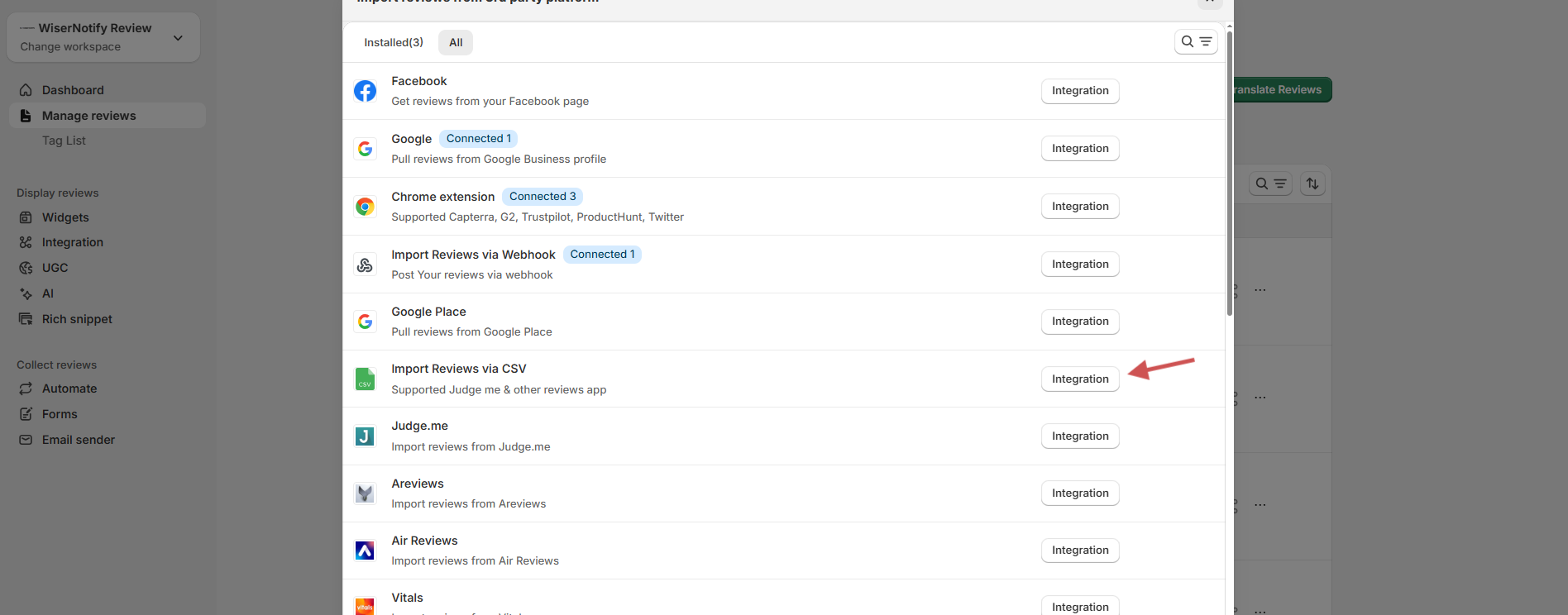
- Click on the Import Reviews button.
- Choose “Import reviews via CSV” from the available integration options.
- Select CSV File Upload as the method.
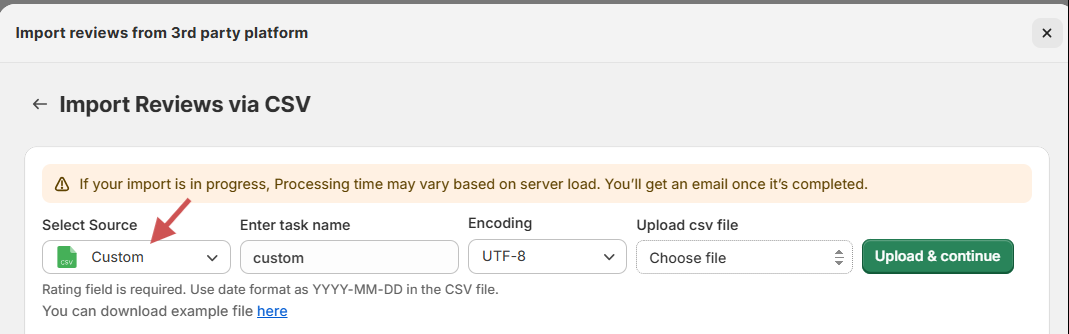
- Click Browse and upload the cleaned Amazon review CSV file.
Step 5: Next is mapping the fields
After uploading, you’ll be prompted to map each CSV column to the required WiserReview fields. For example:
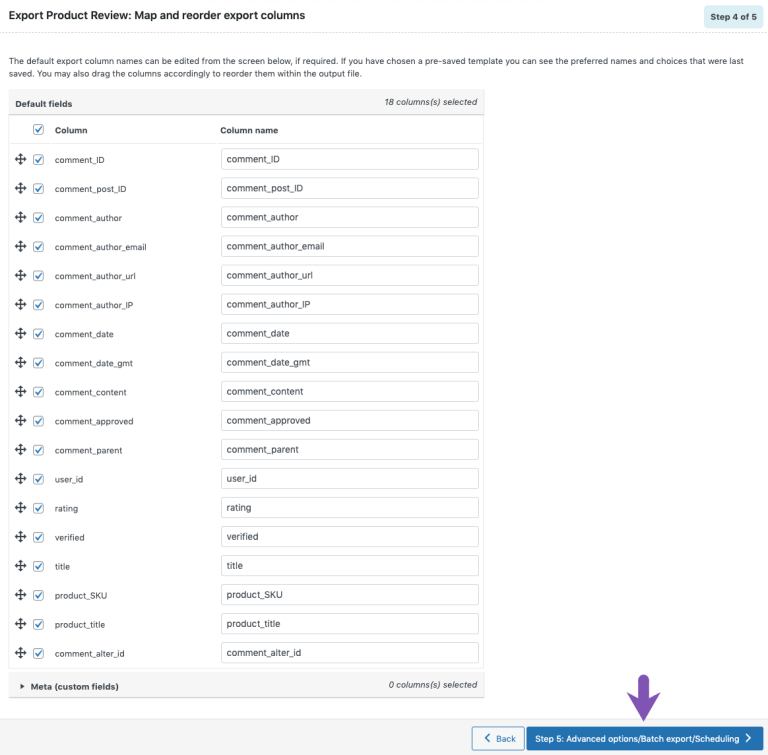
Click Next when all mappings are set.
Step 6: Upload and review
- You’ll see a preview of the imported data
- Click Upload & Continue
- Once uploaded, all Amazon reviews will appear under Manage Reviews.
Optional: Tag & customize
WiserReview lets you do more:
- Tag Reviews by product, category, or sentiment.
- Apply Filters to hide low ratings or unverified reviews.
- Display Reviews using carousels, badges, popups, or floating sliders.
- Auto-share to Social Media using the Social Sharing module.
Conclusion
Importing Amazon reviews to Shopify doesn’t have to be difficult. With WiserReview, the entire process takes just a few minutes and gives you complete control over how reviews are shown.
Once imported, you can showcase your reviews using widgets, carousels, floating badges, and more, all styled to match your Shopify store.
Ready to bring over your Amazon credibility and boost trust on Shopify?
Start importing with WiserReview now. It’s fast, simple, and built for growth.
Frequently asked questions
No, Shopify doesn't allow direct import from Amazon, but you can upload Amazon reviews using a CSV file with apps like WiserReview.
Your CSV should include product ID, reviewer name, rating, review text, date, and optional media URLs.
Only reuse Amazon reviews for products you own or have rights to sell, and make sure reviewers gave public feedback. Always follow Amazon’s content guidelines.
Yes, just make sure each review in your CSV is mapped correctly to the product ID or handle in your Shopify store.
No, WiserReview allows easy CSV import with a user-friendly dashboard no technical knowledge required.

Krunal