5 min
5 min 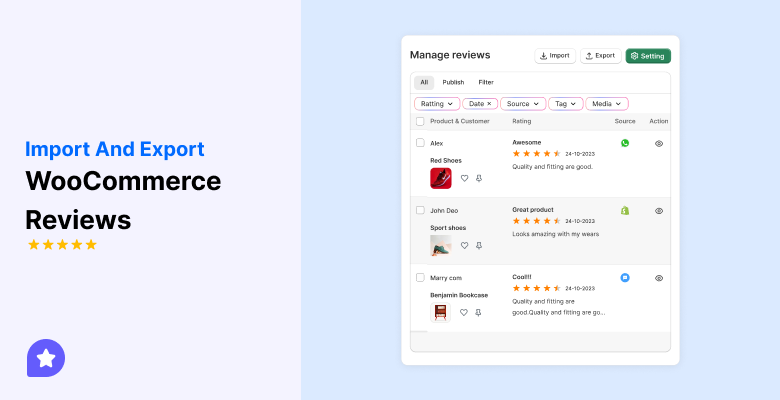
You import and export WooCommerce reviews to manage product feedback in a simple and organized way.
Importing helps you add reviews to new or existing products. Exporting helps you save your data or move it to another store.
Store owners use these actions when they migrate a site, change themes, or need to rebuild product pages fast. The goal is to keep every review in one place without losing any information.
This guide shows the exact steps to import reviews into WooCommerce and export them when you need a backup or a clean transfer.
Let’s get started!
Why you might need to import or export WooCommerce reviews
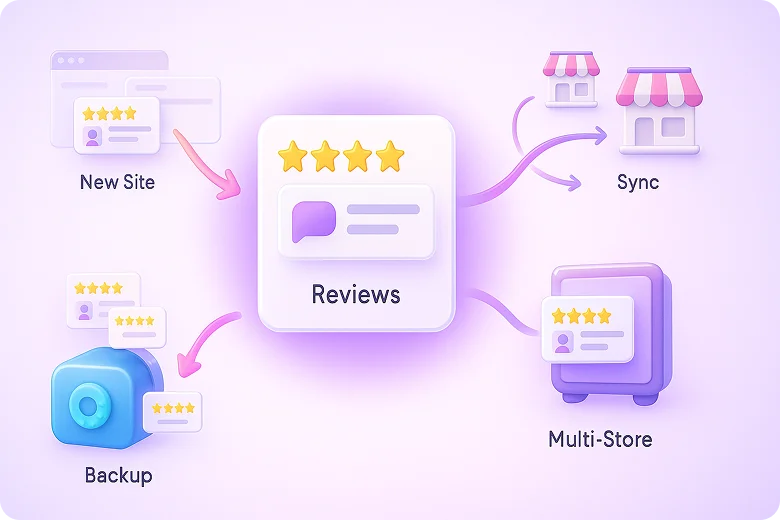
Moving to a new website
When you shift to a new website or change domains, you export your reviews from the old store and import them into the new one.
This keeps all your customer feedback in place, so your new site does not start without social proof.
Backing up customer feedback
Exporting reviews gives you a safe backup of every comment, rating, and name.
If something goes wrong during an update or redesign, you can import the file again and restore all your reviews.
Syncing reviews across stores
If you run more than one store, you may want the same reviews on each product.
Import and export tools help you move reviews between stores so every product page shows complete and up-to-date feedback.
How to Export WooCommerce Reviews
The Import Export Suite for WooCommerce lets you export all product reviews in a clean CSV or XML file.
It gives you simple options for quick exports and advanced controls for filters, custom fields, and saved templates. This helps you move reviews between sites, create backups, or analyze feedback with ease.
1. Start the Export
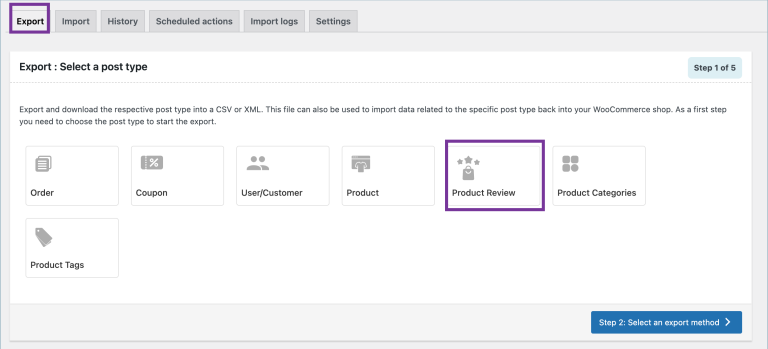
- Go to WooCommerce → Import Export Suite → Export.
- Choose Product Review as the post type.
2. Pick an Export Method
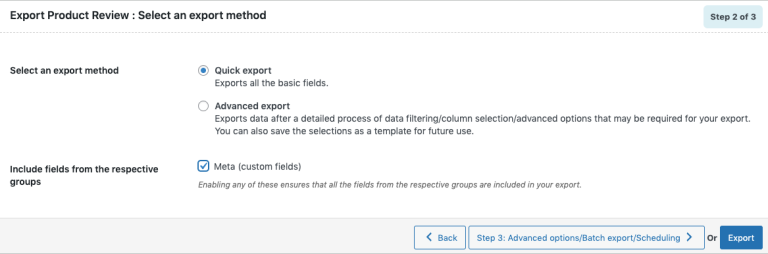
You can choose one of these:
- Quick Export: Exports basic fields. Select Meta groups if needed.
- Pre-saved Template: Uses a template you saved earlier.
- Advanced Export: Gives complete control over filters and columns.
Click Next to continue.
3. Filter the Reviews
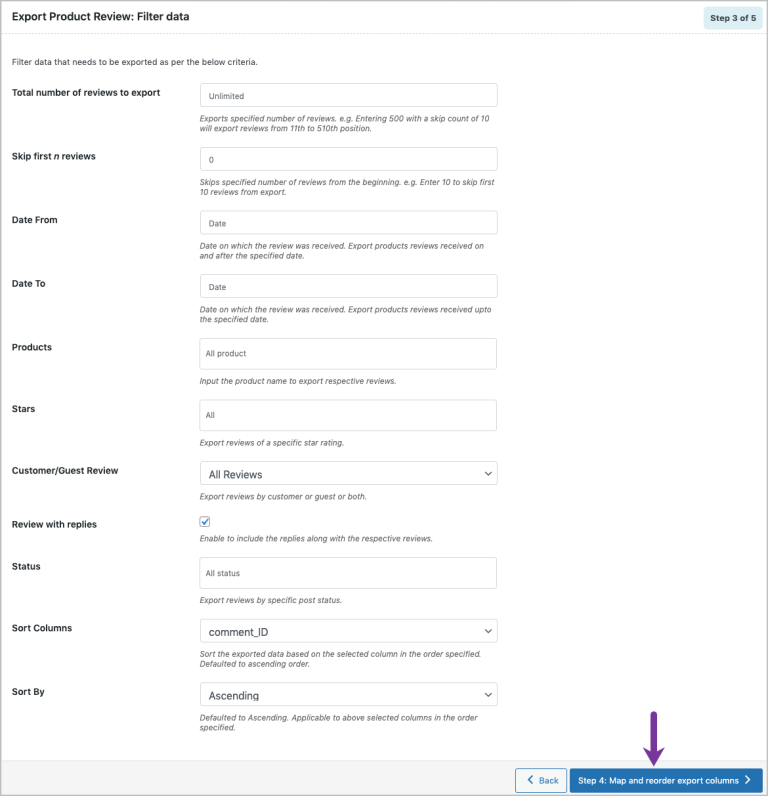
You can filter by:
- Total reviews and skip count
- Date range
- Product
- Star rating
- Customer or guest
- Reviews with replies
- Status and sort order
4. Map and Reorder Columns
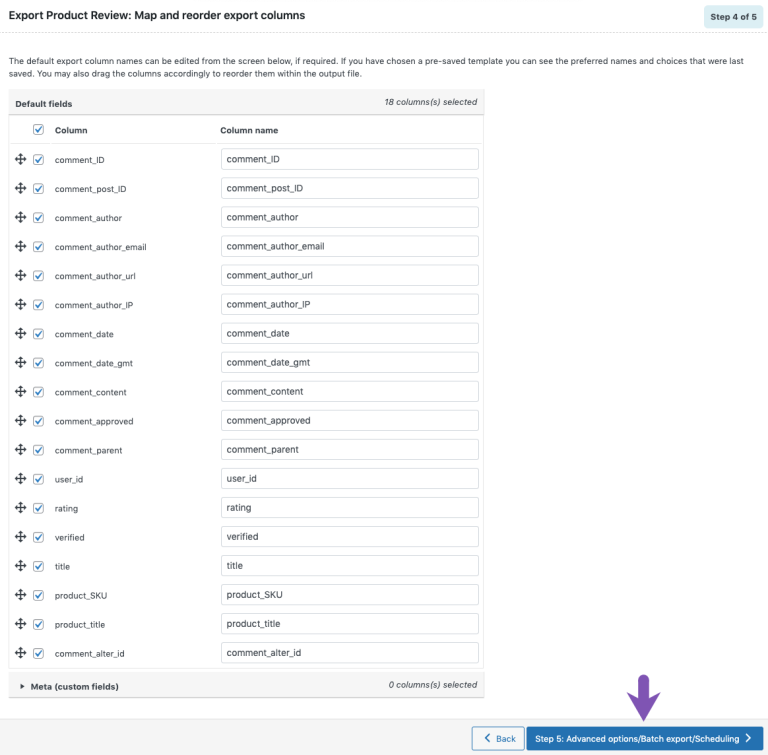
You can:
- Edit column names
- Reorder columns
- Map default and meta fields
- Load a saved template if needed
5. Final Export Settings
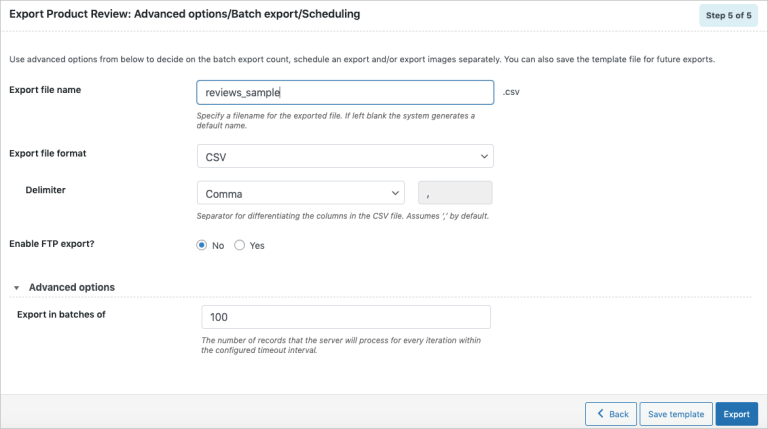
Set:
- File name
- CSV or XML
- Delimiter
- FTP export (optional)
- Batch/advanced options to avoid timeout
Save the template if needed.
Click Export to complete the export.


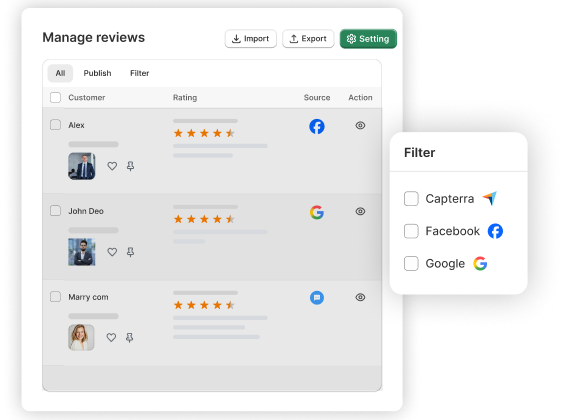
All your reviews in one place
Collect reviews, manage every response, and display them where they matter most.
Exporting reviews manually
You can export WooCommerce product reviews manually when you want complete control over the data or need a custom file.
This method takes more time, but it helps you extract exact fields and adjust the format before using them elsewhere.
Step 1: Open your database tool
Log in to your hosting panel and open phpMyAdmin or any database manager connected to your site.
This tool lets you access all WooCommerce tables directly.
Step 2: Find the review tables
WooCommerce stores reviews in two main tables:
- wp_comments – holds review text, reviewer name, and dates.
- wp_commentmeta – holds rating and extra details.
You will export data from both tables.
Step 3: Filter only product reviews
In the wp_comments table, filter rows where:
comment_type = review
This shows only WooCommerce product reviews.
Step 4: Export the review data
Use the Export option in phpMyAdmin and choose CSV or SQL format.
This exports the filtered review list.
Step 5: Export the ratings (Meta Data)
Open wp_commentmeta and filter rows where:
meta_key = rating.
Export these as a CSV file.
This file contains all rating values linked to each review ID.
Step 6: Combine the files (If Needed)
Use Excel or Google Sheets to combine:
- Review text and details from wp_comments
- Rating values from wp_commentmeta
Match them using the comment_ID field.
Step 7: Save and reuse the file
Save your combined file as CSV.
You can use it to:
- Import reviews into another WooCommerce store
- Store it as a backup
- Edit or reorganize review data for future use
This manual method is practical when you want complete control over review fields or need a custom export that plugins cannot generate.
How to import WooCommerce reviews
Here are the ways to import WooCommerce reviews.
Import using a WiserReview

You use a plugin like WiserReview when you want a faster and cleaner way to import WooCommerce reviews.
This method works well for larger stores or when you want to avoid manual CSV work.
Step 1: Connect your WooCommerce store
Open your WiserReview dashboard.
Go to Integrations → WooCommerce and connect your store.
This allows WiserReview to sync your products and match each review correctly.
Step 2: Open the review import tool
Go to Reviews → Import Reviews inside WiserReview.
Here, you can add files, sources, or mapped data for quick review imports.
Step 3: Upload your review file

Choose your CSV file or supported source.
WiserReview reads the file and shows a clean preview.
You can check names, ratings, and product links before importing.
Step 4: Match reviews to products
WiserReview automatically matches reviews to your WooCommerce products using product IDs or product names.
If something does not match, you can fix it quickly before importing.
Step 5: Start the import
Click Start Import.
WiserReview brings in the reviews, attaches them to the correct products, and keeps the data clean.
Step 6: Review imported feedback
Go to Reviews → All Reviews to check the imported entries.
You can filter by product, rating, or date to make sure everything looks correct.
Step 7: Display reviews on product pages

Toggle on the review widget in WiserReview.
Your imported reviews will appear instantly on your WooCommerce product pages with clean formatting and fast loading.
Why do store owners prefer WiserReview for importing
- Clean mapping that avoids missing or misplaced reviews
- Image and video support
- Auto-matching of products
- Faster import for large stores
- Safe import without breaking your WooCommerce database
All your reviews in one place
Collect reviews, manage every response, and display them where they matter most.
Import Reviews from Other Platforms (e.g., Shopify, Amazon)
You import reviews from platforms like Shopify or Amazon when you want to bring your existing feedback into WooCommerce without starting from zero.
The process is simple once you export your reviews in a clean format.
Step 1: Export reviews from the original platform
Each platform gives you an export option:
- Shopify → Export reviews as CSV
- Amazon → Export or collect reviews using a tool
- Other apps → Most offer CSV or JSON exports
Save the exported file to your computer.
Step 2: Check the file format
Make sure the file includes the key fields WooCommerce needs:
- reviewer_name
- review_text
- rating
- review_date
- product_id or product_sku
If your file uses product SKUs, match them to WooCommerce product IDs before importing.
Step 3: Clean and adjust the file
Open the CSV or JSON file.
Fix missing product IDs, remove empty rows, and check that ratings use numbers (1–5).
You can save to
A clean file imports smoothly.
Step 4: Use the WooCommerce import tool or a plugin
Go to Tools → Import to use the built-in importer.
If you want faster mapping and better control, use a plugin like WiserReview.
Upload your file and match each field to the correct WooCommerce value.
Step 5: Start the import
Run the import.
WooCommerce or your chosen plugin will place each review under the correct product.
Step 6: Verify the imported reviews
Open your product pages and check the review section.
Make sure the text, rating, date, and reviewer name appear correctly.
If an issue occurs, adjust the file and re-import it.
3 Tips for managing imported reviews

➔ Check for duplicates and errors
Before adding any imported reviews to your store, scan your file for duplicate entries, missing fields, or incorrect ratings.
Clean data helps your product pages stay accurate and prevents buyers from seeing repeated or broken reviews.
➔ Verify review authenticity
Make sure the reviews you import are real and match the product you sell.
Avoid adding reviews that look unrelated, outdated, or copied from the wrong item.
Clear and honest reviews help you keep trust and improve the buyer experience.
➔ Display imported reviews properly
Place the reviews in a clean and readable layout on your product pages.
Show star ratings clearly, use simple spacing, and keep the design consistent with your store.
A clear display helps shoppers read the feedback quickly and make confident decisions.
3 Common issues and fixes

1. Review data not showing up
Sometimes imported reviews do not appear on the product page. This usually happens when the WooCommerce settings block reviews or the product ID is missing.
Fix:
- Turn on reviews in WooCommerce → Settings → Products
- Check that each review has the correct product ID
- Make sure the review status is “approved”
- Re-import the file if any IDs were wrong
2. File format or mapping errors
If the import file uses the wrong format or the fields are mapped incorrectly, WooCommerce may skip rows or show broken text.
Fix:
- Use a clean CSV with simple columns
- Keep ratings as numbers from 1 to 5
- Map each column to the correct review field
- Remove extra spaces, symbols, or blank rows
3. Plugin conflicts
Some review, import, or caching plugins can block the import process or hide the reviews on the frontend.
Fix:
- Disable plugins one by one to find the conflict
- Clear any caching plugins after importing
- Make sure your review plugin and WooCommerce are updated
- Recheck the review display after clearing the caches

All your reviews in one place
Collect reviews, manage every response, and display them where they matter most.
Start Free →Wrap up
Importing and exporting WooCommerce reviews helps you move feedback, back it up, and rebuild product pages without losing trust signals.
You can use built-in tools, plugins like WiserReview, or manual methods based on your needs.
Keep your files clean, match product IDs correctly, and your reviews will transfer smoothly and display clearly on your store.
Frequently asked questions
Yes. You can use the built-in WordPress import and export tools if your setup supports it.
A clean CSV file works best. It imports smoothly and is easy to edit.
Export the reviews as CSV or JSON from the original platform, clean the file, and import it into WooCommerce using the import tool or a plugin like WiserReview.
Your product IDs may be wrong, reviews may be unapproved, or your WooCommerce review settings may be turned off.
Yes. You can export a file and save it as a safe backup in case you update or rebuild your site.

Krunal