3 min
3 min 
Customer reviews play a massive role in shaping trust and buying decisions.
Whether you want to share your experience, correct a mistake, or remove a review you no longer feel is relevant, Trustpilot gives users the tools to manage their reviews.
This guide covers how to leave, edit, or delete a Trustpilot review, including common issues and how to solve them.
What you need before managing a Trustpilot review
To leave, edit, or delete a review on Trustpilot, you’ll need:
- A Trustpilot account
- A valid email address
- A genuine experience with the business you’re reviewing
- An understanding of Trustpilot’s content guidelines
Trustpilot takes authenticity seriously. Reviews that violate their rules may be removed or flagged by other users or businesses.
Creating or logging into a Trustpilot account
To Create an Account:
- Go to trustpilot.com
- Click “Log in” in the top-right corner.
- Choose “Sign up”.
- Register with your email address, Google, or Facebook account.
- Confirm your email (if prompted).
To Log In:
- Go to trustpilot.com
- Click “Log in”
- Enter your credentials and click “Continue.”
Once logged in, you’ll be able to write new reviews or manage existing ones through your profile.
Understanding Trustpilot’s review guidelines
Before you post or edit a review, make sure it follows Trustpilot’s guidelines. Reviews should be:
- Based on a genuine experience
- Respectful and free of abuse or hate speech
- Focused on the company’s services or products, not individuals
- Free from personal information like phone numbers or addresses
Reviews that break these rules may be reported and removed.

All your reviews in one place
Collect reviews, manage every response, and display them where they matter most.
Start Free →How to leave a review on Trustpilot
Step-by-Step:
1. Go to trustpilot.com
2. Search for the company you want to review using the search bar
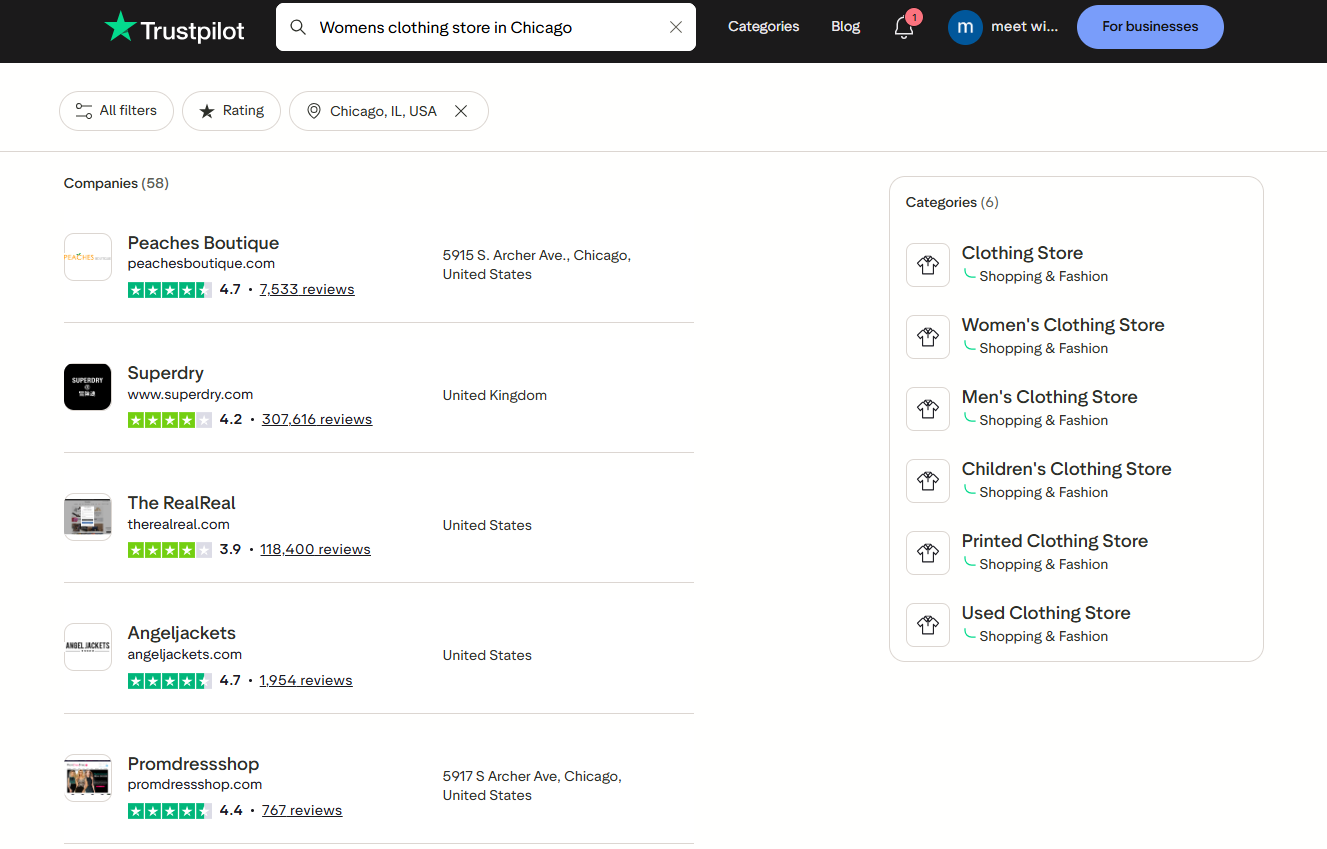
3. Click on the company name in the search results.
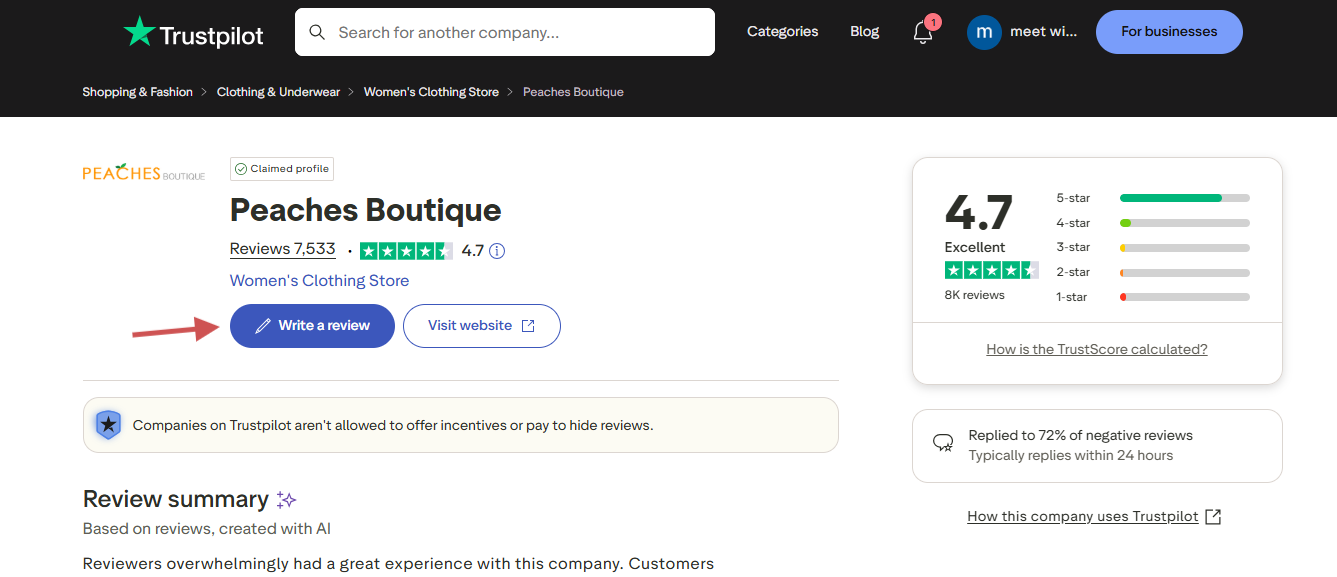
4. Click “Write a review.”
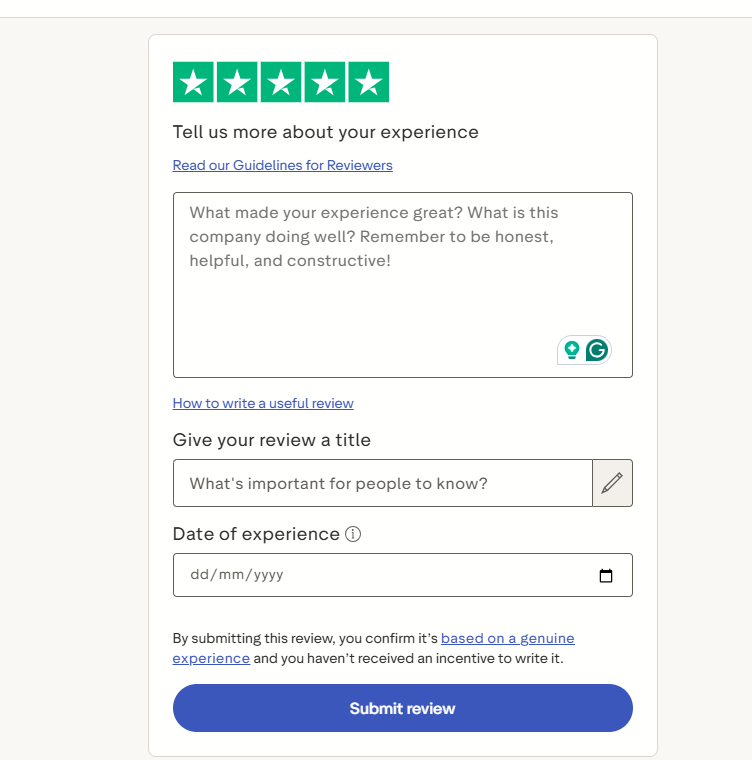
5. Select your star rating (1 to 5 stars)
6. Add a headline and write your experience in the text box
7. Click “Post review.”
Tip: Be specific in your review, mentioning the product, service, or customer support interaction for a stronger impact.
How to edit a Trustpilot review
Step-by-Step:
1. Log in to your Trustpilot account
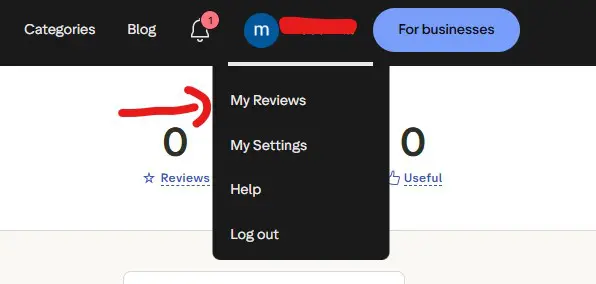
2. Click your profile icon and go to “My Reviews.”
3. Find the review you want to change.
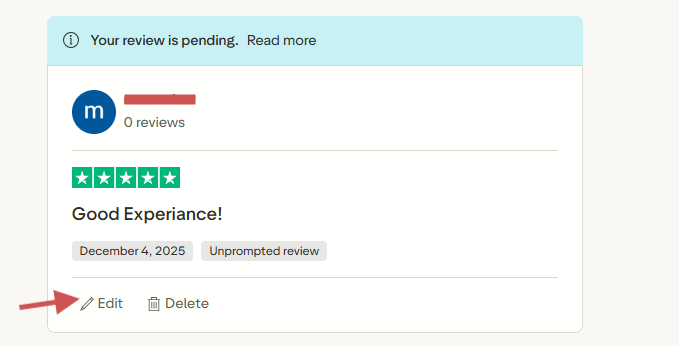
4. Click the three dots (•••) next to the review
5. Select “Edit review.”
6. Make your changes and click “Update review.”
Your review will now show an “edited” label with the new timestamp
How to delete a Trustpilot review
You can permanently remove any of your own reviews.
Step-by-Step:
1. Log in to your Trustpilot account
2. Go to “My Reviews” via your profile menu.
3. Find the review you want to delete
4. Click the three dots (•••)
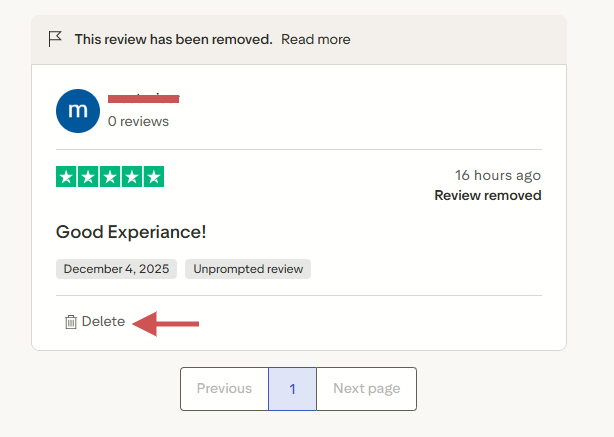
5. Select “Delete review.”
6. Confirm when prompted
Once deleted, the review is permanently removed and can’t be restored.
Want more control over your reviews? use WiserReview
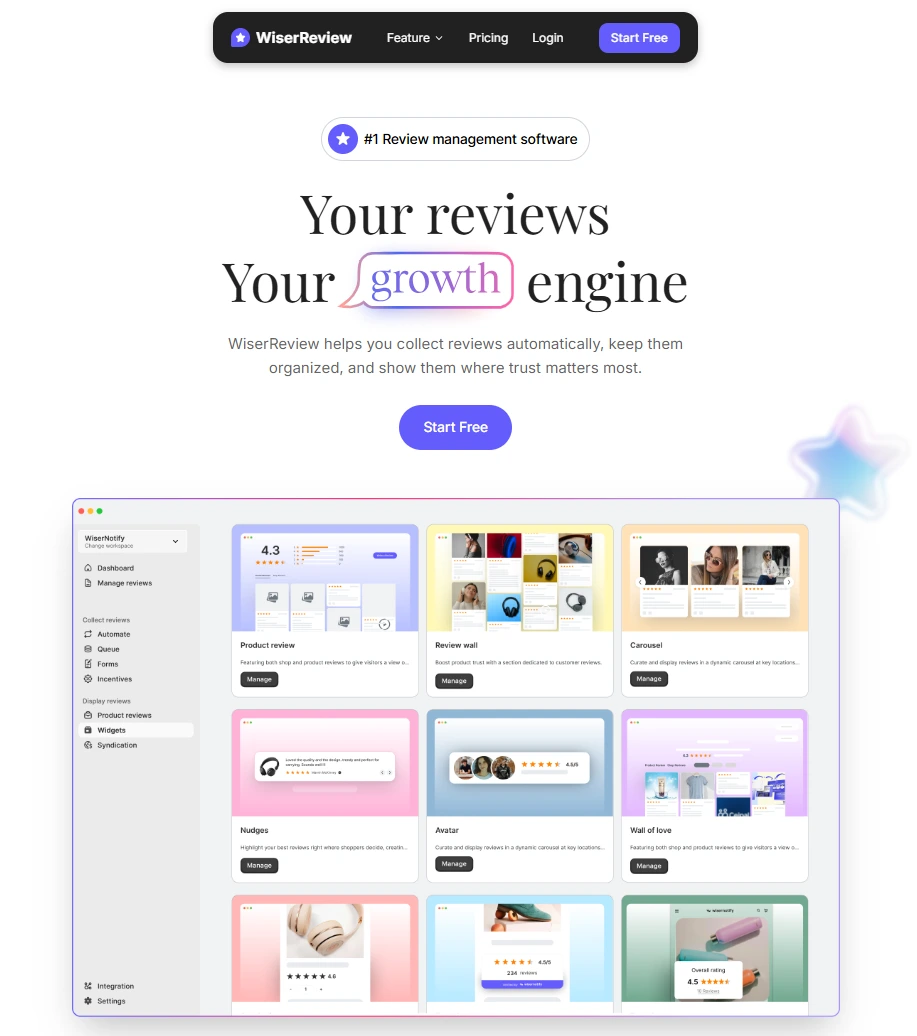
Trustpilot lets you post, edit, or remove your reviews — but the platform controls how those reviews appear, and where they live.
With WiserReview, you can go beyond just writing reviews and start owning how they’re used on your site.
WiserReview allows you to:
1. Import Your Trustpilot Reviews Easily
WiserReview makes it simple to bring in your existing Trustpilot reviews:
- Upload your exported CSV file from Trustpilot in just a few clicks
- Map fields like reviewer name, rating, date, and text — no coding needed
- Import both Service and Product reviews, and even tag them during import.
- Keep all your existing feedback, but display it your way on your own site
2. Display Reviews with Custom Widgets
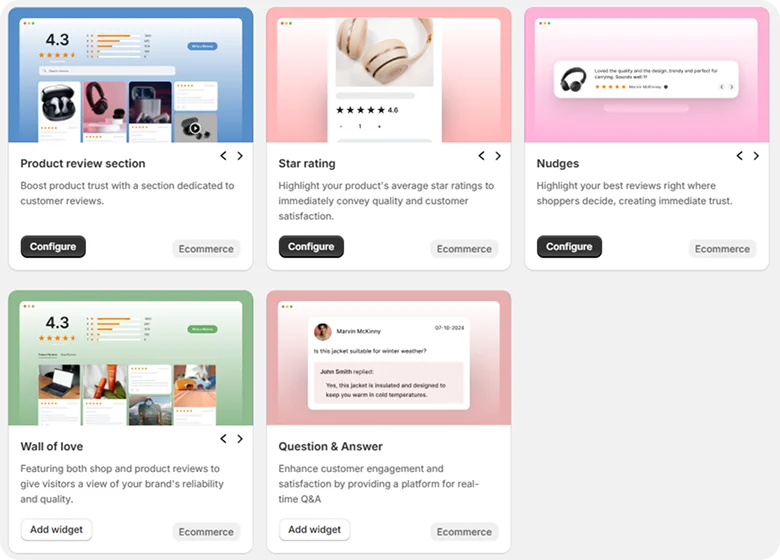
Go beyond static review feeds. WiserReview gives you beautiful, high-converting widgets that fit any page layout:
- Floating Carousel Widget – Show rotating reviews on any page corner
- Popup Review Widget – Triggered by scroll, exit intent, or time on page
- Trust Badge Widget – Show star ratings with total review count
- Review Wall Widget – Build a dedicated reviews page or testimonials section.
- Inline Product Reviews – Attach specific reviews to product pages using Product ID or Handle
3. Auto-Tag and Filter Reviews by Keywords or Categories
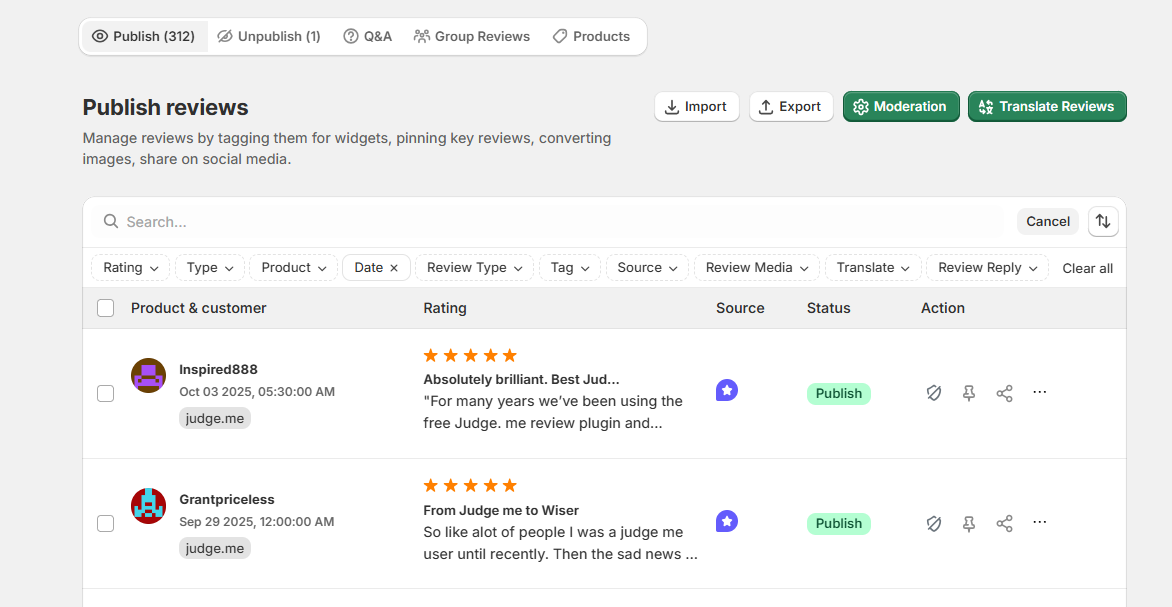
Save time and stay organized with smart review tagging:
- Automatically tag reviews based on words like “delivery”, “support”, or “price.”
- Create custom tags for features, campaigns, or feedback types.
- Use filters only to display reviews that match a product, category, or sentiment.
- Highlight specific reviews for different audiences (new users, returning customers, etc.)
4. Showcase Your Best Reviews Across Pages & Campaigns
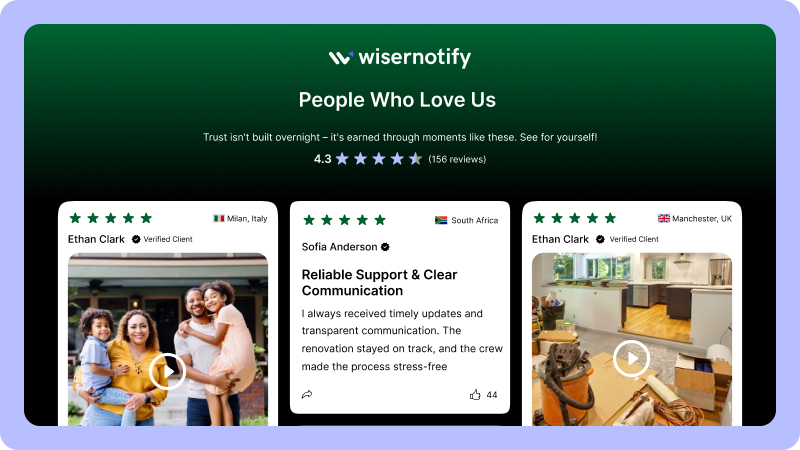
Use WiserReview to turn your highest-rated feedback into trust-building assets:
- Pin or feature-specific reviews inside any widget.
- Group reviews by product, use case, or audience intent.
- Add reviews to landing pages, upsell funnels, sales pages, and more.
- Reuse reviews in blog content, case studies, or marketing assets.
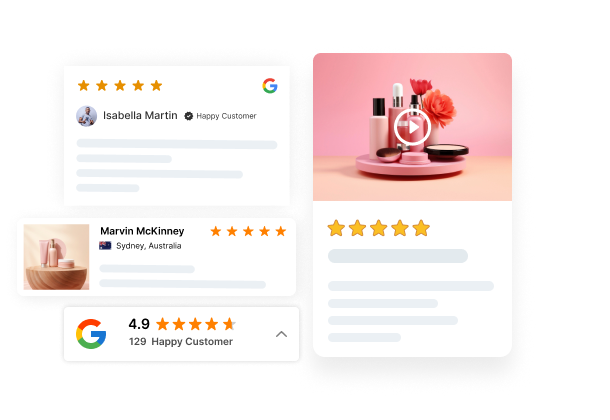
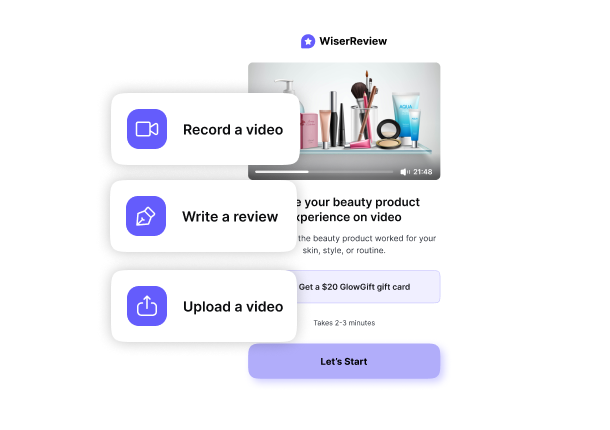
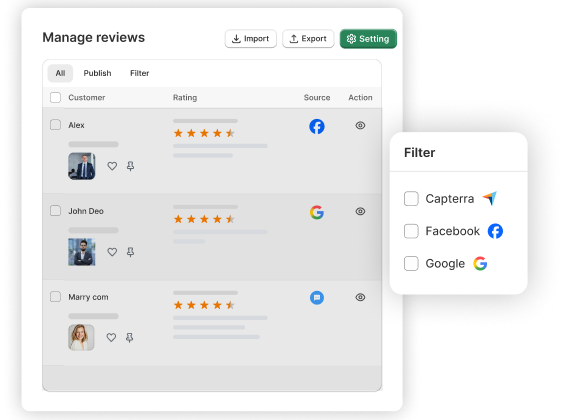
All your reviews in one place
Collect reviews, manage every response, and display them where they matter most.
5. Automate Review Collection via Email, WhatsApp, or SMS
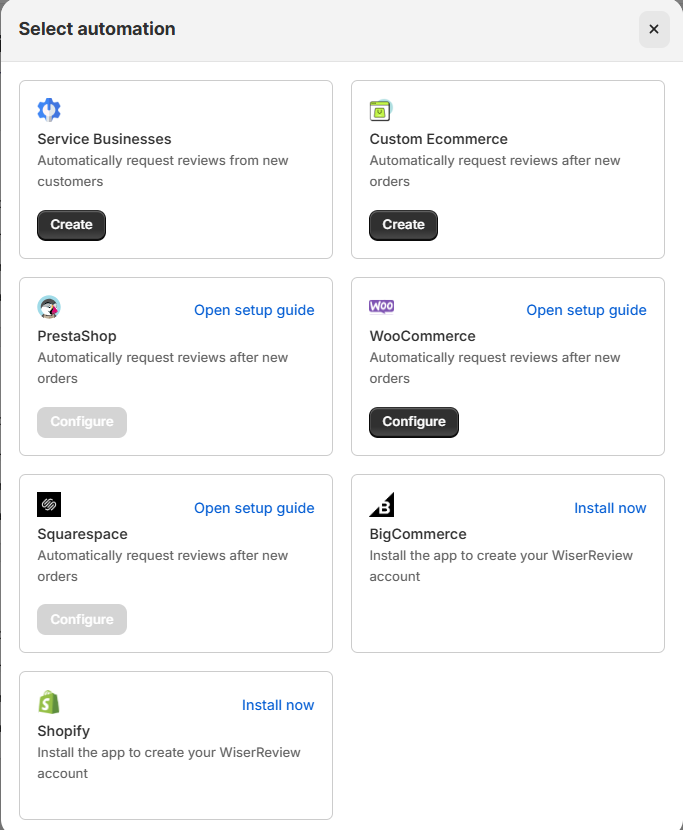
Stop chasing reviews manually. WiserReview lets you automate the process:
- Trigger review request emails after a purchase or service delivery
- Send review links via WhatsApp or SMS, integrated with your tools.
- Use Shopify, Webhooks, or Zapier to connect your store or CRM.
- Set follow-up reminders to increase response rates.
- Collect new reviews using branded forms embedded on your site.
Whether you’re in ecommerce, B2B, or digital services — WiserReview turns static reviews into active trust-builders.
Troubleshooting common issues
➜ Can’t find “Edit” or “Delete” options
This usually happens when:
- You’re not logged in
- You’re viewing a review you didn’t write
- The review was flagged and removed by Trustpilot
Make sure you’re using the same account you used to post the review.
➜ What if Trustpilot removed your review?
Reviews may be removed if they:
- Break Trustpilot’s guidelines
- Include offensive language or false claims.
- Are flagged by the company and confirmed by moderators
You may receive an email explaining why your review was taken down. In some cases, you can update and repost it.
➜ How to contact Trustpilot support
If you still have trouble, you can contact Trustpilot support:
- Visit: support.trustpilot.com
- Use the Help Center to search for answers or submit a request.
- Or email support if the issue is account-related
Conclusion
Trustpilot gives users the flexibility to leave, edit, or delete their reviews at any time.
Whether you’re updating a review after better service or correcting an old post, managing your feedback helps keep review platforms accurate and trustworthy.
Want to showcase your Trustpilot reviews on your website? Try WiserReview — a powerful tool to import, organize, and display reviews using beautiful, high-converting widgets.
Frequently asked questions
Yes. You must create or log into a Trustpilot account to leave, edit, or delete any review.
Yes. You can log into your account, go to “My Reviews,” and select “Edit” to update your review anytime.
Once deleted, the review is permanently removed from the platform and cannot be recovered.
This could happen if you're not logged in, viewing someone else’s review, or if your review was removed by Trustpilot due to a violation.
Check your email for a notice from Trustpilot. You may be able to edit the review to meet guidelines and repost it.

Krunal