4 min
4 min 
If you are unable to leave a Google review or your review does not appear, it most likely means that your Google account, the business profile, or your copy was held up in Google’s filters.
Some common reasons for this include not being logged into your account, violating guidelines for restricted business categories, new accounts, policies, or temporarily holding reviews. These blocks are automatic and meant to stop spam or fake activity.
In this guide, you’ll learn the leading causes and practical steps to make sure your Google reviews post successfully and stay visible.
How do Google reviews usually work?
Google reviews enable customers to rate and publicly document their experiences with a business on both Google Maps and Search.
Once a review is published, it not only influences others’ decisions but also has a significant impact on the business’s local ranking and overall credibility. “Indeed, as reported by BrightLocal, 98% of clients and consumers read online reviews before purchasing.”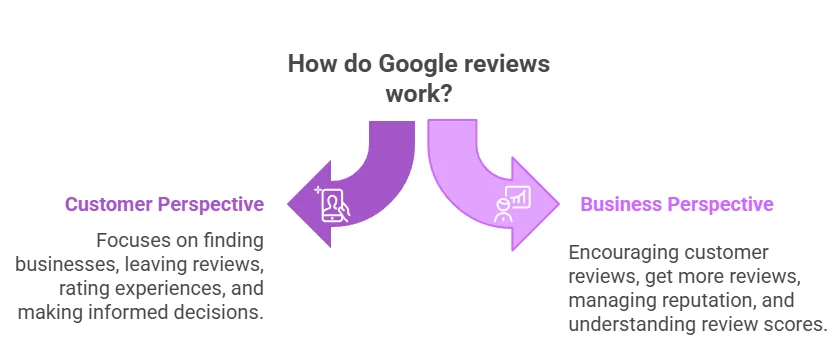
Requirements for leaving a review
To leave a Google review, you need:
- An active Google Account: Reviews are tied to your Gmail account or any Google profile
- A signed-in session: You must be logged into your Google Account on the device you’re using
- A verified business listing requires an up-to-date Google Business Profile that is linked to the business.
- Compliance with Google’s policies: Your submitted content must comply with the policies that govern user-generated content.
Where reviews appear & propagation delays
For a business, a customer’s review can appear on several platforms:
- Search engines: Reviews appear in the business panel.
- Mapping services: Shown on the Google Maps profile.
- Third-party sites: Found on Yelp or TripAdvisor.
- Social media: Posted on business pages.
Causes of propagation delays
Also, please note that newly submitted reviews may not appear immediately after posting, as they undergo both automated and manual review.
- Policy checks: Google review process for content policy compliance can take some time.
- Profile merging: Reviews may be delayed when business profiles are merged or updated.
- Technical issues: Outdated apps or software can prevent reviews from posting.
- Algorithmic filters: Suspicious or new accounts may trigger review holds.
- Temporary restrictions: Google may pause reviews to stop spam or abuse.
Get more Google reviews faster
Collect, manage, and display reviews to grow trust and sales.
7 Common reasons you can’t leave a Google review
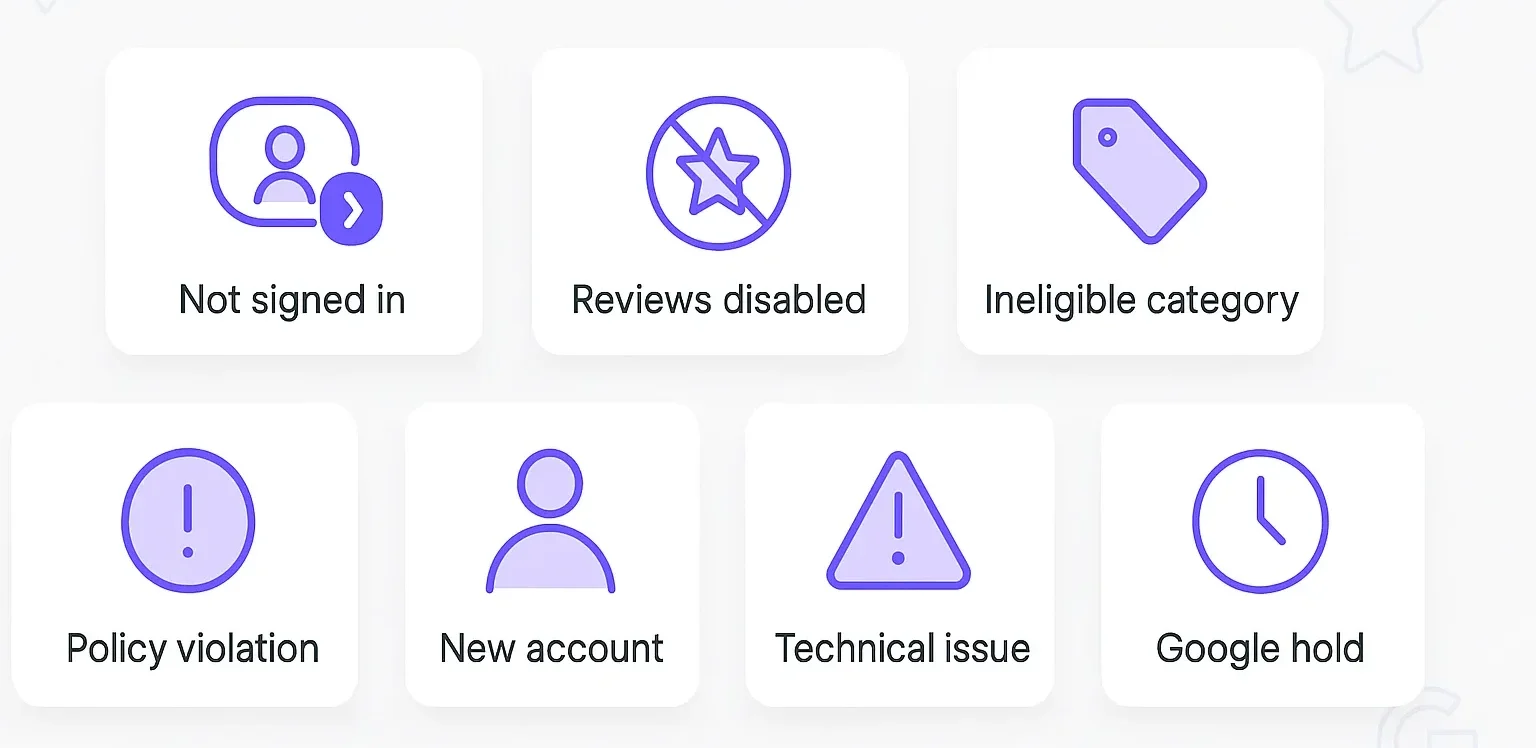
Understanding why your review is blocked is the first step to fixing the problem. Here are the seven most frequent culprits.
1. You’re not signed in or using a non-Google account
Google reviews need a signed-in Google Account. You won’t see the option if you’re logged out, using incognito mode, or signed into a restricted work account. Make sure to check your account’s profile icon to see if you are signed in
Fix: Check your Google profile icon on Maps or Search to confirm you’re signed in.
2. The business listing has reviews disabled or blocked
Google may temporarily disable reviews for listings with suspicious activity or those that violate its policies.
What will you see? The “Write a review” button is not present, and/or star ratings are missing.
Who it affects: Businesses in a higher risk category or flagged for suspicious behavior.
3. The business category is ineligible for reviews
Some business types are not allowed to receive public reviews on Google. This includes: schools, government offices, religious organizations, hospitals, and crisis/emergency services.
To protect privacy, prevent harassment, and prevent misuse, Google restricts businesses associated with these categories from receiving reviews.
These business examples are aware that if you attempt to write a review, none of them will have a “write a review” button on their profile.
4. Review blocked or removed due to policy violation
Google removes reviews that violate its content rules or appear to be fake or incentivized.
Examples:
- Reviews with links, promo text, or personal info
- Duplicate or spammy posts
- Incentivized reviews or those with offensive language
5. Account age or credibility issues
New or significantly inactive Google accounts often face review limitations on a listing, primarily because Google wants to ensure the reviewer is a genuine user providing feedback.
The Google review system considers the age of the account, the frequency of account usage, and the ‘naturalness’ of its activity. Accounts that are newly created, have no review history, or suddenly post many reviews may get flagged.
What Google looks at:
- Accounts under two weeks old
- No past review activity
- Sudden burst of reviews
- Reviews from unusual locations or shared devices
If customers make a new Google account just to review you, their review may not appear. This often happens to people who don’t use Google regularly or who are encouraged by friends to create new accounts.
6. Technical or UI issues
Sometimes the problem is device-related. Outdated apps, browser extensions, or cache errors can prevent reviews from being displayed.
Tip: Update Google Maps or Play Services, and disable ad blockers or privacy extensions.
7. Google’s moderation delays or internal suppression
Google may hold reviews for manual review, especially from new users or those with lengthy text posts.
Common delays: Reviews with photos, competitor mentions, or high-traffic posting periods.
Note: Reviews may take some time to be visible, and Google will not send you a notification.
Step-by-step fixes you can try

Now that you understand why reviews are blocked, let’s address the issue. These solutions work for both individual reviewers and businesses, helping customers leave reviews.
1. Use a well-established Google account
For reviewers: Sign in with a primary Google Account that’s intended for personal use, is at least a couple of weeks old, and has some activity. Avoid creating a brand-new account just to post a review.
For businesses: Ask customers if they’re signed into their primary Gmail, have used that account before, and can try a personal (not work) account.
Using WiserReview: it checks whether customers are using verified Gmail accounts and automatically sends follow-up links to those whose reviews didn’t go live. This helps keep your review flow active and compliant with Google’s policies, ensuring the reviews are trustworthy.
2. Wait 24–48 hours (for moderation or propagation)
Give Google some time to process the review. Check both Maps and Search to ensure you’re on the correct listing. Clear your cache/cookies, and try using another device or network.
Businesses should wait up to 48 hours before asking for a resubmission. Google notes reviews can be delayed while they’re checked, and merges can also slow down display.
3. Request the business to check their profile settings
Sign in at business.google.com, confirm the profile is verified and published, and look for any policy warnings or restrictions.
There is no “turn reviews on/off” toggle; reviews are generally always enabled for eligible categories. If you manage multiple locations, review each one for notices or drops in review activity.
4. Report issue via Google’s support forums or Help Center
If nothing appears after 48 hours or more, escalate the issue. Use the Google Business Profile Help Center “Contact us” flow (choose Reviews/Missing reviews) or post in the Maps community with details and screenshots (no personal data).
Response times vary, but documenting the issue helps.
5. Use a different platform (Maps vs. Google Search) to post the review
Sometimes the button appears in one location but not in the other. Try the Google Maps app or Google Search on desktop to open the business profile and tap/click “Write a review.”
You can also share a direct “Write a review” link from your Business Profile or use the official Place ID review URL.
6. Reattempt leaving a review from a different network (mobile data vs WiFi)
Switch between mobile data and Wi-Fi, try another device, and disable VPNs or strict privacy/ad-block extensions.
Public or corporate networks can sometimes interfere with connections. This simple switch often clears submission issues.
Tip: If you run a business and frequently encounter missing or blocked reviews, WiserReview can help you identify failed submissions, guide customers through verified Google accounts, and automatically resend invitations.
It reduces review drop-offs and ensures every honest review reaches Google successfully.
5 Best practices to ensure your review gets through

Prevention is better than troubleshooting. Follow these proven best practices strategies to maximize your review success rate.
1. Be genuine, specific, and avoid promotional or branded content
What Google wants: Real reviews based on your experience that will help others make informed decisions.
Do this: Be specific by mentioning items or services, share details about what made your experience stand out, and balance positive feedback with constructive criticism.
Don’t do this: Avoid generic phrases like “Best business ever,” do not include promotional links, discount codes, or mention competitors, and refrain from using excessive keywords or punctuation.
Example:
Poor review: “AMAZING EXPERIENCE!!! Best restaurant in town! You should definitely go here! Tell them Sarah sent you for a discount!”
Effective review: “I had the mushroom risotto on my anniversary, and the chef personally checked on our table. The atmosphere was cozy, and our server, Maria, paired the wine perfectly. Great value.
2. Avoid posting too soon after account creation
The waiting period:
New Google Accounts should wait 7-14 days and show some natural activity before posting reviews.
How to build account credibility:
- Use Gmail, YouTube, and Google Maps on a regular basis.
- Enable location history if comfortable.
- Send and receive emails and use Google Search for a few days.
Why this matters: Google’s AI looks for natural behavior. A new account posting reviews immediately appears suspicious.
For businesses: WiserReview delays sending review requests to new or inactive Google users. This small wait helps ensure reviews are accepted and not filtered out.
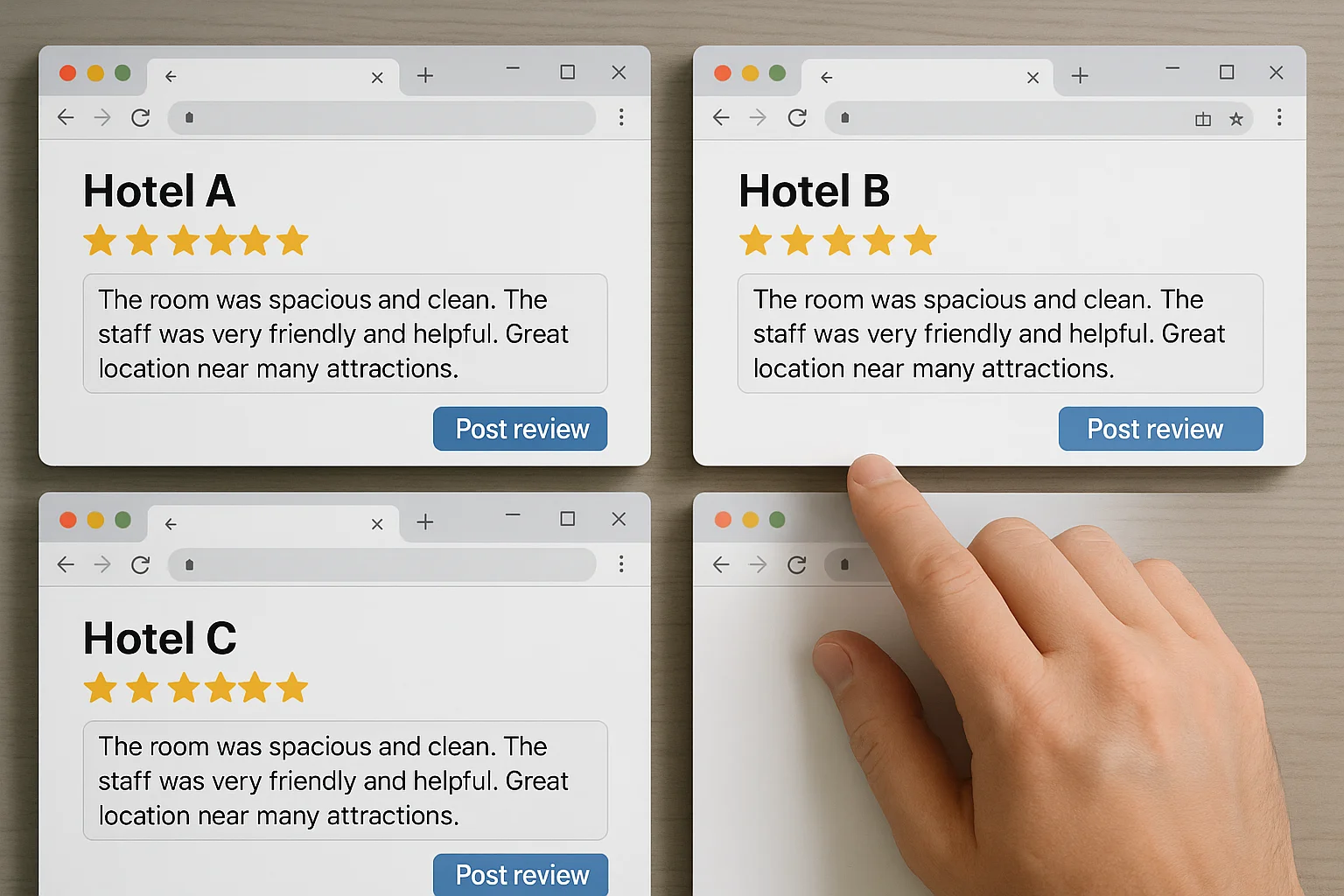
3. Don’t post identical reviews across multiple listings
The problem: Don’t write reviews the same way. Copying and pasting the same review across multiple businesses, even if you genuinely visited them, triggers duplicate content filters.
What happens:
- Google flags the duplicate reviews.
- Your account has been flagged for suspicious activity.
- Future reviews will face increased scrutiny.
The solution: Personalize each review with location-specific details:
- Mention the location: “The downtown Seattle location…”
- Refer to specific staff members or experiences.
- Note the differences between locations when reviewing multiple.
Real-world example: If you visited three locations of a chain restaurant, don’t use the exact review text for each. Instead, mention what made each visit different.
4. Use photos or media to add authenticity
Reviews with images are seen as more authentic by both Google and other users, providing visual proof of your experience.
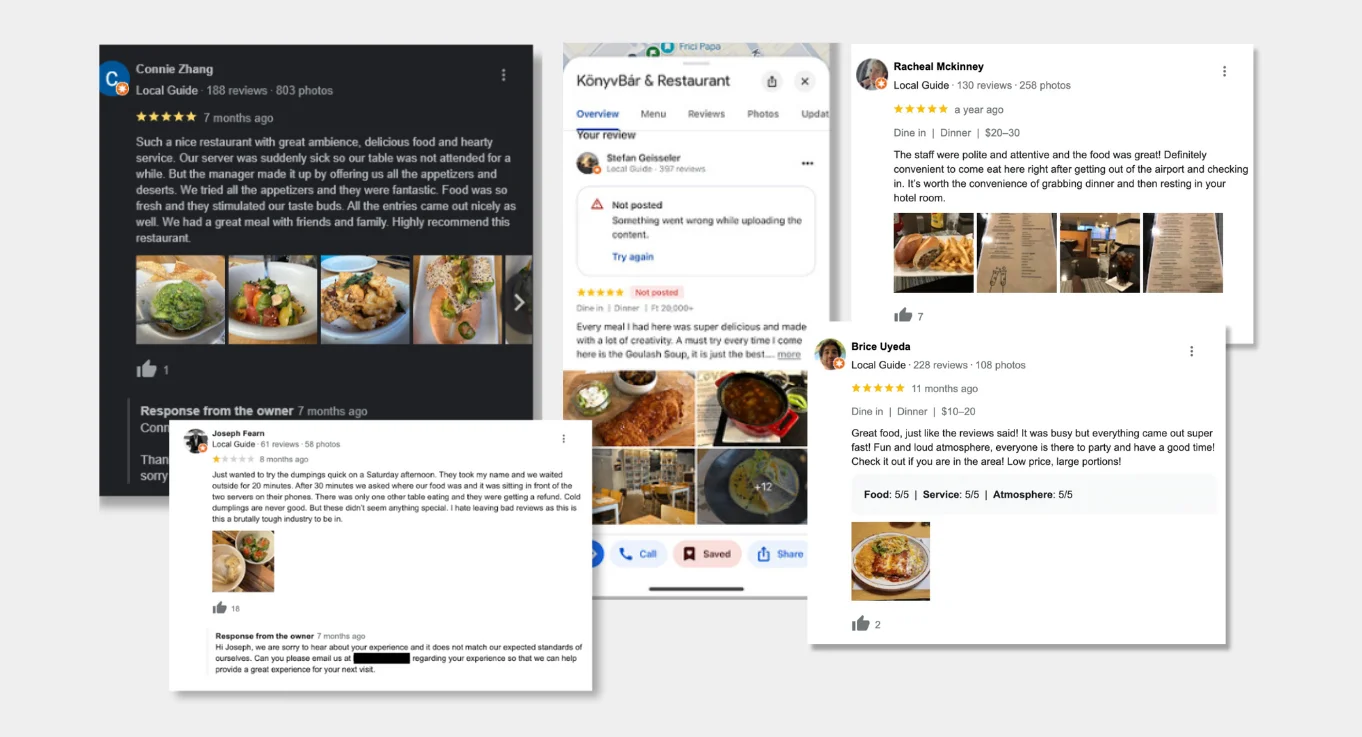
Photo best practices:
- Use original photos from your visit (no stock images).
- Display relevant items, such as food, products, or the business’s interior.
- Avoid watermarks and promotional overlays.
- Don’t include photos of people without their consent.
Additional benefits:
- Reviews with photos receive 3 times more engagement.
- Businesses appreciate visuals for feedback.
- Photos help avoid review flags for spam.
For businesses: WiserReview enables customers to easily upload photos through an intuitive interface, thereby increasing engagement and visual authenticity.
5. Edit (not repost) if you want to change a review
If you need to correct your review, always edit the original rather than deleting and reposting it.
How to edit:
- Find your review on Google.
- Click the three dots on your review.
- Select “Edit review” and save your changes.
Why editing is better:
- Preserves the original post date and history.
- Avoids triggering spam filters, unlike reposting.
- Retains any helpful votes or interactions.
- Shows Google you’re a legitimate user making a genuine update.
If your review was rejected due to a policy violation, wait 48 hours before posting a corrected version to allow Google’s systems to reset.

All your Google reviews in one place
Collect Google reviews, manage every response, and display them where they matter most.
Start Free →Wrap up
Having trouble leaving a Google review? Most issues can be fixed once you know the cause, whether it’s account issues, technical glitches, or policy violations.
Key takeaways:
- Most reviews appear within 48 hours.
- Use established Google Accounts.
- Write genuine, detailed reviews without promotional content.
- Try Google Maps, direct links, and include photos.
- Edit reviews instead of reposting.
For businesses, WiserReview streamlines review collection, ensures policy compliance, and keeps reviews visible across platforms. Automate the process to prevent lost feedback and maintain a strong online presence.
Frequently asked questions
Your review may violate Google’s content policies or be flagged by spam detection. Wait 48 hours, then edit to remove flagged content, such as URLs or promotional language.
No, business owners can’t block a particular user. However, Google may disable and prevent all reviews for a business if it is found to be abusing the review process.
Most reviews appear within a few hours. If delayed, they should appear within 48 hours; if not, they were likely removed due to policy violations.
Google does not allow reviews on K-12 schools, government office buildings, religious groups, and crisis services to limit harassment and manipulation.

Krunal