4 min
4 min 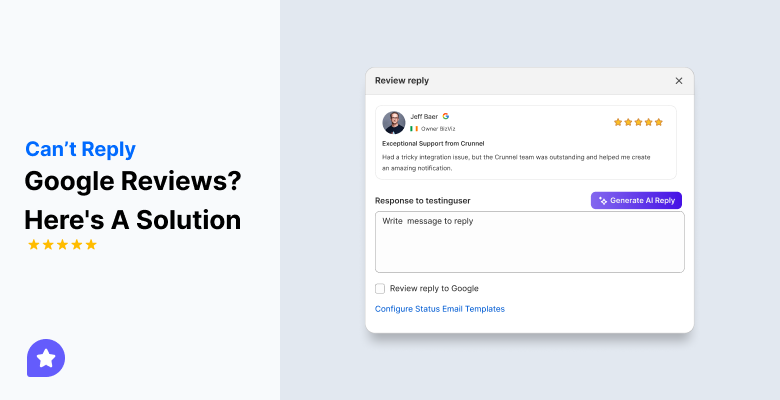
You clicked “Reply” to answer that 1-star Google review, but nothing happens. Or the reply box is missing. It’s annoying, mainly when every unanswered review affects how new customers see your business.
In most cases, the fix is simple. The problem usually arises from one of four causes: your profile isn’t verified, your account lacks permission, your Google account has an issue, or your browser is blocking something.
In this guide, you’ll discover why the respond option won’t show up and how to fix it from start to finish, so you can get back to replying quickly and protecting your brand.
4 Common reasons you can’t reply to Google reviews
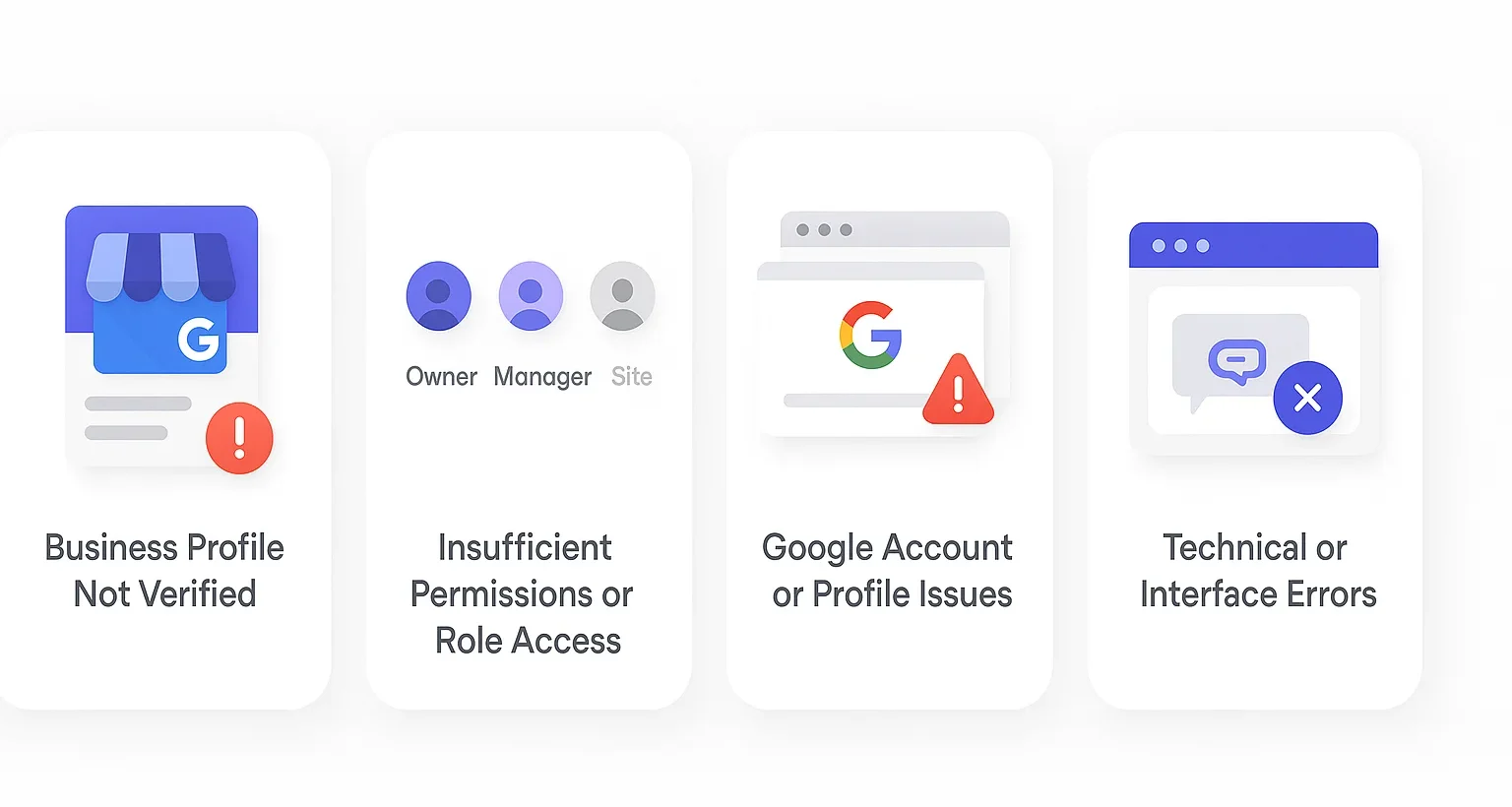
The first step in resolving your inability to respond to reviews or information through Google My Business is to understand why you are unable to respond. Most of the reasons can be grouped into four categories, all of which have simple solutions!
Business profile not verified or claimed
If your Google Business Profile is not verified, you will not be able to respond to reviews. Google has restrictions on unverified listings to ensure the secure use of these key functionalities, including responding to reviews, gaining business insights, or sending messages.
Signs your profile isn’t verified:
- You see a “Verify your business” prompt in your dashboard
- The reply box is missing or grayed out
- You can read reviews, but can’t post a response
Check the verification status of your Business Profile Manager → Settings → Verification if you recently created or claimed your profile. Complete the verification process (by phone, email, video, or postcard) to access the respond option.
Insufficient permissions/role access
Not all users have the same level of access to a Google Business Profile. If someone adds you as a manager but doesn’t grant the necessary permissions, you won’t be able to reply to reviews.
| Role | Can reply to reviews | Can add/remove users | Can delete profile |
|---|---|---|---|
| Owner | ✓ | ✓ | ✓ |
| Manager | ✓ | ✗ | ✗ |
| Site Manager | ✗ | ✗ | ✗ |
If you’re logged in as a Site Manager, you won’t see the reply option. Please ask the Owner of the profile to update your permissions found under Business Profile → Settings → Users. Once upgraded to Manager, you can reply to all new and existing reviews.
Google account or profile issues
Sometimes, the issue isn’t with permissions; it’s with your Google account. Common account-related problems include:
- You’re signed into multiple Google accounts at once
- You’re using an account with limited or suspended access
- There’s a conflict between multiple owners claiming the same profile
- You’ve recently reset your password or changed two-factor authentication settings
Try logging out of all Google accounts, then sign back in using the verified email address associated with your business profile. This often resolves access issues.
Some business owners have also seen their Google reviews temporarily disappear due to Google system bugs or profile updates, which can also affect their ability to reply.
Technical or interface errors
Even if everything is set up correctly, you may still encounter technical issues that prevent you from replying. These are usually quick to fix.
Common causes:
- Cached data or cookies are interfering with the page
- Outdated browser or app version
- Extensions blocking scripts (like ad blockers or privacy tools)
- Temporary Google server or interface errors
Quick fix tips:
- Clear your browser cache and cookies
- Try using Chrome or Firefox in Incognito mode
- Update the Google Maps or Business Profile app if using mobile
- Wait a few hours if it’s a known Google system issue

Respond to reviews without any hassle
Use WiserReview to collect, reply, and manage all Google reviews in one dashboard. Stay updated and never miss a customer message.
Start Free →How to fix the inability to reply

Now that you know what might be causing the issue, here’s how to fix it. Work through these solutions for the best results.
1. Verify or reverify your business profile
Ensure you have a fully verified Google Business Profile, as Google will not allow you to respond if you don’t.
To check your verification status:
- Go to your Google Business Profile dashboard
- Look for any verification notices or warnings at the top
- If prompted, complete the verification process
If it’s there, complete whichever method Google offers (postcard code, phone call, email, or live/video verification).
If your profile was once verified but you’ve changed key info (name, address, category, or owner), Google might ask you to verify again. Reverify and check whether reply access is restored.
2. Respond to Google reviews via WiserReview
If Google’s interface is giving you trouble, use WiserReview (or a similar review-management tool) so you can still reply.
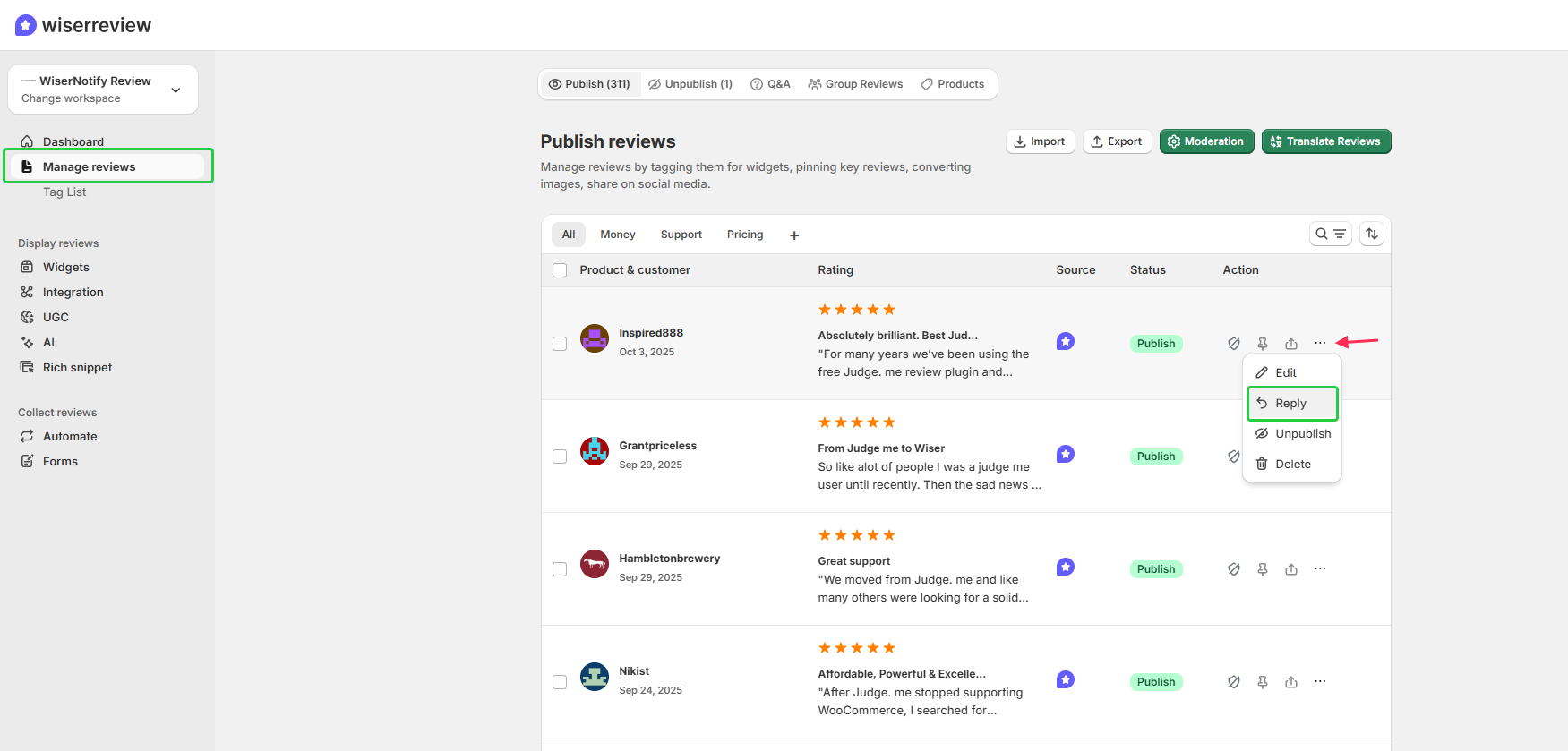
How to respond using WiserReview:
- Connect your Google Business Profile to WiserReview
- Import your existing Google reviews to the dashboard
- Sign up for the WiserReview dashboard.
- After signing up, you’ll see a dashboard
- Now, click on “manage reviews”.
- And there, you’ll see the list of reviews where you can reply.
- Your responses automatically sync back to Google.
This is especially valuable for multi-location businesses or agencies that need to handle reviews for clients and their locations.
Instead of having to switch accounts and sometimes dealing with the complications that the confusing Google experience can produce, WiserReview offers a reliable and consistent system.
3. Check and adjust user roles & permissions
Your role on the business profile matters. Only specific roles let you reply to reviews. If your current role doesn’t allow replies, you won’t see the “Reply” button.
To fix:
- Log in to your Google Business Profile
- Go to Settings → People and access
- Find your name and see which role you have
- If it’s “Site Manager” (or a role lower than Manager), request or ask the Owner to change your role to Manager or Owner
- After the change, accept any email invite or sign out and back in before trying replies again
Always check that role changes have been properly accepted and in effect.
4. Use a different admin account or add a new manager
The issue might be tied to one Google account (token problem, permissions glitch). To test this, have your Owner add another account as a Manager, then try to reply to reviews from that account.
If replies work from the new account, you know the original one has a problem. Keep the backup manager active until that original account is fixed. This provides a fallback, so you’re not blocked entirely.
5. Clear browser cache, try a different browser or device
Interface issues are often caused by browser or cache problems. Try these steps:
- Clear cache, cookies, and site data in the browser
- Use an incognito/private window
- Disable browser extensions (especially ad blockers, script blockers)
- Switch to another browser (Chrome, Firefox, Safari, Edge)
- Try on a mobile device or a different computer
- Make sure the browser/app is updated to the latest version
Often, these simple steps revive the “Reply” functionality.
6. Log out of other Google accounts / clean session
Google account conflicts happen when multiple accounts are signed in simultaneously, and the Business Profile could be tied to a different account.
Fix this by:
- Signing out of all Google accounts across all browser tabs
- Fully closing the browser
- Opening it again and logging in only with the account that has Owner/Manager access
- Using browser profiles (e.g., Chrome profiles) or separate browsers for business vs personal accounts to avoid overlap
This ensures your session is clean and not interfering with others.
Pro tip: Use different browsers for each of your Google accounts. For example, use Chrome for your business account and Firefox for personal use.
7. Use Google Business Profile API or third-party tools
If you’re technically inclined or have developer resources, the Google Business Profile API allows programmatic access to review management. This is useful for:
- Businesses with custom CRM systems
- Agencies building proprietary solutions
- Enterprise operations with specific workflow needs
8. Submit a help request or appeal to Google
If nothing else works, contact Google for support. In your Business Profile dashboard:
- Click the “?” or Help icon
- Choose Contact support
- Describe your issue clearly; include your business name, profile URL, screenshots, and what you’ve already tried.
You may be offered phone, chat, or email support depending on the region. Response times vary; chat is usually fastest if available. Persistence helps.
What to include in your support request:
- Your business name and profile URL
- Specific details about the issue (screenshots help)
- What have you already tried to fix it
- Your role in the business profile.
In February 2025, many businesses reported that dozens of their Google reviews had suddenly disappeared overnight. One client saw their review count drop from 594 to 299. Google later confirmed it was a display bug affecting many profiles globally, not a deletion.
For that business, the reply option also stopped working, which made them worry. They used a tool for review management to keep responding while Google fixed the bug. After a few days, the reviews and reply access returned.
What to do while the issue is unresolved
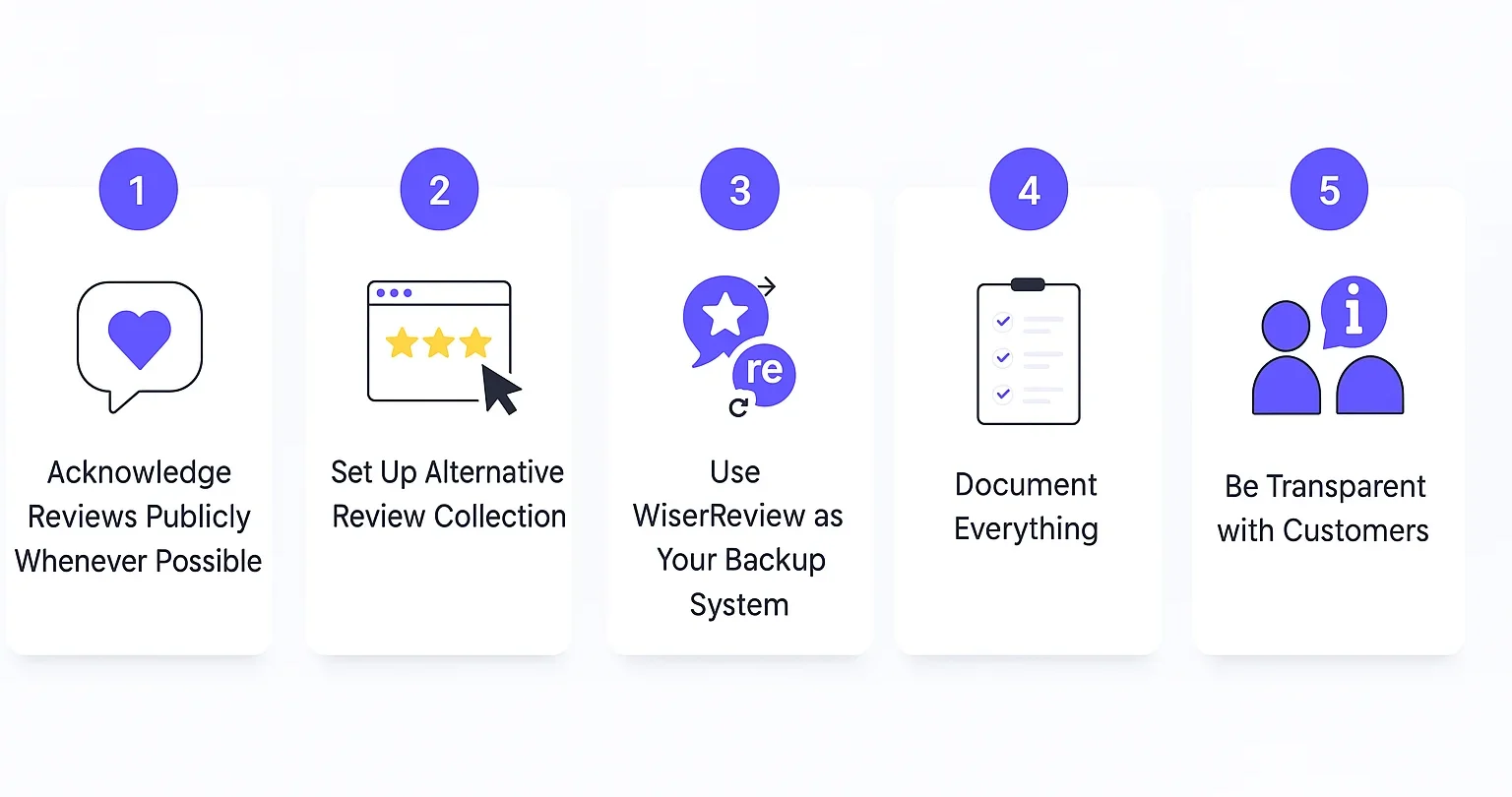
Don’t let a broken reply system stop you from engaging with customers. Use these actions to maintain effective communication.
Acknowledge reviews publicly whenever possible
If you can’t reply via Google, show the reviewer you care through other channels:
- If you have their email, send a courteous response.
- If they posted the review experience on social media, respond there.
- Include a short note in your business’s social media posts stating you saw and appreciate feedback.
This keeps customers from feeling ignored and shows others you’re active.
Set up an alternative review collection
While waiting on Google, keep collecting feedback elsewhere:
- Use WiserReview’s review-collection forms on your site.
- Ask happy customers to leave reviews on Facebook, Yelp, or industry platforms.
- Build a review portal or page on your website to centralize all customer feedback.
This keeps your review stream active so you don’t lose momentum.
Use WiserReview as your backup system
Make WiserReview your fallback tool:
- Connect your Google Business Profile to WiserReview (if possible).
- From WiserReview, reply to new reviews even if Google’s interface is down.
- Keep using WiserReview to collect, manage, and sync reviews until the Google issue is resolved.
It provides a working review interface while you address deeper issues.
Document everything
Record all relevant details. This will help you and any future support staff.
- Note the date/time the issue started.
- Save exact error messages or missing UI components.
- Take screenshots or short screen recordings of the problem.
- Log every trial you made (role changes, browser tests, app updates, etc.).
Good documentation speeds up diagnosis and fixes.
Be transparent with customers
When reviews include negativity, a public acknowledgment can help in establishing trust with your customers.
- Share a general post on your social media: “We are currently experiencing an issue replying to Google reviews, but we read every last one of them.”
- Add a short notice to your website’s contact or reviews page.
- If you have the customer’s contact information, reach out privately and let them know you’re trying to resolve the issue with their reply.
This shows you care even when the system isn’t working.
Respond to reviews without any hassle
Use WiserReview to collect, reply, and manage all Google reviews in one dashboard. Stay updated and never miss a customer message.
Start Free →Wrap up
Responding to Google reviews is crucial for establishing trust and demonstrating to customers that their feedback is valued. If you cannot respond, it is probably an easy fix or even a short-lived hiccup.
While working to diagnose the issue, you can use WiserReview to manage, respond to, and display reviews without missing a beat.
It will keep you working, maintain your reputation, and you will not miss an opportunity to connect with your customers.
Frequently asked questions
Postcard verification takes about 5–7 business days. Phone and email are instant if available, while video verification usually takes 2–5 days to review.
Yes, if you’re added as a Manager or Owner. Site Managers can’t reply. The business owner must update their role in People and access settings.
You may be signed into the wrong account, have browser cache issues, or your reply may be flagged by Google’s filters. Clear cache, use the correct account, and avoid promotional text.
Google doesn’t state a limit, but replying to too many reviews at once can trigger spam checks. Space out your replies and personalize each response.

Krunal