3 min
3 min 
You collect and display video reviews in WooCommerce to show real proof from real buyers.
Video reviews help shoppers see the product in action, understand how it works, and trust the feedback more than text alone.
When you add video reviews to your product pages, customers make decisions faster because they see honest experiences instead of guesswork.
This guide shows the simple steps to collect video reviews from customers and display them on your WooCommerce store in a clean and easy way.
Why Video reviews are important

Video reviews help shoppers see the real use of your product. Buyers can watch how the product works, how it looks in real life, and how someone feels about it.
This creates quick trust and reduces guesswork.
Real numbers show how strong video reviews are:
- 91% of consumers watch videos to learn about products before buying.
- Product pages with video can see up to 3.5x higher conversions compared to pages with only text.
- Video content now accounts for over 80% of all online traffic, showing how much people prefer watching over reading.
Video reviews also remove doubts. Many shoppers worry about size, quality, or ease of use.
A short video answers these questions right away and helps them decide faster.
They also keep people on your product page longer. When buyers see real feedback from real customers, they feel more confident.

All your reviews in one place
Collect video reviews, manage every response, and display them where they matter most.
Start Free →Preparing to collect video reviews

Here are the key things you should set up before you start collecting video reviews.
Identify your best customers
Start by choosing the customers who already like your products.
These customers give better feedback, record clearer videos, and speak naturally about their experience.
Look for repeat buyers, recent buyers, or customers who have already left positive text reviews.
Choose the right platform for collection
Use a simple method that makes it easy for customers to upload videos.
You can collect videos through a form, a review widget, email requests, or a direct upload link.
Pick a platform that works well on mobile because most customers record videos on their phones.
Ask for the right kind of content
Give customers clear instructions so they know what to record.
Ask them to show the product, explain what they like, and keep the video short.
Simple guidance leads to better, more useful video reviews for your WooCommerce store.
Get permission to use the videos
Always ask for permission before showing a customer’s video on your site.
A short checkbox or a note in your form is enough.
This keeps things clear and gives you safe rights to use the videos on your product pages or marketing material.
How to collect & display video reviews

Using WiserReview, you can collect and show video reviews on your WooCommerce store without a complex setup or high cost.
The steps below explain the full flow from collecting videos to showing them on product pages.
Step 1: Install the WiserReview WooCommerce plugin
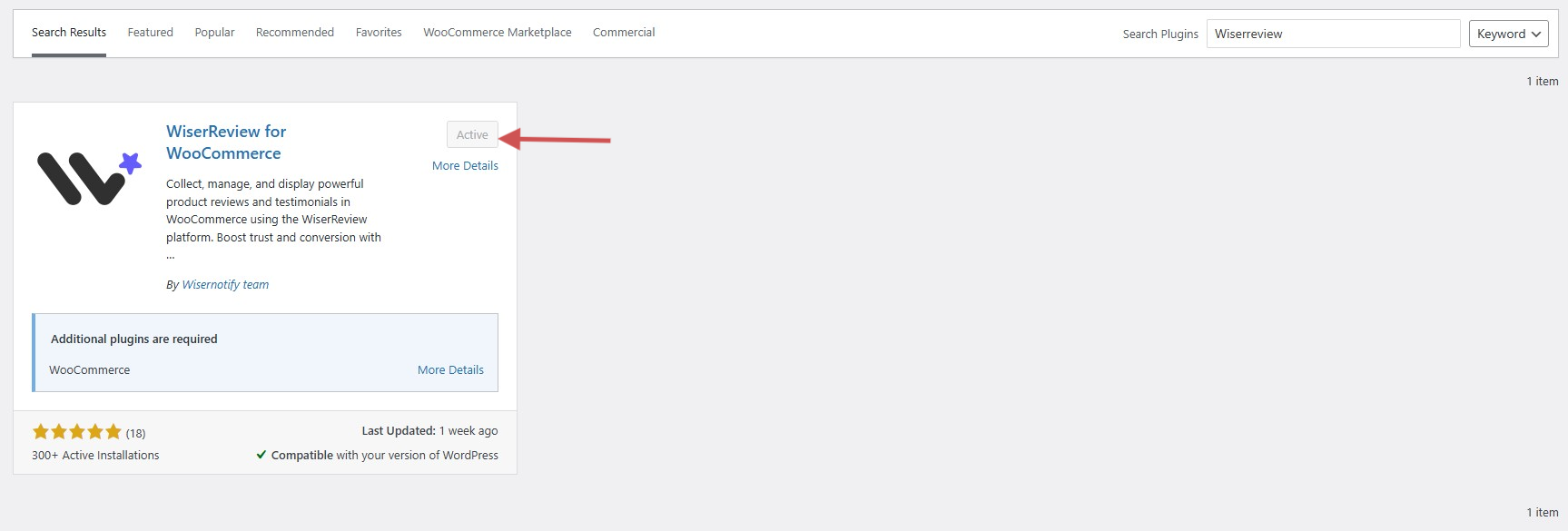
1. Log in to your WordPress dashboard.
2. Go to Plugins → Add New.
3. Search for “WiserReview”.
4. Click Install, then Activate.
Once installed, open the plugin panel from the left menu.
Step 2: Connect your WiserReview account
Inside the plugin screen:
1. Go to WiserReview → Settings.
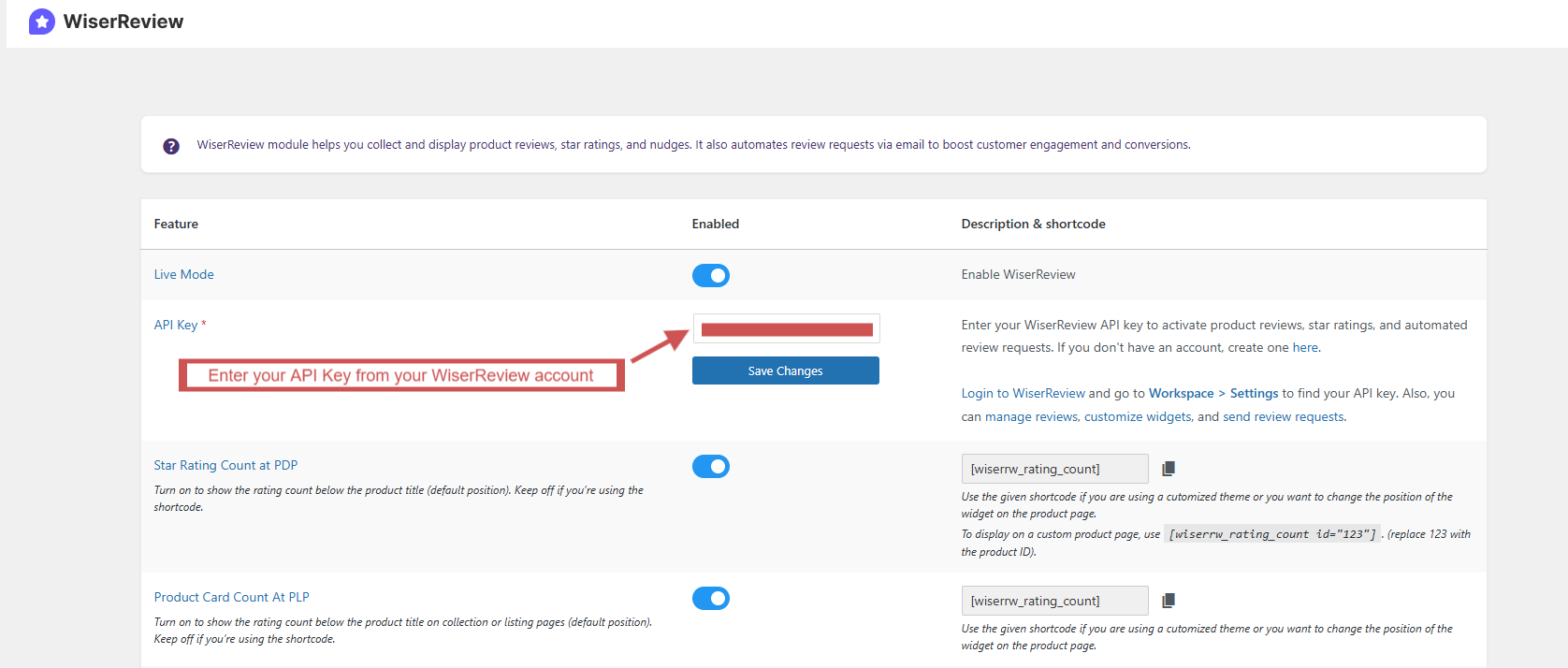
2. Enter your API Key from your WiserReview account.
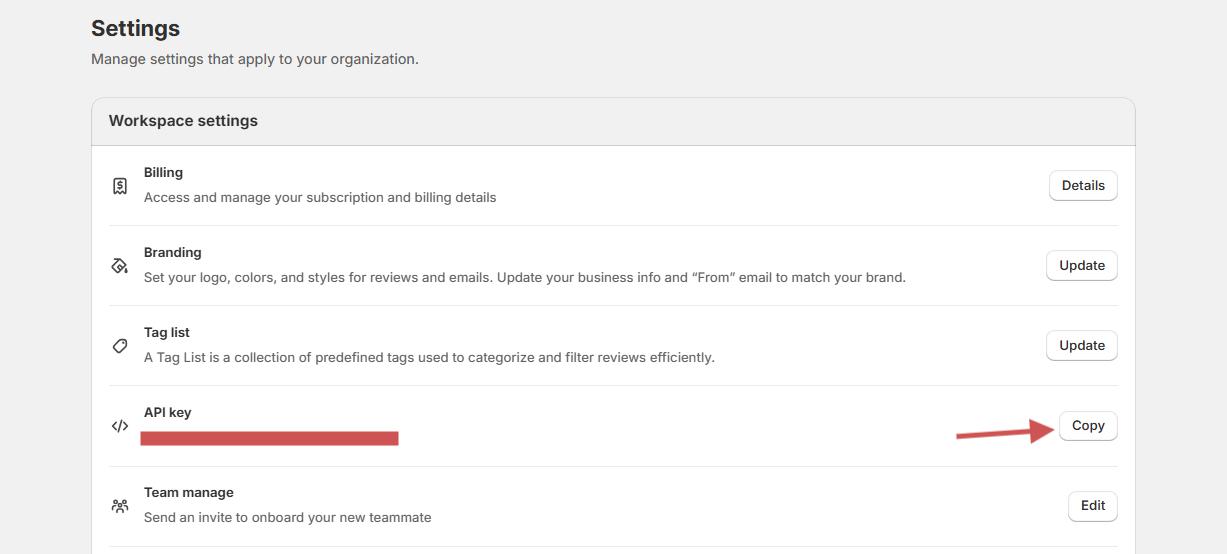
- First, Log in for WiserReview.
- You can find it under setting→ API key in your WiserReview dashboard.
3. Save the settings.
Your products will sync automatically, and all reviews will be mapped to the correct WooCommerce products.
Step 3: Create a video review form
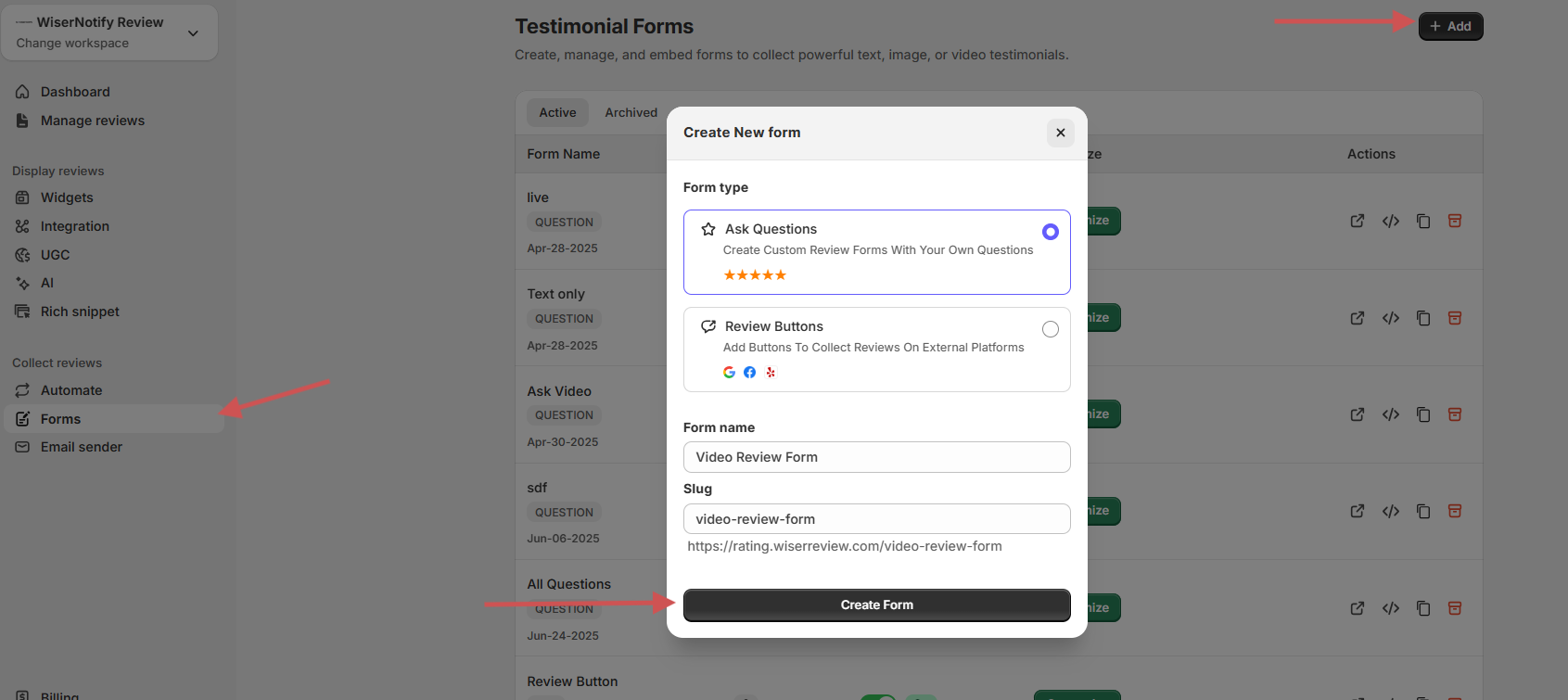
1. In the WiserReview dashboard, open Forms from the left menu.
2. Create a new form or edit your default form.
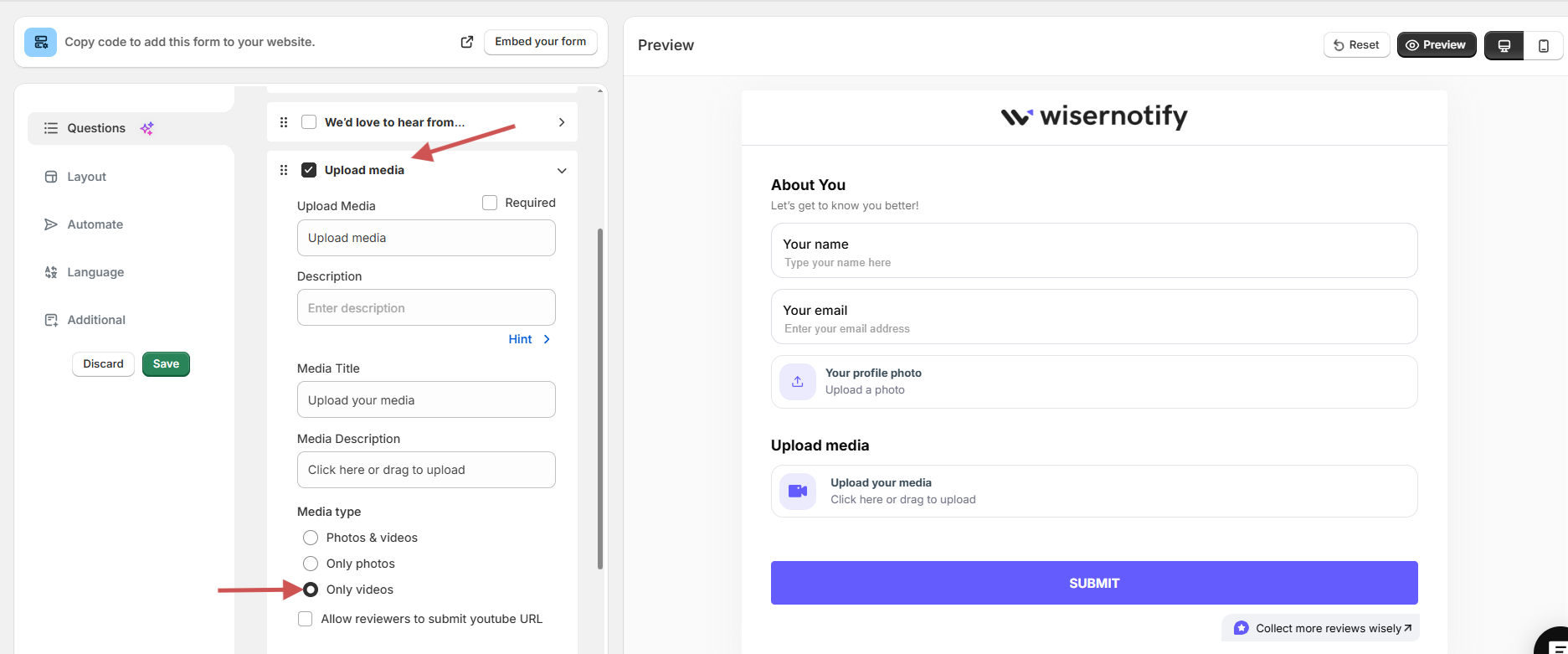
3. Ensure the Video Upload field is enabled.
4. Save the form.
This form allows customers to upload video reviews directly from mobile or desktop.
Step 4: Share the video review form link
You can collect video reviews by sharing the form link through:
1. Review request emails (Automate → Email Sender)
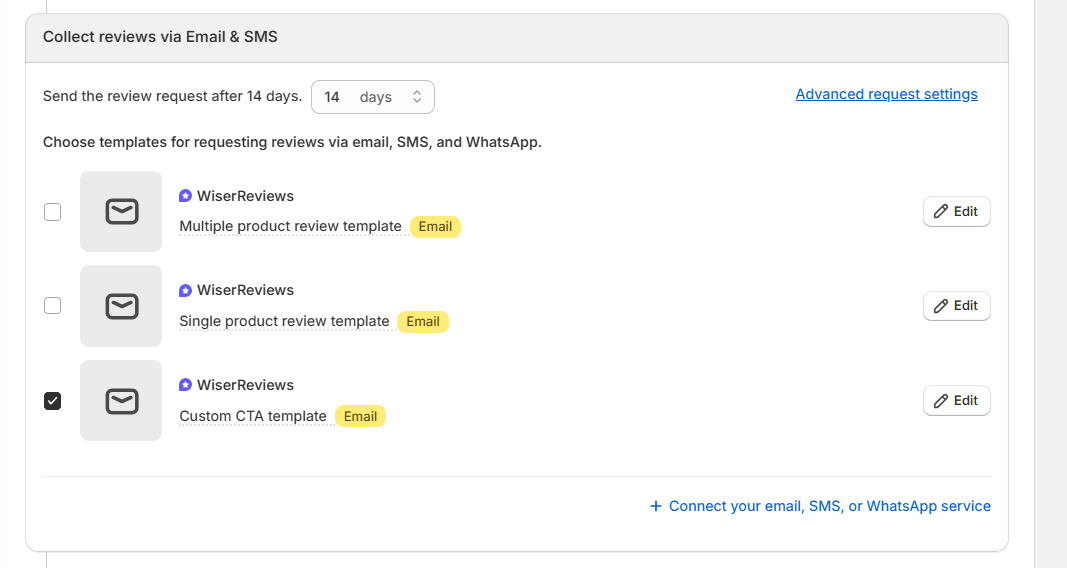
2. SMS / WhatsApp follow-ups
3. Order thank-you page
4. Post-purchase flows
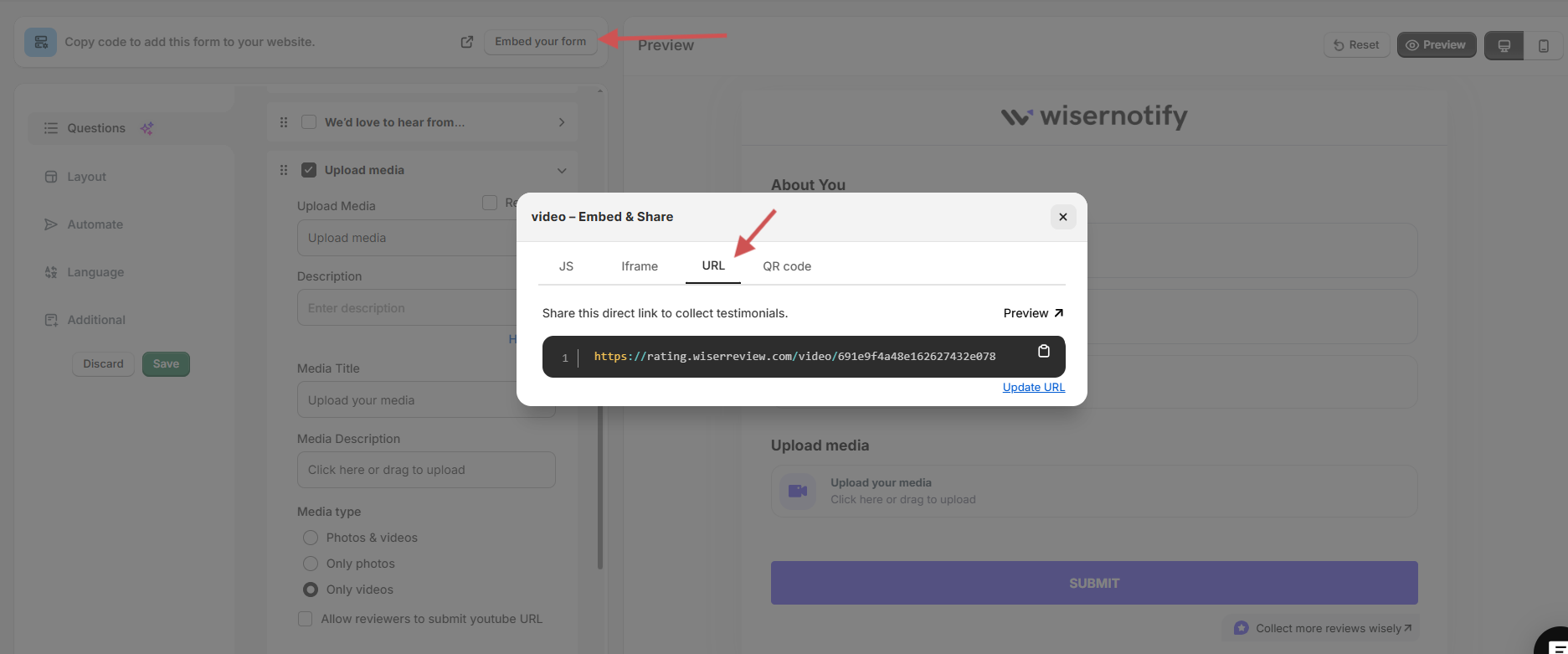
5. Anywhere you prefer, with a simple URL
Short links help customers upload videos faster.
Step 5: Collect and approve video reviews
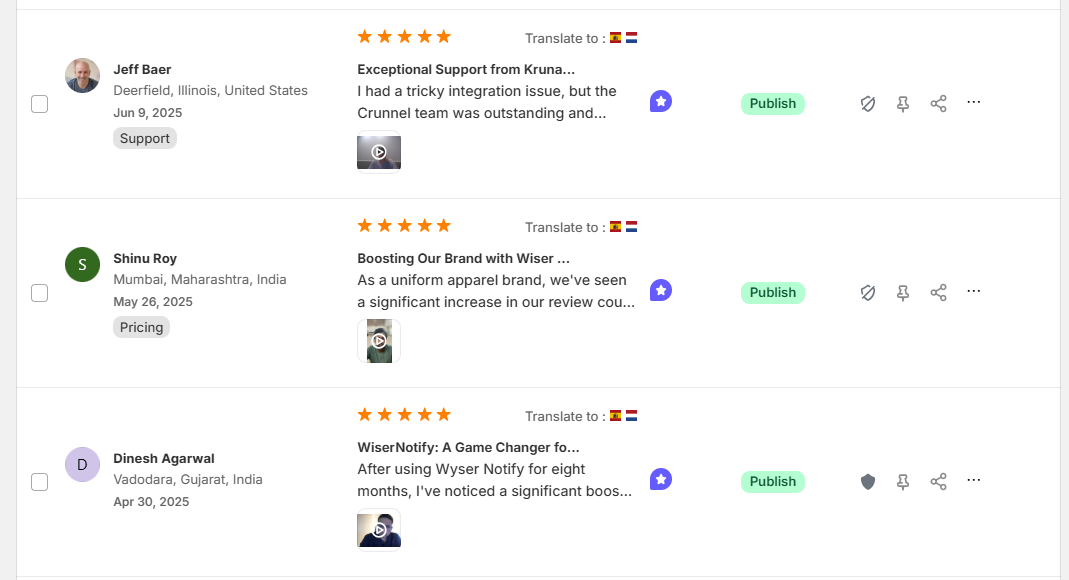
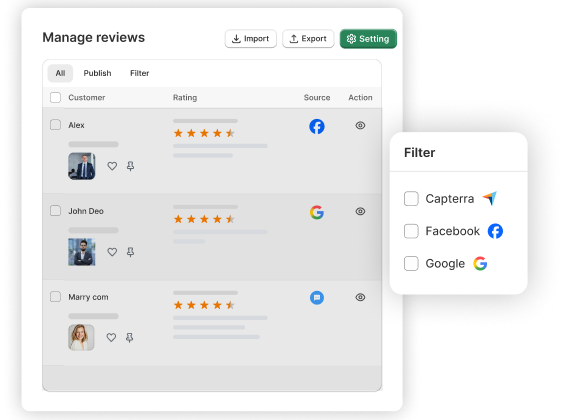
1. Go to Manage Reviews from the left menu.
2. You will see all reviews along with uploaded photos and videos.
3. Approve the video reviews you want to display publicly.
Approved videos instantly become available for widgets and product pages.
Step 6: Display video reviews on WooCommerce product pages
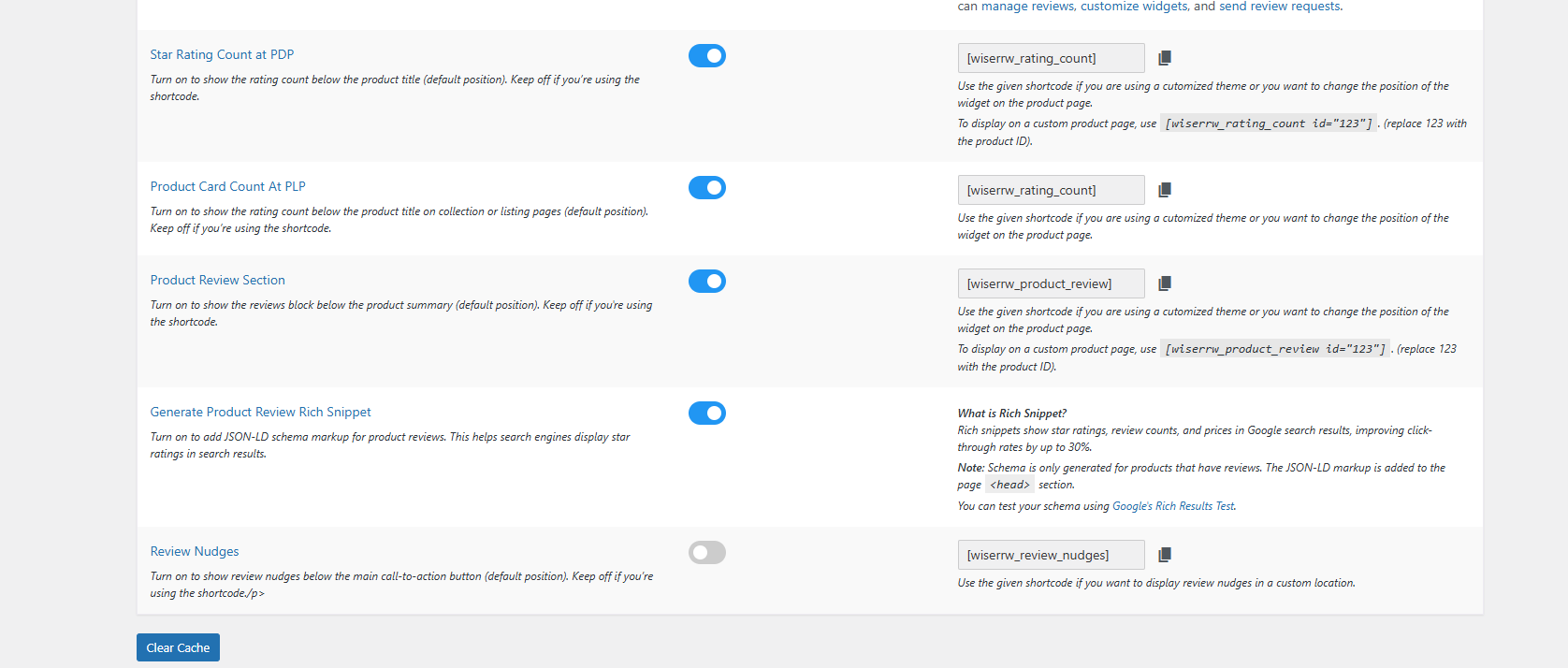
1. Enable the widget and choose where to display it in WiserReview plugin:
- Inside the product page review section
- Below product details
- As a separate video gallery block
2. Select a widget that supports video reviews (Recommend: Product Review Widget / UGC Widget).
Once enabled, all approved video reviews will appear automatically across your WooCommerce product pages.
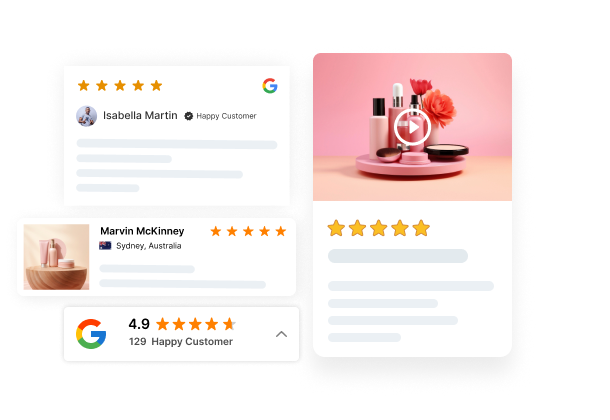
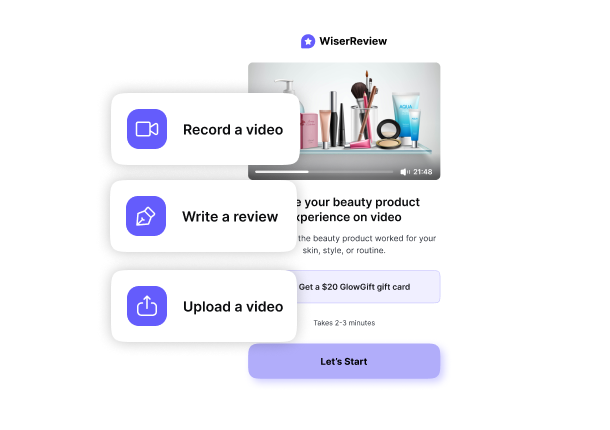
All your reviews in one place
Collect video reviews, manage every response, and display them where they matter most.
Displaying video reviews on your store

Here are the main places where you can show video reviews on your WooCommerce site.
On product pages
Show video reviews directly on your product pages so shoppers see them at the moment they are deciding to buy.
Place the video block near the product gallery or inside the review section. This helps buyers watch real experiences without scrolling too much.
A quick video can clear doubts and push them to complete the purchase.
On a dedicated “Customer Stories” page
Create a separate page where you showcase all your best video reviews in one place. This page can act as a foolproof hub.
New visitors can watch many real experiences, understand your product range, and feel more confident about buying from your store.
It also works well for ads and email campaigns.
Using social proof widgets
Use a social proof widget that highlights video reviews across your site. A widget can show small video thumbnails on the home page, sidebar, or footer.
This gives shoppers quick access to real customer videos no matter which page they visit. It keeps trust visible at all times and helps guide buyers toward your product pages.
Encouraging more customers to leave video reviews

Here are the steps that help you get more video reviews from your customers.
➔ Incentivize reviews
Customers respond well to simple rewards. A small benefit gives them a reason to pause, record a video, and share their real experience.
What works well:
- Offer a small discount for the next order
- Give store credits or loyalty points
- Add them to a monthly giveaway
Clear rewards create steady video submissions without pushing customers too hard.
➔ Make it easy
If the process takes too long, customers will skip it. The goal is to let them submit a video in seconds, not minutes.
What you should do:
- Provide a single upload link
- Keep the form short
- Make sure everything works on mobile
- Avoid asking for extra steps
Easy flows lead to more completed video reviews.
➔ Follow up after purchase
Most customers forget to leave a review unless you remind them. A short message at the right time brings in more videos than any other method.
Best timing:
- Send the request a few days after delivery
- Add the upload link directly inside the message
- Send one simple reminder if they don’t reply
A friendly follow-up builds trust and brings in more real video reviews.
3 Common mistakes to avoid

Here are the common mistakes you should avoid when using video reviews.
1. Uploading low-quality videos
Low-quality videos can make your product look bad. If the video is blurry, dark, or shaky, shoppers cannot see the product clearly.
This can reduce trust. Always check each video before adding it to your store, and ask customers to record in good light with a steady hand.
2. Forgetting permissions or proper formatting
You should not use a customer’s video unless they agree to it. Missing permission can cause problems later.
Also, if the video file is in the wrong format, it may not play on your site. Use a simple permission tick box and accept common file types like MP4 or MOV.
3. Overloading pages with too many videos
Adding too many videos on one page can slow your store and confuse buyers. A crowded page makes it hard for shoppers to focus.
Keep only your best videos on the product page and move the rest to a separate “Customer Stories” page.
All your reviews in one place
Collect video reviews, manage every response, and display them where they matter most.
Start Free →Wrap up
You collect and display video reviews in WooCommerce to give shoppers clear proof from real customers.
Video reviews help buyers see the product in real use, remove doubts, and make faster decisions.
When you make the upload process simple, guide customers on what to record, and place the videos in visible spots on your product pages, you build strong trust.
A few honest videos can help shoppers feel confident, stay longer on the page, and complete their purchase with less hesitation.
Frequently asked questions
Yes. With a simple upload link or form, customers can record and upload videos directly from their phone.
Yes. WooCommerce does not support video reviews by default. A tool like WiserReview lets you collect and display video reviews on product pages.
Short videos work best. A 20–60 second clip is enough for customers to show the product and share their experience.
The best place is the product page, near the gallery or review section. You can also show them on a separate “Customer Stories” page or through social proof widgets.
Make the upload process simple, send a follow-up message after delivery, and offer a small reward like a discount or store credit.

Krunal