5 min
5 min 
Importing or exporting your BigCommerce customer reviews is easier than it seems. You just need the correct file format and the right tool, and your reviews can migrate cleanly and with no disruption on your product pages.
The majority of store owners run into trouble because BigCommerce review data is scattered across different platforms, and BigCommerce does not readily offer a one-click option to consolidate it.
With our transparent workflows, you can transfer every review, keep your dates, and avoid errors in a single seamless process.
This guide gives you a clear path. You will learn how to export your reviews, import them without errors, and avoid common mistakes that slow people down.
Understanding BigCommerce Review Data Structure
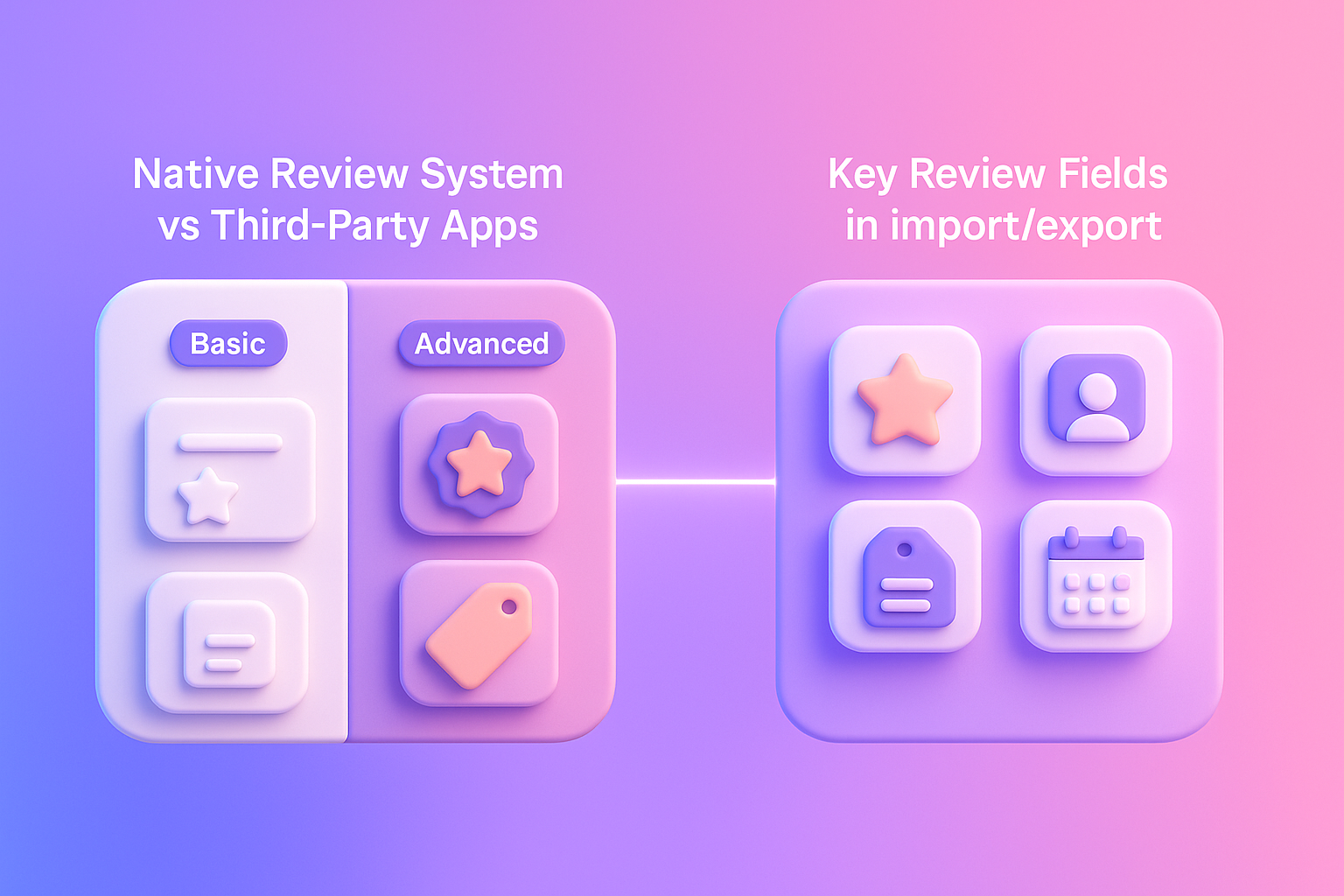
BigCommerce ensures that your review data is in a specific format, which defines how it can be exported and imported. Understanding the complete review data structure ahead of time eliminates mismatched fields and failed imports later.
Native review system vs third-party apps
Choosing between the BigCommerce native review system and third-party apps depends on your business’s specific needs for customization, advanced features, and budget.
The native review system functions well out of the box but has limited capability, while third-party apps offer engaging and marketing functionality that is far advanced.
| Feature | Native BigCommerce Reviews | Third-Party Review Apps |
|---|---|---|
| Control Panel Tools | No built-in import or export option. | Most apps offer import/export tools in their app dashboards. |
| Importing Reviews | Needs API access or a dedicated importer app to upload CSV files. | Allows easy CSV import using a ready template. |
| Exporting Reviews | Possible only through the BigCommerce API. | Usually offers one-click CSV export, including media files. |
| Data Format | API-based data structure. | Simple CSV format with clear columns. |
| Migration | Hard to migrate reviews without technical help or plugins. | Makes migration from other platforms or review tools easy. |
WiserReview is superior for stores that need automated collection, photo/video reviews, and flexible widget placement, while native reviews work for basic text-only reviews.
Key fields you’ll find in a review export/import
Every BigCommerce review contains core data fields that you’ll encounter during export and import:
- Review ID – Unique identifier for each review
- Product ID – Links the review to a specific product
- Author name – Customer’s name (required field)
- Email address – Used for verification and communication
- Review title – Short headline summarizing the feedback
- Review text – The actual review content
- Rating – Star rating (typically 1-5)
- Date created – Timestamp when the review was submitted
- Status – Approved, pending, or disapproved
- Review images/videos – Media attachments (if supported)
Not all platforms support every field. For example, review images work with apps like WiserReview but not with BigCommerce’s native system. Always check field compatibility before importing to avoid data loss.

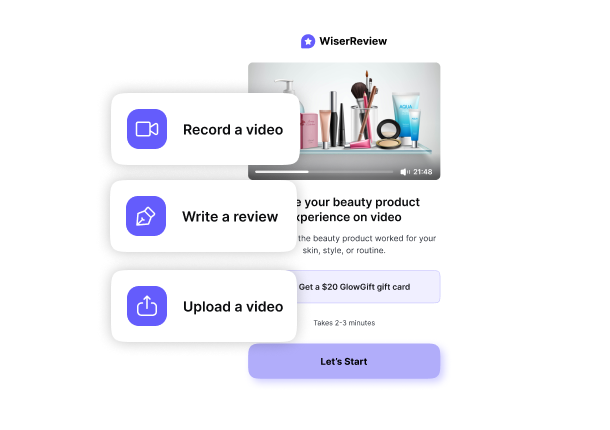
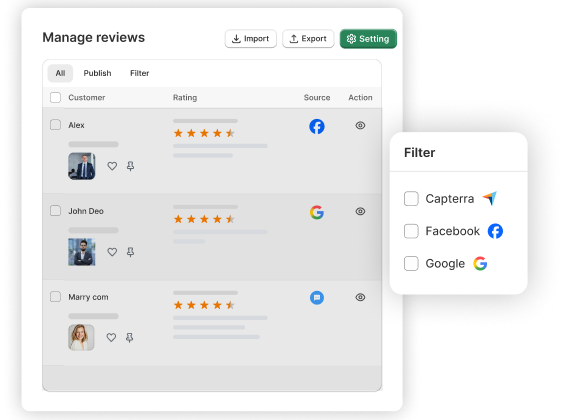
All your reviews in one place
Collect reviews, manage every response, and display them where they matter most.
How to Export Reviews from BigCommerce
Exporting BigCommerce reviews requires different methods depending on whether you use native reviews or a third-party app.
Export using the native BigCommerce review system
BigCommerce does not offer a direct “Export Reviews” button; you export reviews via the API. These are the exact steps:
Step 1: Create an API account
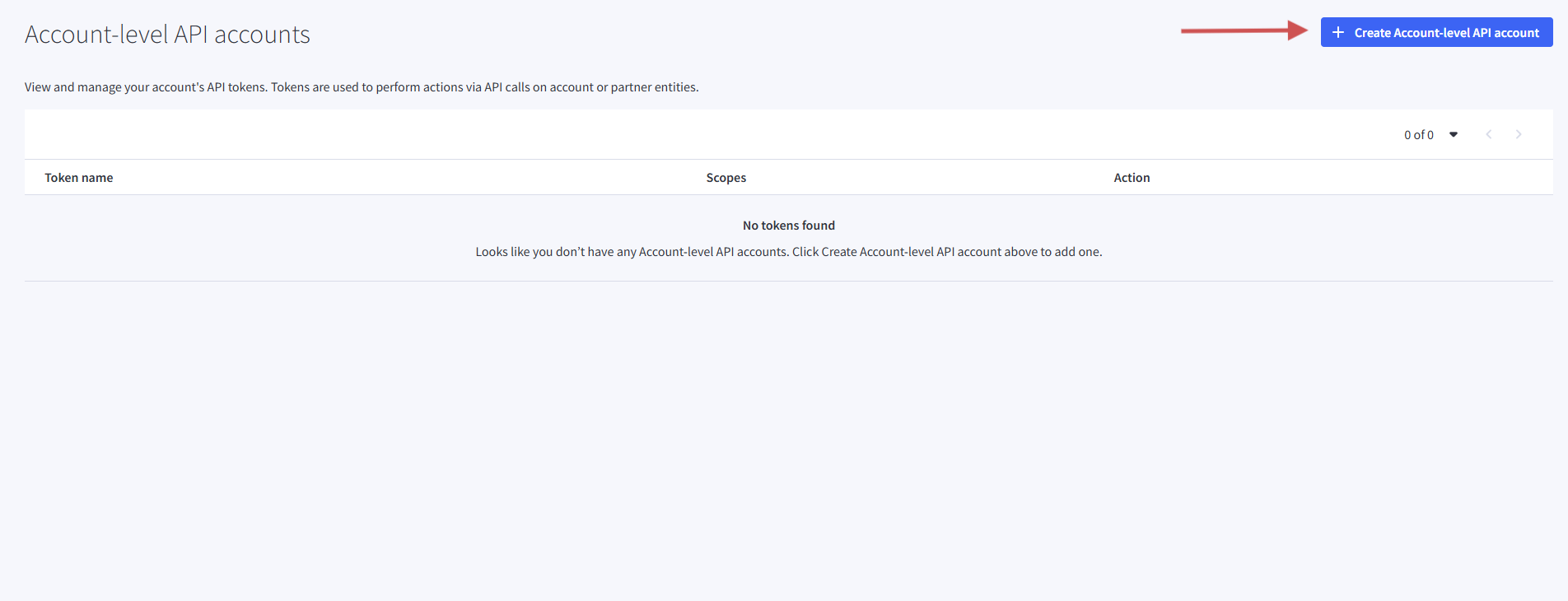
- Go to Settings → API Accounts.
- Click Create API Account.
- Give it a name and copy the Client ID, Client Secret, and Access Token.
Step 2: Get your store hash

You can see the store hash in the API path inside the API account page.
Example: https://api.bigcommerce.com/stores/STORE_HASH/v3/
Step 3: Use an API client
Use a tool like Postman or Insomnia to run the export request.
Step 4: Add your API keys
- Add the X-Auth-Token header with your Access Token.
- Set Content-Type: application/json.
Step 5: Run the reviews export request
Use this endpoint:
GET https://api.bigcommerce.com/stores/{store_hash}/v3/catalog/products/reviews
Step 6: Download the JSON file
- The API returns all review data in JSON format.
- Export it as a file from your API tool.
- Convert it to CSV if needed.
How to Import Reviews into BigCommerce
Importing reviews into BigCommerce works best with dedicated review management tools that handle field mapping and product matching automatically.
Step 1: Install and connect WiserReview
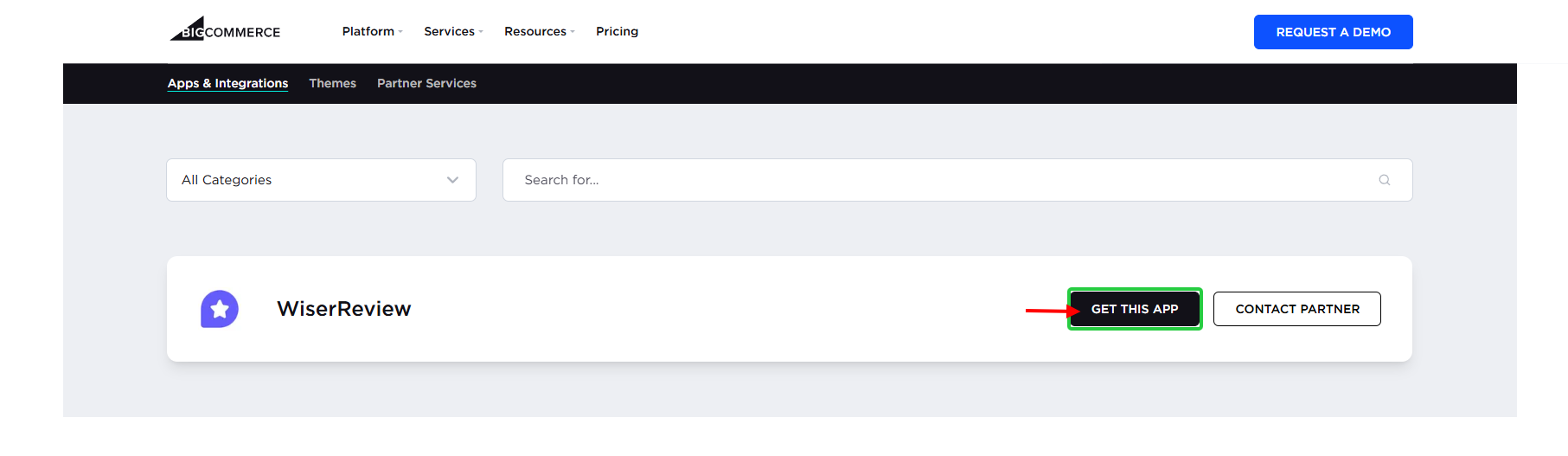
Head to the BigCommerce App Marketplace and install the WiserReview application. When you’ve installed the application, connect your store by including your WiserReview API key in the application settings.
- Open your WiserReview dashboard.
- Go to Integrations → BigCommerce and connect your store.
- This allows WiserReview to sync your products and match each review to the correct product.
Step 2: Open WiserReview and go to Import/Export
Log in to your WiserReview account and open Reviews → Import reviews.
Step 3: Download the sample CSV
Click Download Sample CSV to get the correct format for rating, review text, customer name, date, and product ID/SKU.
Step 4: Prepare your CSV file

Add your review data to the sample file.
Ensure each row contains a valid rating and the correct product ID or SKU.
Step 5: Upload your CSV
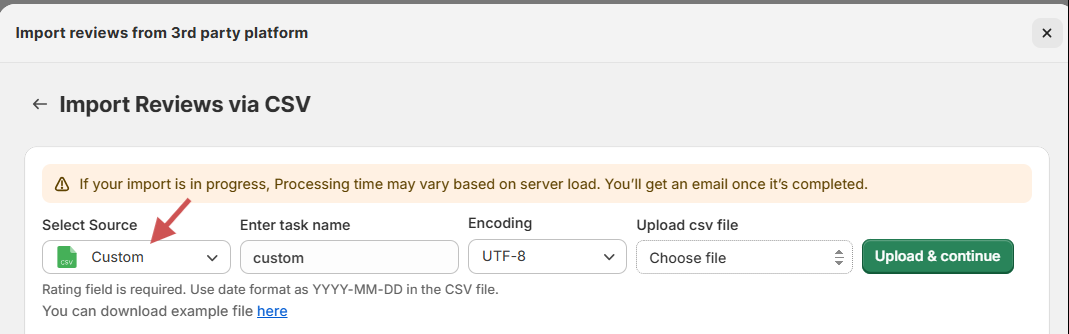
Click Import Reviews and upload your prepared file.
Step 6: Check field mapping
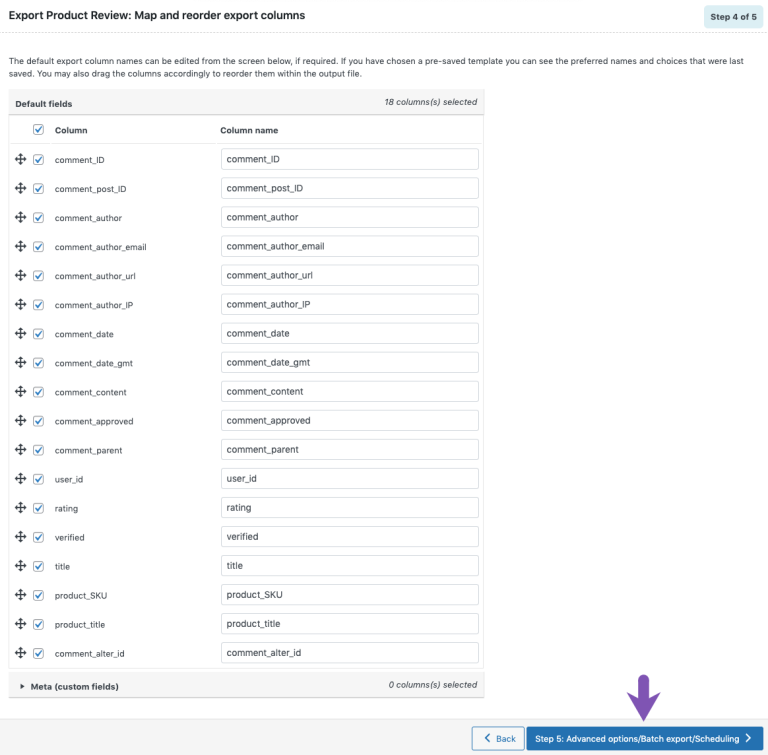
WiserReview will auto-map most fields. Review the mapping once and confirm.
Step 7: Run the import and verify
Click Start Import, wait for processing, and check your BigCommerce product pages or WiserReview dashboard to confirm everything imported correctly.
4 Common Issues & Troubleshooting
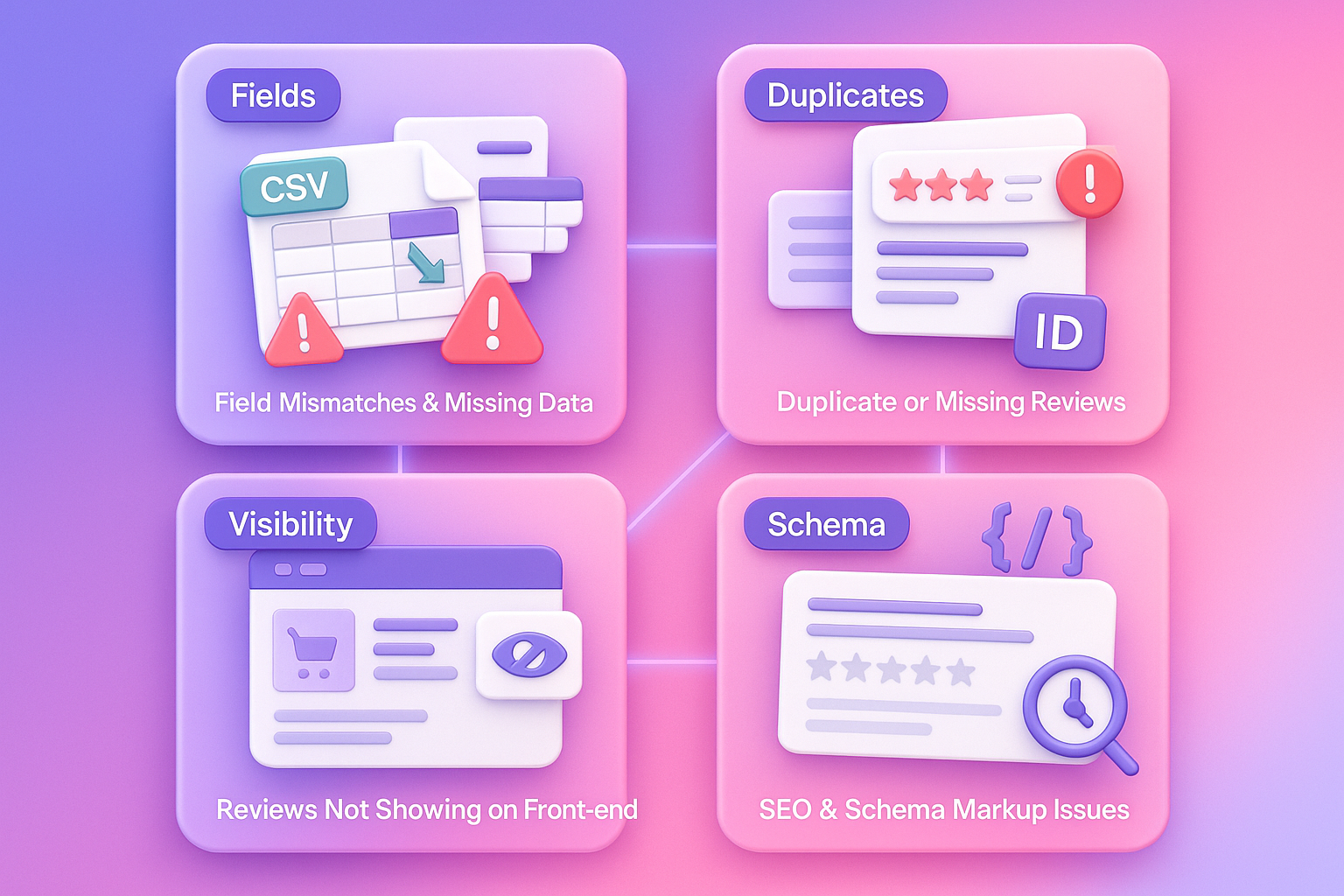
Even with proper tools, importing and exporting BigCommerce reviews can hit complications. Here’s how to resolve the most common problems.
1. Field mismatches and missing data
This issue occurs when your CSV uses incorrect column names, includes empty required fields, or uses formats the system cannot read.
Fix: First, always download your import tool’s example CSV template before you begin. It is ideal to use the YYYY-MM-DD date format, ratings between 1-5, and, if your language or symbols could cause errors, save as UTF-8.
2. Duplicate reviews or missing reviews
Repetitive reviews occur when you import the same CSV file multiple times, or when the product IDs do not match correctly between the two platforms.
Fix: Before importing, check whether your import tool automatically detects duplicate reviews. If the reviews are missing post-import, verify that the product IDs match exactly in your CSV and your BigCommerce catalog.
3. Reviews are not showing on the front-end
This occurs when reviews are successfully imported, but the front-end widget is not activated, the imported reviews remain pending, or the theme is not loading the widget block.
Fix: Enable Live Mode inside WiserReview and approve any pending reviews in the moderation panel. Make sure your theme has the review widget installed and clear your store and browser cache so the new content loads correctly.
4. SEO and schema markup concerns
Your reviews may be visible on your store, but Google may not display star ratings in search results if the structured data is missing or invalid. Schema issues delay indexing and prevent rich results from appearing.
Fix: Confirm the schema using Google’s Rich Results Test.

All your reviews in one place
Collect reviews, manage every response, and display them where they matter most.Wrap up
A smooth review import and export process helps you keep your BigCommerce store consistent, trustworthy, and ready for growth.
When your reviews move seamlessly across platforms, you protect your social proof and ensure every product page shows honest customer feedback.
WiserReview makes this part simple. It gives you an easy CSV workflow, automatic field mapping, a built-in schema, and a reliable review display across your store.
With the correct setup, you can manage all your reviews in one place and keep your store running with stronger credibility.
Frequently asked questions
Yes. You can use the BigCommerce API, but it needs technical skills. Apps like WiserReview make exporting easier.
Yes, if you use a review app that supports media. WiserReview lets you import images and video links from a CSV file. The native BigCommerce system does not support me
Export your reviews as CSV and import them into the new app. WiserReview supports imports from major platforms.
Most imports finish in a few minutes. Small files (100–500 reviews) take 2–5 minutes, while larger files can take 10–20 minutes. WiserReview shows progress as it runs.

Krunal