5 min
5 min 
Trust begins before a visitor even clicks on a button or submits a form. Showing genuine Trustpilot reviews on your Wix site helps visitors trust your business.
Wix offers several ways to create these reviews, each with its own approach. The technique adopted will result in reviews being viewed and updated on your webpage.
This article will discuss two ways you can integrate your Trustpilot reviews into your Wix site. You will be shown an overview of how it works and where it should be implemented.
Method 1: Add Trustpilot reviews to Wix using the Trustpilot widget
The official Trustpilot app integrates directly with Wix and automatically sends review invitations to customers. It will be most useful if you have a business running solely on Trustpilot and want a simple setup process.
Step 1: Install the Trustpilot app (optional but useful)
Go to the Wix App Market in your Wix editor, search for “Trustpilot Reviews,” and click +Add to Site.
Connect Accounts: You will be directed to your Trustpilot Business account. Accept the terms and conditions. You will then be given access to your Trustpilot account once Wix receives permission.
Step 2: Log in to your Trustpilot business account
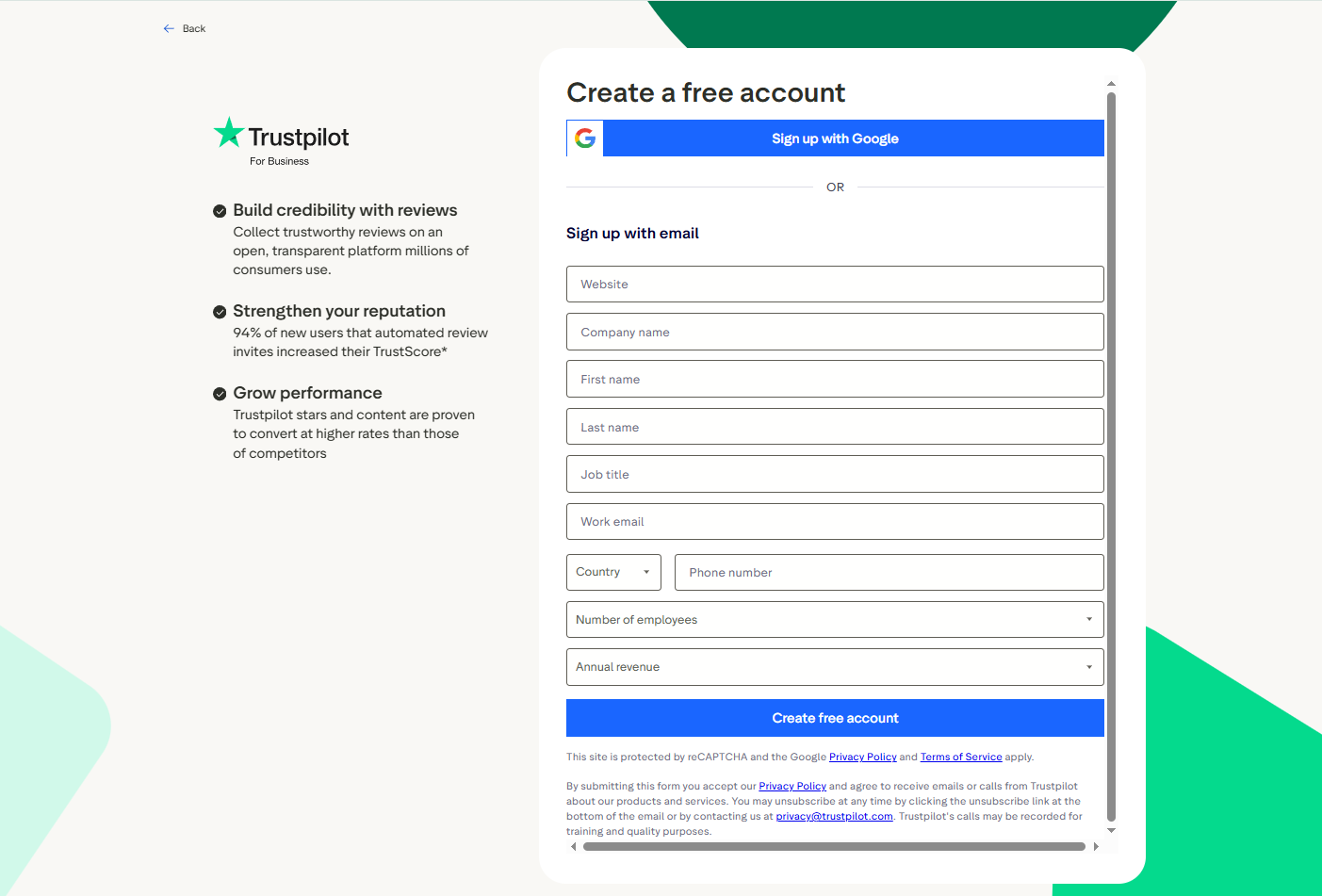
Open your preferred internet browser and navigate to business.trustpilot.com. Log in to your account. Click on Widget Library under the navigation menu on the left side.
After expanding the Share & promote section, click on Website widgets. Some users will still see this named as “All Widgets”.
Step 3: Choose your widget style
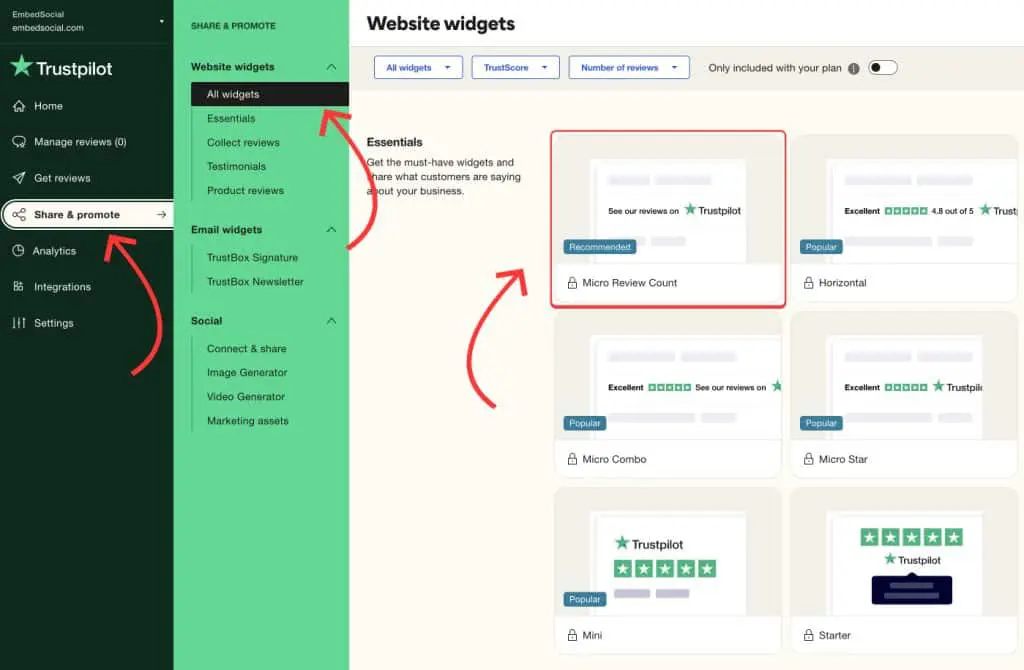
Navigate to Website Widgets: From your dashboard, go to the Share & promote menu and select “All widgets”.
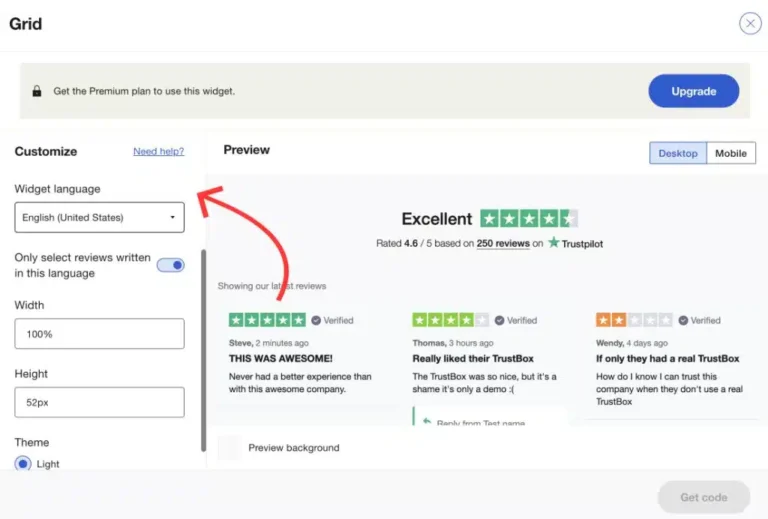
Select a widget type (e.g., Carousel, Grid, or Star Badge). Customize the widget’s appearance, size, and language in the configuration panel.
Step 4: Copy the embed code
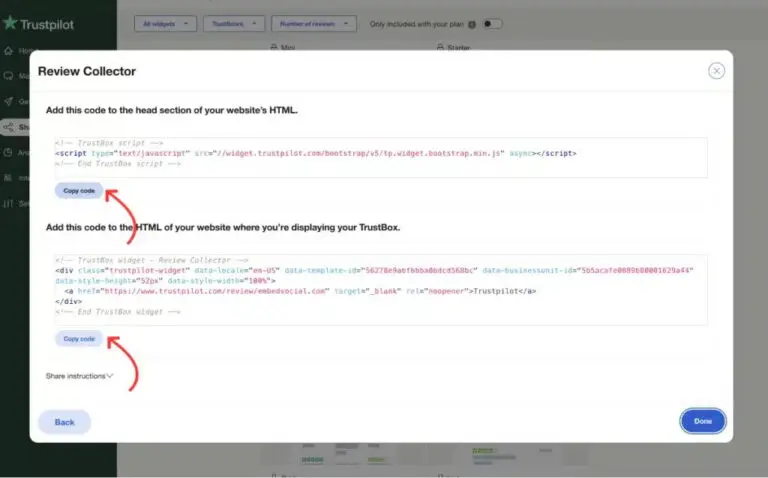
Once you are satisfied with the look, scroll down and click the Get Code button. This will reveal two code snippets:
- Snippet 1 (The script tag): This loads the Trustpilot JavaScript library.
- Snippet 2 (The HTML element): This is the code that specifies where and which widget to display.
Step 5: Add the code to your Wix website using the HTML element
Open Wix Editor: Go to your Wix dashboard and open the site editor for the page where you want the reviews to appear.
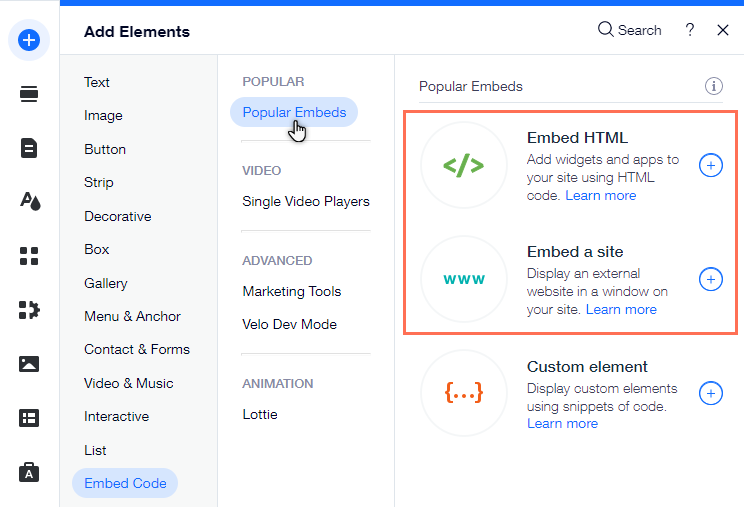
Add the HTML Embed Element: On the left-hand editor toolbar, click the Add elements icon (+). Select Embed from the menu. Under Custom Embeds, choose Embed a Widget (this creates an HTML iFrame box).
Step 6: Paste the code
A gray box will appear on your page. Click it, then select Enter Code. You will then be directed to an “Add your code snippet” window. Make sure you select Code, not Website Address.
You will then need to insert both copied code snippets from Trustpilot. Both should be added immediately, one after the other. You will then click Update to save the codes within the Wix element.
Step 7: Position, resize, and publish
The TrustBox is now integrated, but may require some adjustments to your page display.
- Resize the Widget Box: Your reviews are now inside the gray box on your editor page. Use the corners of your HTML box to resize it so your entire widget, including reviews and Trustpilot logos, fits without scrolling.
- Place the Widget: You would then position this HTML box precisely where on your site you want it to appear, like your footer, sidebar, or review page.
- Check Mobile View (Important): Use the mobile editor view option (commonly an icon at the top of your Wix editor) so that your widget will be accessible on smaller screens as well.
- Publish: To put your changes into action on your public site, click on Publish at the top right corner of your Wix Editor.
Your Trustpilot reviews are now displayed on your Wix site using the manual widget embed method.
Method 2: Add Trustpilot reviews to Wix using the WiserReview

To add Trustpilot reviews to your Wix site using WiserReview, you must first import your reviews into the WiserReview platform, customize a widget there, and then embed the widget code into your Wix site using the Embed a Widget (HTML) element.


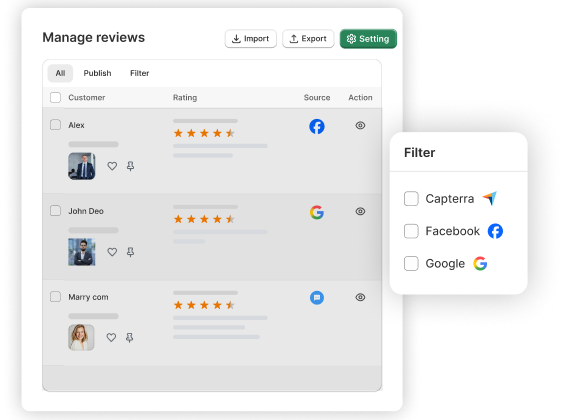
All your reviews in one place
Collect reviews, manage every response, and display them where they matter most.
Step 1: Export reviews from Trustpilot
Log in to your Trustpilot Business account. Navigate to Reviews > Service Reviews (or Product Reviews). Click the Export button to download your reviews as a CSV file.
Step 2: Create an account and import reviews into WiserReview
First off, create an account or log in to your WiserReview dashboard.
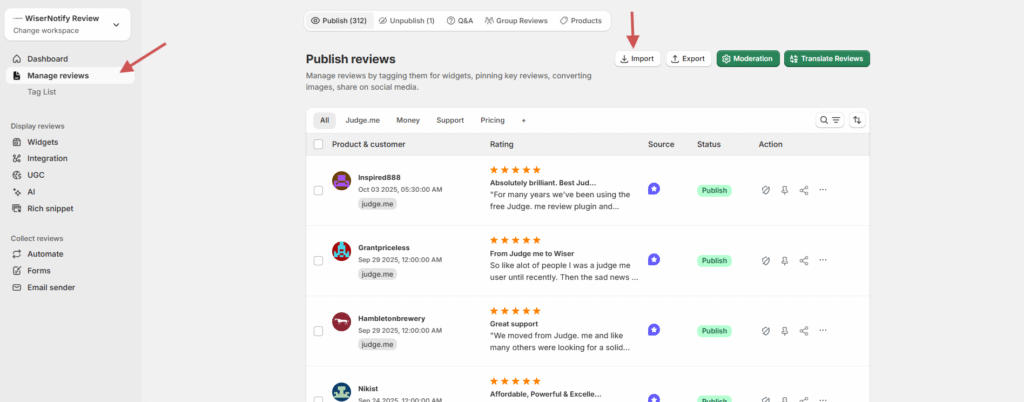
Next, click on the Manage Reviews section and then select Import Reviews.
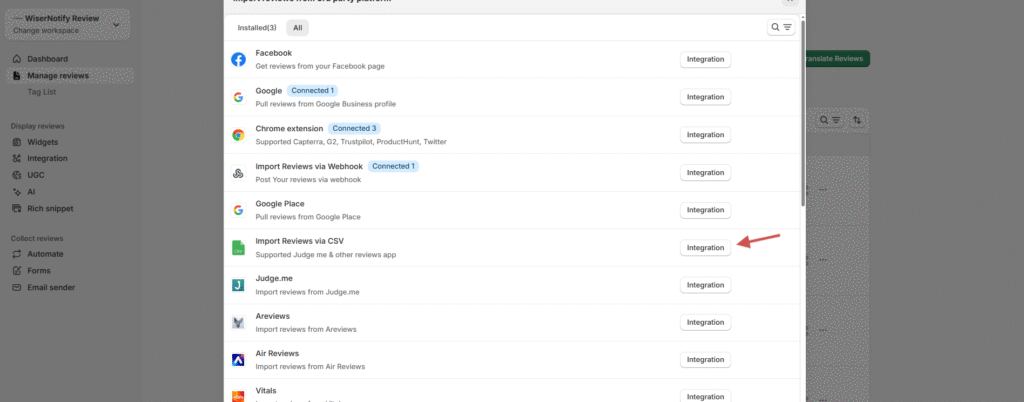
Choose “Import reviews via CSV” from the available integration options. Select CSV File Upload as the method.
Click Browse and upload the cleaned Trustpilot review CSV file.
Step 3: Mapping the fields
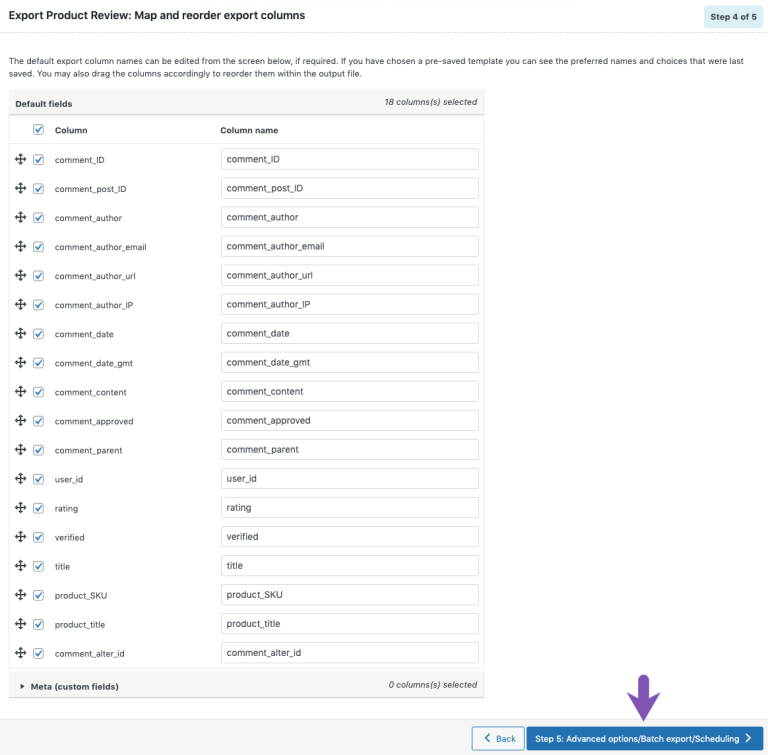
Once uploaded, you will be prompted to map CSV columns to the corresponding fields in WiserReview. Once you have assigned all your fields, click Next.
Step 4: Upload and review
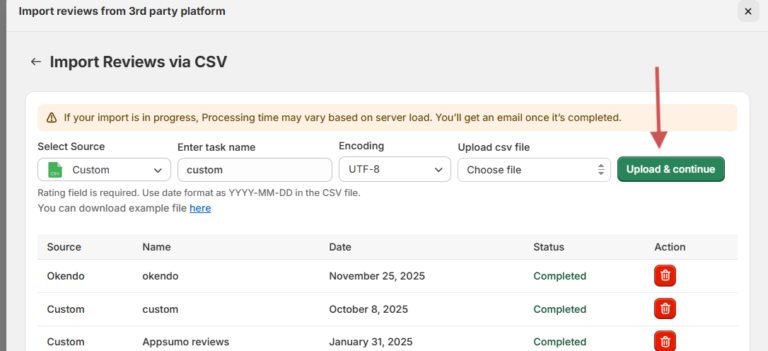
You’ll see a preview of the imported data. Click Upload & Continue. Once uploaded, all Trustpilot reviews will appear under Manage Reviews.
Step 5: Create and customize your widget in WiserReview
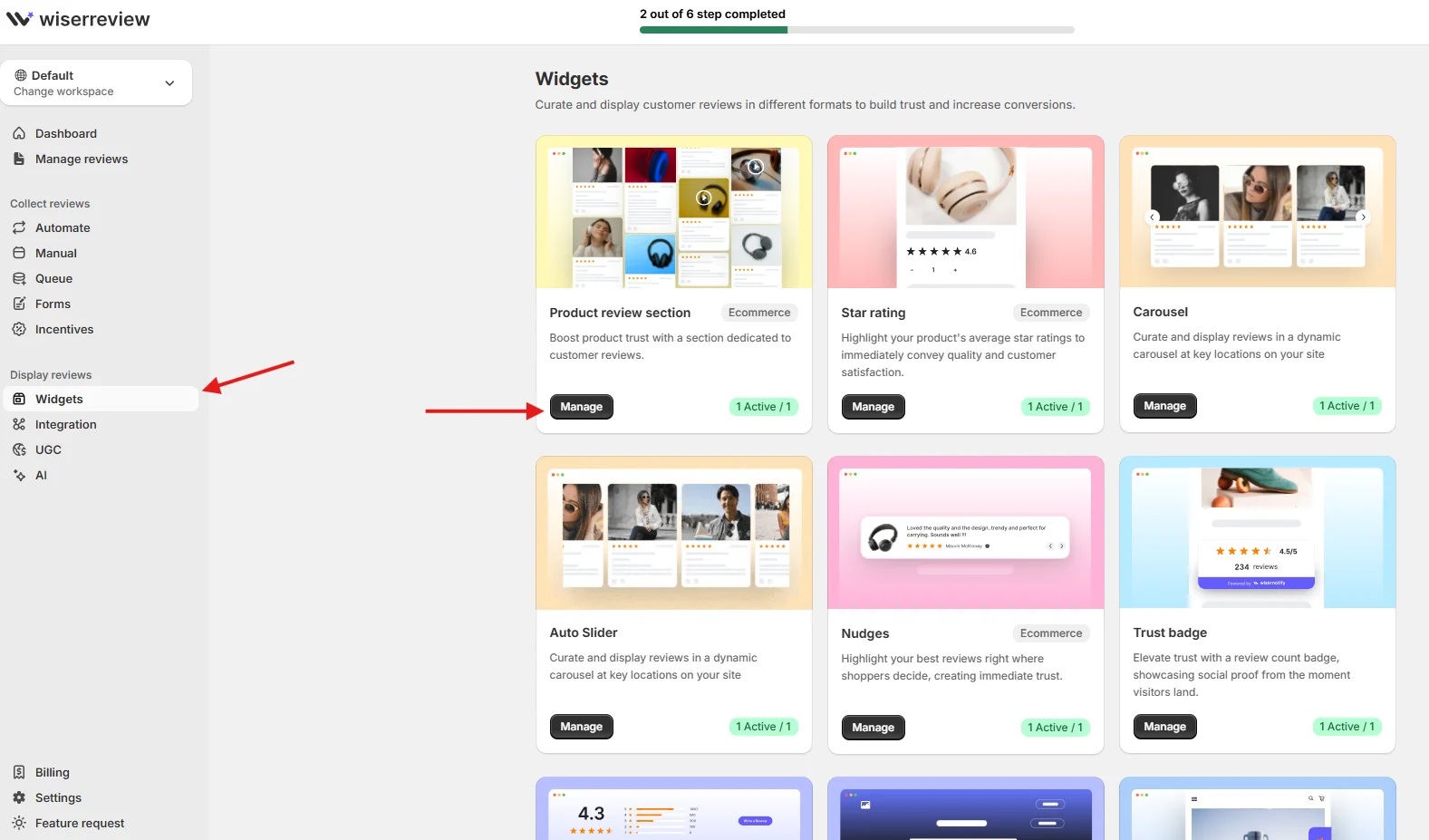
Now, in the WiserReview dashboard, head on over to the Widgets section. Choose a widget template that fits your needs – maybe a carousel, a grid, a list, or even a pop-up.
Personalize your review widget display based on your site’s layout. You can use Filter review options so that you get reviews based on your specifications, for instance, 4- and 5-star reviews or reviews with tags.
Step 6: Generate and get the embed Code
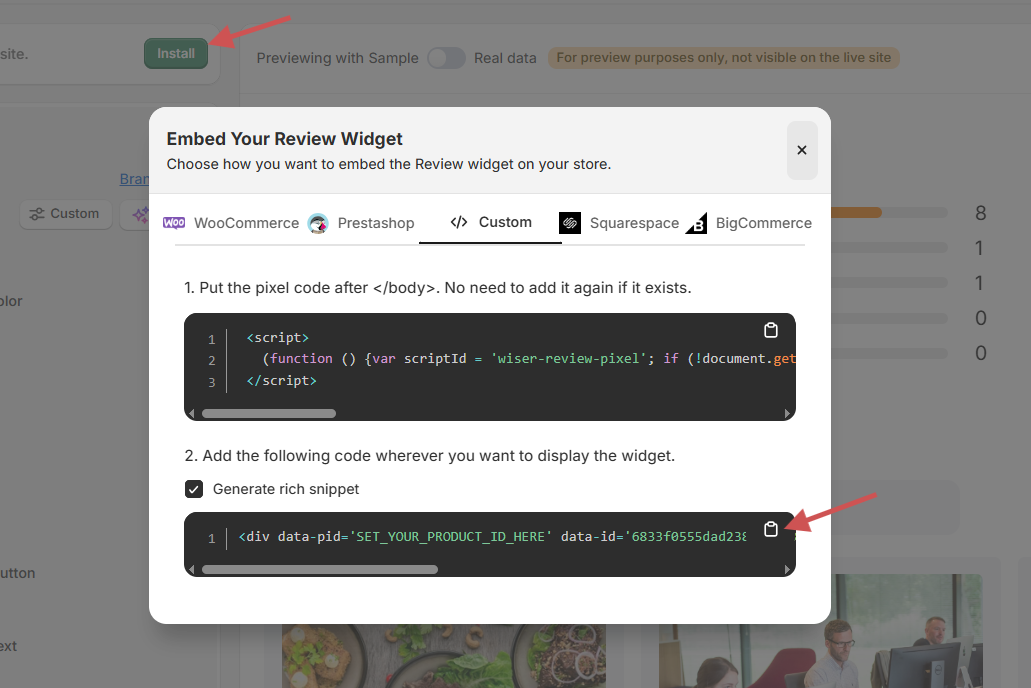
Once the widget is customized to your satisfaction, click the button to generate and copy the embed code. Click the Install or Get Code button when you are done customizing.
Copy the provided embed code.
Step 7: Embed the WiserReview widget code in Wix
Now, log in to your Wix account and open the Wix editor for the website you want to modify. Go to the specific page where you want the reviews to appear.
Add an HTML Element: Click the Add elements icon (+) on the left toolbar. Select Embed > Custom Embeds > Embed a Widget (HTML box).
Paste the Code: Click on the new HTML box that appears on your page and select Enter Code. In the code field, paste the embed code you copied from WiserReview in Step 6. Click Update.
Step 8: Adjust and publish
Resize the HTML box within the Wix editor so the entire review widget is visible and properly formatted. Preview your page to ensure everything looks correct on both desktop and mobile views.
Click Publish to make the changes live on your site.
Wrap up
By adding Trustpilot reviews to your Wix site, you can easily build trust and showcase real customer feedback where it matters most: when reviews are easy to see, visitors feel much more confident about your business.
The Trustpilot Widget works best when you only need Trustpilot reviews and want to automate them easily. WiserReview is the best fit if you need multi-sourced reviews, advanced widgets, detailed moderation, and full customization to fit your brand.
Both methods in this guide work well, but each is suited to a different setup and goal. Choose the option that gives you the right balance of speed, control, and design.
Frequently asked questions
Yes. Trustpilot offers a free plan with limited review invites and widgets. WiserReview also has a free plan for collecting and showing reviews.
The Trustpilot app sends review invites after Wix purchases. WiserReview lets you automate requests by email, SMS, or WhatsApp on your own schedule.
Trustpilot widgets allow basic styling. WiserReview gives complete control over colors, fonts, layouts, and widget types.
Yes. Reviews add fresh content and boost engagement. WiserReview also adds schema markup so star ratings appear in Google search results.

Krunal