HubSpot helps businesses attract, convert, and close leads, but even the best CRM and marketing automation cannot replace trust.
Visitors may engage with your content yet hesitate to submit a form, book a meeting, or request a demo.
That hesitation usually comes from uncertainty. Testimonials solve this by showing real customers achieved results, reinforcing confidence at key conversion moments.
Why add testimonials to HubSpot?
HubSpot is built around inbound marketing and lead nurturing, and testimonials strengthen every stage of that funnel.
Testimonials build trust on landing pages, forms, and demo requests
Pages with testimonials can increase conversions by up to 34 percent
92 percent of buyers read testimonials before engaging with a business
Social proof improves lead quality by encouraging more confident enquiries
Because HubSpot connects pages, forms, and CRM data, testimonials can support both marketing and sales outcomes.
You can explore the platform further or book a demo to learn how to collect more testimonials and show them where they matter most, based on our four years of experience working with over 1,100 brands.
Embed testimonials on HubSpot
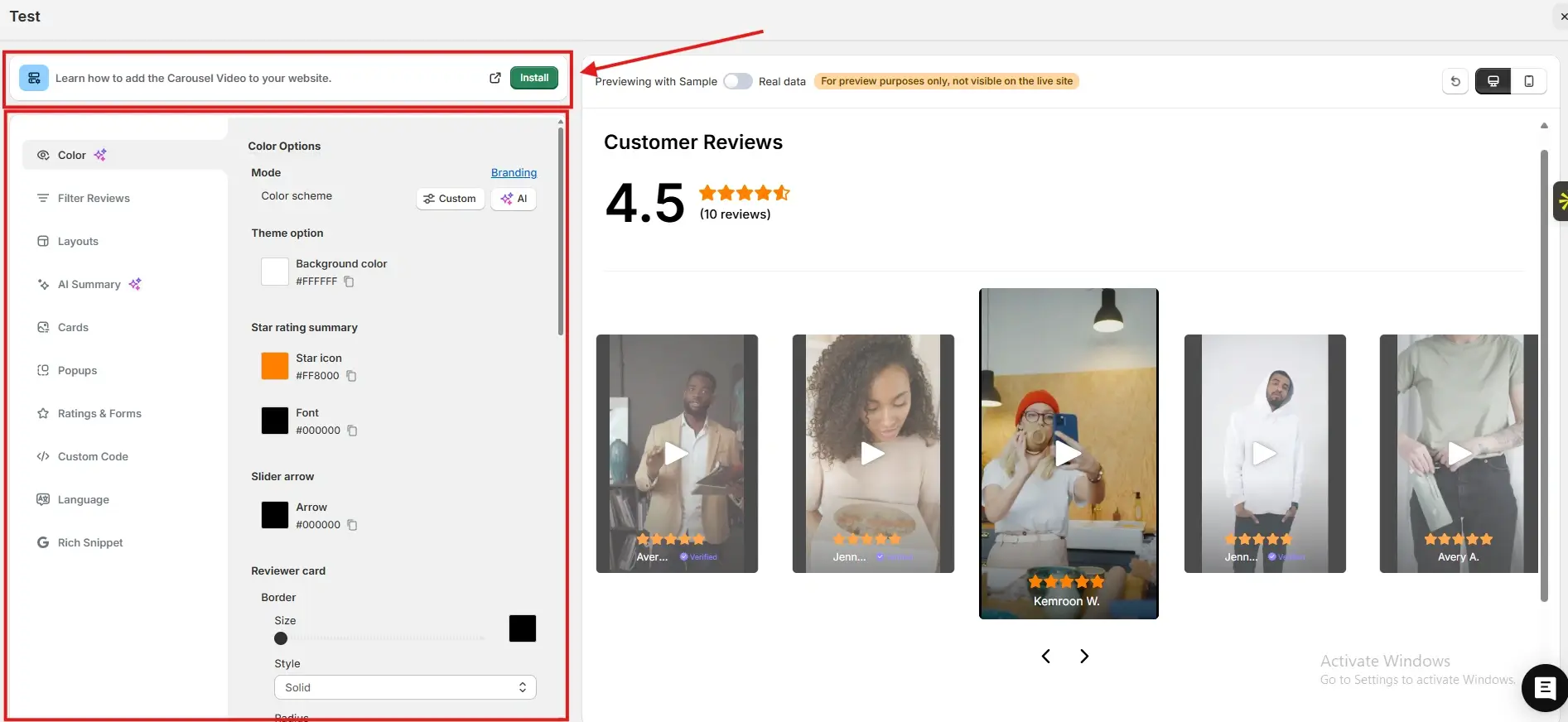
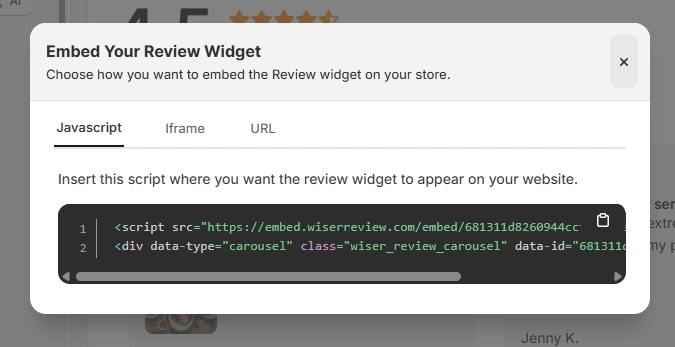
After generating your WiserReview embed code, follow these HubSpot-specific steps:
Log in to your HubSpot account
Go to Marketing and open Website Pages or Landing Pages
Select the page where you want testimonials to appear
Add a Rich Text or HTML module to the page
Switch to source code view and paste the JavaScript embed code, iframe, or URL from WiserReview
Publish or update the page
You can use the same steps for HubSpot landing pages, website pages, and custom templates.
Best places to show testimonials on HubSpot
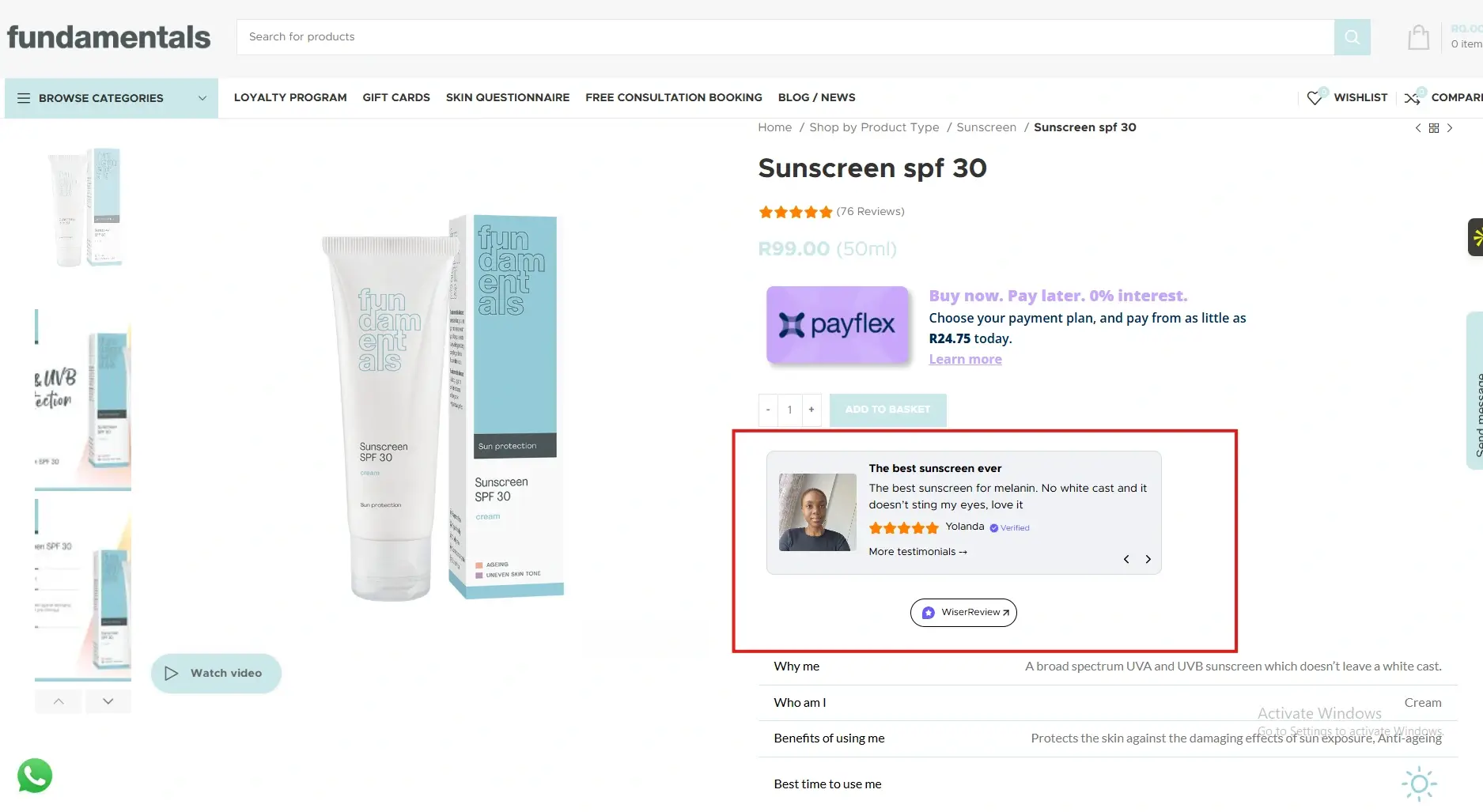
Strategic placement ensures testimonials support lead generation and sales conversations.
Landing pages
Landing pages are designed to capture leads. Testimonials placed near headlines or forms reduce hesitation and reassure visitors that others have benefited.
This increases form submissions and improves conversion rates.
Demo and meeting booking pages
Demo and meeting pages attract high-intent prospects. Testimonials that highlight results, ROI, or customer success reduce anxiety about booking time with your team.
This leads to higher-quality meetings and better sales conversations.
Service and solution pages
Service pages explain how you help customers. Testimonials placed near key benefits validate your claims and build credibility.
This helps prospects move from research to enquiry more confidently.
Email and campaign landing pages
Campaign pages connected to HubSpot emails perform better with social proof.
Testimonials reinforce messaging consistency and reassure leads who arrive from email campaigns, improving overall funnel performance.
All your testimonials in one place
Collect testimonials, manage every response, and display them on your HubSpot site.
HubSpot gives you powerful tools to manage leads and grow revenue, but testimonials help prospects trust you before they convert.
By embedding WiserReview testimonials across HubSpot pages and campaigns, you reduce doubt, improve lead quality, and support sales success.
Start using testimonials strategically and let customer experiences strengthen your inbound strategy.
Frequently asked questions
Yes. Testimonials reduce friction and increase form submissions and demo bookings.
No. Properly embedded testimonials load efficiently and do not affect performance.
Two to five focused testimonials usually work best.
Yes. The same embed code can be used across pages and campaigns.
Absolutely. Social proof is critical for B2B trust and long sales cycles.
Article by
Krunal
Krunal Vaghasia is the founder of WiserReview and an eCommerce expert in review management and social proof. He helps brands build trust through fair, flexible, and customer-driven review systems. Read more.

 3 min
3 min