Product reviews app
Your reviews
Your engine
WiserReview helps you collect reviews automatically, keep them organized, and show them where trust matters most.

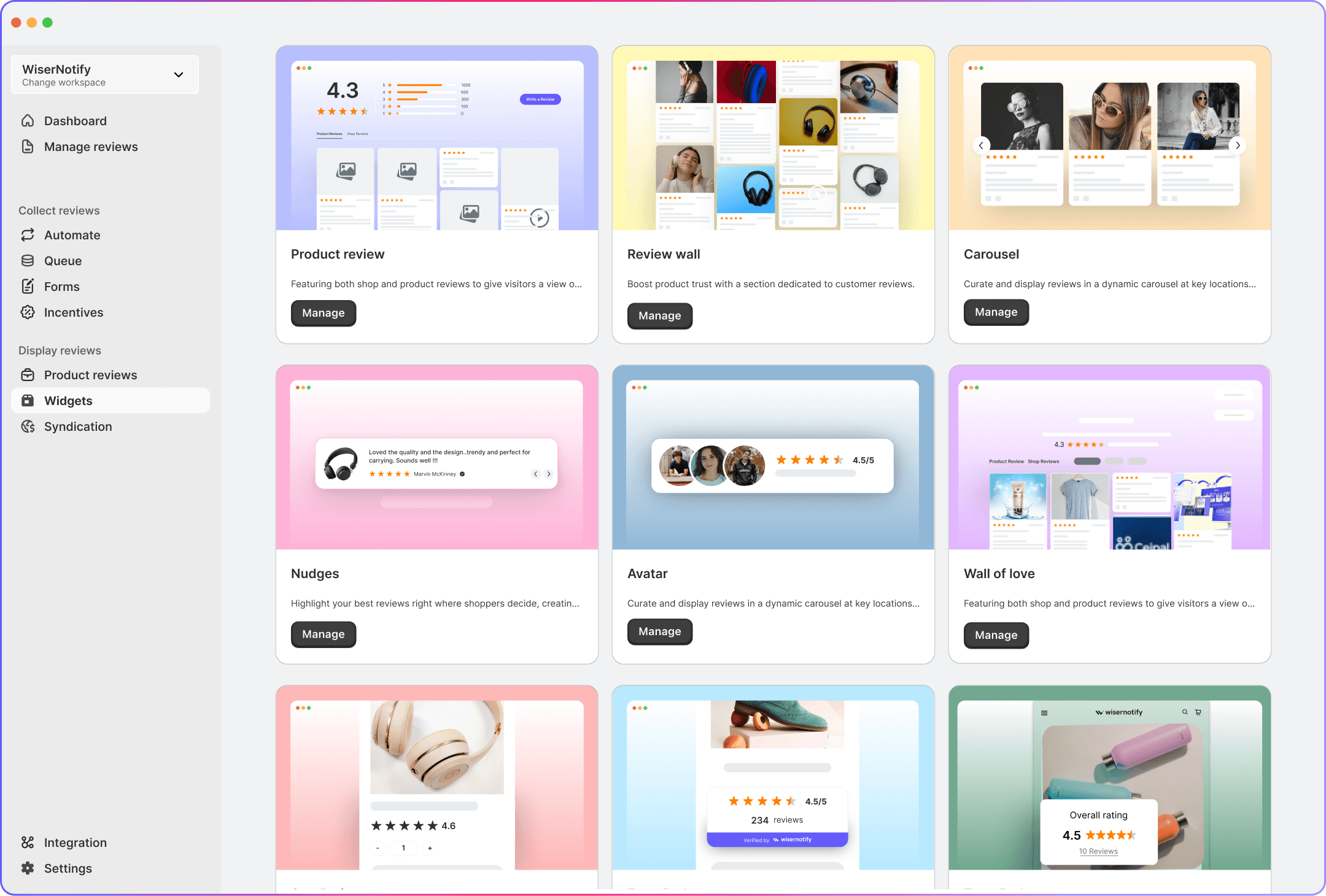
Trusted by 1,100+ brands across 20+ countries








The wiser way
WiserReview replaces chaos with a simple system to collect, manage, and show reviews. Built for any business.
01 /
Collect
Manually asking for reviews burns time and rarely works.
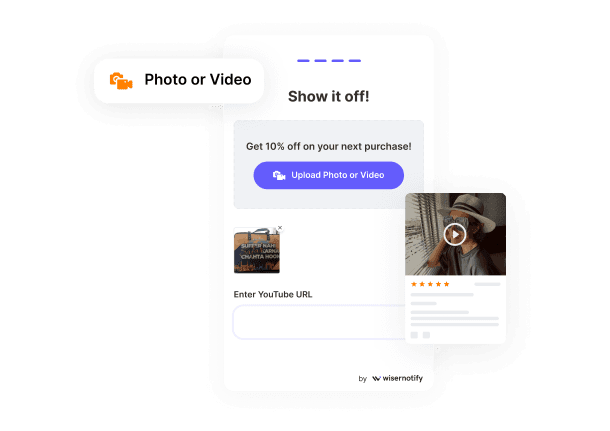
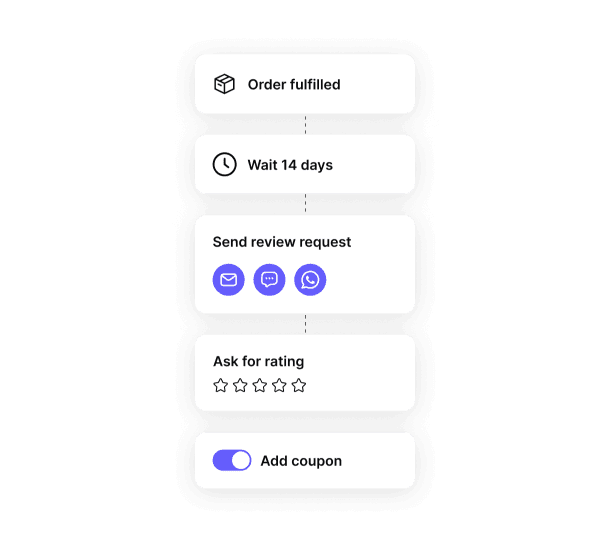
WiserReview sends requests automatically after purchases, sessions, or deliveries, so customers respond while the experience is still fresh.

02 /
Automate
No more scattered tools or repetitive emails.
Set your rules once and let WiserReview handle the rest through email, WhatsApp, and shareable links.

03 /
Moderate
Worried about spam, one-word reviews, or off-brand comments?
Auto-filters and smart approval controls keep your review feed clean and trustworthy.


04 /
Showcase
Good reviews stuck in your dashboard don’t help anyone.
Display reviews on product pages, sales pages, or in popups and walls, all perfectly styled to match your brand.


A review system that feels like it runs itself
Just the tools you actually need - to collect, manage, and display reviews without effort.

Built for any business that needs trust to sell


Approve reviews before they go live

Style every widget to match your brand
Stay calm. You're in charge of what shows up and how.

Manage everything including your team from one dashboard.

Use AI to automate moderating, displaying & sharing reviews

Turn great reviews into shareable content, automatically for social media
Integrates with the tools you already use
WiserReview connects with your favorite tools with no complex setup required.

Shopify
Trigger post-purchase review requests.

Wix
Trigger post-purchase review requests.

WooCommerce
Trigger post-purchase review requests

Import and display your public reviews.

Import and display your public reviews.

Custom website
Works with any website.
30+ integration
View all
Start collecting reviews that convert
No code. No chaos. Just a calm, reliable review system that builds trust on autopilot.
Real words, real results
Frequently asked questions
Discover answers to commonly asked questions about WiserReview
WiserReview is a powerful review marketing platform that helps you collect, manage, and showcase customer reviews to boost trust and conversions.
You can collect reviews via forms, QR codes, or shareable links—perfect for email, WhatsApp, or embedding directly on your site.
Use the Widgets like Floating Popups, Carousels, and Trust Badges. These can be embedded via HTML or integrated directly into platforms like Webflow or Shopify.
Absolutely. It supports integrations with Shopify, Webflow, WhatsApp, Klaviyo, Zapier, Google Reviews, and more.
Yes, WiserReview allows tagging reviews by product, service type, or custom categories. This helps organize and display relevant reviews more effectively.
Definitely. It's built for ecommerce, coaches, consultants, and B2B brands. The collection forms and trust widgets are flexible across industries.
All WiserReview widgets are optimized for mobile and performance, ensuring no drag on your page speed.
The Moderate section lets you approve, reject, or hide reviews. You stay in full control with filters for profanity, duplicates, or irrelevant feedback.