5 min
5 min 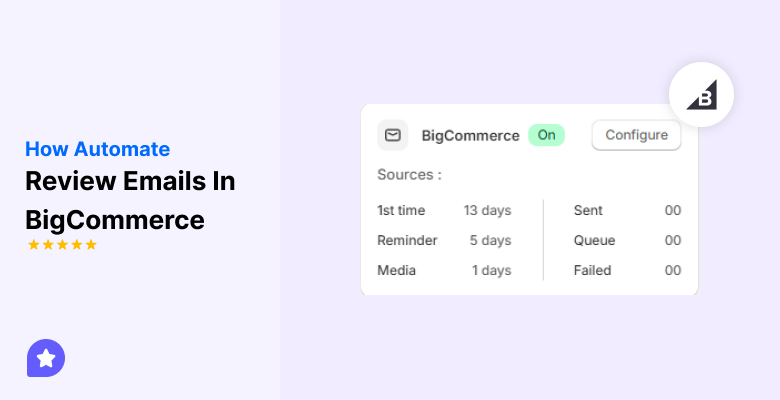
Collecting reviews in BigCommerce becomes much easier when requests are sent automatically.
Most people are willing to share their feedback, but won’t unless the reminder comes at the right time.
By automating your review reminders, you eliminate friction throughout the process. The system sends the request, waits for the right delay, and gathers the responses for you.
In this guide, we’ll discuss how you can plan your review email automation and the steps to automate product review emails in BigCommerce.
Planning your review email automation workflow
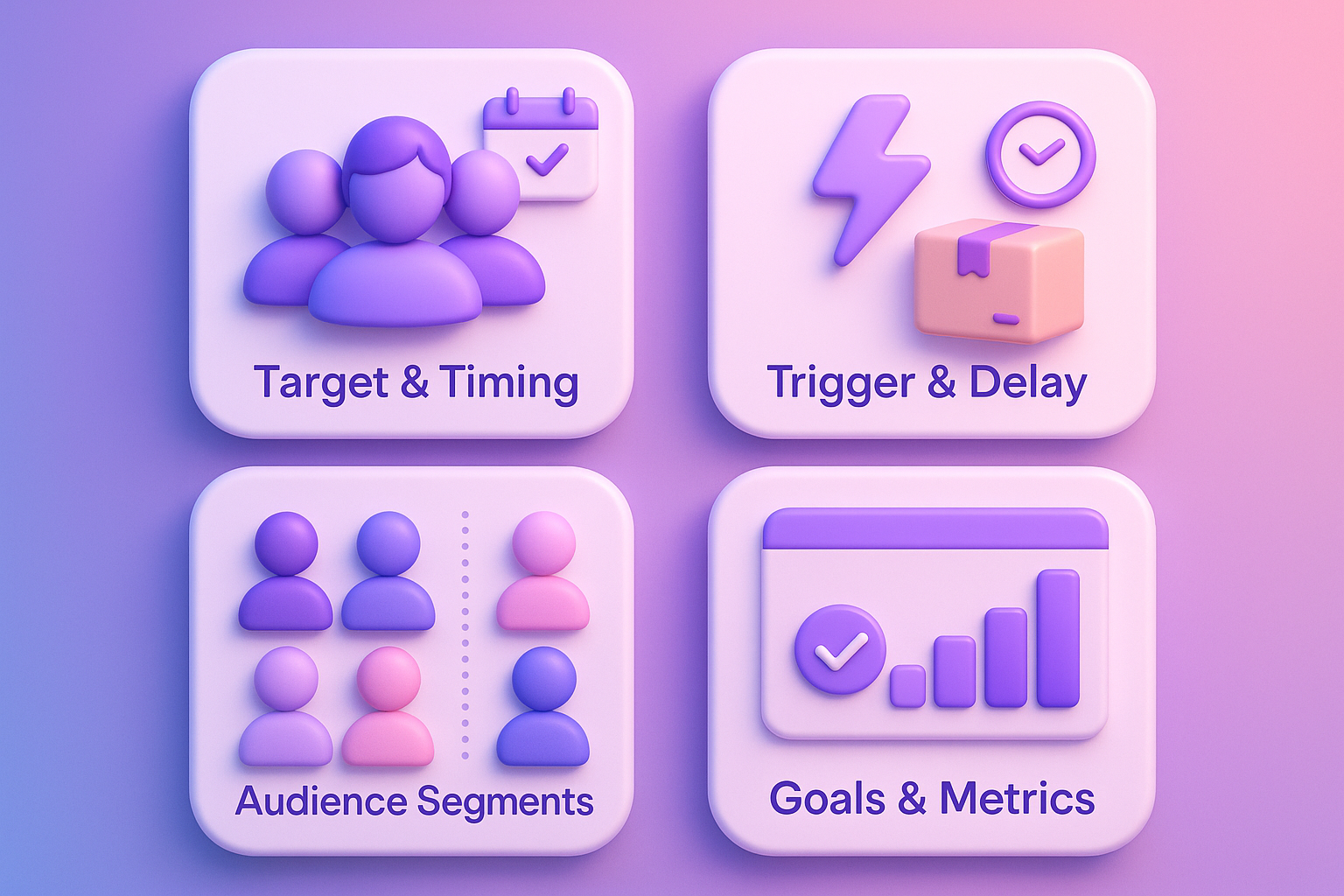
Before diving into setup, you need a solid plan. A well-designed review automation workflow ensures you’re asking the right people at the right time, without overwhelming your customers or hurting your brand reputation.
Define your target and timing
You want your automation to go to customers who have received and used your product. Timing is everything, so figure out what you believe is the best timing after delivery, usage, or after a certain number of days.
Consider your product category when setting delays:
- Electronics and accessories: 7-10 days – you want to give customers time to unbox and test.
- Apparel and fashion: 5-7 days: customers will generally have a pretty good idea of whether their clothing fits quickly.
- Supplements and wellness: 3-4 weeks MINIMUM – it will take customers time to see results.
- Home goods and furniture: 10-14 days allow for assembly and initial use
Choose your email trigger and delay
Define a trigger event in your BigCommerce store: e.g., Order Status changes to “Fulfilled” or “Shipped”. Apply a delay after the trigger so the customer has had a chance to use the product. Common delay: 7-14 days post-delivery.
Most platforms offer three primary triggers:
- After Purchase: The clock starts when the order is placed.
- After Fulfillment: The delay begins when you mark the order as shipped.
- After Delivery: The most accurate trigger, but it requires integration with delivery tracking.
Segmenting your audience
Not all customers should receive the same review request at the same time. Segment your audience to maximize response rates:
- Domestic vs International: Set different delay times based on shipping zones
- Product Categories: Supplements need longer delays than phone cases
- Customer Type: First-time buyers might appreciate extra time before a review request, while repeat customers already know what to expect
- Order Value: High-ticket purchases often warrant more extended evaluation periods
Setting goals and metrics
Clearly define what success looks like. An example includes: % of review-requests sent → to reviews submitted, average rating score, review volume per product, conversion lift from products-review status.
Consider metrics such as the open rate of review requests, click-through rate to the review form, completion rate, and the lag time from product purchase to submitting a review request.

All your reviews in one place
Collect reviews, manage every response, and display them where they matter most.How to automate product review emails in BigCommerce
BigCommerce does not support native review automation, so you will need to support a dedicated review app. WiserReview is the most intelligent review solution for BigCommerce stores, offering complete automation and full control over customization.
Step 1: Install the WiserReview app on your BigCommerce Store
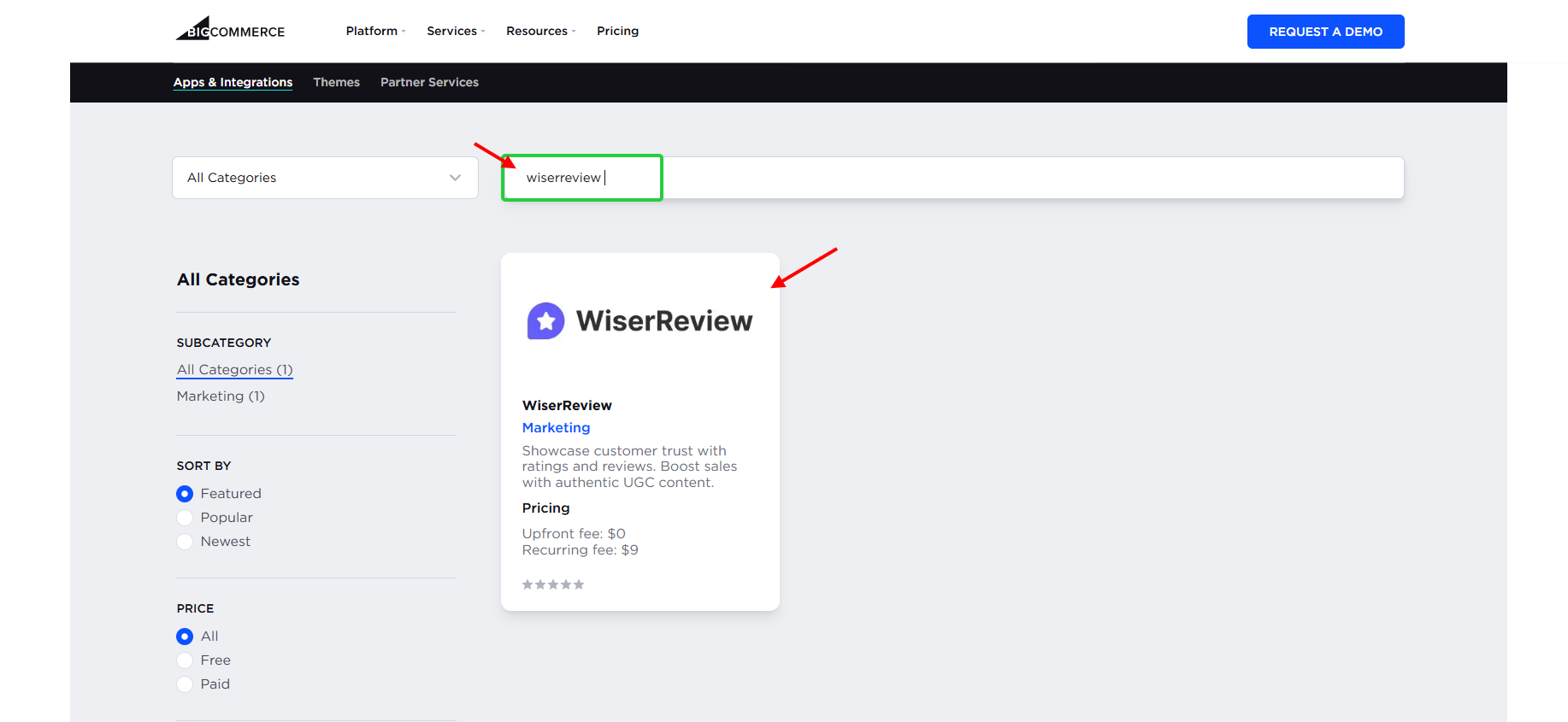
Go to the BigCommerce App Marketplace, log in to your BigCommerce store, and navigate to the Apps section on the left sidebar. Click App Marketplace, then search for WiserReview.
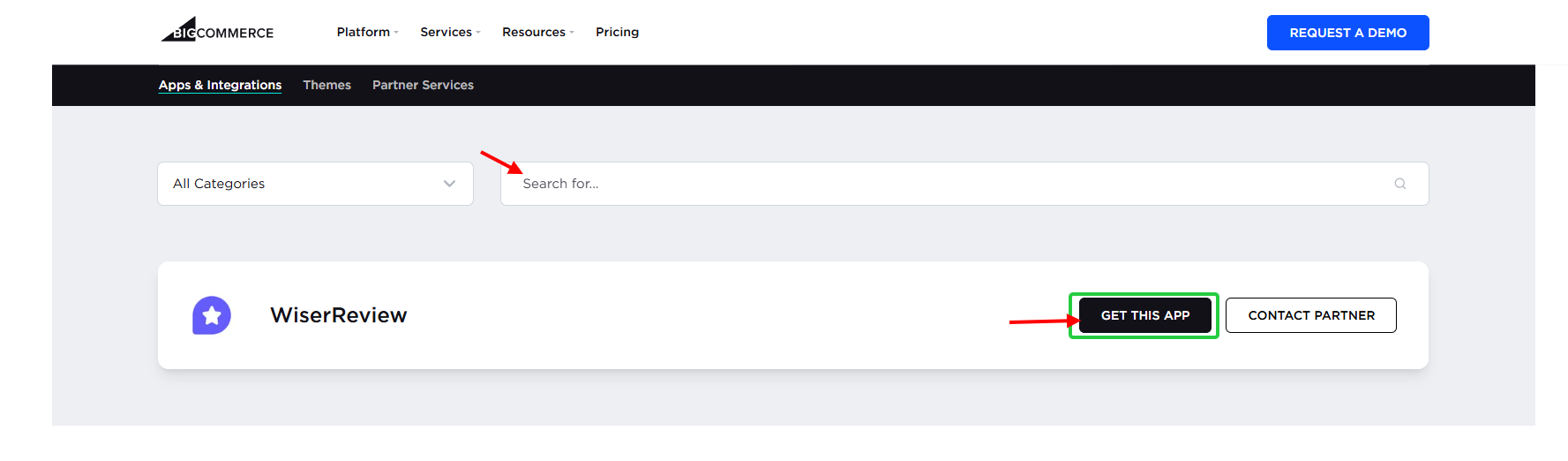
Click on the “WiserReview” and then click on “Get this app.”
You will see two options
- First, if you have an existing BigCommerce store, then click “Log in”.
- Otherwise, sign up for a new store.
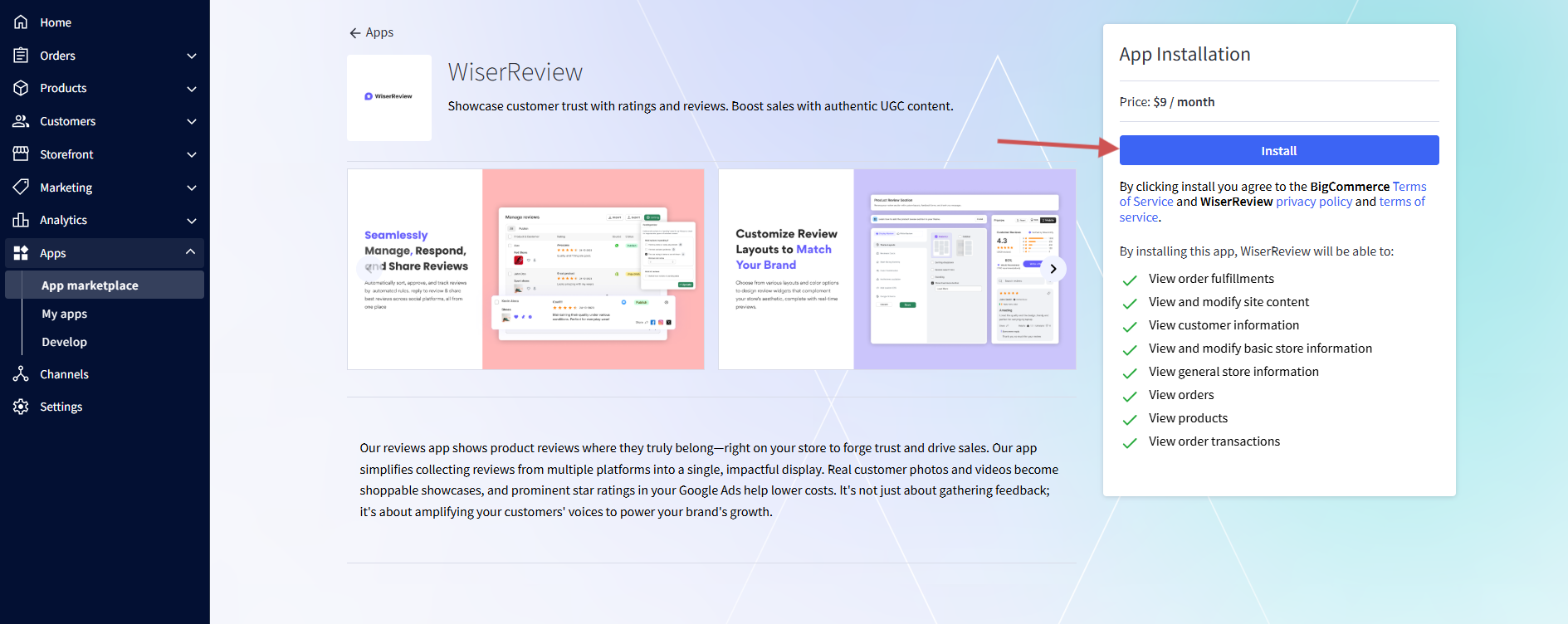
After logging in to your store, you will see the WiserReview app on screen and click on “Install”.
Step 2: Complete onboarding and setup
Once installed, you’ll be redirected to the WiserReview Dashboard. Follow the onboarding guide to set up your review widget, branding, and notifications. This guide will walk you through each step to properly configure your reviews.
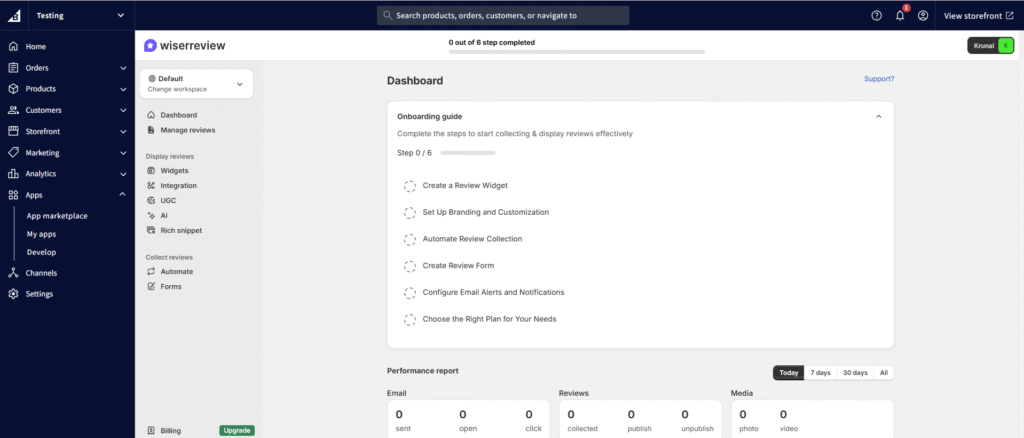
Step 3: Now, go to “Automation” settings
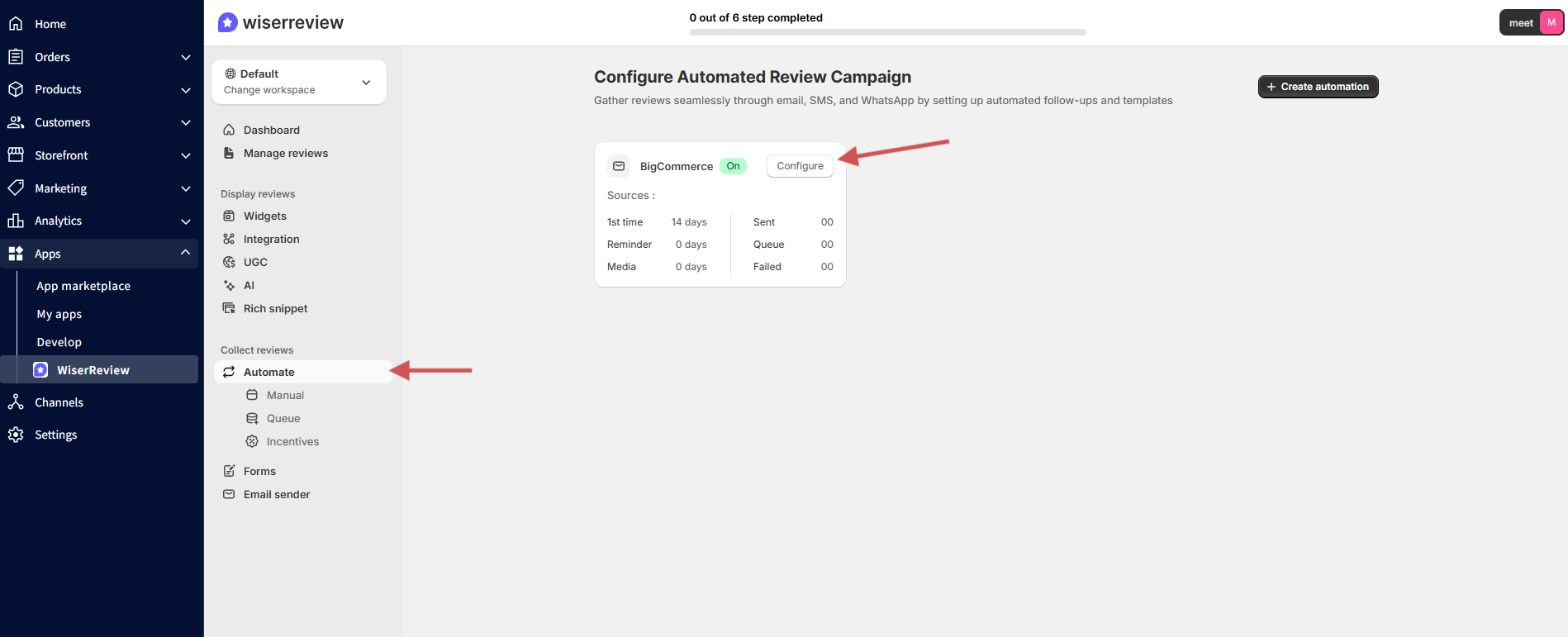
Go to “Automate”. And click configure.
Step 4: Add email delay
Set a delay so customers have time to use the product.
Most stores set a 5–14-day delivery time, depending on product type.
Step 5: Collect reviews via email or SMS
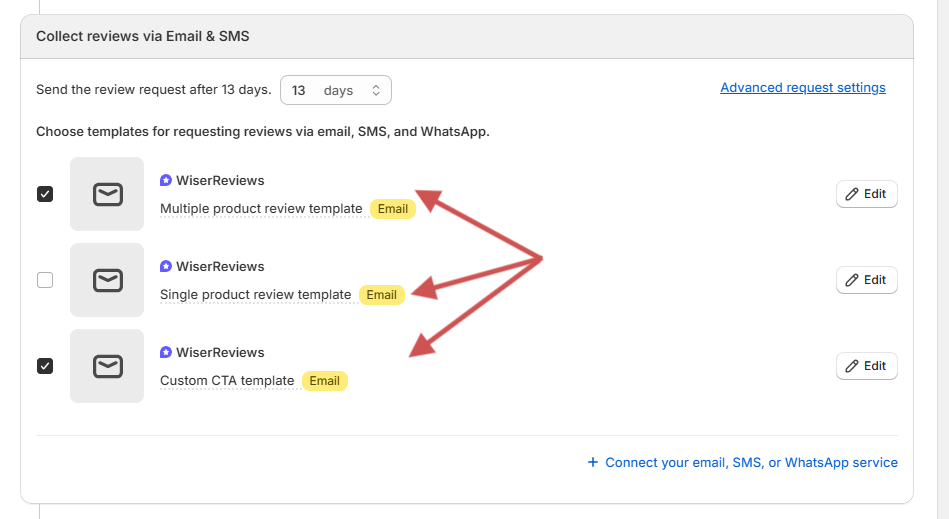
Write a short message asking for a review. Add your brand logo, footer, and product placeholders. Keep the email simple so customers finish the review quickly.
Step 6: Choose your target audience
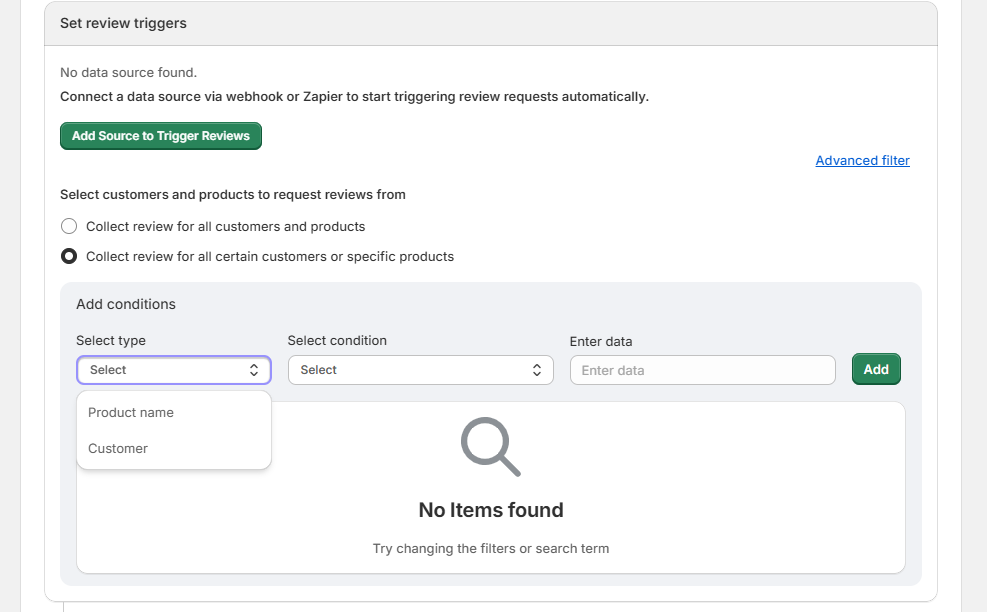
Select who should receive review emails:
- All customers
- Buyers of selected products or categories
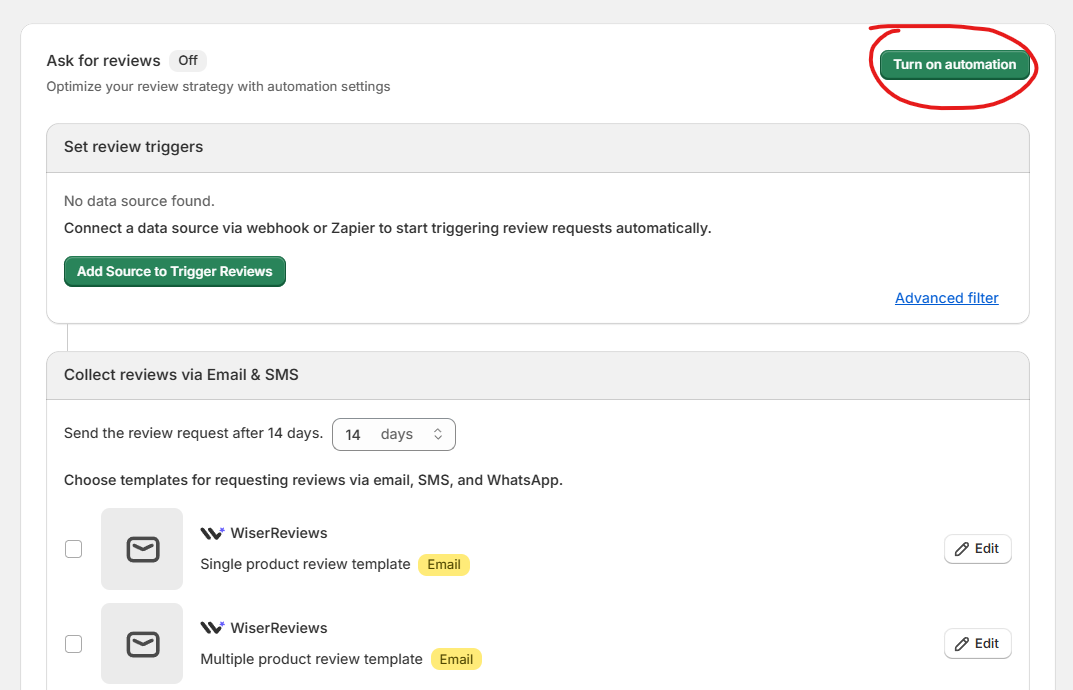
Step 7: Final testing and activation
Make sure you’ve tested:
- First review request email
- Reminder email (if used)
- Media follow-up email (if used)
After testing, click Save.
Ensure the automation is set to ON.
Step 8: Monitor email open/click/review status
Check the Automate → Queue → Sent section to see:
- Emails sent
- Opens
- Clicks
- Reviews submitted
All your reviews in one place
Collect reviews, manage every response, and display them where they matter most.
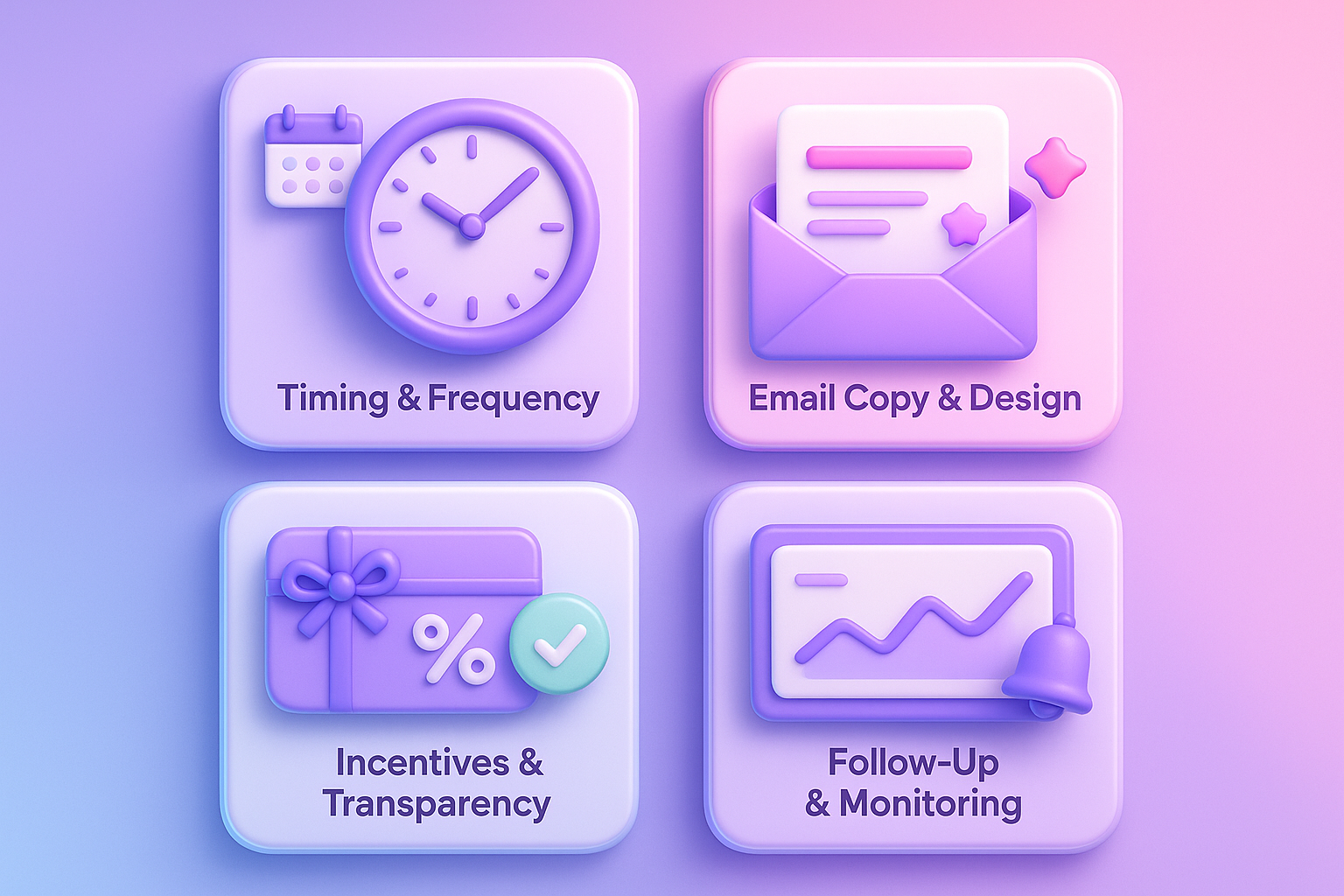
4 Best practices for maximising review responses
Automation is great for the heavy lifting, but clever optimizations can turn ordinary results into excellent ones. These strategies will help you get more review responses while allowing the customer to maintain a positive relationship.
1. Timing & frequency
Request the review after delivery and use of the product, not at the time of purchase! Waiting 7 to 21 days is usually ideal, but it depends on the type of product that was purchased.
Optimal timing windows:
- First email: 7-14 days after fulfillment (physical products) or 1-3 days after purchase (digital)
- Reminder email: 7 days after first request
- Maximum reminders: 2 total to avoid overwhelming customers
2. Email copy & design tips
Your emails must cut through the noise in a crowded inbox and make it easy to leave a review. Personalise the email – by using the customer’s name and mentioning the product they purchased. It makes the request a lot more meaningful.
Subject lines that convert:
- “How’s your [Product Name] working out?”
- “Quick question about your recent order.”
- “We’d love your feedback on [Product Name]”
Do not use something generic like “Leave us a review,” and definitely avoid anything with a salesy tone. Personalisation works, whether it is the customer’s name and/or referencing specific products they purchased.
3. Incentives & transparency
If you use an incentive (discount, loyalty points, etc.), disclose it clearly and ensure reviews remain honest and transparent.
Offer value, but do not overvalue. Generally, 10-15% off is fantastic and works well for most stores as an incentive; offering free shipping on the next order works too.
4. Follow-up & monitoring
Automation is not “set it and forget it.” Check in with your campaigns every week, and, if possible, regularly check on customers who get a response. If the first email you sent got no responses, wait for the requested delay, then follow up with a reminder after 5-10 days, of course, not on repeat.
Key metrics to track:
- Open rates below 20%? Test different subject lines or send times.
- High opens but low clicks? Improve your CTA button placement and copy.
- Good clicks, but few reviews? Simplify your review form or test different incentives.
Don’t forget negative reviews. They provide valuable insights for improvement and actually increase trust when combined with positive reviews.
All your reviews in one place
Collect reviews, manage every response, and display them where they matter most.Wrap up
Automating review emails in BigCommerce turns casual feedback into steady social proof.
With WiserReview, you can set up triggers, delays, and review widgets in minutes, and let the system collect reviews for you without any manual work.
The real impact comes from thoughtful planning. When you send requests at the right time and keep improving based on your data, you get more reviews and better insights from the customers who matter most.
Start with a single automated campaign and watch how much it helps.
Frequently asked questions
Yes. A small incentive, such as a 10–15% discount, can boost responses by 30–50%. Just make it clear that the review should be honest and not tied to a positive rating.
Yes. WiserReview lets you import previous orders and send review requests. Focus on orders from the last 30–60 days for the best results.
Only one or two reminders. The first reminder should go out about a week after your initial request. We want to consider your customer experience when sending reminders; we do not want to create additional frustration for customers.
Wednesdays and Saturdays, and will perform best and send between 10 am and noon or at the customer’s local time. WiserReview sends automatically.

Krunal