3 min
3 min 
Have you ever noticed how the best local businesses seem to have hundreds of glowing Google reviews? It’s not luck. They’ve developed a system to solicit reviews, and SMS is at the heart of it.
Most happy customers never leave reviews on their own. Not because they don’t want to, but because life gets in the way.
A quick, friendly text makes it easy for them to follow through.
In this guide, I’ll break down why SMS review requests work, how to set them up with WiserReview, and the three little tweaks that can double your response rate.
Let’s dive in.
Understanding the basics
Google reviews are more than nice words online; they’re a local ranking factor.
Businesses with more positive reviews tend to show up higher in Google Maps and search results. According to BrightLocal, 76% of consumers read reviews before visiting a business.
Here’s what good reviews do:
- Build trust instantly with new customers
- Improve your local SEO ranking
- Provide valuable feedback that you can act on
- Increase conversions (more people clicking “Call” or “Directions”)
However, to reap those benefits, you need a consistent method for collecting them.
What is an SMS review request?
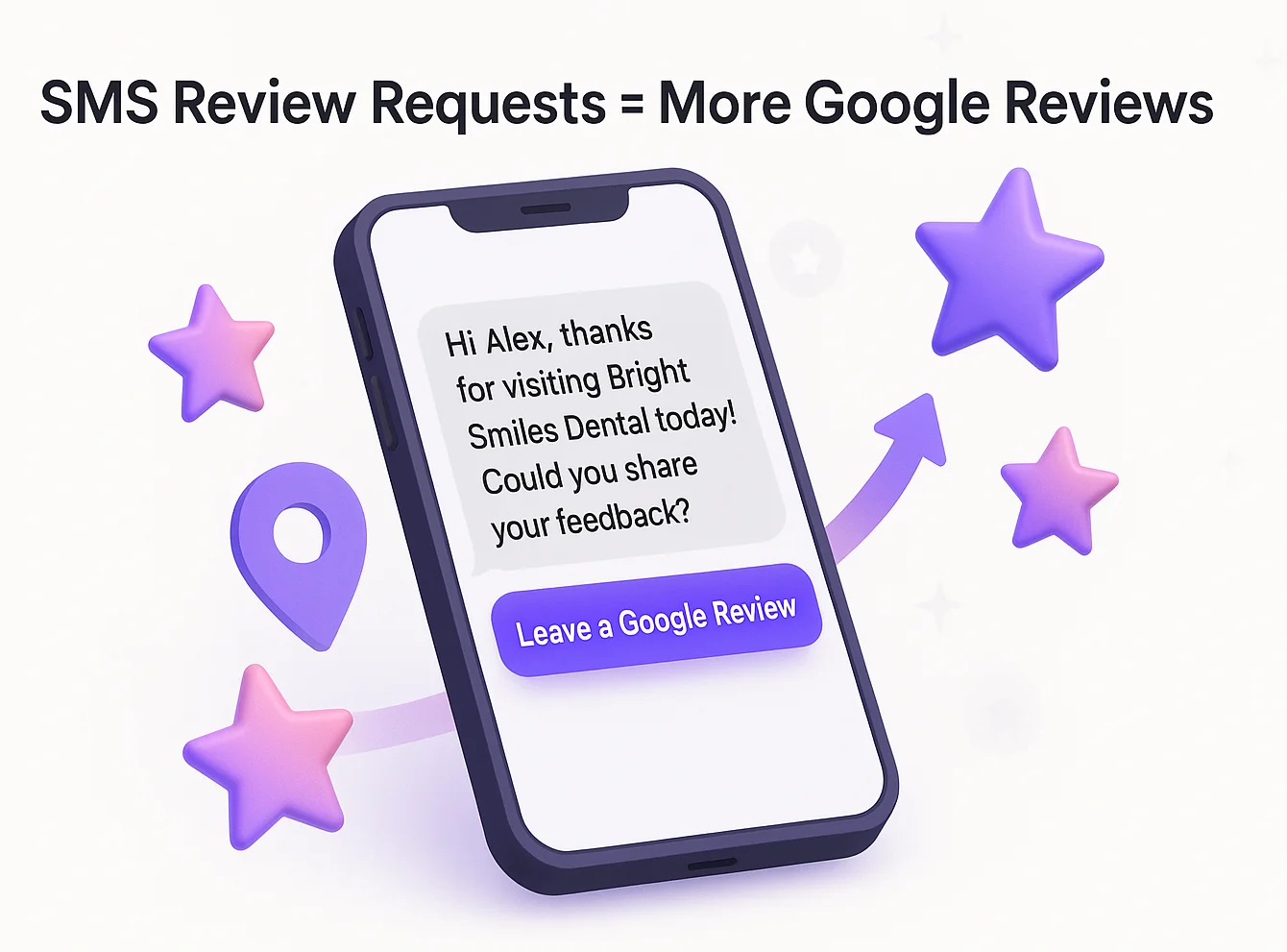
An SMS review request is simply a text message you send asking for a review. It usually looks like this:
“Hi [Name], thanks for choosing [Business Name] today! Could you share your feedback with us? Here’s the link: [Google Review Link]”
The anatomy of a good SMS review request includes:
- Personal touch – use their name.
- Gratitude – thank them for their visit or purchase.
- Clear ask – request a review without being pushy.
- Direct link – one tap takes them straight to your Google review page.
Unlike emails or printed receipts, SMS requests feel natural. Most customers are already on their phones, making the barrier to action almost nonexistent.
Why SMS works better for reviews
Email open rates hover around 20%. SMS? Over 90%. That’s why businesses using text for review requests often see response rates 2–3 times higher than those using email.
Here’s why SMS works so well:
- Speed: Most people read texts within 5 minutes.
- Simplicity: A one-tap link to your Google profile is easier than manually searching for it.
- Personalization: Texts feel more direct and personal than bulk emails.
When was the last time you ignored a text? Exactly.
How to collect Google reviews with SMS
If you’re ready to put SMS review requests on autopilot, WiserReview is a great tool for the job. Here’s how to set it up:
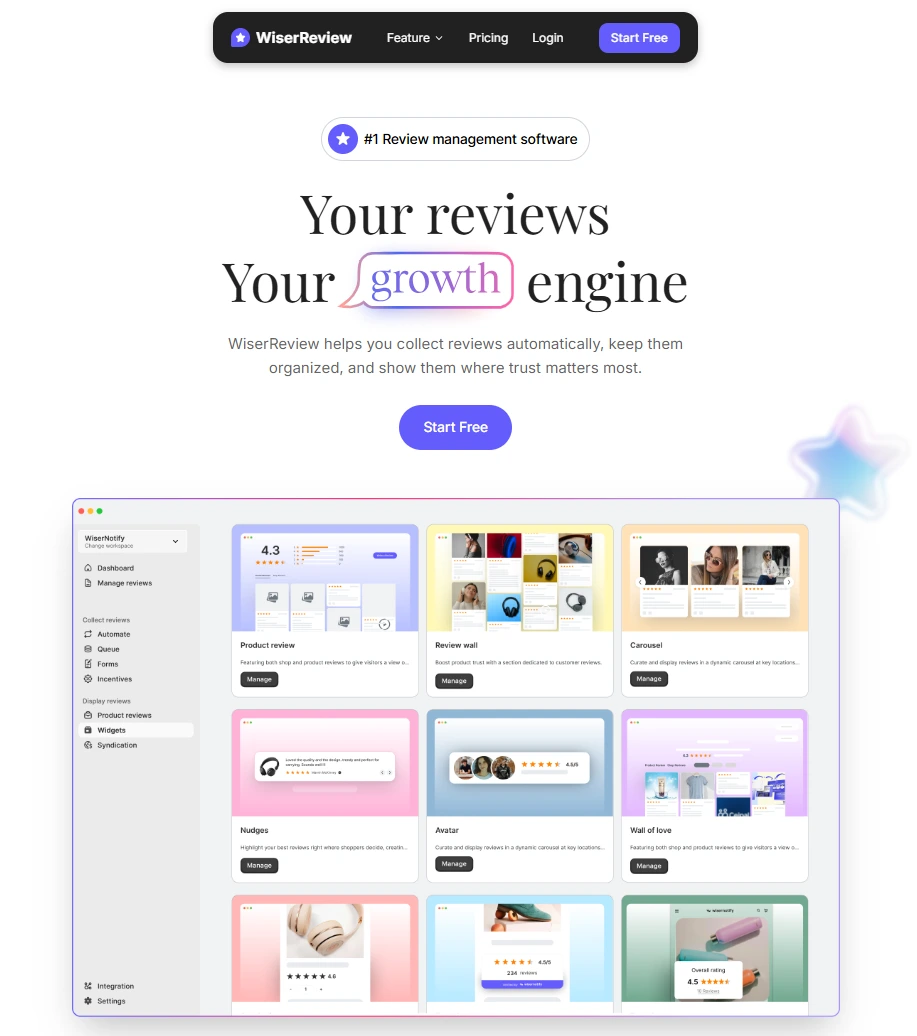
Create your WiserReview account.
Sign up for a free WiserReview account and open your dashboard.
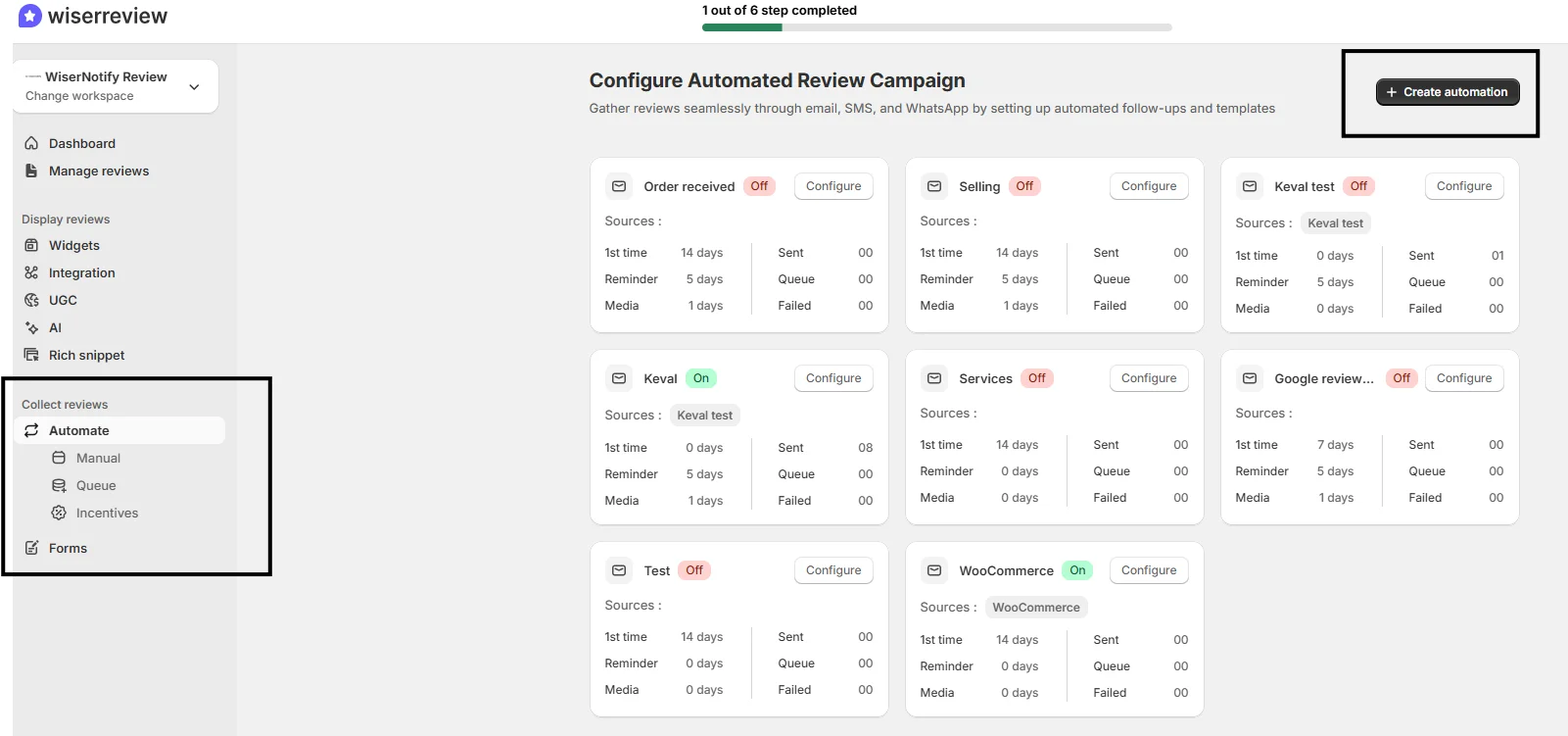
Go to the “Collect Reviews” section and set up an automated review process.
Choose the automation type you want.
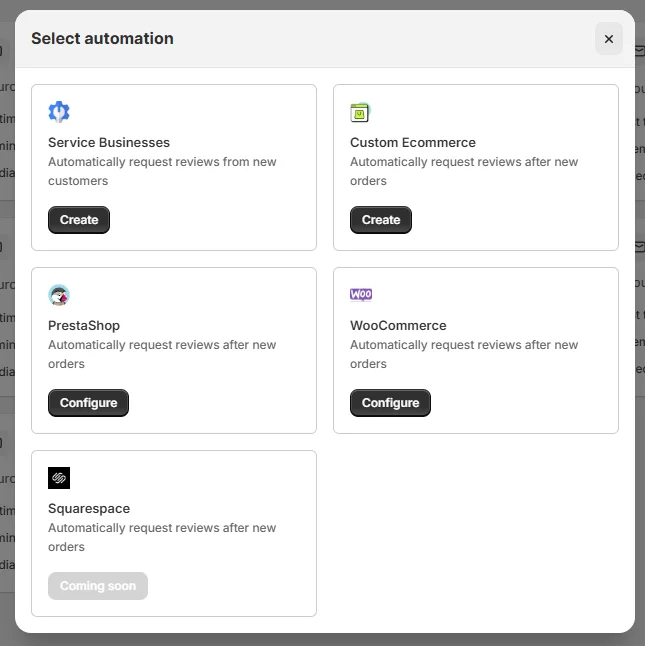
Name your automation and click on save. Once you hit save, you will be able to see the automation flow.
Click on “+ Connect your email, SMS, or WhatsApp service”
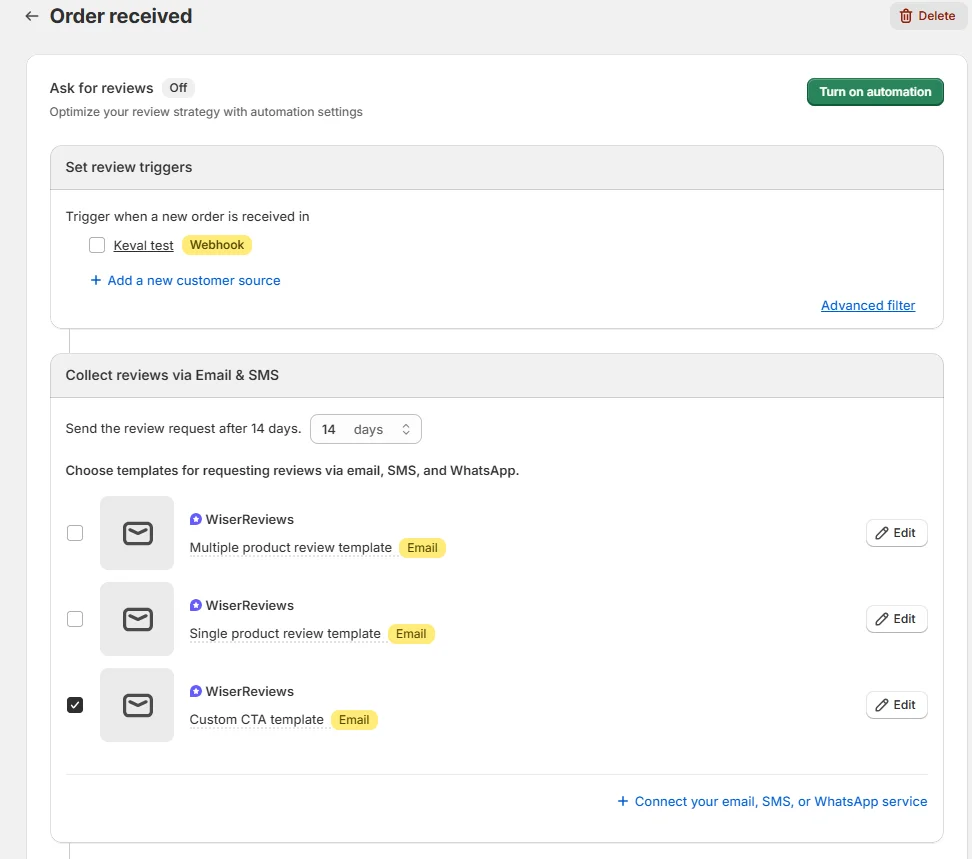
Integrate your Klaviyo account, a custom webhook, or any app you want to use for SMS triggers.
That’s it.
Don’t hesitate to ask any questions in the live chat, and we will get back to you soon.
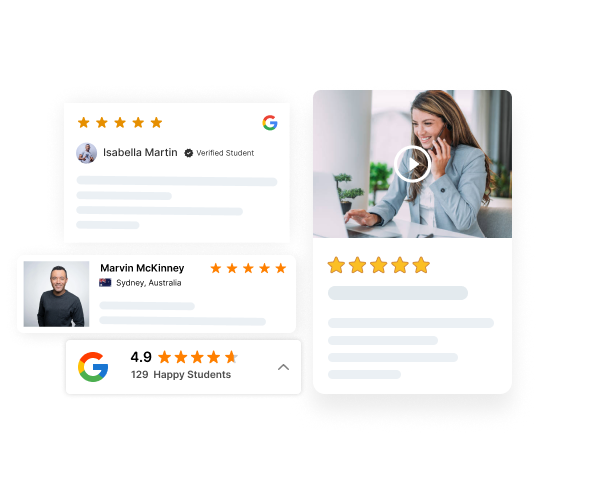
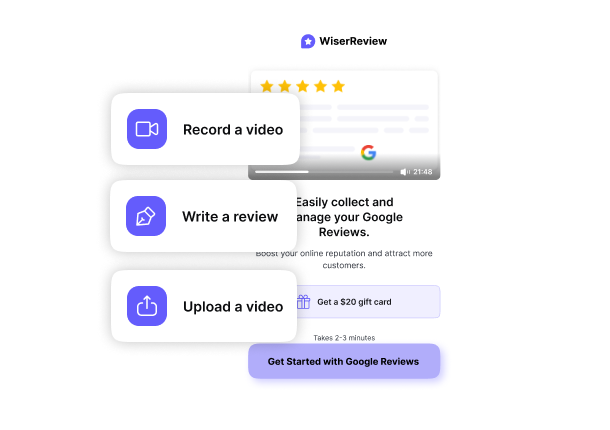
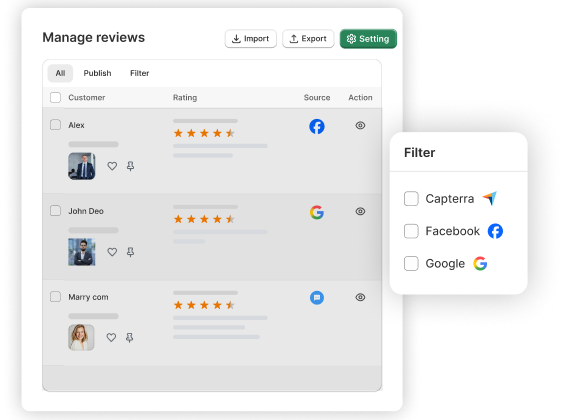
Get more Google reviews faster
Collect, manage, and display reviews to grow trust and sales.
3 SMS tips to get more Google reviews
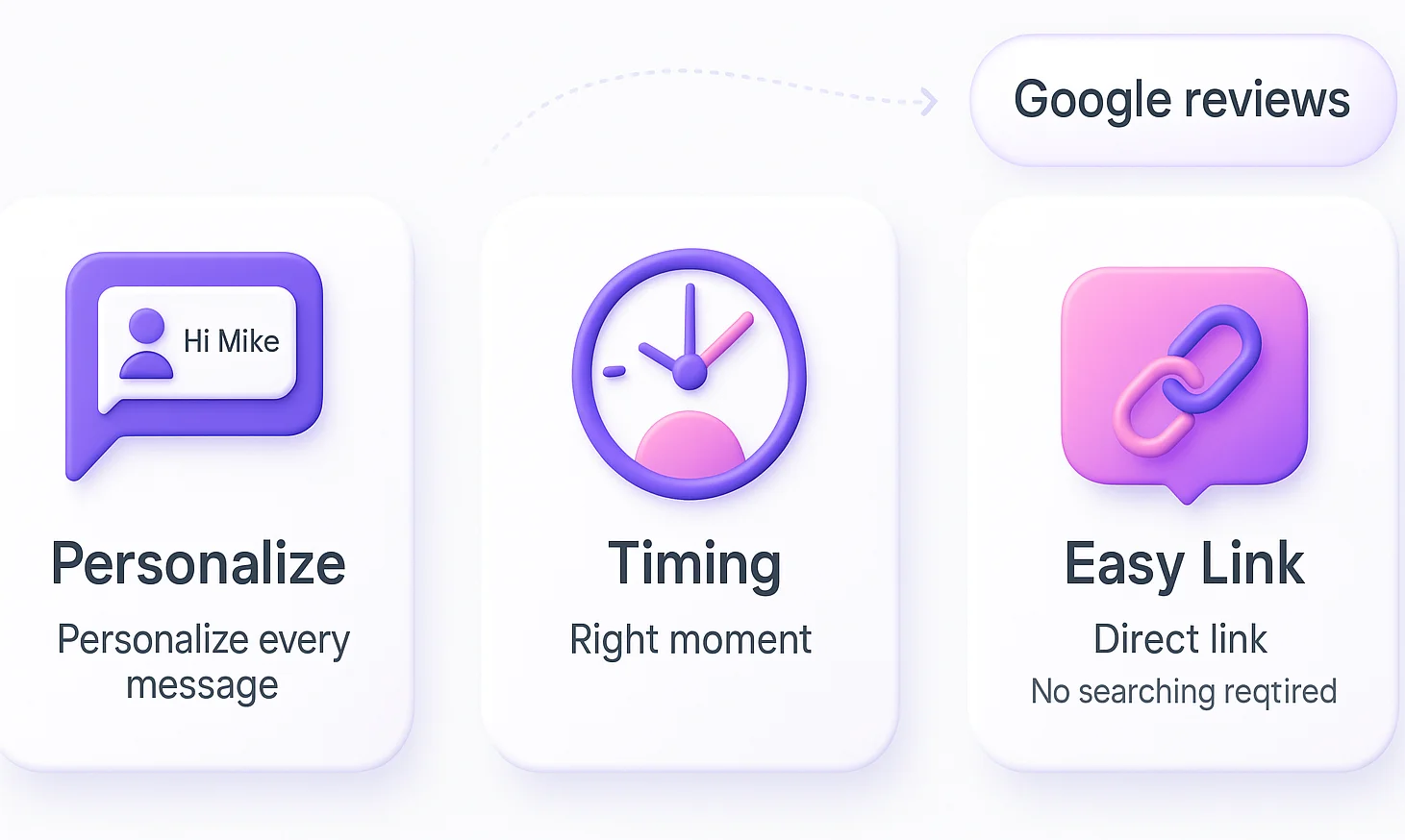
Even with a great system, little tweaks can make a huge difference. Here are three proven tips:
1. Personalize every message
Generic blasts don’t work. Use their first name and reference what they purchased. For example:
- “Thanks for bringing your car in today, John!”
- “We hope you loved your haircut, Lisa.”
That slight touch shows the message is meant for them, not just a mass list.
2. Send the request at the right moment
The sweet spot is right after a positive experience. Some examples:
- Restaurants: send within 30 minutes of the meal.
- Retail: send after checkout.
- Service businesses: send when the job is complete.
Avoid waiting days later; the excitement fades fast.
3. Make the link effortless to use
Don’t make customers hunt for your Google page. Always send the direct review link. If they have to search for you, you’ll lose half of them. Use the Google review link generator for it.
Pro tip: shorten the URL with Bitly or your SMS tool so it looks clean and trustworthy.
Wrap up
Google reviews are one of the most potent growth levers for local businesses. And SMS is the fastest, simplest way to collect them.
With tools like WiserReview, you can automate the process by sending personalized requests, timing them perfectly, and tracking results.
Start today with one change: add SMS review requests into your post-purchase workflow. Keep messages short, personal, and effortless.
Do this consistently, and you won’t just get more reviews; you’ll also gain more trust, visibility, and customers walking through your door.
Frequently asked questions
It’s a text message that asks a customer to leave feedback, usually with a direct link to your Google review page.
SMS messages have a 90%+ open rate, compared to about 20% for email. This makes it much more likely customers will see and act on your request.
Right after a positive experience, like after a meal, a service completion, or a purchase checkout, so the customer’s good impression is fresh.
Use your Google Business Profile’s direct review link. Shorten it with a tool like Bitly to make it cleaner and easier to tap.
Yes. With tools like WiserReview, you can connect your SMS service, set up triggers, and automatically send review requests after each purchase or visit.

Krunal