4 min
4 min 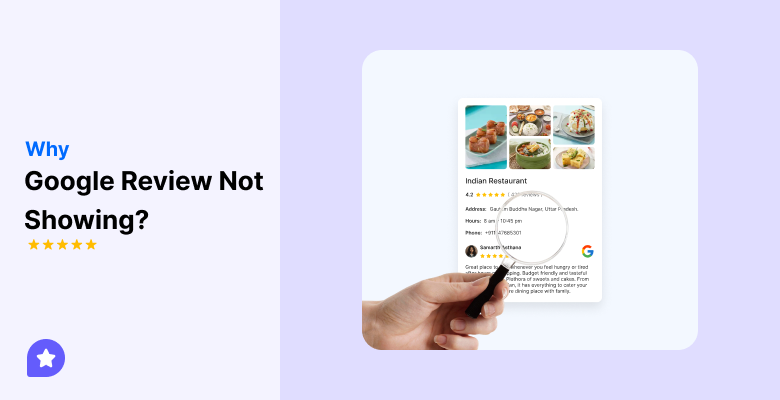
You just got a new review on Google. You refresh the page. The review is missing.
This problem is common. It happens to many business owners. It does not mean the review is deleted. In most cases, Google is still processing it or filtering it.
Google uses automated systems to check reviews. These systems remove spam, fake activity, and policy violations. Sometimes, real reviews get stuck or hidden by mistake.
In this guide, you’ll learn why your Google review is not showing and how to fix it. Each reason has a clear explanation. Each fix is simple and practical.
Google’s hidden review filter algorithm
Google utilizes a complex, automated algorithm that incorporates machine learning to filter reviews and combat fake content, analyzing patterns, content, and user behavior.
The filter accounts for suspicious behavior, which can include sudden bursts of reviews, duplicate reviews, reviews containing spammy elements, off-topic content, or reviews originating from the same device or Wi-Fi network.
Key signals that trigger review filtering
Google’s algorithm watches for these red flags:
- Sudden review spikes: Getting 10+ reviews in a single day when your average is 2-3 per week
- Generic or template language: Reviews that sound copied or scripted
- New Google accounts: Profiles created recently with little activity
- Shared IP addresses: Multiple reviews from the exact location
- Off-site incentivized reviews: Patterns suggesting paid or exchanged feedback
- Missing local signals: Reviewers with no location history near your business
- Promotional content: Links, discount codes, or business promotion language
Temporary vs permanent filters
Temporary filters hold reviews for verification for a short period. These usually resolve within 24-72 hours. The review may appear, disappear, and then reappear once Google’s systems have finished checking.
Permanent filters remove reviews that violate policies or trigger multiple fraud signals. These will not be reinstated unless you appeal successfully or the reviewer’s account is reinstated.
How to stay safe from the filter
Prevention beats recovery. Here’s how to avoid triggering Google’s system, and how long it takes to recover from filters :
- Send review requests gradually (2-5 per day maximum)
- Ask for honest feedback, not just positive reviews
- Never offer incentives or discounts in exchange for reviews
- Encourage customers to use their real, established Google accounts
- Avoid sending batch review requests from the same device or location

All your Google reviews in one place
Collect Google reviews, manage every response, and display them where they matter most.
Start Free →4 Common reasons why a Google review isn’t showing
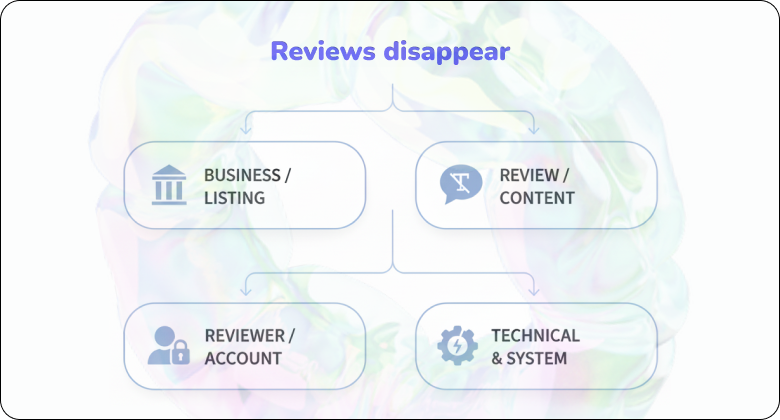
Reviews disappear for several reasons. Here are the four main categories:
1. Business / listing-side causes
Issues with your business listing often block reviews first.
If your business profile is new, Google applies extra checks. New listings need time to earn trust. Reviews may stay hidden for days or weeks.
Frequent profile changes also cause problems. Changes to business name, address, phone number, or category trigger a review process. During this time, Google may pause review visibility.
Suspended or limited profiles cannot show reviews. Even a soft suspension can hide all recent reviews without notice.
How to fix it:
- Open Google Business Profile
- Check for warnings or suspension notices
- Keep details stable for at least 2–3 weeks
- Avoid bulk edits and frequent updates
2. Review / content-side causes
Google scans review text closely. Even real reviews can get filtered.
Reviews with links, email addresses, phone numbers, or discount mentions often fail checks. Google sees these as promotional.
Very short reviews like “Good service” look low-value. Repeated phrases across reviews also raise flags.
Overly positive or keyword-heavy reviews look fake. Google prefers natural language, not marketing-style text.
How to fix it:
- Ask the reviewer to rewrite the review
- Use simple words and real details
- Focus on service, product, or experience
- Avoid links, offers, or business slogans
3. Reviewer / account-side causes
The reviewer’s account matters as much as the review.
New accounts have low trust. Accounts with no photo, name, or history face stronger filters.
If a reviewer posts many reviews in a short time, Google may block them. The same applies to reviews posted from business Wi-Fi or shared networks.
Accounts flagged for past spam lose visibility and power. Even honest reviews may not appear.
How to fix it:
- Ask reviewers to complete their profiles
- Encourage normal Google activity over time
- Avoid asking for reviews on the same day
- Never use store devices or Wi-Fi
4. Technical & system causes
Sometimes nothing is wrong. Google systems take time.
Google processes millions of reviews daily. Delays happen due to system load, regional checks, or updates.
Public holidays and system updates slow review approval. Reviews may appear without notice after a delay.
Occasional bugs also affect visibility. These usually resolve on their own.
How to fix it:
- Wait 24–72 hours before taking action
- Check again after a few days
- Contact Google support if the delay exceeds 7 days
How to diagnose what’s happening
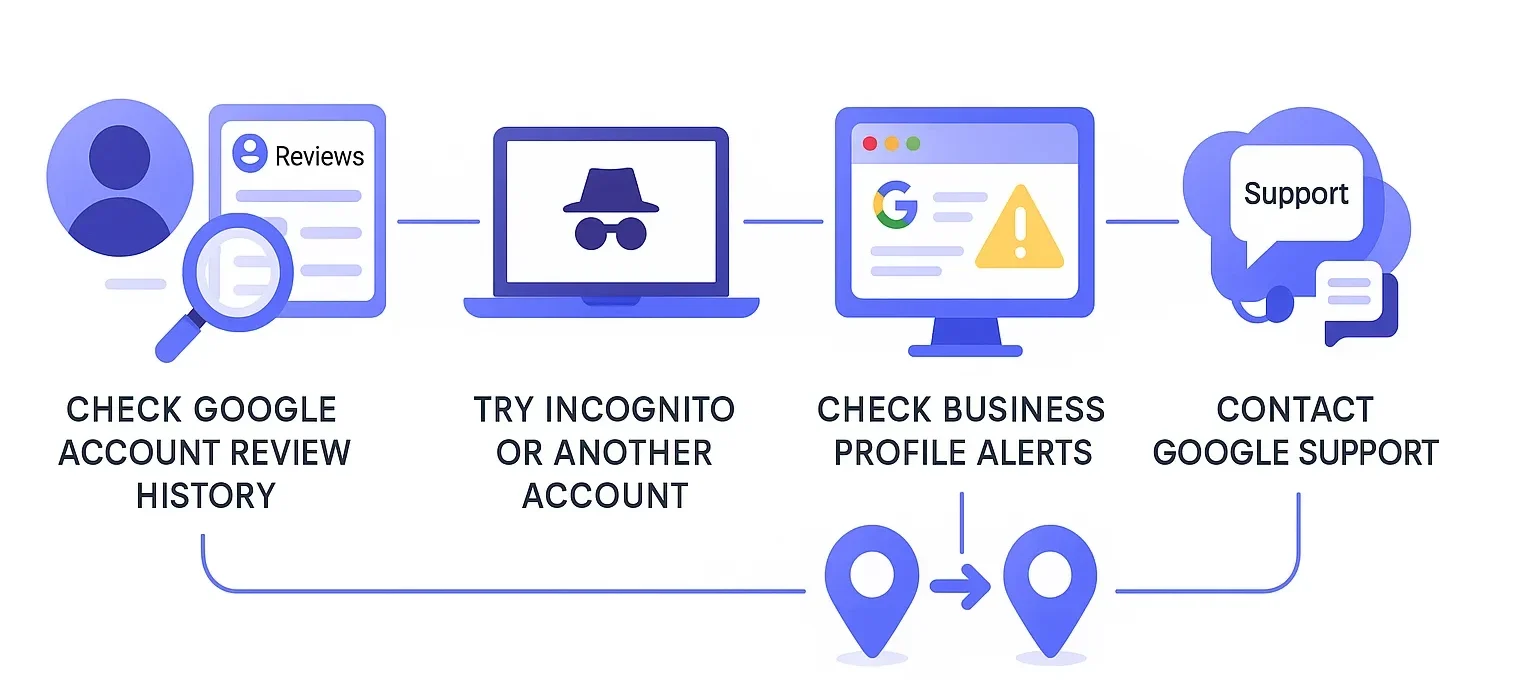
Follow these steps to figure out why your review isn’t showing:
Check your Google account review history
Ask the customer to open Google Maps, tap their profile icon, and go to “Your contributions” → “Reviews.”
If the review is present in their Google account but not displayed under your Google Business Profile, this review is likely filtered or under manual review.
In cases where the review content violates Google’s review policies or community guidelines, such as including external links, making personal attacks, or using inappropriate language, the review will likely be filtered by Google.
As a Business Owner, it is essential to note that filtered or removed reviews will not be seen in your dashboard. Only reviews that meet Google’s policies and pass the moderation process will be publicly displayed.
Try incognito or another account
Be sure to open your listing in either an incognito browser window or when not signed in to your Google account. Then search your specific business name in either Google Search or Google Maps.
If the review displays in Incognito but not when signed in, then this is most often a cache issue or an issue specific to your Google Account.
Be sure to keep your browser and your Google Business Tools up to date to avoid technical issues.
Check Business Profile for flagged reviews
Access your Google Business dashboard and look for alerts in relation to policy violations, profile suspension, or pending verification.
Sometimes Google limits new business reviews during moderation if it notices suspicious pattern activity, incomplete business information, or reports of inappropriate content.
You need to monitor your profile regularly to confirm it is following Google guidelines.
Look for duplicate listings
Search for your business name and city on Google Maps. If you find multiple listings for the exact location or outdated profiles, reviews might be split or attached to the wrong page.
Duplicate or merged Google Business Profiles can confuse Google’s system, preventing the correct listing from displaying Google reviews.
Contact Google support
If the review still doesn’t appear, go to your Google Business Profile Help Center. Choose “Manage reviews” → “Missing reviews,” and provide as many details as possible, the reviewer’s name, date, and a short content preview.
Include screenshots or URLs where possible. This helps Google’s team locate and manually review your case. Always document everything so you can follow up.
Wait a few days for delays
Reviews may not always appear immediately. Depending on the account age and activity of the person leaving the review, it may take 24 to 72 hours for the new reviews to be published.
Reviews from accounts created recently or reviews that include user-generated content will likely take longer to complete during the review process.
During this time, Google’s automated systems verify that the review complies with its policies and doesn’t contain offensive language, sexually explicit material, or misleading claims.
All your Google reviews in one place
Collect Google reviews, manage every response, and display them where they matter most.
Start Free →How to recover a Google review (Step-by-step)
Recovery depends on whether you’re the business owner or the reviewer.
For Business Owners
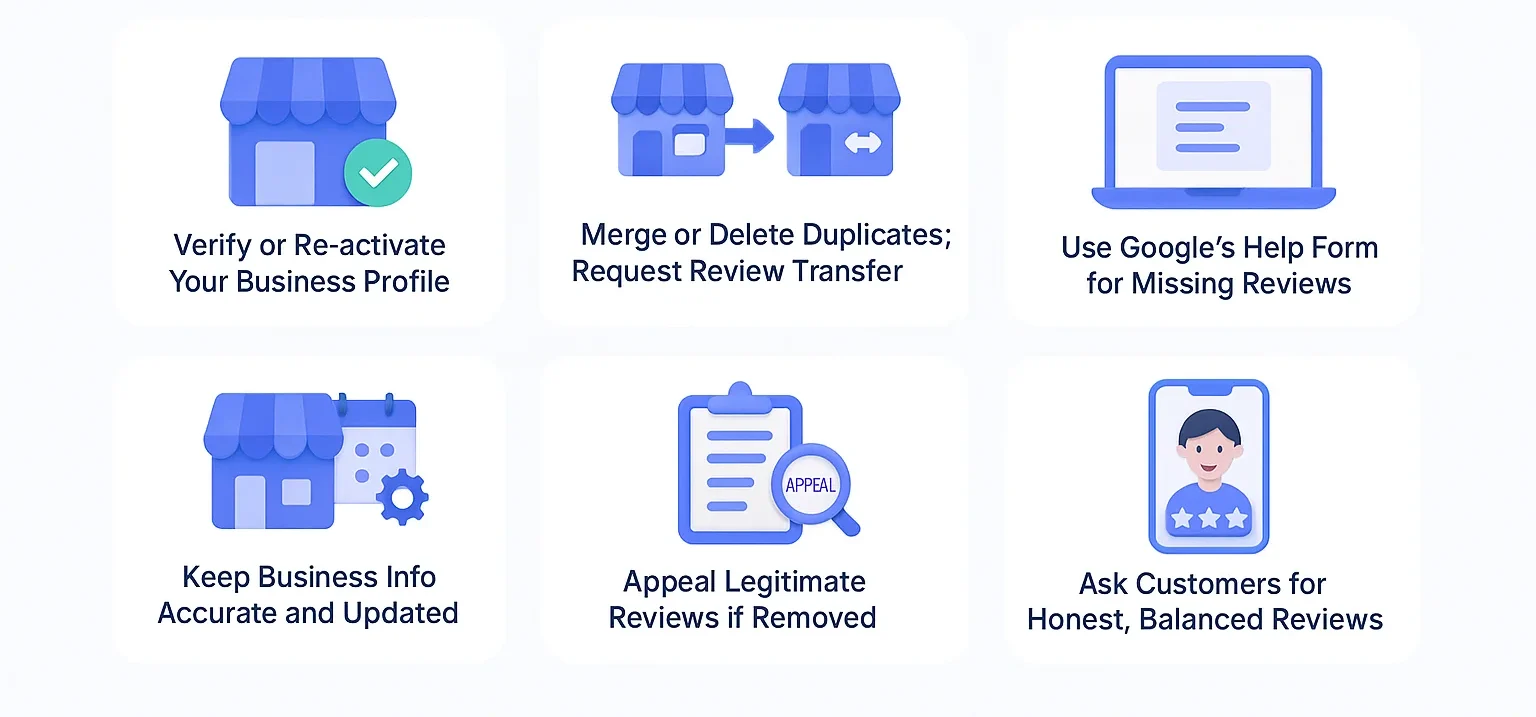
Verify or re-activate your Business Profile: Unverified or suspended Google Business Profiles often can’t show reviews properly. Use phone, email, or video verification to activate it.
Merge or delete duplicates; request review transfer: If you have multiple business listings, those duplicates may hold reviews. Mark them as duplicates in your Google Business dashboard and send a support ticket to request review migration.
Keep business info accurate and updated: If your category, address, hours, or phone number is not accurate or current, it can trigger filtering. Be sure your business information is correct & matches your customer’s expectations.
Use Google’s help form for missing or delayed reviews: Go to Google Business Profile support → “Missing reviews” and file a request. Include reviewer name, date, screenshot, and short content preview. Google’s policies state that reviews removed for policy violations generally cannot be restored.
Appeal legitimate reviews if removed: If you receive a notification of a review being removed for violating Google’s guidelines, you may appeal that review removal. You will need to provide evidence to demonstrate that the review is what it claims to be. You may provide customer emails, order IDs, or other relevant evidence to demonstrate that the review is legitimate, follows our policies, and is not fake or promotional.
Ask customers for honest, balanced reviews: If the original review is no longer available or hidden, reach out to the customer (if possible) and ask them to repost it. Advise them to avoid URLs, promotional content, or language that might trigger filtering.
For Reviewers
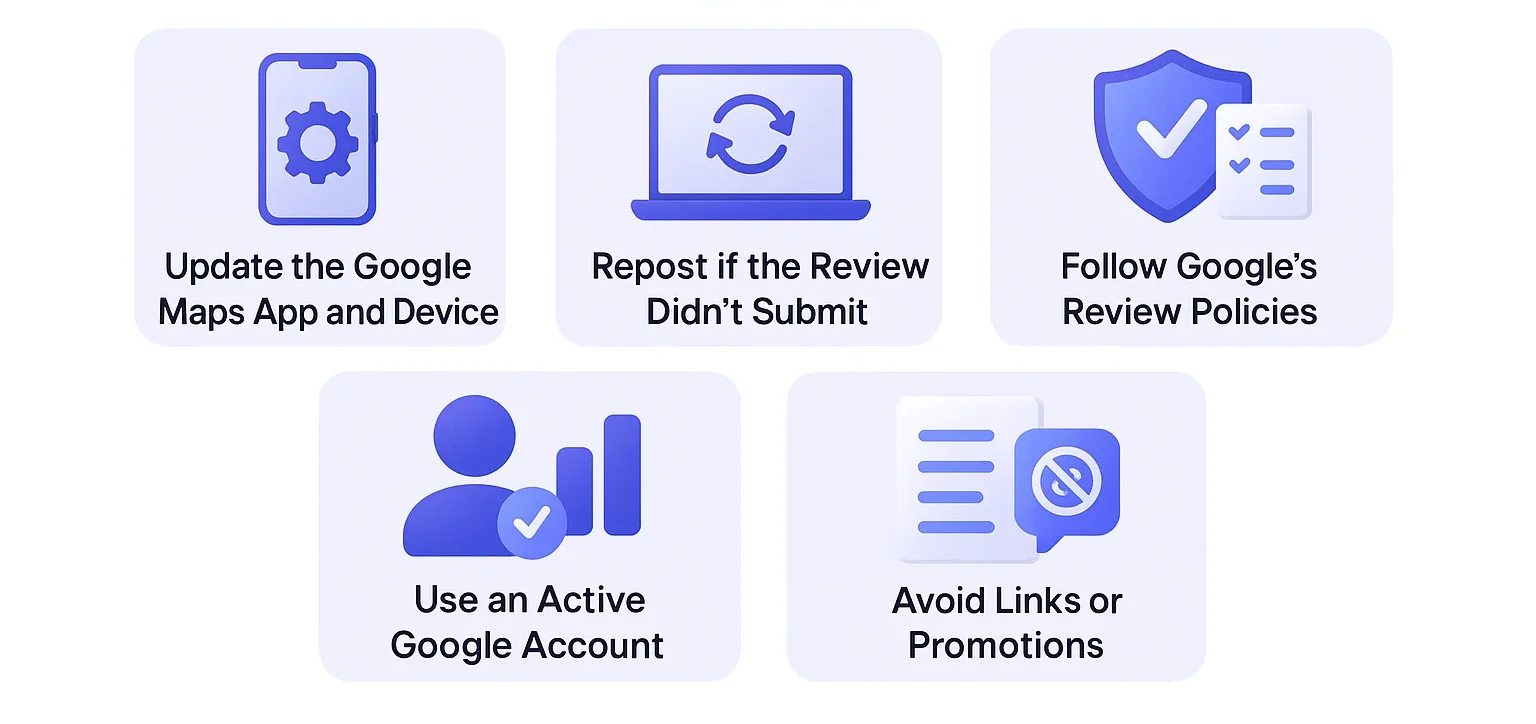
Update the Google Maps app and device: If your app is outdated, the review may not post correctly. Update Google Maps, clear cache, or use the web/desktop version to post.
Repost if the review didn’t submit: If your review never appeare or disappeared immediately, wait a day, then repost with more precise wording. Avoid external links, phone numbers, promotions, or irrelevant content.
Follow Google’s review policies: Your review must adhere to Google’s guidelines: no offensive language, no promotional content, no personal contact information, and no off-topic comments. Google filters out low-quality content or reviews that violate its policy.
Use an active Google account: Accounts with little activity or no history are more likely to be filtered. Use your Google account regularly (e.g., Maps, reviews of other places) and fill in your profile details to establish trust.
Avoid links or promotions that don’t include website URLs, discount codes, or calls to visit social media pages. Google filters this type of content as self-promotion or low-quality material. Write about your personal experience instead, what service you used, how the staff treated you, or what stood out most.
Preventive best practices
Send review requests gradually: Avoid sending too many review invitations at once. Spread them over a few days so Google doesn’t flag the sudden activity as spam. Tools like WiserReview help manage review requests via Email safely and automatically.
Ask for detailed, honest reviews: Generic reviews, such as “Good” or “Nice,” often get filtered. Encourage customers to write about their genuine experiences, including what they purchased, who assisted them, and their overall satisfaction with the service. This adds credibility and meets Google’s content format criteria.
Check reviews regularly for issues: Monitor your Google Business Profile frequently for missing reviews or sudden drops in review count. Save screenshots or notes weekly. If you spot a loss, act quickly by checking duplicates or opening a support ticket.
Keep your profile active by posting and responding to others: An active business profile builds trust with Google’s system. Post updates, add new photos, and reply to both positive and negative reviews. It demonstrates that you regularly manage your profile and value feedback from potential customers.
Pro Tip: Consistency matters more than volume. A steady flow of genuine, detailed reviews from real customers builds long-term trust and keeps your Google profile visible and credible.
What to do if nothing works
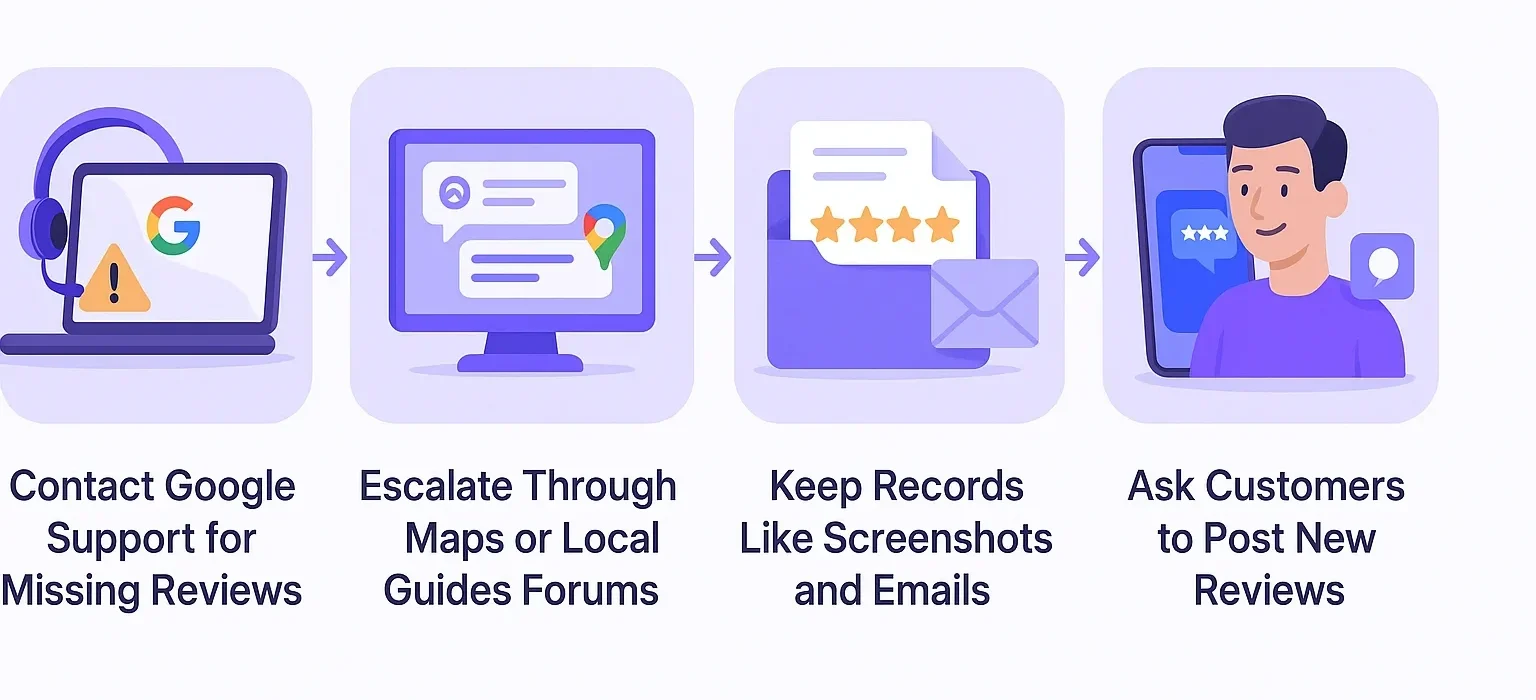
Contact Google support for missing reviews
Use the official Google Business Profile Help Center to open a support ticket. Choose “Reviews” → “Missing reviews” or “Removing reviews” as your issue.
Include details like the reviewer’s Google account name, the date, partial content, and screenshots. This helps Google trace the review through its review management system.
Note: Reviews removed for violating Google’s strict policies (spam, promotional content, fake reviews, restricted content) often can’t be restored.
Escalate through Maps or Local Guides forums
Go to the Google Maps Community, Local Guides forums, or the Google Business Profile Community. Share your specific business listing URL and explain what’s happened, along with evidence.
Other users and sometimes Google product experts monitor these forums and may help escalate your support ticket.
Keep records like screenshots and emails
Decision makers pay attention to proof. Take screenshots when reviews are visible. Save emails or notifications from reviewers.
Note the time and date when issues began. Record all support ticket numbers and responses.
Ask customers to post new reviews if needed
In cases where a legitimate review is filtered out or removed, provide a respectful means for customers to repost the review, and hope they will, in fact, do so.
You can ask them to leave reviews, but please refrain from using exact wording, URLs, or any marketing information. Since device and location appear to have an impact on reviews being visible, you could suggest that your customer post from a different device or location.
How to get more Google reviews for your business
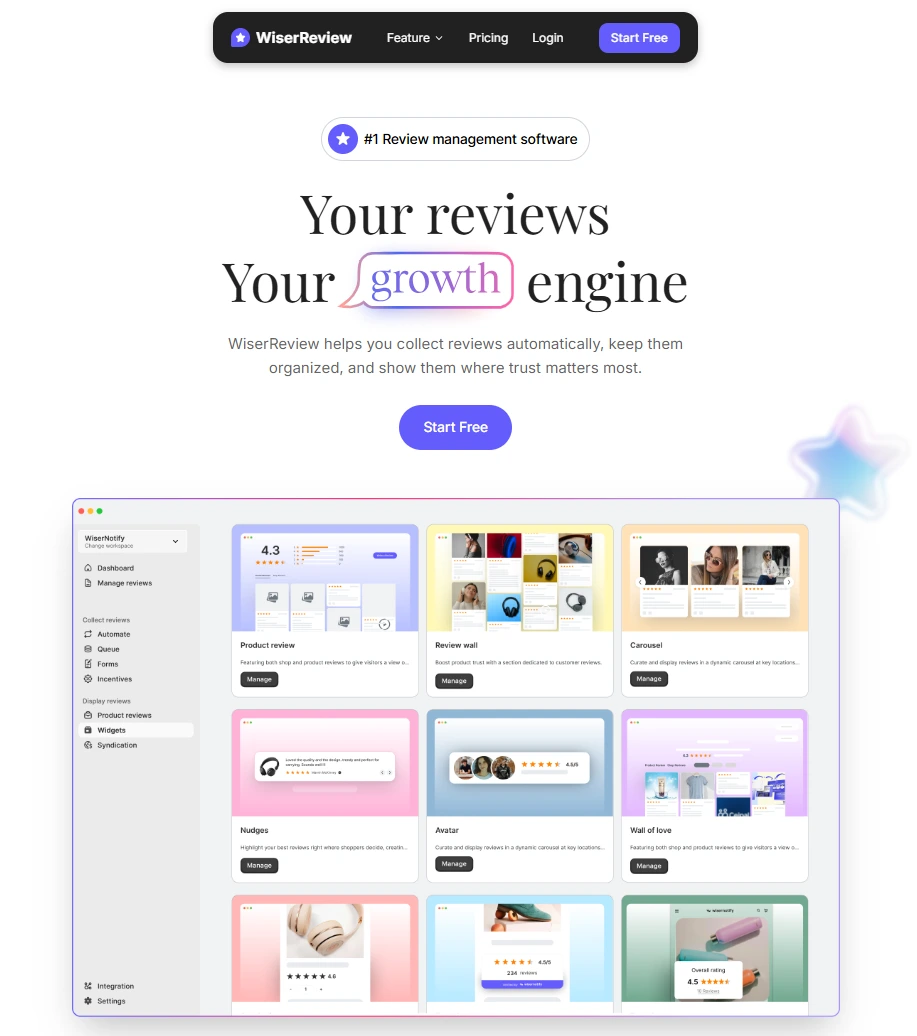
WiserReview is the best Google review management software, helping businesses collect, manage, and display Google and other platform reviews.
It automates review requests, syncs data from your Google Business Profile, and shows verified reviews on your website, making it easier to build trust and attract new customers.
Collect Google reviews easily
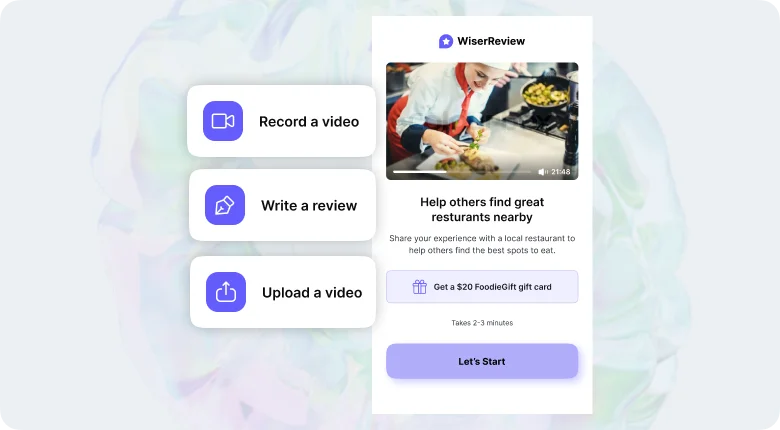
With WiserReview, you can gather Google reviews in any format, whether that’s text, image, or video, all from one dashboard.
Easily share Google review links using email, WhatsApp, or SMS to allow customers to share their thoughts directly after they visit you or purchase from you.
This will also help you gather authentic stories and experiences that foster stronger trust with new visitors.
Automated review collection process
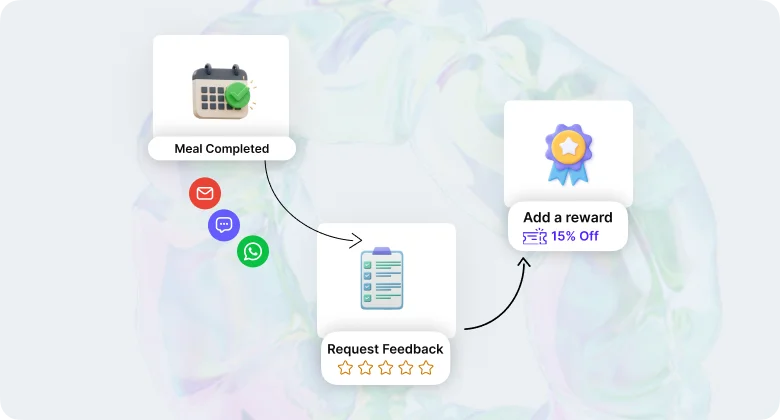
Instead of reminding your team to follow up, WiserReview does it for you. Set up automatic review requests that are sent out when an order is completed or a service is ended.
You can adjust the timing, choose email or message delivery, and even add small thank-you rewards. This enables your business to collect fresh feedback with minimal effort.
Moderate and respond to every review
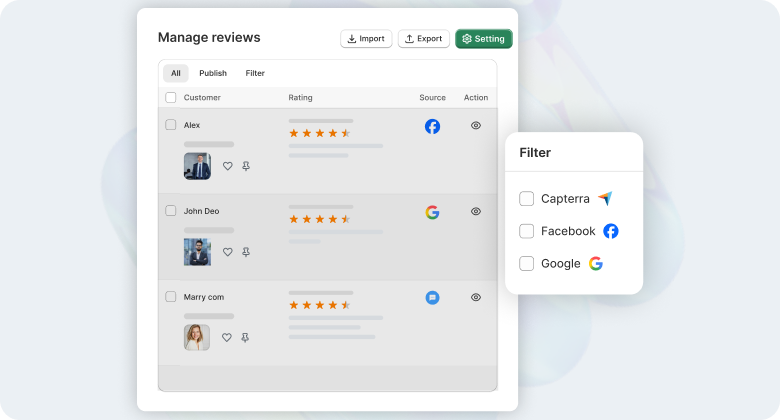
Managing feedback is simple with WiserReview’s review dashboard. You can view all Google and platform reviews in one place, filter by rating or source, and reply directly.
The system notifies you about new or low-rated reviews, allowing you to respond quickly and maintain a strong online reputation.
Display genuine reviews where they matter
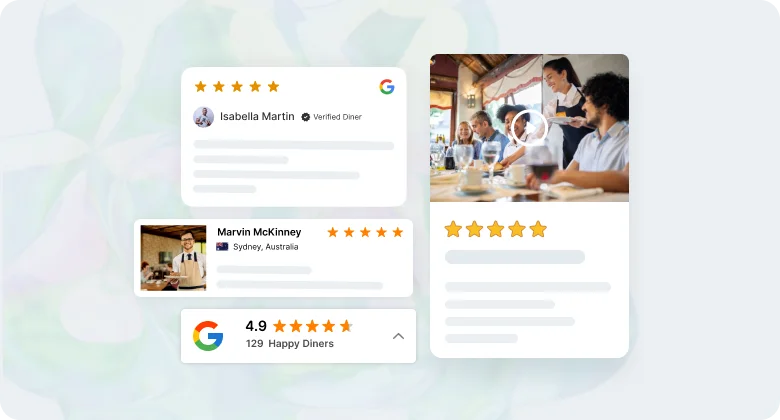
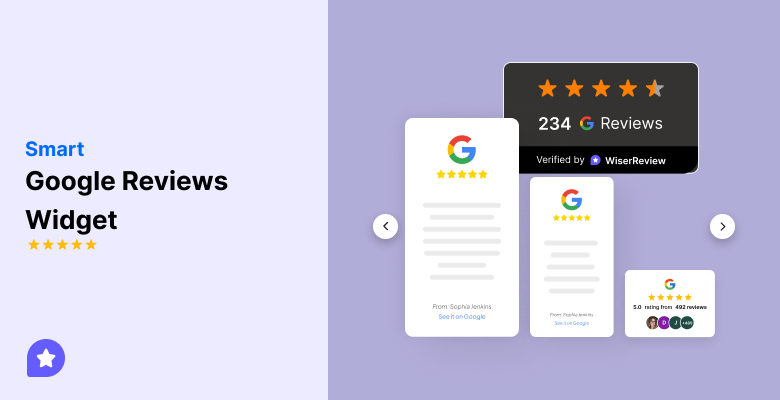
Once you’ve gathered reviews, display them across your website with customizable Google review widgets. Select layouts such as grids, cards, or sliders to suit your design.
Displaying verified Google reviews on your product pages and homepage enhances visibility, fosters credibility, and encourages potential customers to take action.
All your Google reviews in one place
Collect Google reviews, manage every response, and display them where they matter most.
Start Free →Wrap up
Most Google review issues concern visibility, filters, or policy checks, but consistency and transparency ultimately prevail.
Keep your business verified, respond to every Google review, and follow Google’s guidelines to prevent future problems.
WiserReview streamlines the entire process by automating review requests, monitoring missing or filtered reviews, and displaying verified Google reviews publicly, enabling you to maintain a steady review flow, stay compliant, and build stronger customer trust.
Frequently asked questions
If the review triggered spam filters, violated policies, or came from an account that was later suspended, it might be removed. Some missing reviews are due to system bugs or algorithm updates.
No. You can only flag reviews that break Google’s rules (spam, fake, hate speech). Google will decide whether to remove them. It’s better to respond professionally to negative feedback.
Often, reviews appear within minutes or a few hours. But reviews from new accounts or profiles with verification issues can take 24-72 hours.
Sometimes. If it was mistakenly filtered and doesn’t violate policies, you can appeal via support or ask the reviewer to repost with different wording. If it broke rules (spam, promotional content, etc.), recovery is unlikely.

Krunal