3 min
3 min 
Rich snippets help your BigCommerce products stand out in Google search.
They show key details like ratings, prices, and stock right under your product link. This gives shoppers quick answers and sends better traffic to your store.
Most BigCommerce stores can show rich snippets with a few small changes. You only need to check your theme, add a clean schema, and make sure your review data is correct.
This guide explains each step in a simple way so you can set it up fast and keep your product pages ready for search.
Preparing your BigCommerce store for rich snippets
Check your theme’s built-in support
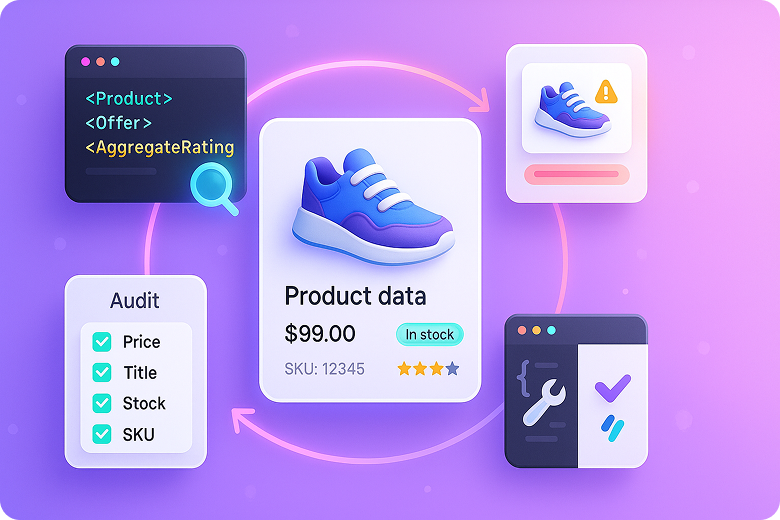
Open a product page and look at the source code. Search for Product, Offer, and AggregateRating schema tags.
If your theme shows all three, you already have the basics. If the rating or review count is missing, you need to add it.
Audit your product and site data
Make sure every product shows a clear title, price, stock status, SKU, and description.
Check if your reviews display the correct rating and count. Google reads this data to build your snippet, so it must stay accurate.
Decide between automatic and manual implementation
You can add schema yourself or use a tool that does it for you.
A manual setup gives full control but takes time.
An automatic setup with a tool like WiserReview adds a clean rating and review schema on every product page with no code.
Method 1 – Using an app/plug-in

This is the easiest way to show rich snippets in BigCommerce. You install the app, load the review widget, and the schema appears on every product page.
WiserReview adds clean rating and review data without any code. It also updates the schema when new reviews come in, so Google always reads fresh information.
1. Install WiserReview
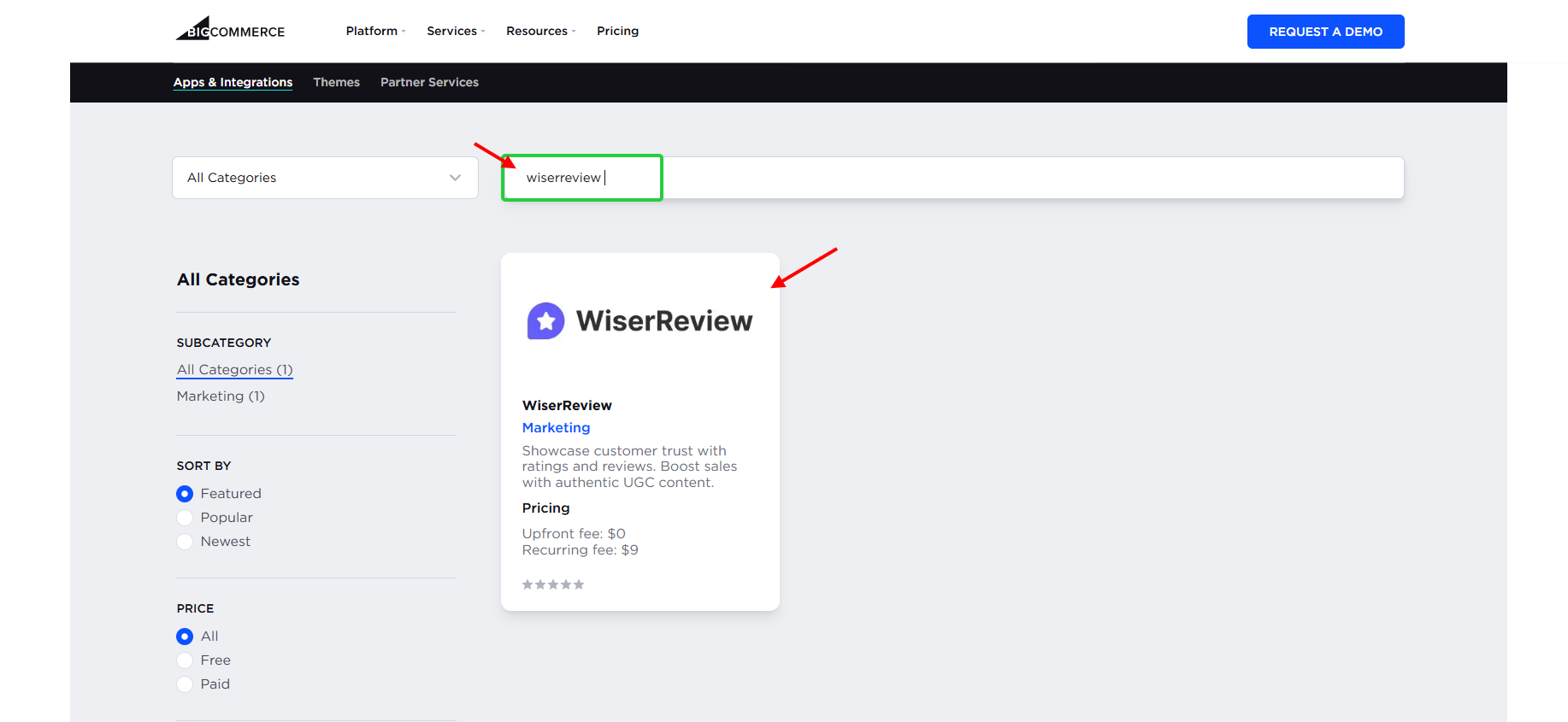
Go to the BigCommerce app store. Search for WiserReview.
Click Install and connect your store.
The app sets up the base review system right away.
2. Go to the Rich Snippet section
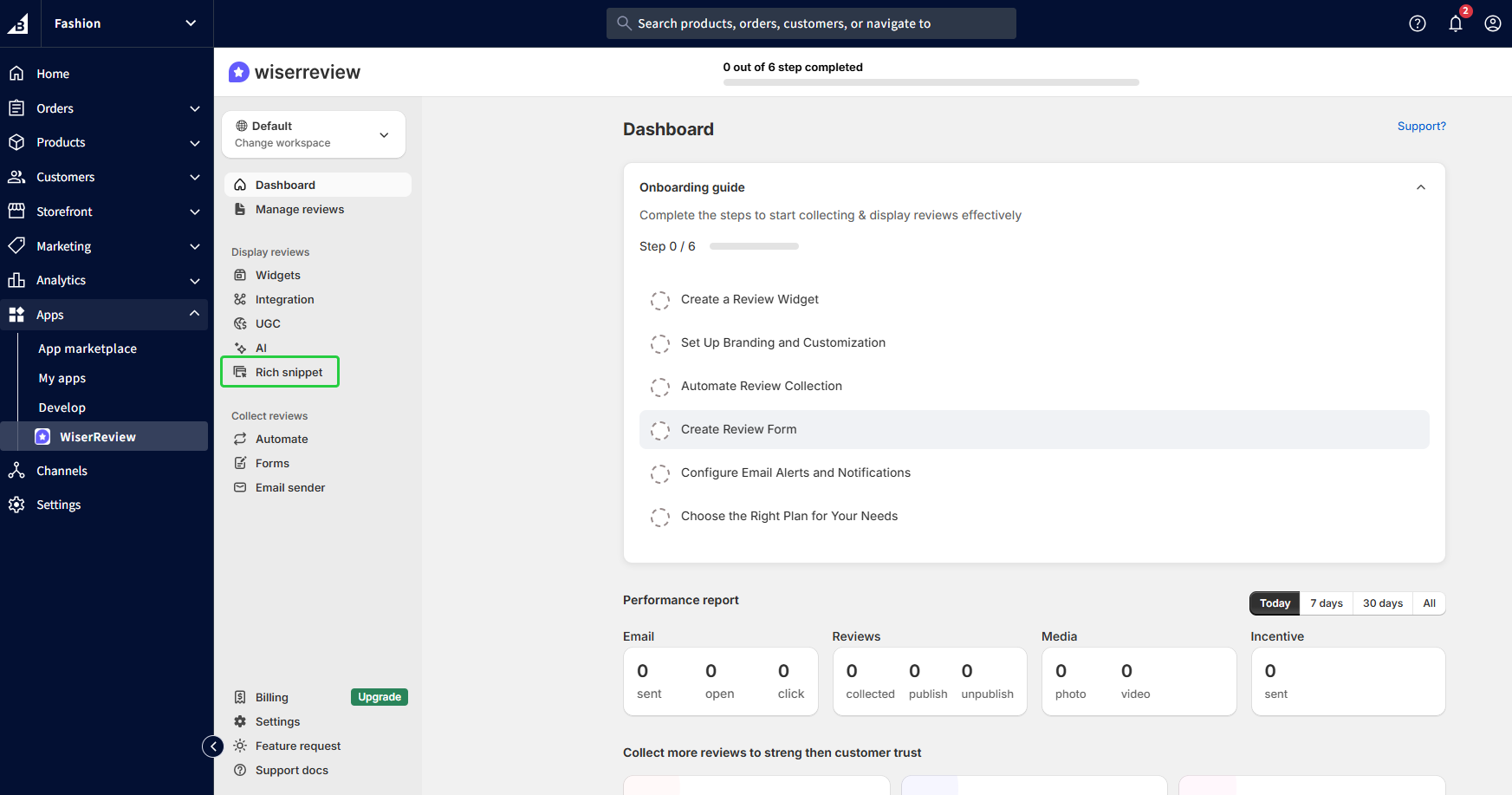
Click Rich snippet under the “Display reviews” menu.
This page controls how your star ratings appear in Google search.
3. Add your website details
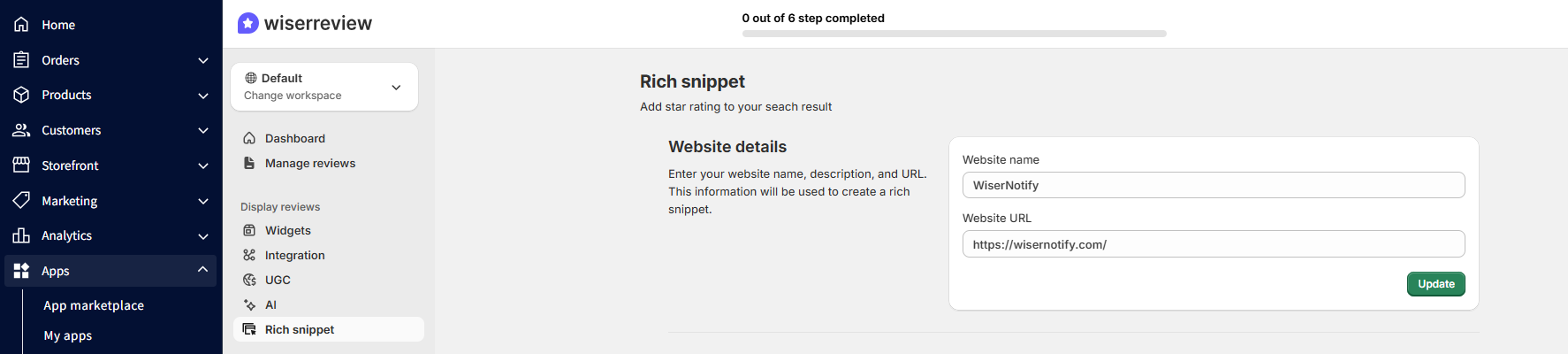
Enter your website name and website URL in the fields shown.
This helps WiserReview build a complete and clean schema file for your store.
Click Create after you add the details.
4. Let WiserReview generate the schema
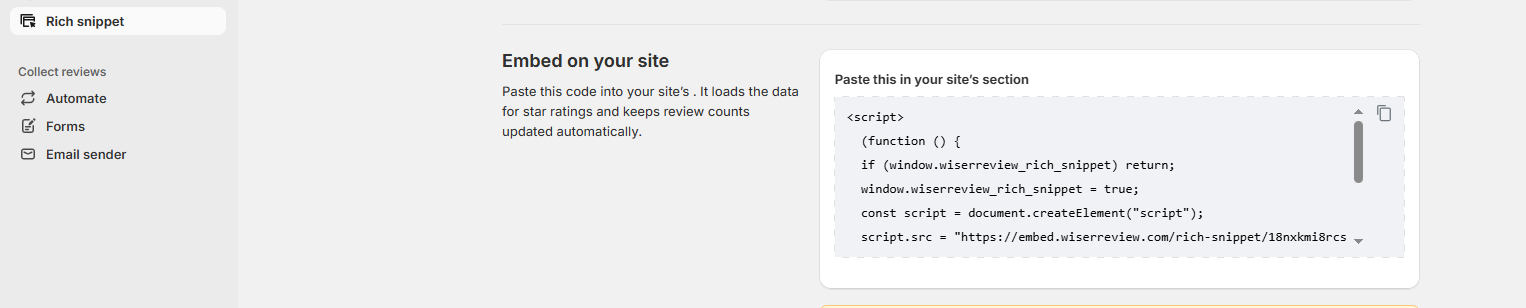
Once enabled, WiserReview creates the correct JSON-LD data that Google needs.
It includes:
- Rating value
- Review count
- Product info
- Store details
This loads on your product pages without you adding any code.
5. Make sure the widget is active
The schema works best when the WiserReview product widget is visible on each product page.
It pulls real review data and keeps the snippet updated.
6. Test your product page
Open the Google Rich Results Test.
Paste your product URL.
You should see Product, Offer, and AggregateRating without errors.
7. Wait for Google to update
Google may take a short time to show the rating stars in search.
Your snippet will update as new reviews come in.
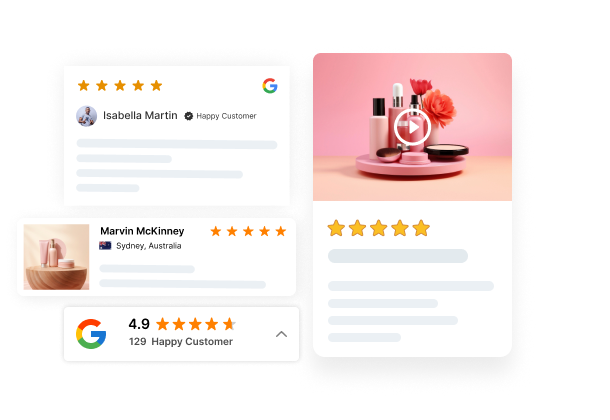
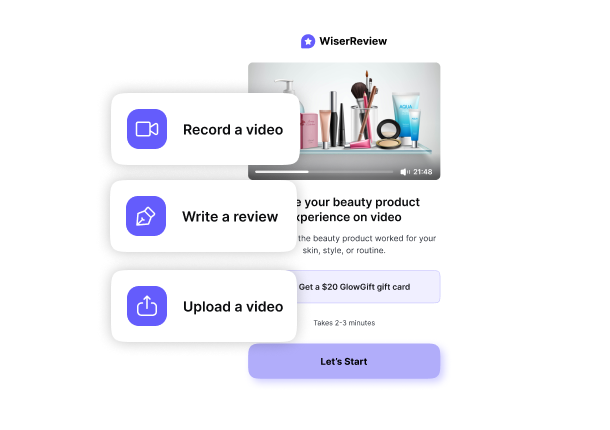
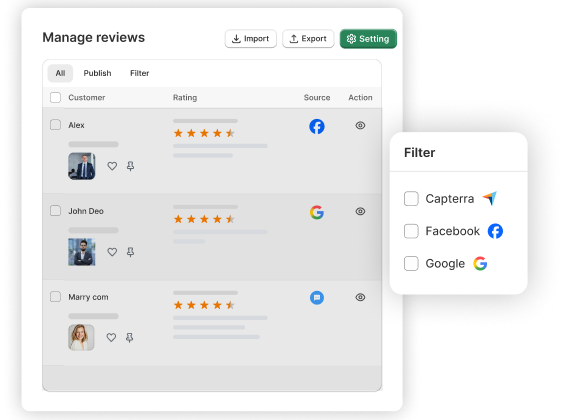
All your reviews in one place
Collect reviews, manage every response, and display them where they matter most.
Method 2 – Manual schema markup/custom code
1. Open your theme files
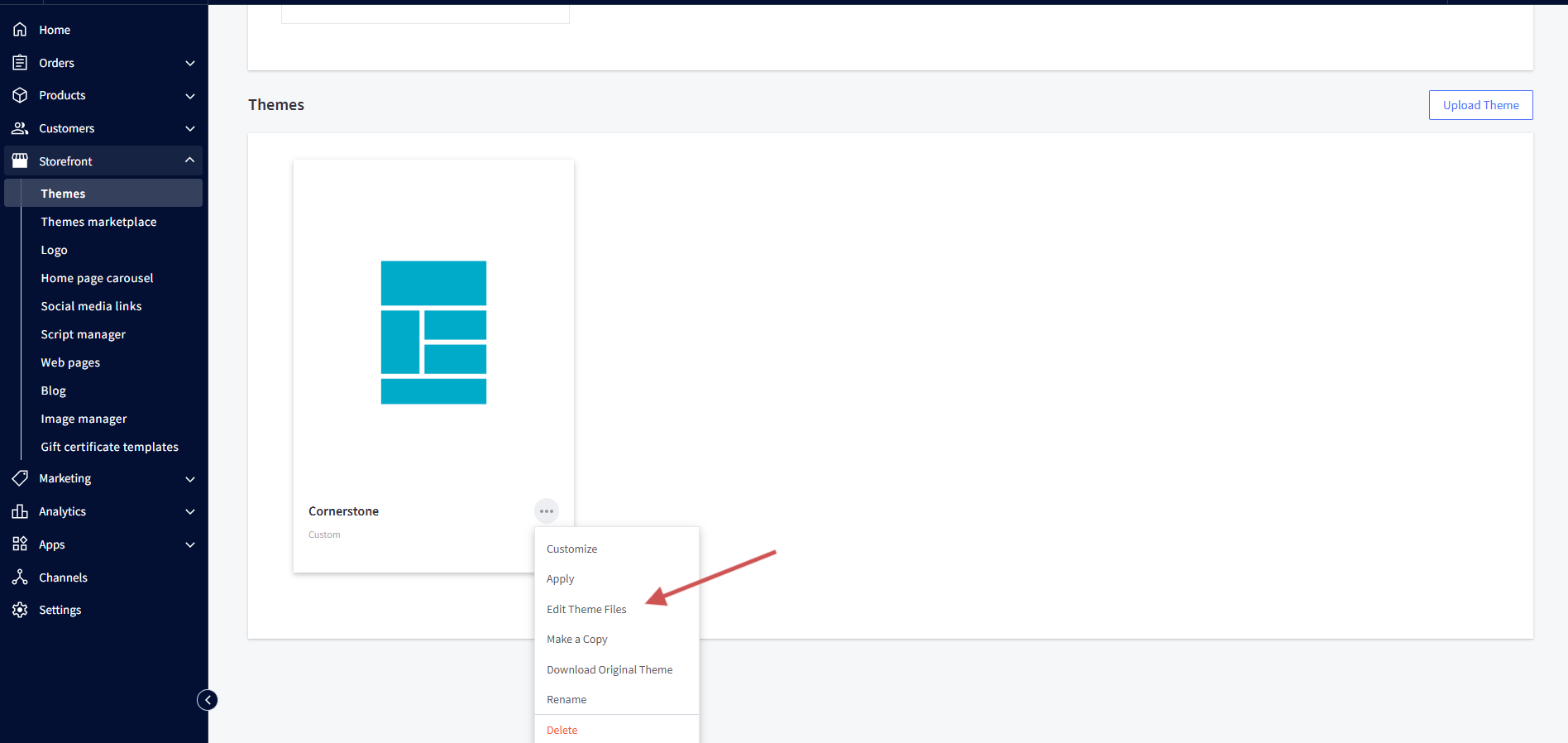
Go to Storefront → Theme Files.
Click Edit Theme Files.
Find your schema.json template.
2. Choose where to place your schema
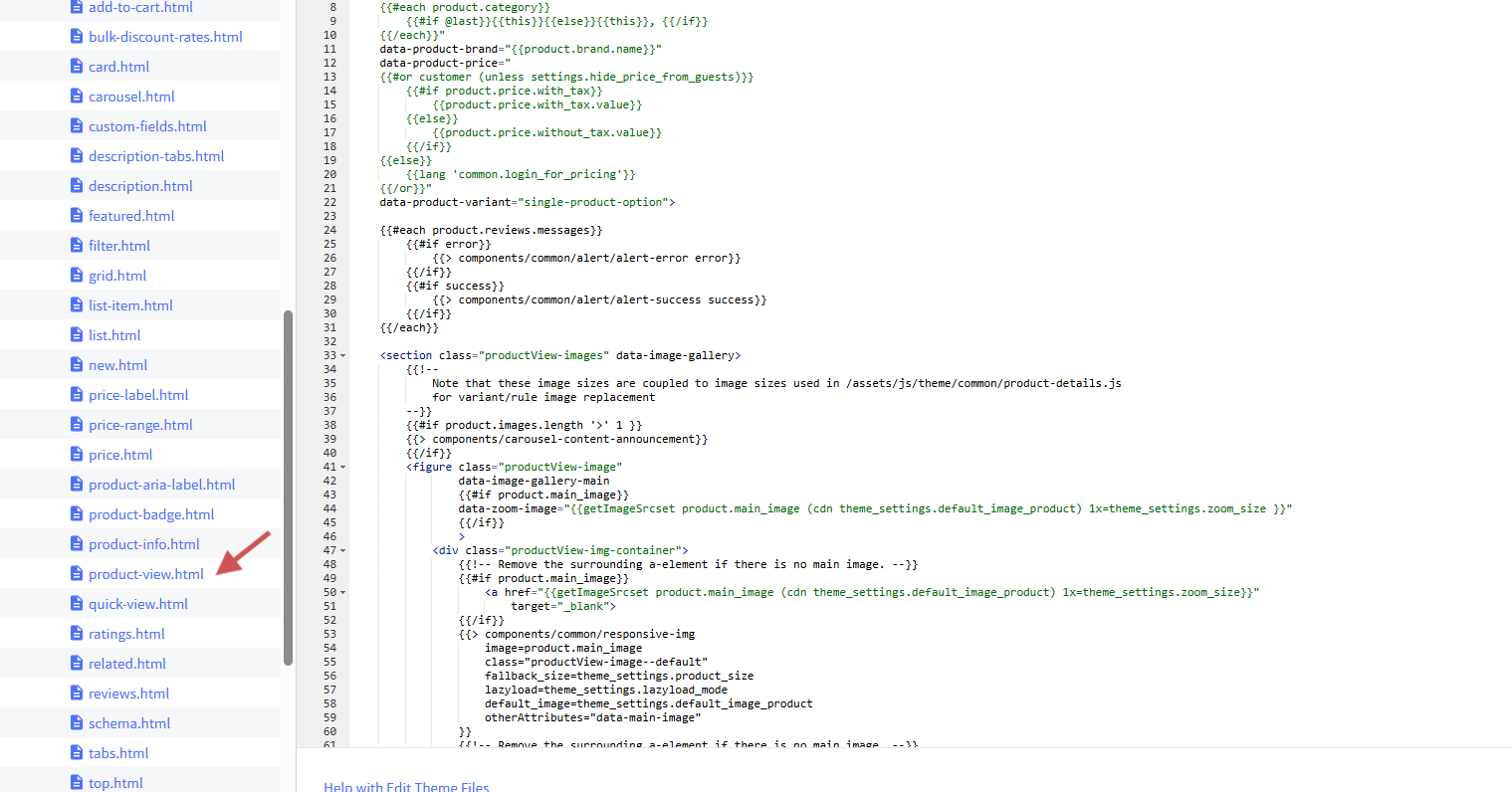
Finf file templates/components/products/product-view.html
Find a clean spot where your JSON-LD will load once per product.
Most stores add schema inside the <head> or right before the closing </body> tag.
3. Prepare your JSON-LD block
Write a clean JSON-LD script that includes the key product fields:
- Product name
- Description
- SKU
- Image
- Price
- Availability
- Rating value
- Review count
Missing fields may stop Google from showing rich snippets.
4. Add the JSON-LD script to the file
Paste your schema code inside:
<script type=”application/ld+json”>
{
“@context”: “https://schema.org/”,
“@type”: “Product”,
“name”: “{{product.name}}”,
“image”: “{{product.main_image}}”,
“sku”: “{{product.sku}}”,
“description”: “{{product.description}}”,
“offers”: {
“@type”: “Offer”,
“price”: “{{product.price}}”,
“availability”: “{{product.availability}}”
},
“aggregateRating”: {
“@type”: “AggregateRating”,
“ratingValue”: “{{product.rating}}”,
“reviewCount”: “{{product.review_count}}”
}
}
</script>
Save your changes and publish the theme.
5. Check your live product page
Open your product page.
Right-click → View Source.
Search for ld+json and confirm your schema appears in full.
6. Test with Google Rich Results
Open the Rich Results Test.
Paste your product URL.
Make sure Google detects Product, Offer, and AggregateRating without errors.
7. Keep your schema updated
The manual schema does not refresh itself.
Update the code when your price, stock, rating, or review count changes.
Incorrect data can remove your rich snippet.
Troubleshooting three common errors
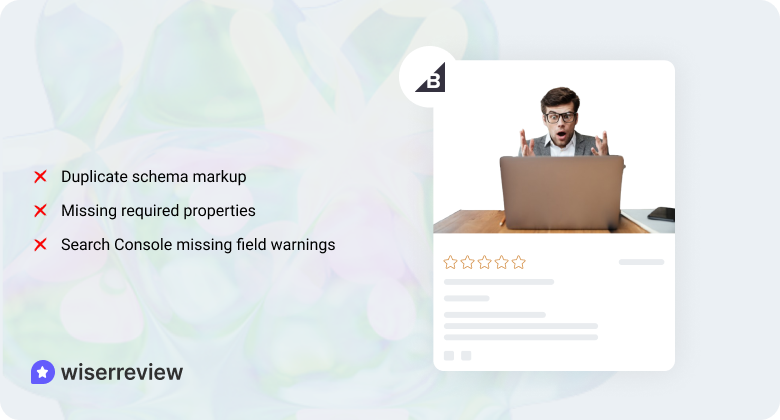
These are the three errors you will see most often and how to fix them in a simple way.
1. Duplicate schema markup: theme + app both applying markup
Some themes add product schema by default. If an app also adds schema, Google may read two versions and drop both.
How to fix:
- Check your product page source.
- Search for multiple Product or Offer blocks.
- Remove the extra schema from your theme or disable the duplicate option.
WiserReview already avoids this conflict by adding one clean schema block.
2. Missing required properties (e.g., price, availability)
Google needs core fields to build a proper snippet. Missing price, stock status, or SKU will block the snippet.
How to fix:
- Open your product page and confirm that price and availability show correctly.
- Update your JSON-LD code so it includes these fields.
- Make sure the schema matches your live product data.
3. Warnings in Search Console: “Missing field” and similar errors
Search Console shows warnings when your page has incomplete or outdated schema. These warnings stop rich snippets until you fix the missing fields.
How to fix:
- Open Search Console → Enhancements → Products.
- Check which field is missing.
- Add the field to your schema (rating, review count, image, price, stock, or SKU).
After you update the schema, re-check the page with the Rich Results Test.

All your reviews in one place
Collect reviews, manage every response, and display them where they matter most.Wrap up
Rich snippets help your BigCommerce products stand out in search. You only need to give Google clear and complete data.
You can do this with an app like WiserReview or by adding your own JSON-LD code.
The app method is fast and automatic.
The manual method gives full control but needs updates from you.
Once your schema is live, test your page and keep your product details accurate. This keeps your snippet active and helps shoppers trust your store.
Frequently asked questions
Your snippet will not show if rating, price, or stock fields are missing. Duplicate schema from your theme and app can also block it. Fix the missing fields and remove extra schema.
An app is easier because it updates schema on its own. Manual code works but needs updates each time your product details change.
Google may show them in a few days or take longer. Clean and complete schema helps speed it up.
Google can ignore the snippet. Update price, stock, rating, and review count so they match your live product page.

Krunal