5 min
5 min 
Showing Trustpilot reviews on your Elementor site helps you display genuine customer proof and builds instant trust. It gives your visitors a clear overview of others’ opinions before they take action.
You have several easy ways to embed these reviews, and each method lets you control how your review section looks and loads on your page. The steps are easy to follow, regardless of your skill level.
This guide describes how to embed Trustpilot reviews in Elementor using either the Trustpilot widget or WiserReview for automated sync, easy control, and flexible review display.
Method 1: Add Trustpilot reviews to Elementor using the Trustpilot widget
This method uses Trustpilot’s official TrustBox widget. It’s easy to implement and will get your reviews live faster, but customization is somewhat limited compared to third-party tools.
Step 1: Log in to your Trustpilot business account

Open the internet browser of your choice and go to business.trustpilot.com. Sign in to your account. Click the Widget Library, located in the left-hand navigation menu.
After expanding the Share & promote section, click on Website widgets. Some users will still see this named as “All Widgets”.
Step 2: Choose your widget style
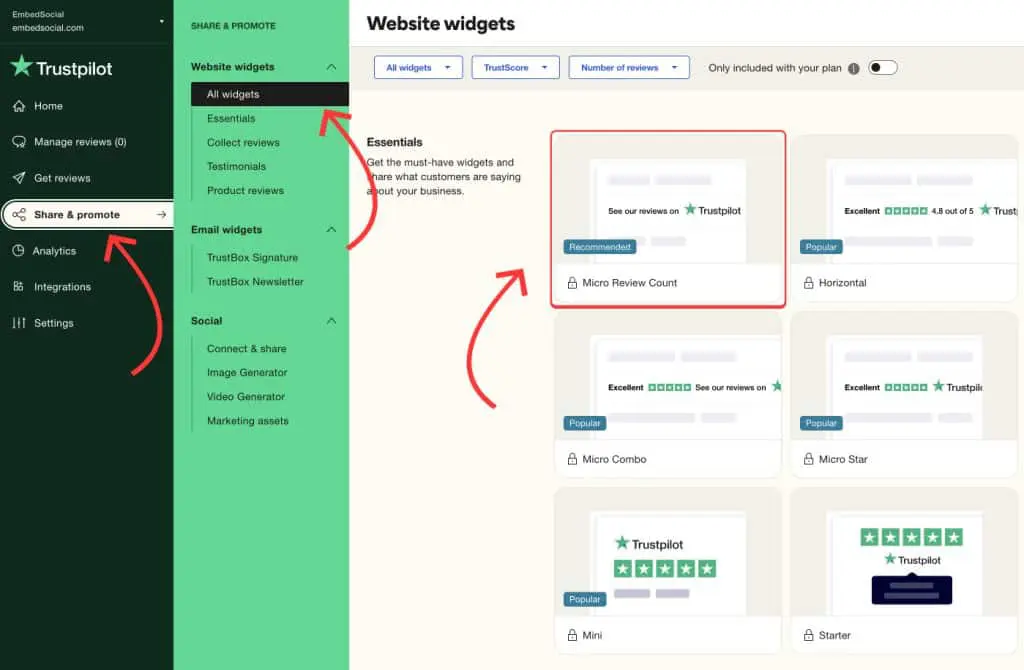
Navigate to Website Widgets: From your dashboard, go to the Share & promote menu and select “All widgets”.
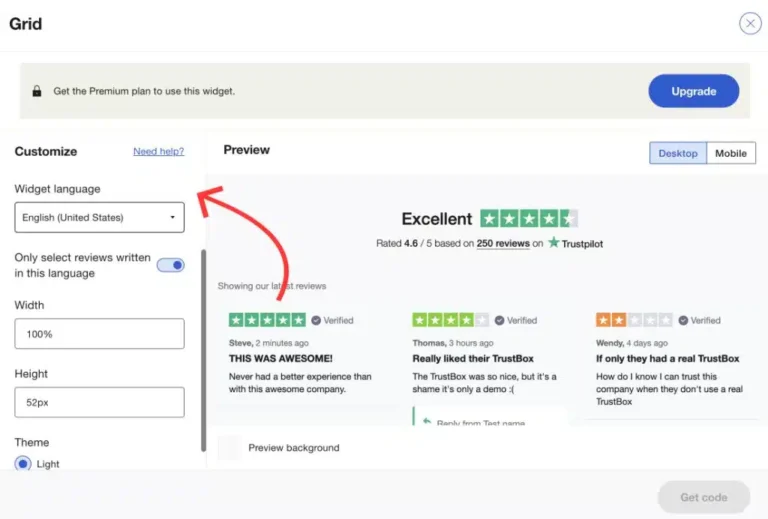
Select a widget type (e.g., Carousel, Grid, or Star Badge). Customize the widget’s appearance, size, and language in the configuration panel.
Step 3: Copy the embed code
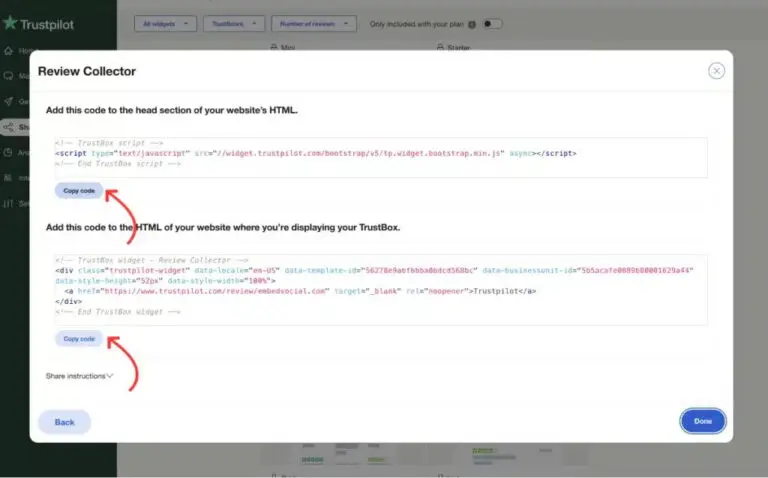
Once you are satisfied with the customization, Trustpilot will display two distinct code snippets. Copy the two code snippets:
- Global JavaScript snippet,
- Specific HTML snippet for the widget location.
Step 4: Add the JavaScript to your website’s <head>
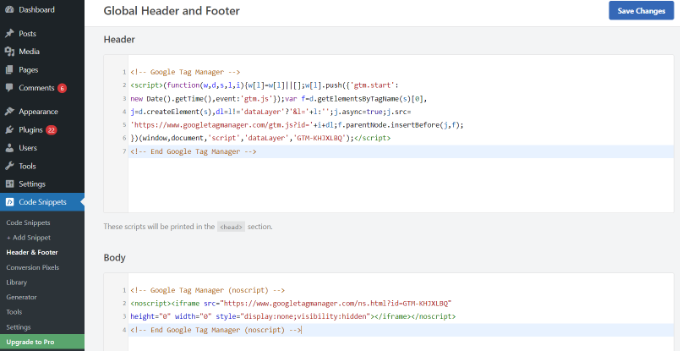
This script must be placed in the <head> section of your website.
In your WordPress dashboard, install and activate the free “Insert Headers and Footers” plugin. Go to Settings > Insert Headers and Footers.
Paste the Global JavaScript snippet into the “Scripts in Header” box. Click Save
Step 5: Embed the HTML in Elementor
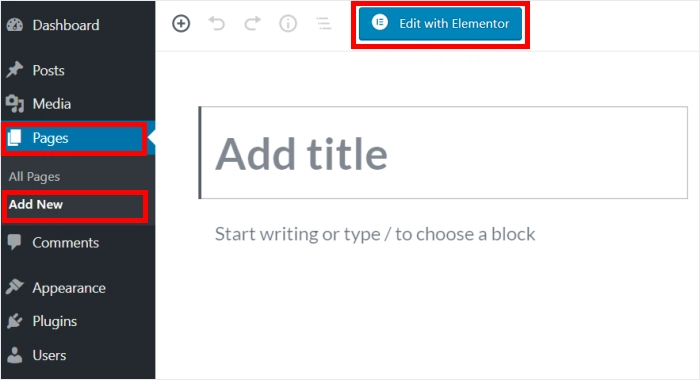
Time to open up your WordPress dashboard and navigate to the page you want to “edit with Elementor”.
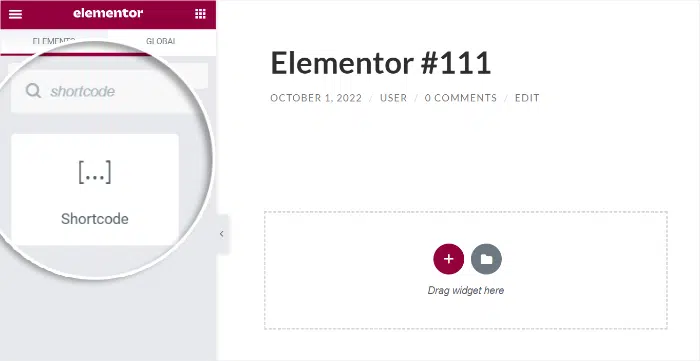
In the Elementor editor, search for the HTML widget – it’s pretty easy to find. Drag the HTML widget onto your page where you want the reviews to show up.
In the widget’s settings panel, paste the HTML snippet provided by Trustpilot into the “HTML Code” field.
Click Publish or Update to make the reviews live on your page.
Method 2: Add Trustpilot reviews to Elementor using the WiserReview

WiserReview is a simple review platform that pulls in your Trustpilot reviews and displays them in a clean layout on your Elementor site. It has all the control you need, real-time syncing, and slick display options, which is way better than just sticking with basic HTML embedding.



All your reviews in one place
Collect reviews, manage every response, and display them where they matter most.
Step 1: Set up a WiserReview account
Go to WiserReview and sign up for a free account. The platform offers a free plan to get started, with premium features available as you scale.
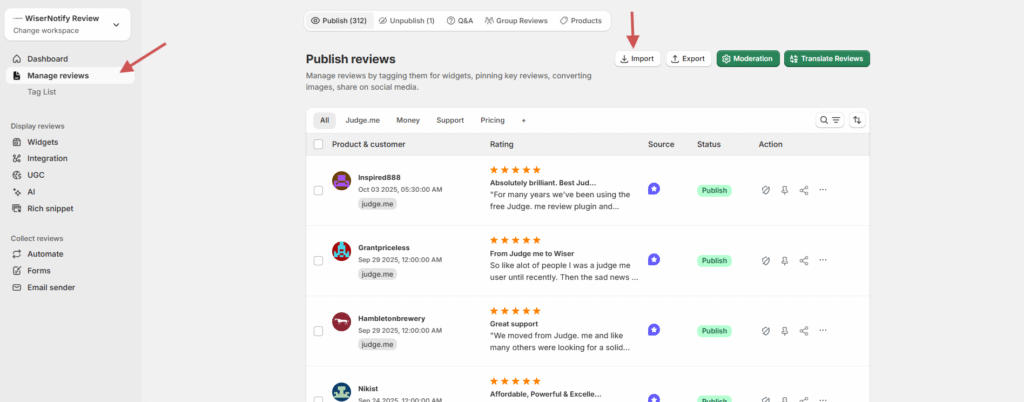
Head to your WiserReview dashboard. Go to the “Manage Reviews” section. Click “Import Reviews.
Step 2: Import your reviews
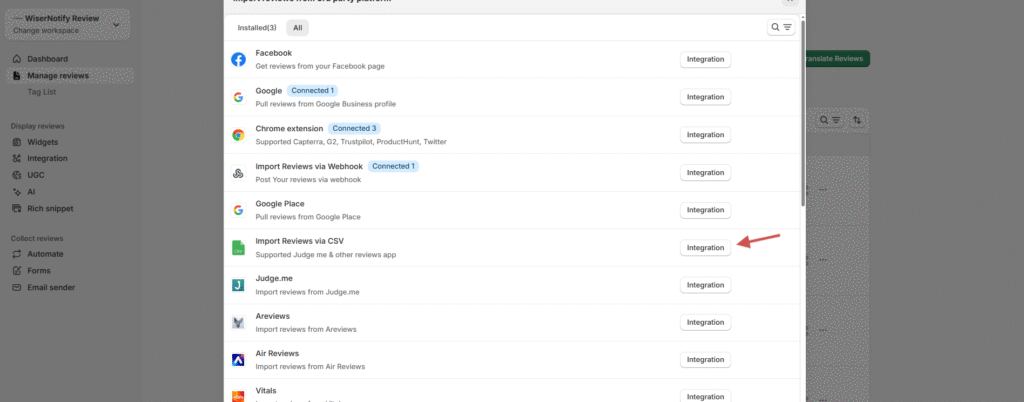
Choose “Import reviews via CSV” from the available integration options. Select CSV File Upload as the method.
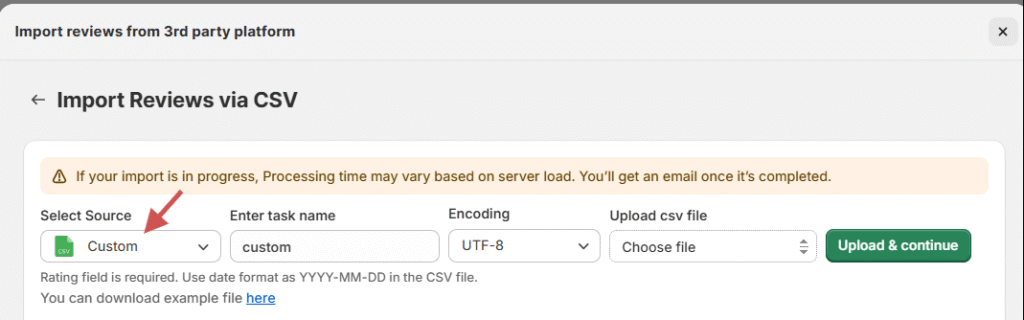
Click Browse and upload the cleaned Trustpilot review CSV file.
Note:- To display specific reviews under individual products on your website, make sure to include a Product ID or Product Handle column in your CSV file for product reviews. This connects each review to the correct product, especially if you’re using custom product pages or ecommerce review widgets in WiserReview.
Step 3: Mapping the fields
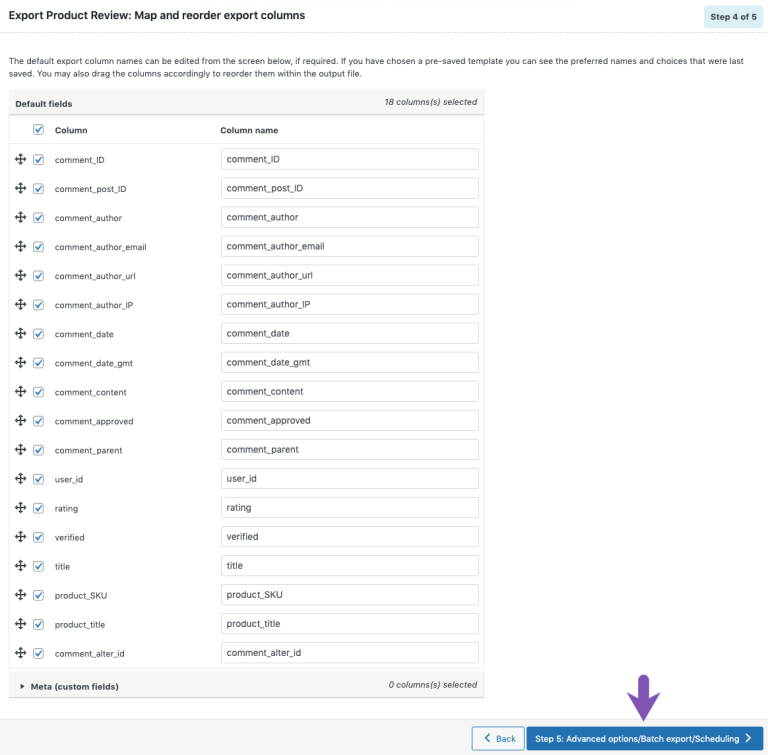
After uploading, you’ll be prompted to map each CSV column to the required WiserReview fields. Click Next when all mappings are set.
Step 4: Upload and review
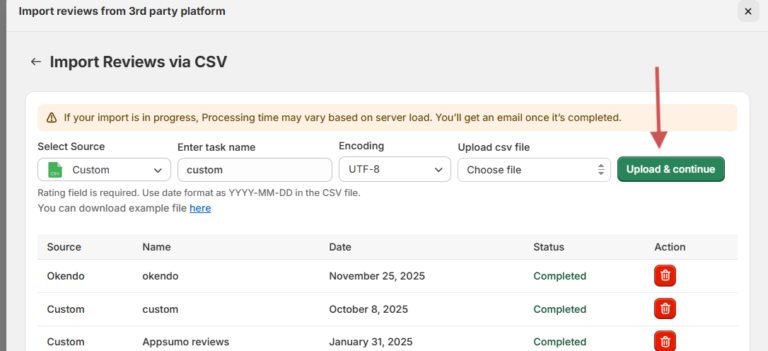
You’ll see a preview of the imported data. Click Upload & Continue. Once uploaded, all Trustpilot reviews will appear under Manage Reviews.
Step 5: Create and customize your widget in WiserReview
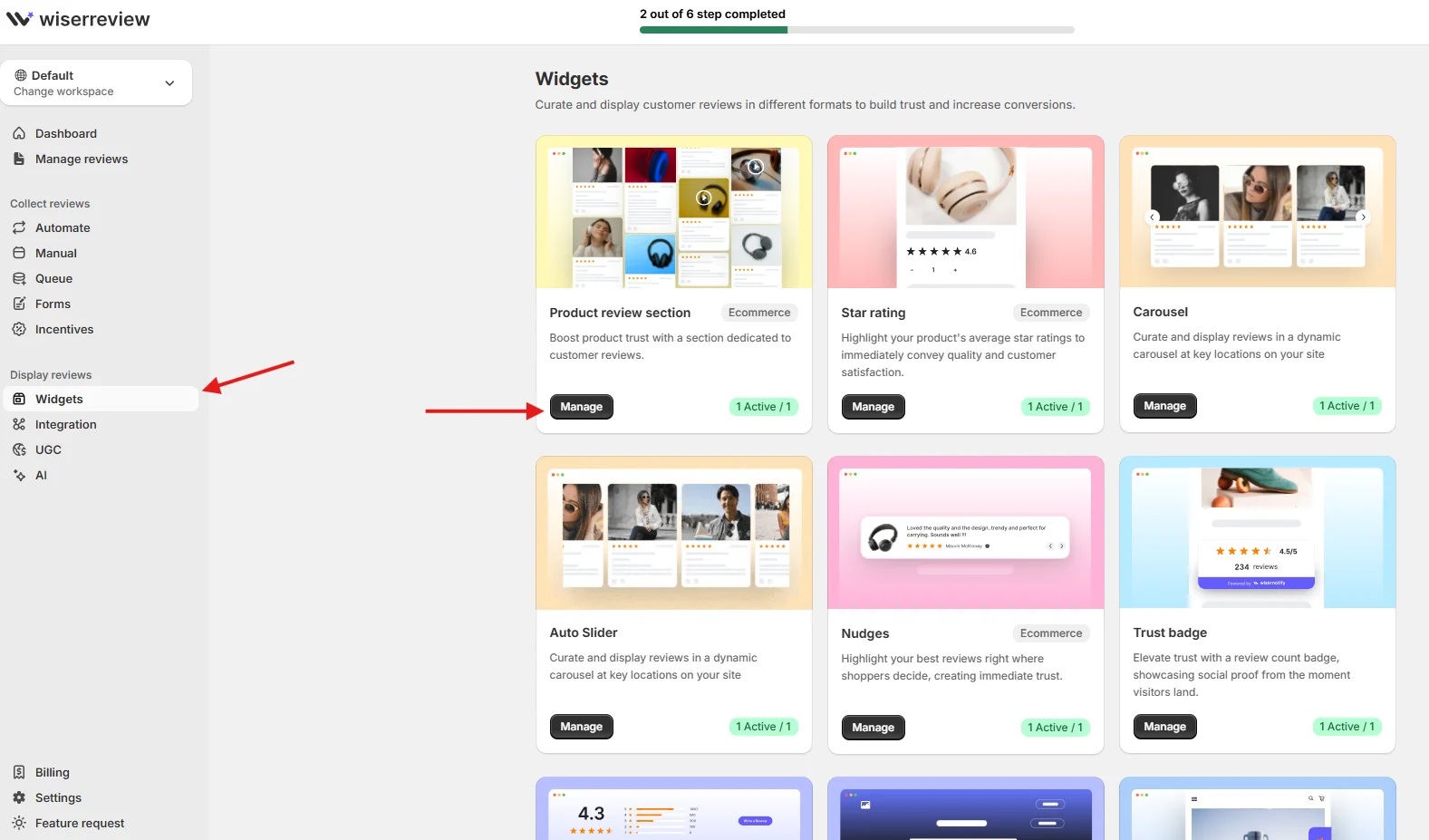
Go to the Widgets section within the WiserReview dashboard. Choose a widget template that fits your needs (e.g., a carousel, grid, list, or pop-up).

Customize the widget’s appearance (colors, fonts, layout) to match your Elementor website’s design. Use the Filter Review Options to display only specific reviews (e.g., 4- and 5-star reviews or those with certain tags).
Step 6: Copy the embed code
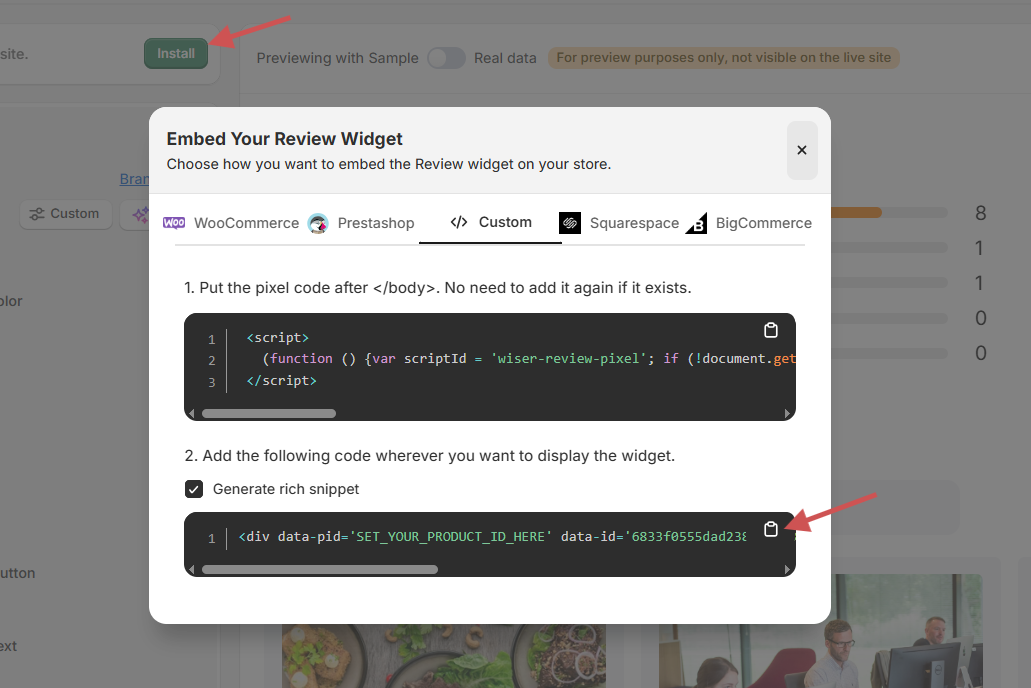
Look for an Embed or Install button near your customized widget within the WiserReview interface.
Note: Put the pixel code after </body>. No need to add it again if it exists.
Copy the generated HTML embed code snippet to your clipboard.
WiserReview will provide you with a code snippet. Copy the entire code snippet to your clipboard. Paste this widget code into the Elementor editor to show the review widget.
Step 7: Add the widget to Elementor
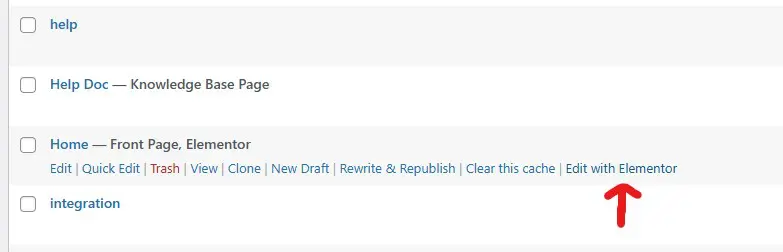
In your WordPress dashboard, go to the page you want to edit and click Edit with Elementor.
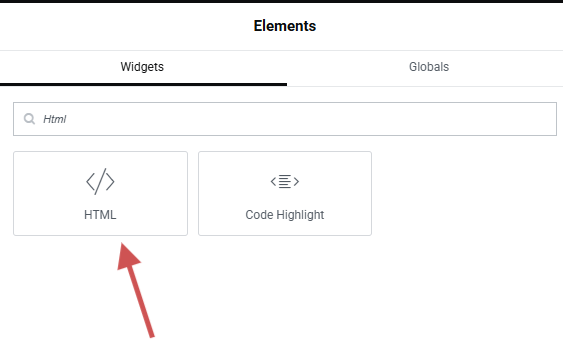
In the Elementor editor sidebar, search for the HTML widget. Drag and drop the HTML widget onto the section of the page where you want the reviews to appear.
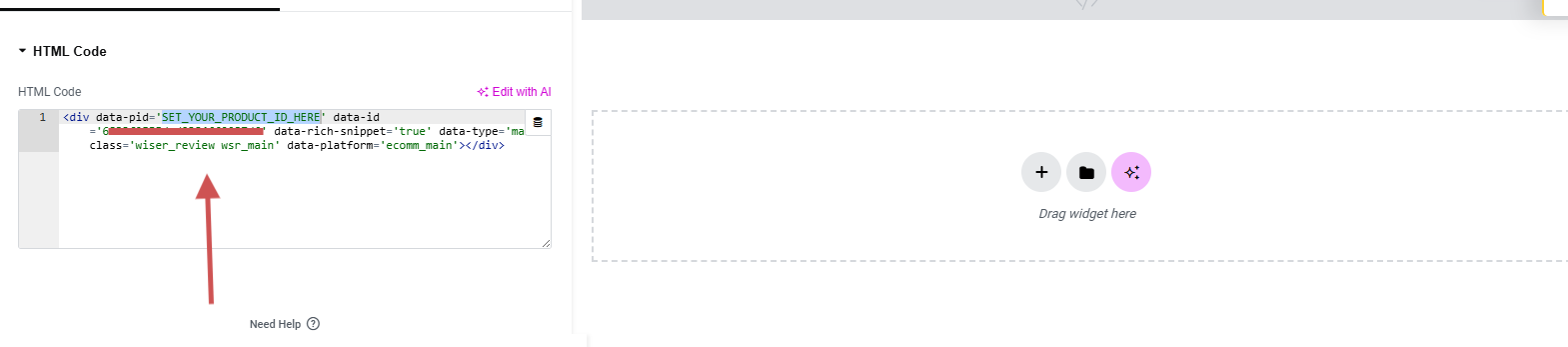
Replace your product id with actual product id of your catelog.

In the widget’s settings panel, paste the WiserReview embed code you copied in Step 6 into the “HTML Code” field.
Click Update or Publish to save the changes to your page.
Wrap up
Embed Trustpilot reviews in Elementor to help you build trust and prove to your customers that other customers are happy. You can use the quick, super basic setup with the official Trustpilot widget.
For those who want more control, smoother syncing, and fitting better into their site design, WiserReview is the stronger option. WiserReview offers flexible display options and keeps your reviews up to date without requiring additional work.
You may opt for the one that works best for you, but if you want a smooth, solid combination to work on long-term, then WiserReview is the best with Elementor.
Frequently asked questions
Yes. Trustpilot offers basic styling. WiserReview gives full control with fonts, filters, and custom layouts.
Yes. Both Trustpilot and WiserReview widgets are fully responsive.
Trustpilot updates only when you refresh the embed code. WiserReview updates reviews automatically in real time.
Trustpilot has limited filters. WiserReview lets you filter by rating, keywords, dates, and approvals.

Krunal