4 min
4 min 
Want to display your Trustpilot reviews on your GoDaddy website? It’s easier than you may think.
Customer reviews are among the most effective ways to build trust and increase conversions. Displaying your Trustpilot reviews on your website may provide social proof that drives potential customers to make a purchase.
In this article, we will show you best practices for showcasing your glowing reviews using either Trustpilot’s official widget for quick, easy setup or WiserReview for greater control, flexibility, and automation.
Method 1: Add Trustpilot reviews to GoDaddy using the Trustpilot widget
Trustpilot’s official TrustBox widget lets you display your reviews directly on your GoDaddy site. This method works best if you want a quick, no-frills solution that pulls reviews straight from your Trustpilot profile.
Step 1: Log in to your Trustpilot business account
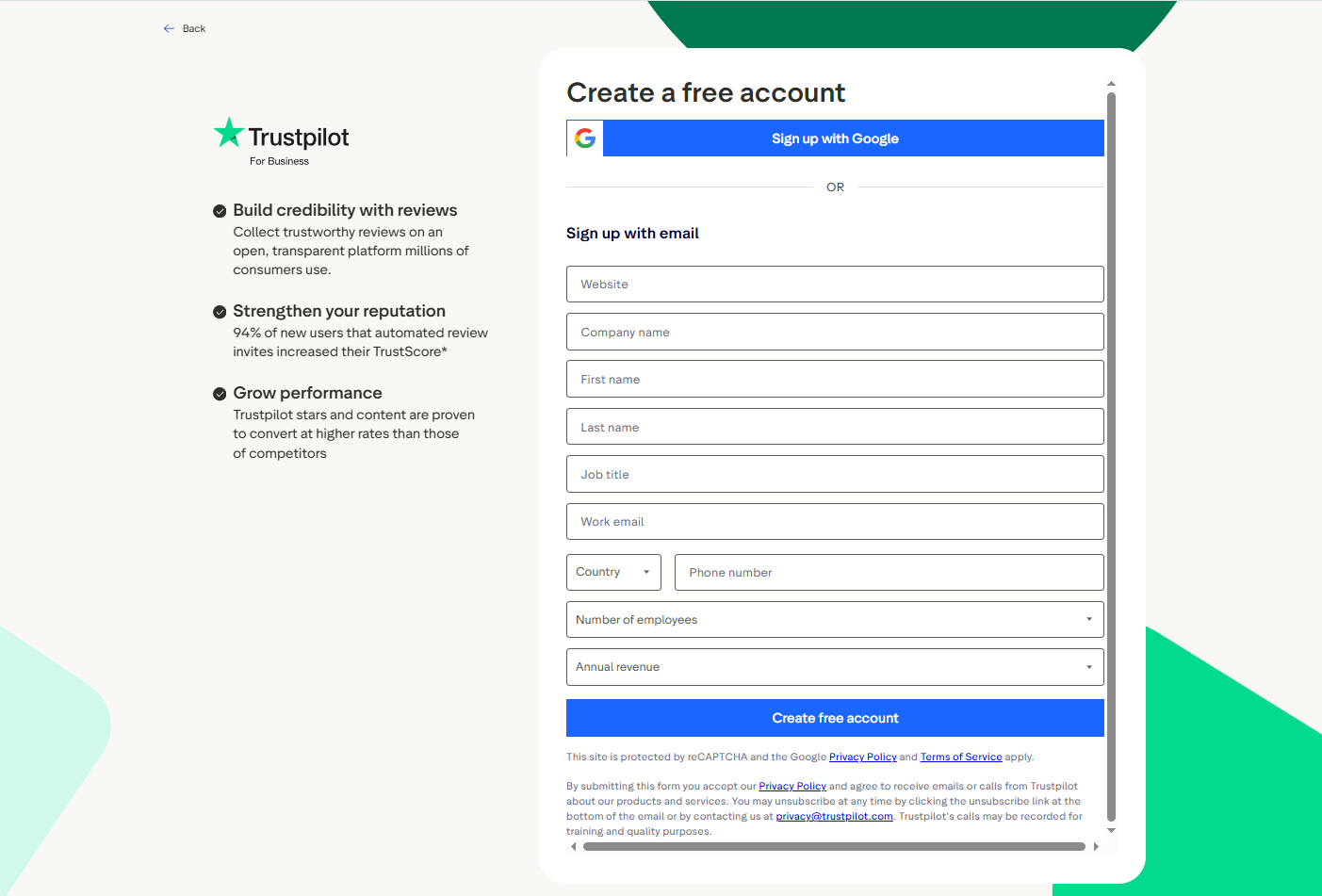
Visit Trustpilot Business and log in to your account. Navigate to Share & promote > Website widgets from your dashboard. If you don’t have a Business account yet, you’ll need to create one first.
Step 2: Choose your Widget style
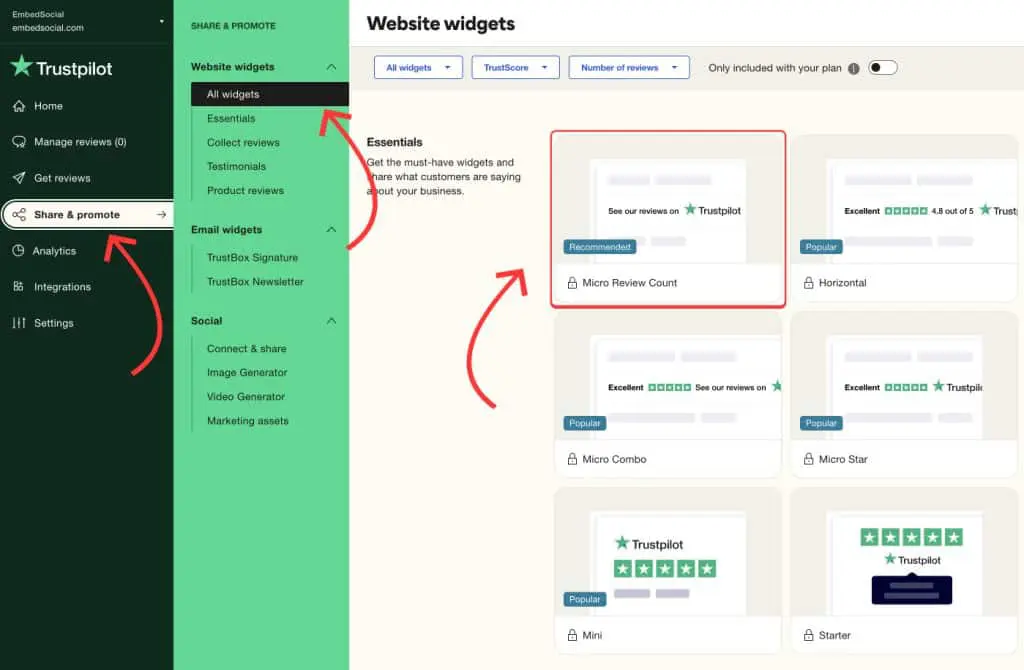
Navigate to Website Widgets: From your dashboard, go to the Share & promote menu and select Website widgets.
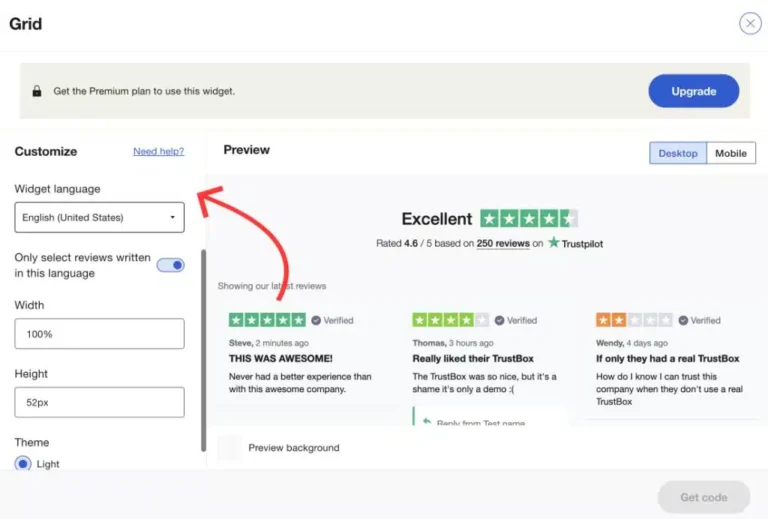
Select a widget type (e.g., Carousel, Grid, or Star Badge). Customize the widget’s appearance, size, and language in the configuration panel.
Step 3: Copy the embed code
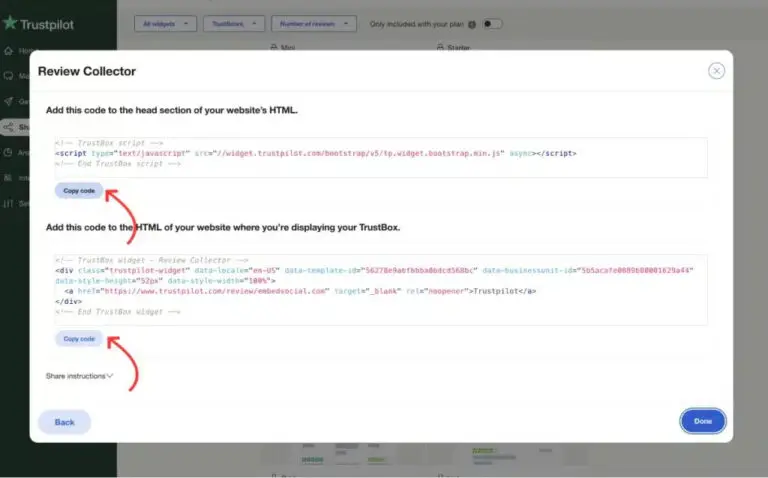
Once you’re satisfied with the design, click Get Code. Trustpilot provides two code snippets:
- Bootstrap script (goes in the <head> section)
- Widget HTML code (goes in the <body> where you want reviews to appear)
Copy both code snippets; you’ll need them in the next step.
Step 4: Add the code to your GoDaddy website
Log in to your GoDaddy account and navigate to My Products. Under Websites + Marketing, click Manage next to your site, then click Edit Website to open the site builder.
In the main editing menu (usually top-right or sidebar), find and click Settings. Select the Custom Code option within the Settings menu.
The first code block you’ll see is the widget’s script. Click Copy code, then paste it into the <head> section of your website. You only need to do this once, even if you’re adding multiple widgets.
The second code snippet you’ll see is the widget’s HTML. Click Copy code, then paste it into the <body> section of your website, where you’d like it to be displayed.
Step 5: Publish your changes
Your changes in the GoDaddy editor save automatically, but they are not live yet. Click the “Publish” button (usually in the top right corner of the editor).
Visit your live website to confirm that the Trustpilot reviews widget loads correctly and displays your reviews.
Method 2: Add Trustpilot reviews to GoDaddy using the WiserReview

WiserReview offers a more feature-packed solution than the basic Trustpilot widget. It’s a better choice for businesses that want to automate review collection, get advanced customisation, and be able to manage their reviews all from one central spot.
Step 1: Create your WiserReview account
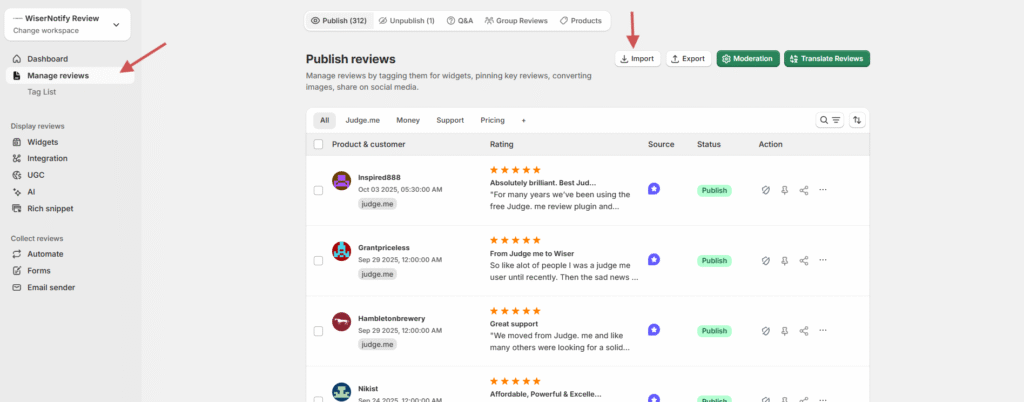
Go to WiserReview and sign up for a free account. The platform offers a free plan to get started, with premium features available as you scale.
Head to your WiserReview dashboard. Go to the “Manage Reviews” section. Click “Import Reviews.
Step 2: Import your reviews
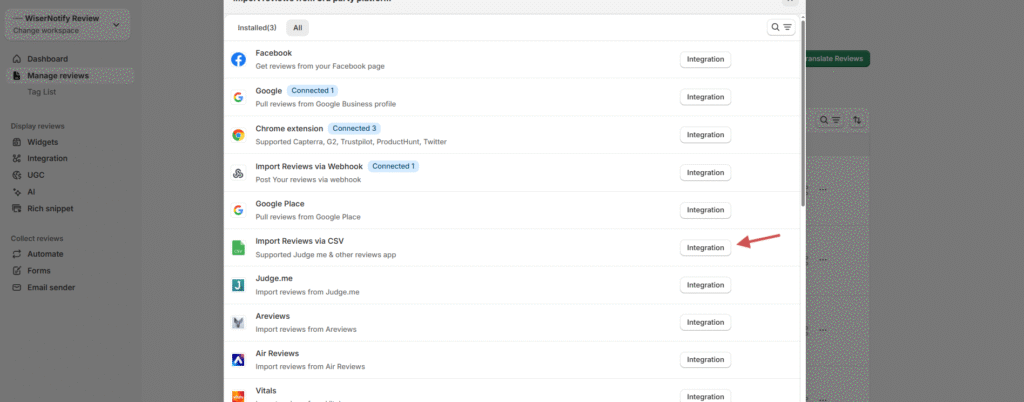
Choose “Import reviews via CSV” from the available integration options. Select CSV File Upload as the method.
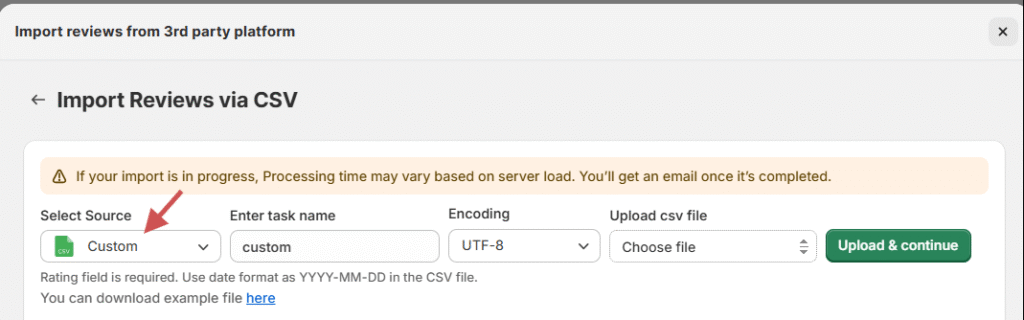
Click Browse and upload the cleaned Trustpilot review CSV file.
Note:- To display specific reviews under individual products on your website, make sure to include a Product ID or Product Handle column in your CSV file for product reviews. This connects each review to the correct product, especially if you’re using custom product pages or ecommerce widgets in WiserReview.
Step 3: Mapping the fields
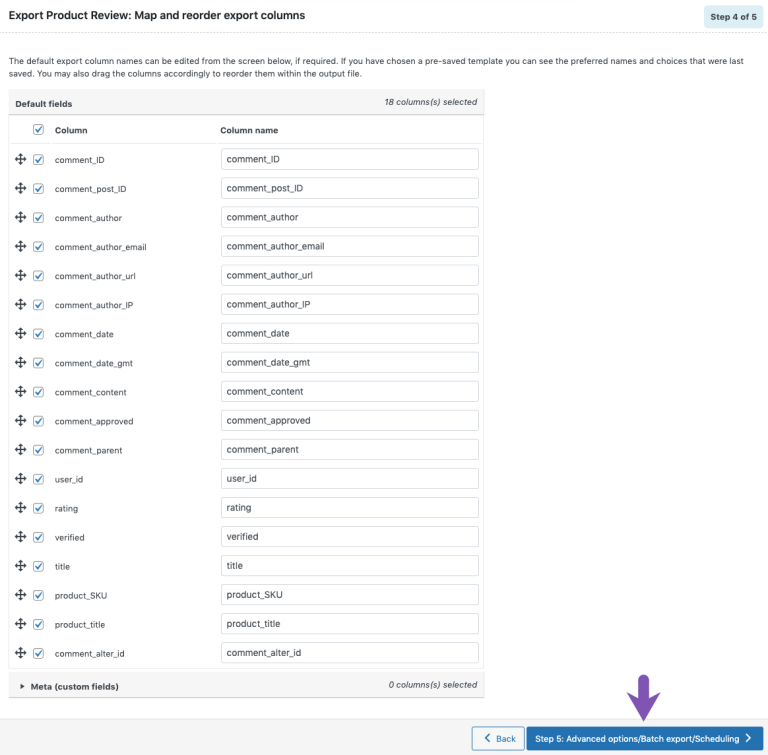
After uploading, you’ll be prompted to map each CSV column to the required WiserReview fields. Click Next when all mappings are set.
Step 4: Upload and review
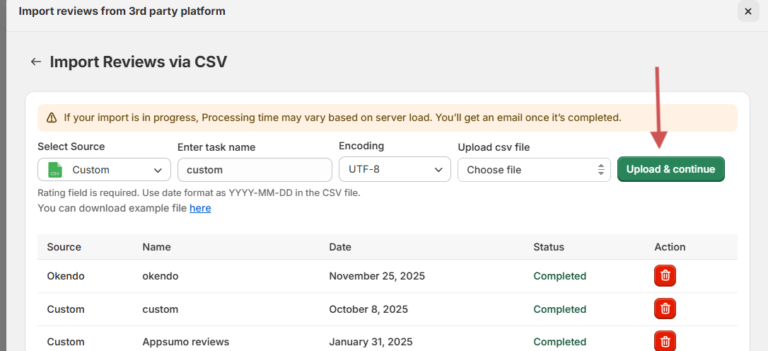
You’ll see a preview of the imported data. Click Upload & Continue. Once uploaded, all Trustpilot reviews will appear under Manage Reviews.
Step 5: Create and customize your widget in WiserReview
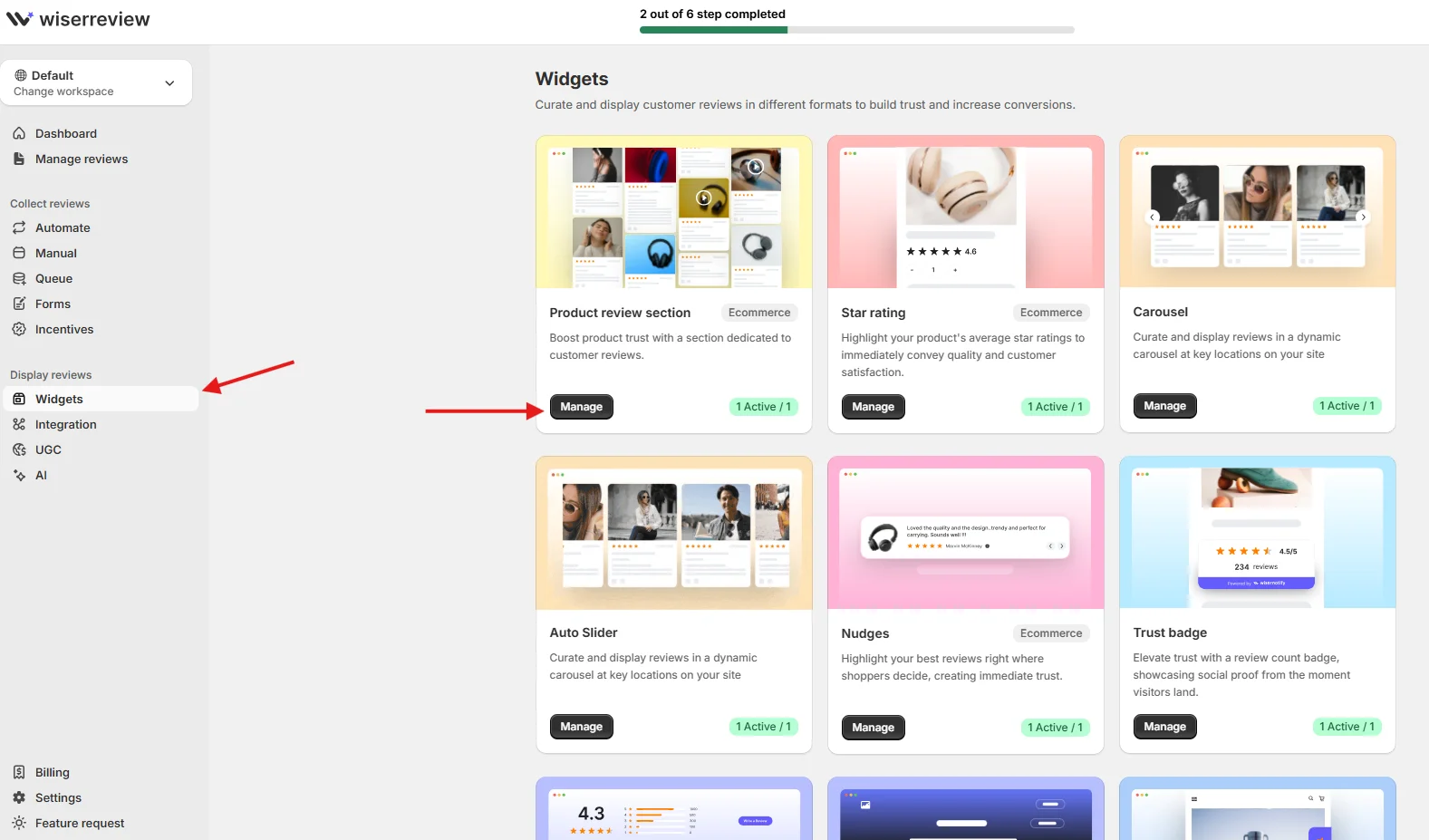
Go to the Widgets section within the WiserReview dashboard. Choose a review widget template that suits your needs (e.g., a carousel, grid, list, or pop-up).
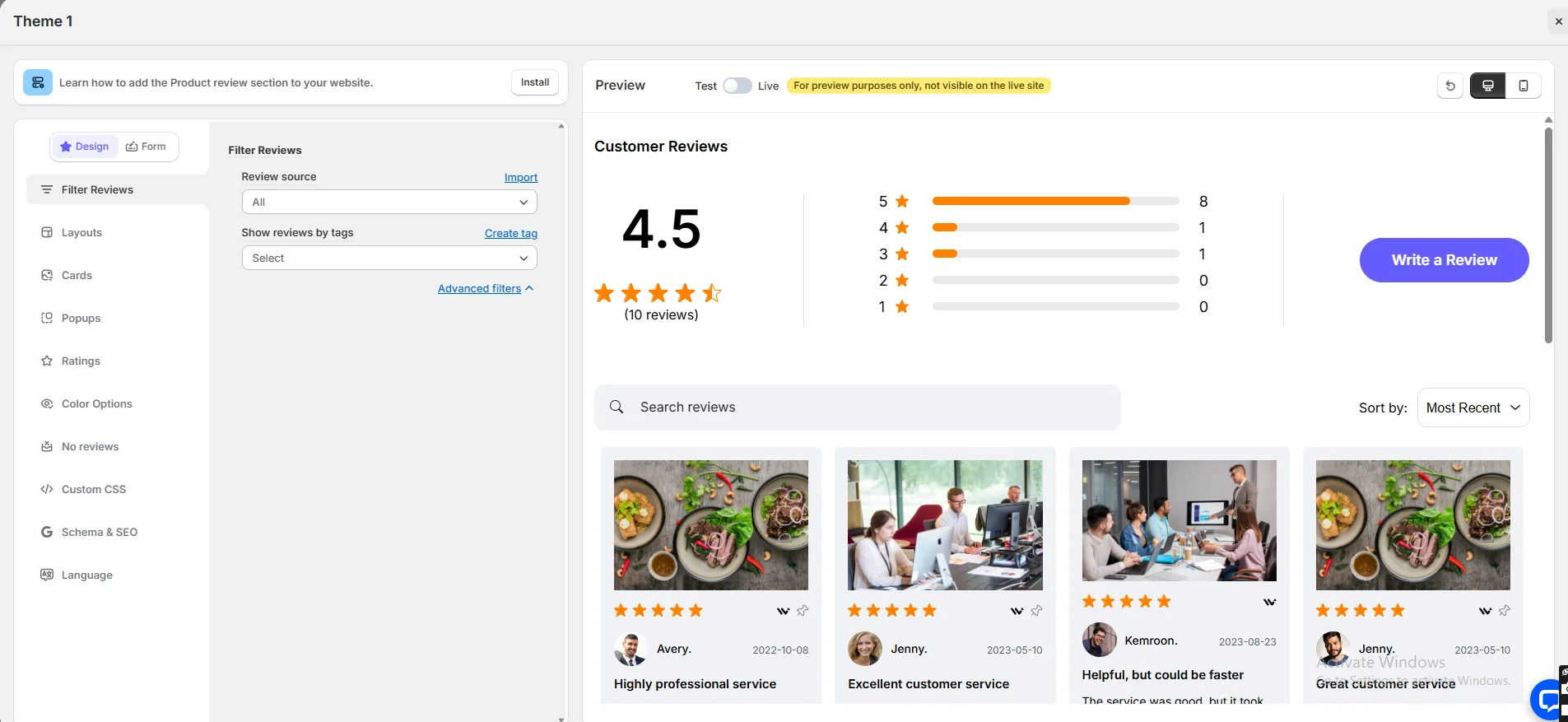
Customize the widget’s appearance (colors, fonts, layout) to match your GoDaddy website’s branding seamlessly.
Use the Filter Review Options to display only specific reviews (e.g., 4- and 5-star reviews or those with certain tags).
Step 6: Copy the embed code
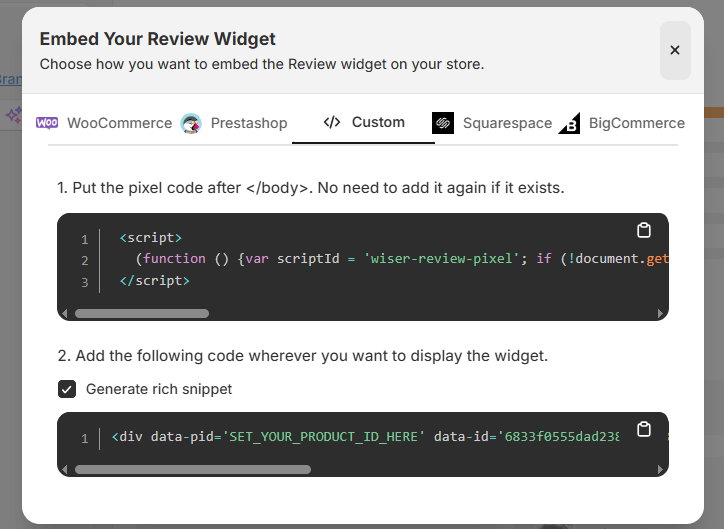
Once you’re satisfied with how the widget looks, click the Install or Embed option.
WiserReview will provide you with a code snippet. Choose the JavaScript or Iframe option, and copy the entire code snippet to your clipboard. Paste this widget code into the GoDaddy editor to show the review widget.
Step 7: Add the code to your GoDaddy website
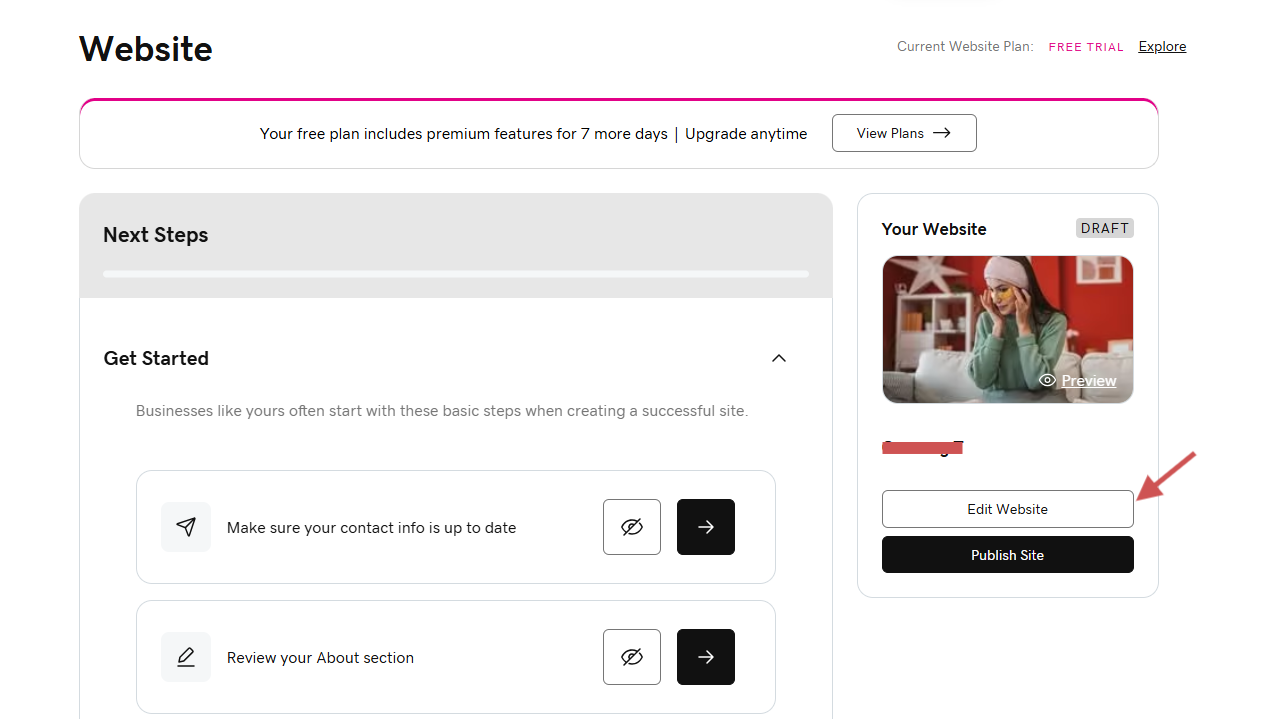
Log in to your GoDaddy account. Go to your Websites + Marketing product and select Manage, then Edit Website.
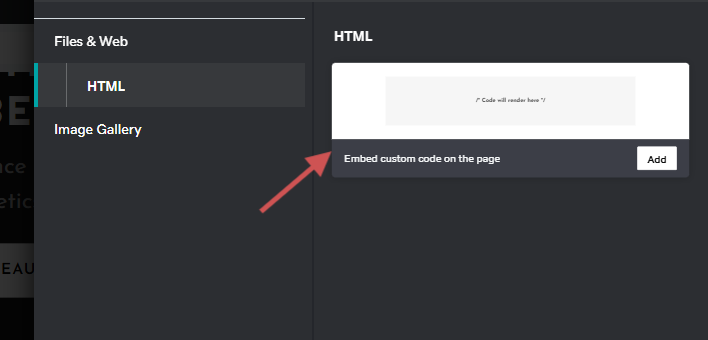
Navigate to the specific page and the exact location where you want the reviews to appear. Click Add section in the page editor.
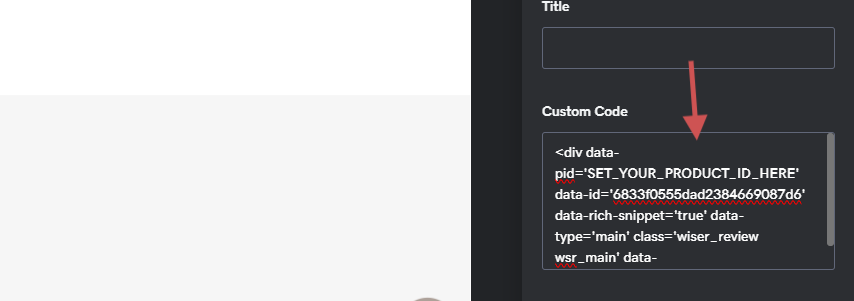
Search for the Custom Code or HTML section option and select Add. In the custom code field in the sidebar, paste the WiserReview embed code you copied in Step 4.
Replace your product id with pid to show review widget correctly.
Step 8: Publish the changes
Preview the page to ensure the WiserReview widget displays correctly and looks good on both desktop and mobile views. Click the Publish button to make your Trustpilot reviews live on your public GoDaddy website.
Once you publish your page, the WiserReview widget will appear automatically and update automatically as new reviews come in. Widgets are fully responsive and load fast on any device.


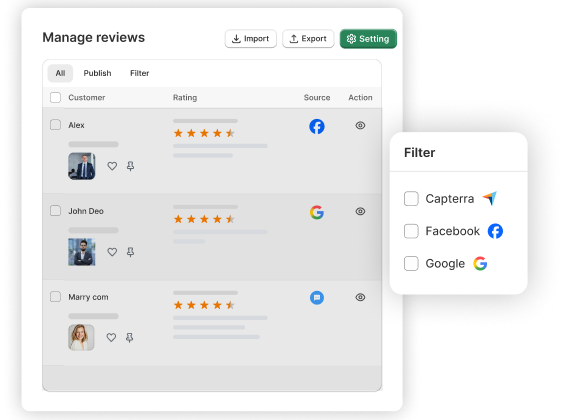
All your reviews in one place
Collect reviews, manage every response, and display them where they matter most.
Wrap up
Trustpilot reviews can be added to your GoDaddy website fast and efficiently. The Trustpilot widget is a straightforward solution for review display.
While WiserReview offers automation features, multi-platform integrations, and widgets to customize and boost conversions. Both build trust through honest customer feedback.
However, for businesses wanting to maximize their review management and increase conversions, WiserReview offers the best value and scalability.
Start with WiserReview and unlock the full power of your customer reviews as your business grows.
Frequently asked questions
Yes, both options allow customization of colors, size, and layout. WiserReview offers more advanced options, including fonts, animations, and widget behavior.
No, the basic Trustpilot TrustBox widget is free, but advanced features require a paid Business plan.
No, both Trustpilot and WiserReview widgets load asynchronously, ensuring your site speed remains unaffected.
No, the Trustpilot widget only displays Trustpilot reviews. WiserReview combines reviews from multiple platforms like Trustpilot, Google, Facebook, and custom forms in one widget.

Krunal