#1 Google review widget for Squarespace
WiserReview embeds into any Squarespace page through the Code Block. The same setup works on Squarespace 7.0 (Brine, Bedford, Tudor templates), 7.1 Classic, and Fluid Engine. You don't need a plugin or a developer.

Dedicated review section for products.

Average star ratings on product pages.
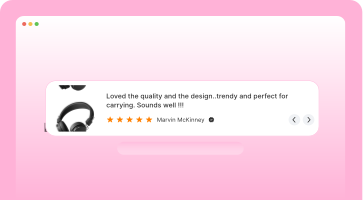
Best reviews where shoppers decide.

Shop and product reviews together.

Reviews in a dynamic carousel.

Auto-rotate reviews in a slider.
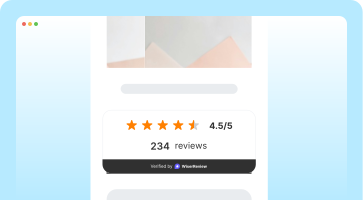
Review count badge for trust.

Social badge with star ratings.

Reviewer avatars in a carousel.
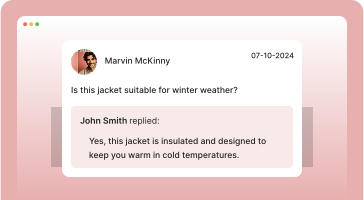
Product questions and answers.

Reviews in an engaging popup.

Reviews in a sidebar panel.

Social media content display.
Review widget that convert
Adding your Google reviews Carousel takes just a few clicks — no coding or plugins required.
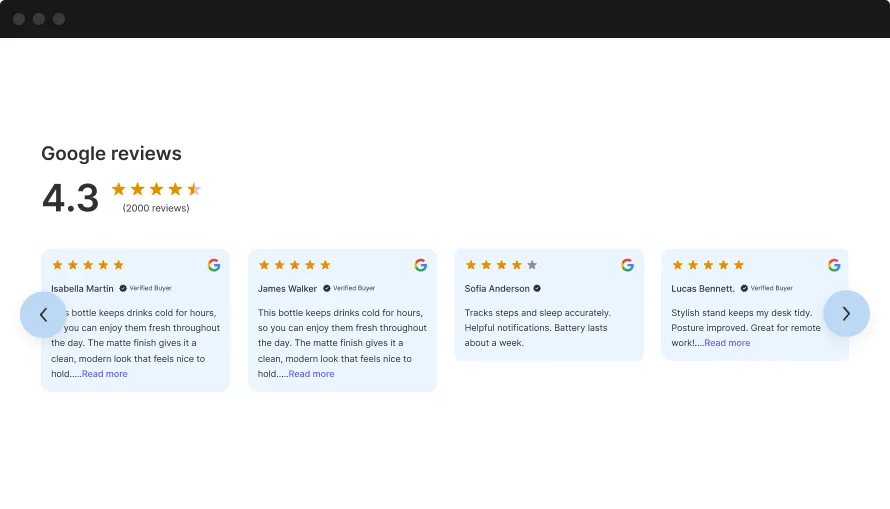
Why Squarespace owners add a Google review widget

How WiserReview embeds on Squarespace
WiserReview goes into a Squarespace Code Block, the same block you'd use for any custom HTML. The widget script loads asynchronously after Squarespace's first paint, so the page renders first and the widget fills in. It runs the same way across 7.0, 7.1, and Fluid Engine.
Collect Google reviews
Gather reviews through email requests, QR codes, WhatsApp, or a direct link. Text, photo, and video are all supported. Customers can submit a review without leaving your Squarespace site.
Automate Google reviews
Trigger a review request after a Squarespace Commerce purchase, a Member Area enrollment, or a Scheduling appointment. Set it once and the rest is hands-off.
Manage Google reviews
Choose which collected reviews to feature using content moderation (spam, profanity, policy violations) or curated selections. Curated widgets show a Testimonials badge so visitors can tell they're hand-picked.
Display Google reviews
Pick from carousels, walls, badges, popups, or a single-line rating snippet. Inside a Code Block, the widget reads your Squarespace template's font stack automatically. You only override settings when you want to.
Auto-sync, on-brand, SEO ready
Turn Google reviews into trust signals that boost SEO and sales.

Zero-hassle setup
Connect once. Reviews flow in automatically.

Hands-free sync
Fresh reviews auto-sync and filter by relevance.

On-brand display
Launch carousels, badges, and popups tailored to you.

Built-In SEO boost
Showcase rich snippets and star ratings on Google.
Best Google review widget

Google Carousel
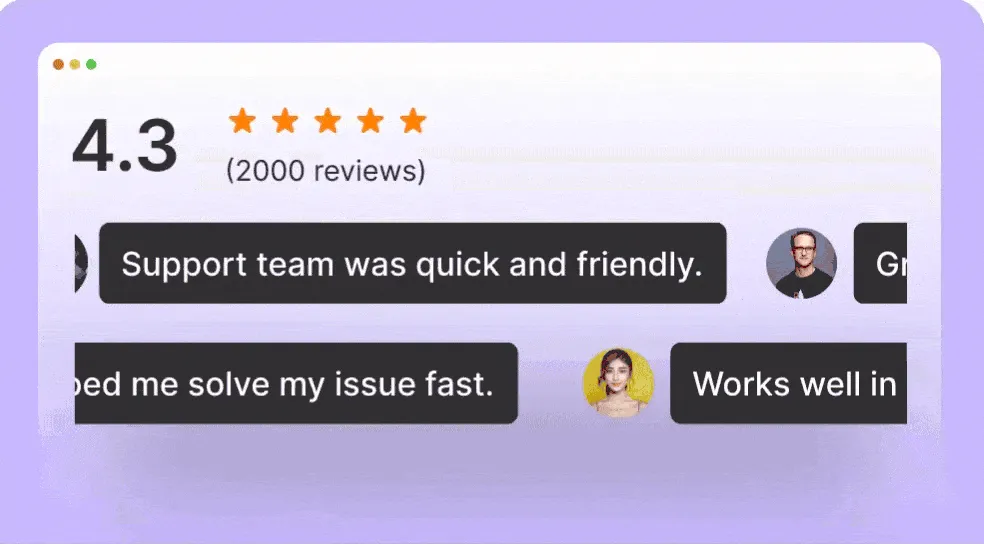
Curate and display reviews in a dynamic carousel at key locations on your site.
Auto Slider
Curate and display reviews in a dynamic carousel at key locations on your site.

Trust Badge
Show total reviews count with trust badge at any pages

Sidebar Snippet
Showcase reviews in a sidebar to boost trust and engagement as users browse your site.

Google Review badge
Display top Google or Facebook reviews on your site with Floating badge.

Floating review badge
Highlight star ratings and reviews with a sleek, scrollable badge to build trust instantly.

Avatar
Curate and display reviews in a dynamic carousel at key locations on your site.

Review wall
Show both shop and product reviews to highlight your brand’s quality and trust.
Fuel search with Google reviews
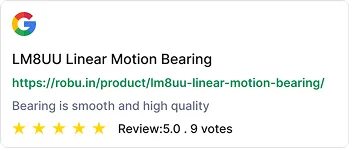
Show stars in ads, shopping, and search to boost clicks and traffic.
Google Ads ratings
Make your ads stand out with star ratings. Increase CTR and lower acquisition costs instantly.

Shopping feed integration
Push reviews directly into Google Shopping. Build trust and drive clicks before the page even loads.
SEO snippets
Add review stars to your search listings. Improve rankings, credibility, and conversion from organic traffic.
Who needs a Google review widget?
Best fit for Squarespace owners whose buyers want proof before they commit. Service bookings, creative work, and small-batch retail tend to see the biggest impact.
Creative portfolios and artists
Reviews next to gallery items or commission pages. A single-line rating snippet under each portfolio entry tends to work well. Fits naturally with Squarespace's Index Page and Gallery Section templates.
Coaches, therapists, and wellness pros
Embed a review wall above the Squarespace Scheduling block. Customers see real proof before they pick a time slot, which lifts booking completion in setups we've tested.
Beauty, personal care, and grooming
Show service reviews on pricing pages or next to each treatment description. Filter widgets by tag so a facials page only shows facial-tagged reviews.
Freelancers and consultants
A compact carousel between the about and contact sections is usually enough. The floating badge is a good fit for sticky social proof on long scroll pages.
Travel, rental, and event-based sites
Reviews near the Squarespace Form Block for inquiries or bookings. Star ratings above the contact form tend to increase fill-rate across the hospitality customers we work with.
Squarespace Commerce shops
Default Commerce product pages don't accept Code Blocks directly. A Section above or below the product detail, with a Code Block in it, is the usual workaround. For storefront-wide social proof, use Page Header Injection.
Add Google reviews to Squarespace in three steps


1. Connect your Google profile
Sign in to WiserReview and link your Google Business Profile. Your existing reviews usually show up within about a minute.
2. Pick a widget style
Pick the format that fits your page: review wall, carousel, floating badge, or single-line rating. The widget reads your Squarespace template's fonts on its own. You can override colors and spacing inside WiserReview.
3. Paste into a Squarespace Code Block
Edit the page, click the + insert point, search for Code Block, and paste in the WiserReview embed. Save, and the widget loads on the next page render. Code Block is on Business plan and higher; the Basic plan needs a different approach, covered below.
Other popular review widgets

Facebook review widget
Show real reviews from your Facebook page in a clean layout with star ratings and names. Auto-sync supported.
Perfect for: local pros, service businesses, personal brands.

Google seller ratings
Highlight your Google Seller Ratings in search or on-site using verified data. Supports stars and review count.
Perfect for: ecommerce stores running Google Ads.

Wall of love widget
Showcase all your best reviews in a clean grid or collage. Filter by source or tag.
Perfect for: testimonials page, about page, landing pages.

Video Testimonial widget
Display short customer videos with names and star ratings. Boosts trust with real faces and voices.
Perfect for: coaching, SaaS, services, personal brands.

Google review badge
A small sticky badge that shows real-time reviews as users browse your site. Works on all pages.
Perfect for: product pages, landing pages, checkout flows.
Google product review feeds
Send product-level reviews to Google Shopping using structured feed files. Boosts visibility and click-throughs.
Perfect for: product pages, cart upsells, post-purchase flows.
Add reviews where your visitors are
It works with WordPress, Webflow, Shopify, Wix, and more, no extra setup needed.

WordPress
Add Google reviews to WordPress

Custom HTML sites
Embed Google reviews with HTML

Google business profile
Sync Google reviews in real-time

Wix
Auto-sync Google reviews on Wix

Squarespace
Show Google reviews on Squarespace
30+ integration
View allSee the wall widget render on a real Squarespace page
Squarespace install methods and placement tips
Last verified on Squarespace 7.1 with Fluid Engine in May 2026. We've used all seven of these on real Squarespace builds, including the Basic plan workaround.
Method 1. Code Block (Business plan or higher)
This is the recommended setup. The Code Block is available on Business, Core, and Plus plans, and it takes the WiserReview embed code as-is without any tweaks.
How
Open the page in edit mode, click the + insert point, then search for the Code Block. Paste the WiserReview embed code in and save. The Code Block picks up the section's color theme on its own. On Fluid Engine pages, toggle the Stretch option in the block settings if you want the widget to span the full section width.
Method 2. Basic plan workaround using the Embed Block
Squarespace's Basic plan doesn't include the Code Block. The Embed Block is the next best thing, but it only handles badge-style widgets.
How
In your WiserReview dashboard, generate the floating badge widget. It gives you a public iframe URL that pastes straight into a Squarespace Embed Block. For the wall, carousel, or popup styles, you'll need to upgrade to Business or higher.
Method 3. Page Header Injection for site-wide floating widgets
This is the right method when you want a floating badge or a sticky review widget on every Squarespace page, without having to edit each page one by one.
How
Go to Settings, then Advanced, then Code Injection, and paste the WiserReview script tag into the Header. Save once and the widget appears site-wide. Requires Business plan or higher. One thing we usually recommend: turn on the hide-on-mobile rule in the widget settings so the floating badge doesn't crowd small screens.
Pick the right widget for your Squarespace template
Different Squarespace template families handle widgets a bit differently in practice. Pick a style that fits the visual rhythm of your template.
How
On 7.0 templates like Brine, Bedford, and Tudor, the single-row carousel fits the horizontal flow well. On 7.1 Classic and Fluid Engine, both the review wall and the floating badge look clean. If your template is mobile-stacked, the wall layout reads better; the carousel can feel cramped on smaller screens.
Place the widget where buyers actually decide
On Squarespace sites, the placements that tend to convert best are right next to booking forms, above pricing tables, and inside service description sections.
How
If you're using Squarespace Scheduling, drop the widget directly above the appointment block. On service pages, the spot between the price and the Book now button works particularly well. The footer is a bad spot on Squarespace; engagement drops off sharply there.
Match the widget to your Squarespace fonts and colors
Inside a Code Block, the widget picks up your Squarespace template's font stack on its own. You only need to override anything if you want a specific look.
How
If you're already using Squarespace's custom CSS, target the .wiser_review_wall class to tweak spacing or colors without going into the widget settings. For non-CSS users, the WiserReview design panel handles font weight, padding, and background tone.
Test on Squarespace Preview before going live
Squarespace's preview mode renders the widget the same way visitors will see it, including the responsive breakpoints.
How
Toggle between desktop, tablet, and mobile in Preview before you publish. A common gotcha: if the widget shows up empty on first preview, that's usually the Squarespace cache. Refresh once and it should appear. If it's still empty after the refresh, an analytics-blocker plugin or browser extension is probably intercepting the WiserReview script.
Add Google reviews
to Squarespace
Drop the WiserReview Code Block into any Squarespace page in a few minutes. No plugin or developer required.