This guide walks you through the complete process of displaying customer reviews on your Shopify store using the WiserReview (WiserNotify Reviews) app.
Step 1: Login & Install WiserReview
1. Log in to Your Shopify Store
-
Go to shopify.com and log in to your admin dashboard.
2. Install the WiserReview App
-
Go to Apps → Shopify App Store
-
Search for “WiserNotify Reviews”
-
Click Install App and approve the permissions
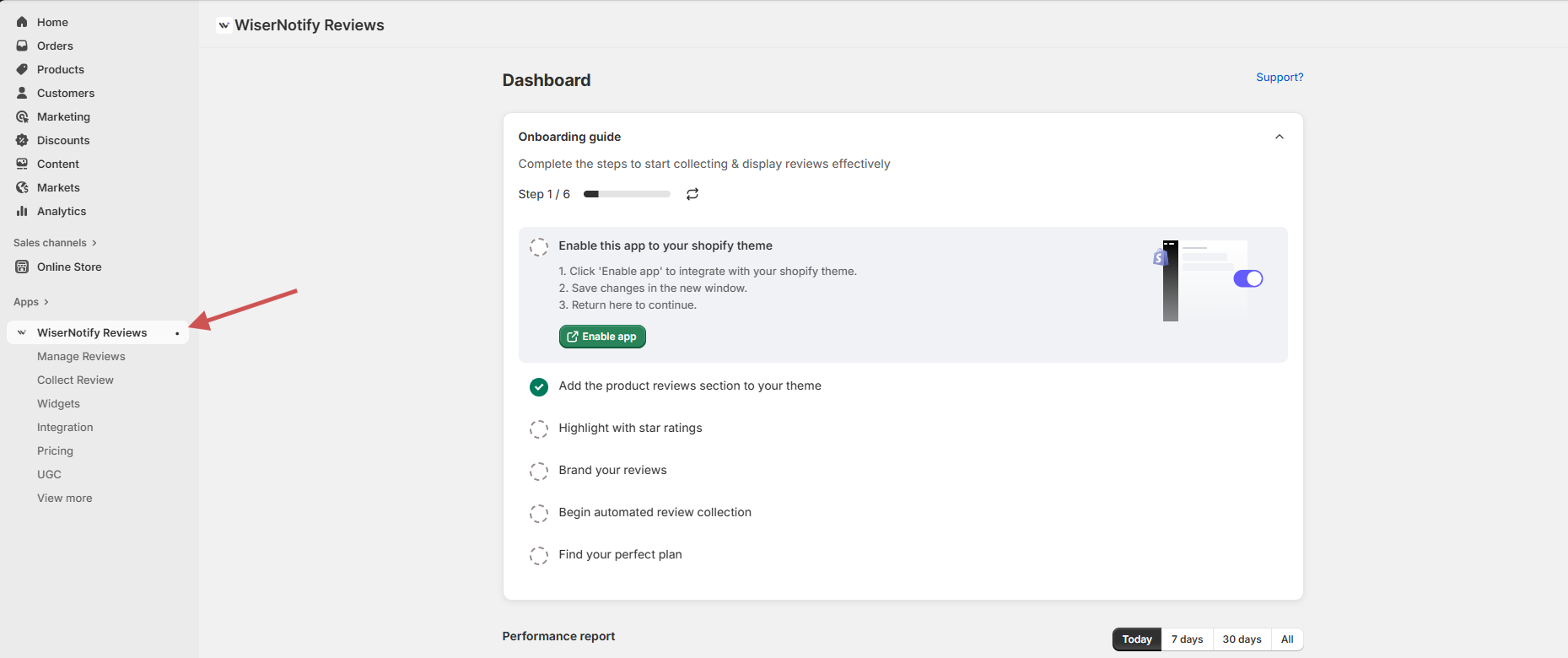
Once installed, it appears as WiserNotify Reviews in the left sidebar.
Step 2: Create & Customize a Review Widget
1. Access the Widget Dashboard
-
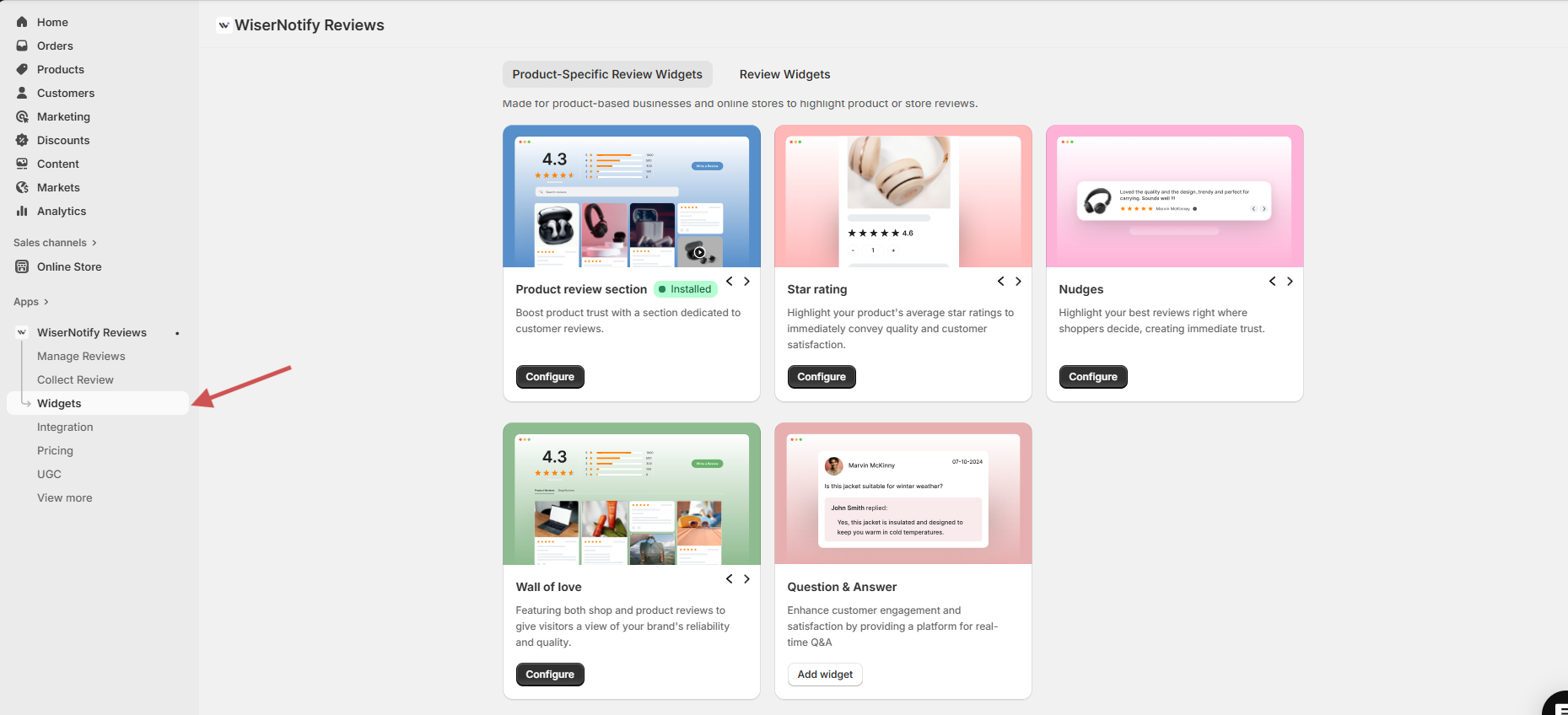
Go to: Apps → WiserNotify Reviews → Widgets
2. Choose the Right Widget Type
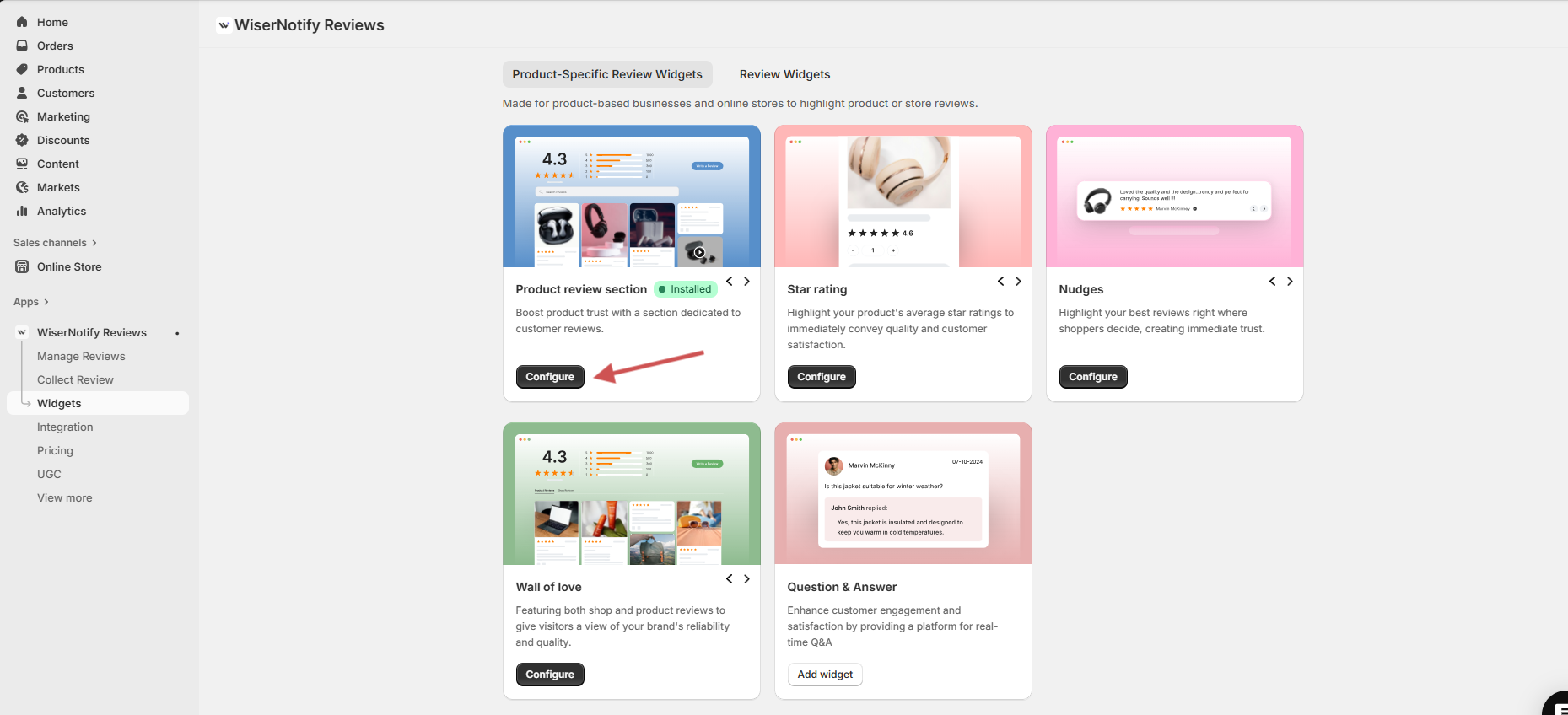
Choose a widget under Product-Specific Review Widgets (e.g, Product review section, Star rating, Nudges)
- Product Review Section: A section dedicated to showcasing customer reviews to boost product trust.
- Star Rating: Highlights the product’s average star ratings to convey quality and customer satisfaction.
- Carousel: Displays reviews in a dynamic, rotating carousel at key locations on your site.
- Nudges: Displays best reviews prominently where shoppers decide, creating immediate trust.
- Trust Badge: A review count badge that showcases social proof.
- Wall of Love: Features both shop and product reviews, displaying your brand’s reliability and quality.
- Question & Answer:- Enhance customer engagement and satisfaction by providing a platform for real-time Q&A
Click Configure
3. Customize Widget Design
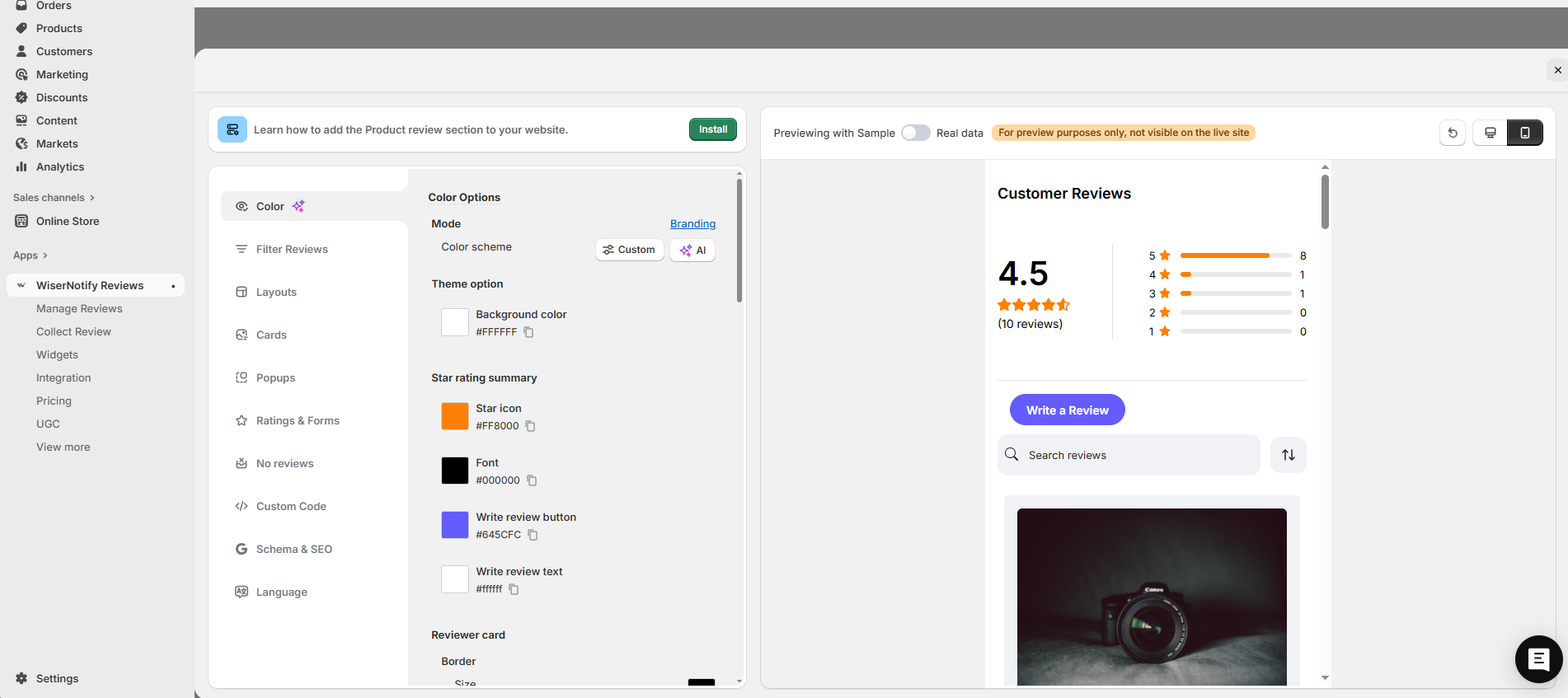
From the left-side config panel:
-
Set color scheme (manual or AI)
-
Change fonts, buttons, card layout
-
Add Schema & SEO, Language, and Popups
Step 3: Embed the Widget in Shopify Store
Method 1: Drag & Drop for Shopify 2.0 Themes
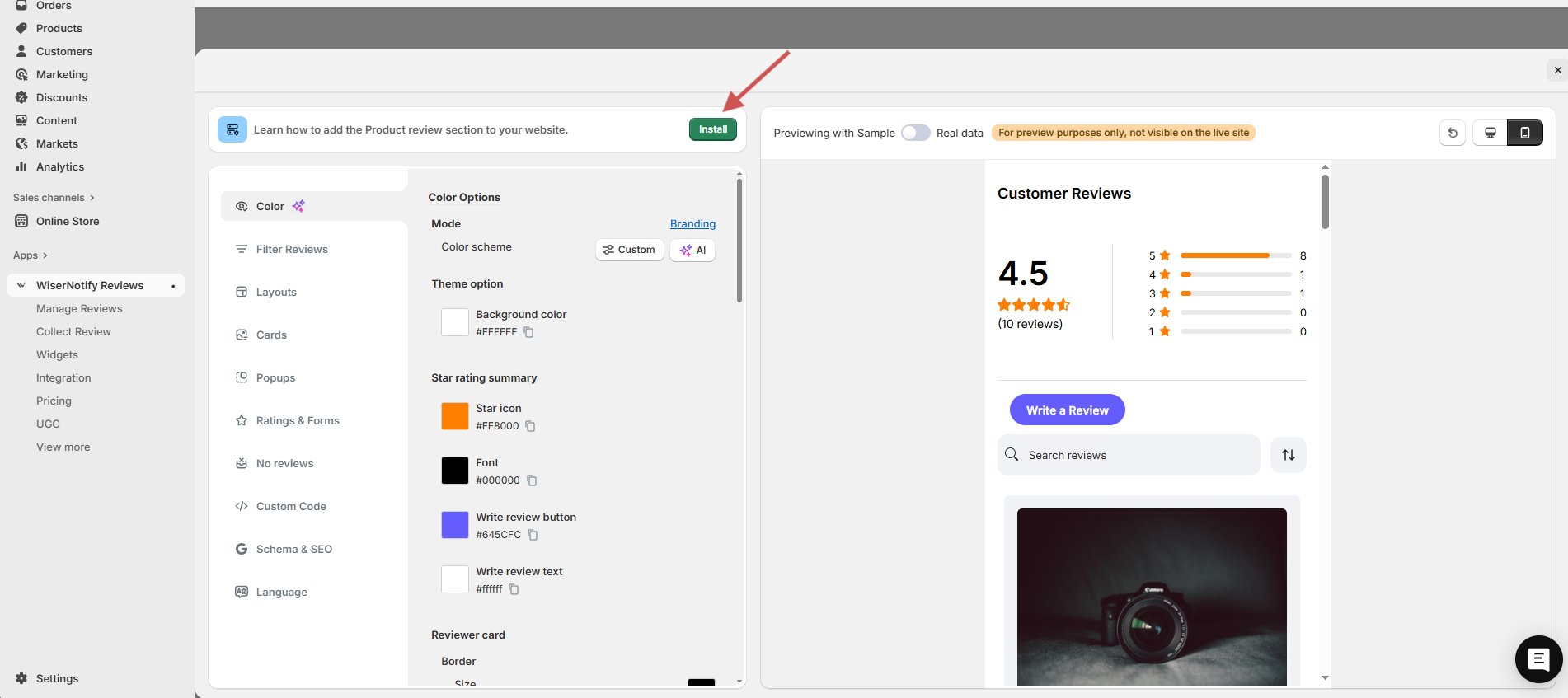
1. Click Install on the top right
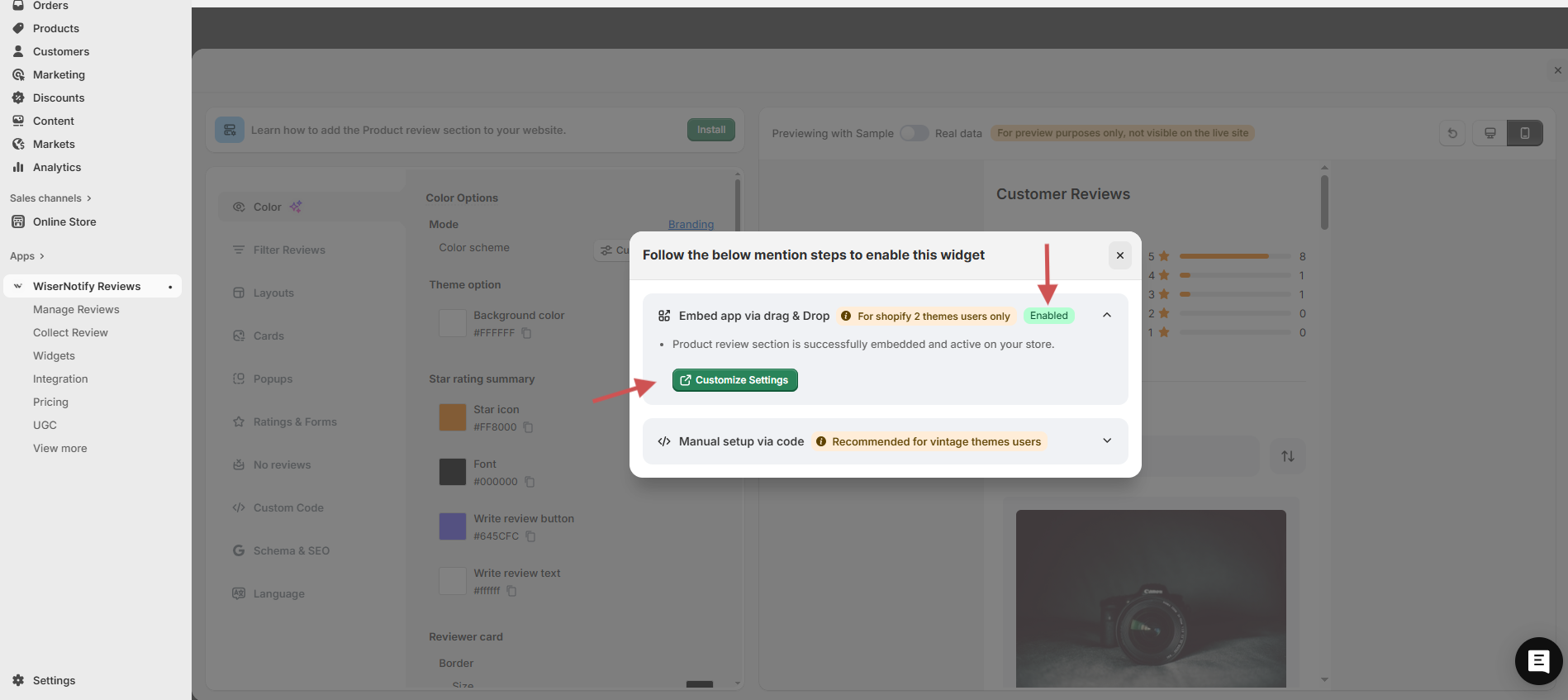
2. In the pop-up, choose “Embed app via drag & drop” (Should say Enabled)
3. Click Customize Settings → opens Shopify theme editor
4. Navigate to the Product page
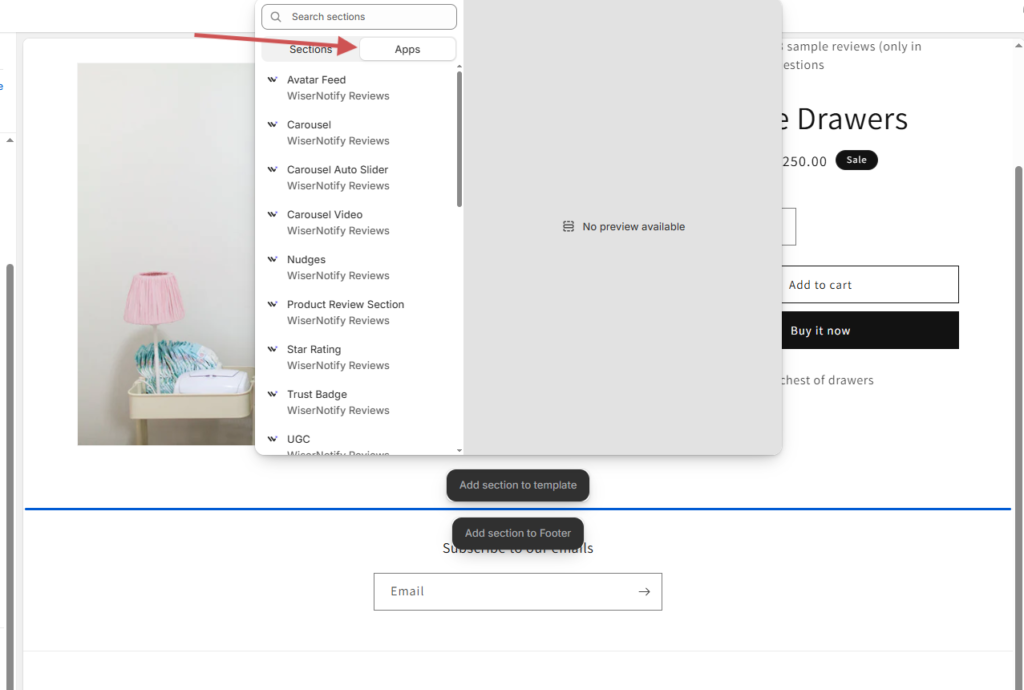
5. Click “Add block” → WiserNotify Review Widget
6. Drag to desired position (e.g., below description)
7. Click Save
Method 2: Manual Code Embed (For Vintage Themes)
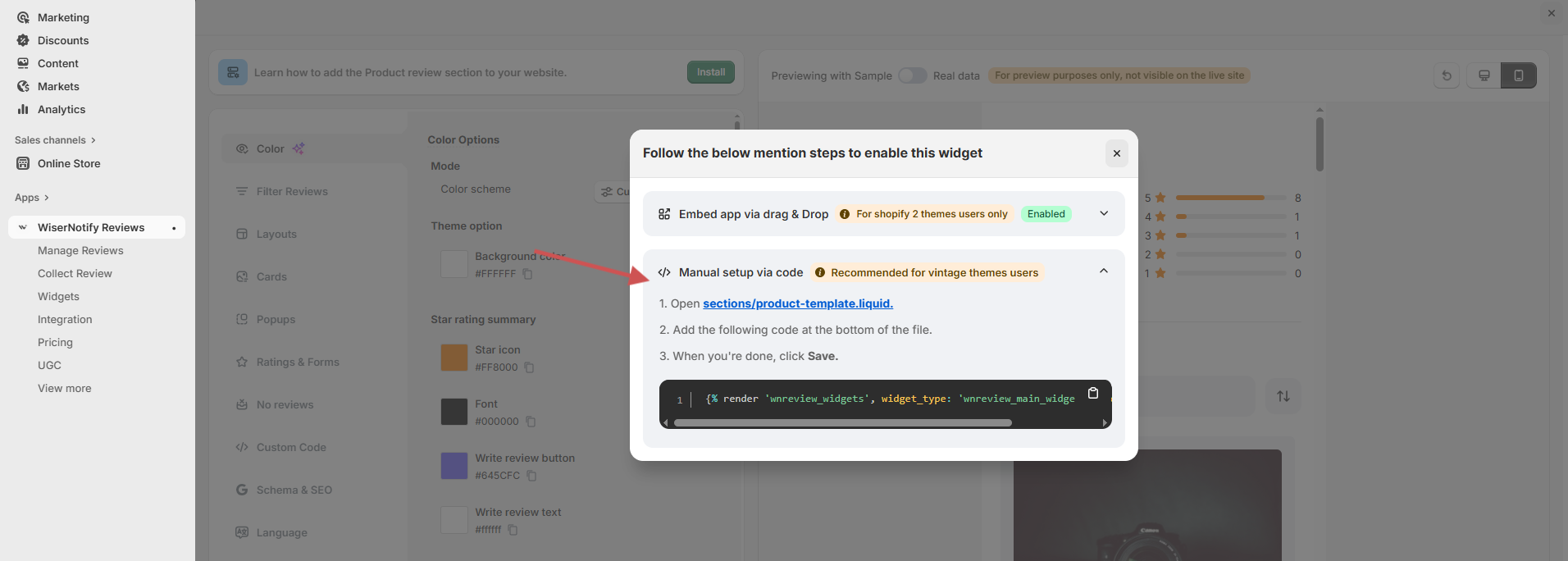
1. In the same pop-up, choose Manual setup via code
2. Go to Online Store → Themes → Edit Code
3. Open sections/product-template.liquid
For the dawn theme, user paste into sections/main-product.liquid at the bottom of tyour file.
5. Paste the code:
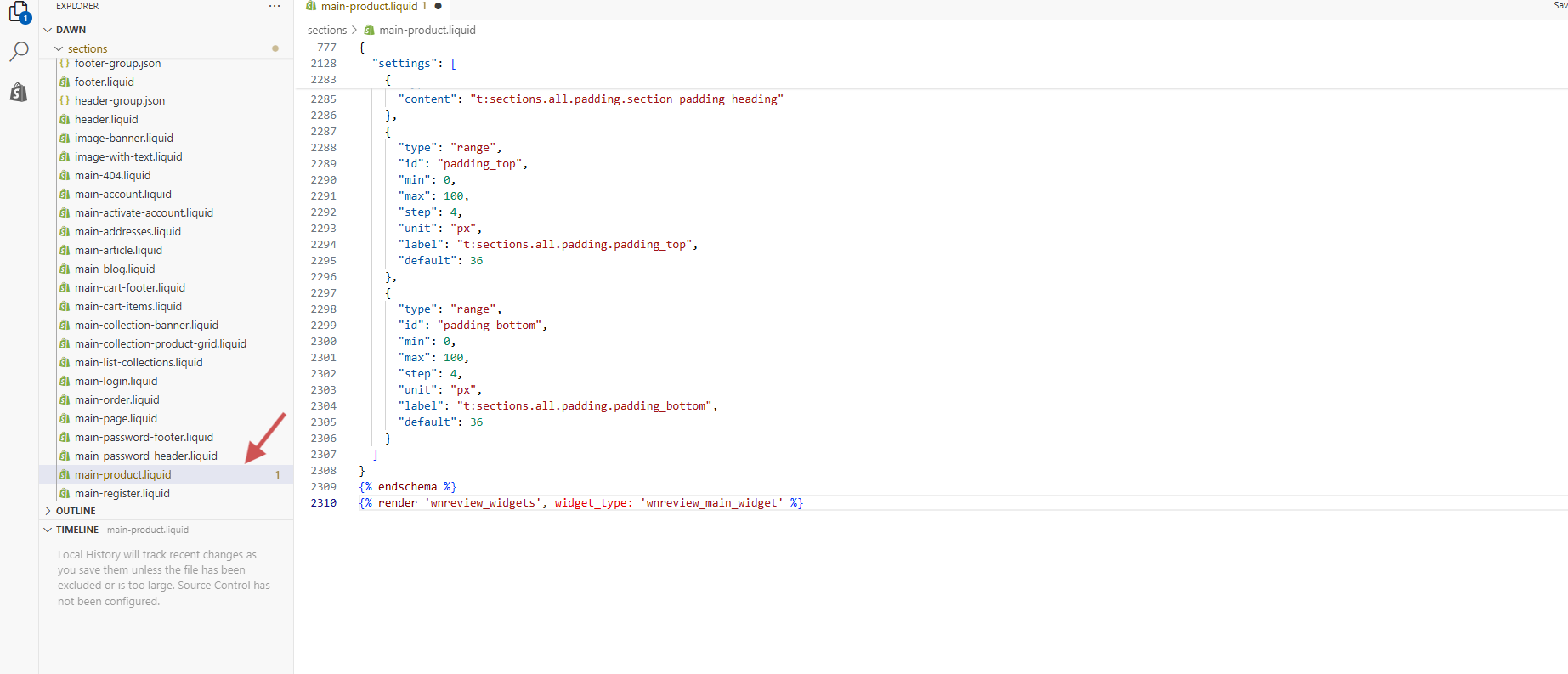
6. Save the file
Note:- This code differs according to widget types
Important: Enable App Embeds (if prompted)
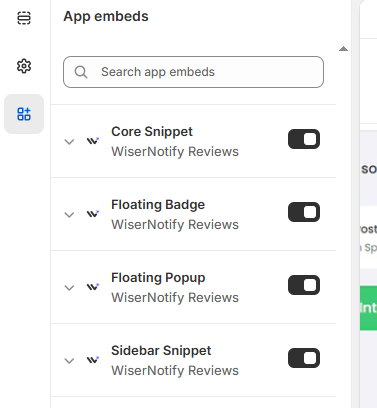
If you see:
“App embeds missing from live theme”
Do this:
-
Go to Online Store → Customize Theme
-
Click App Embeds
-
Toggle WiserNotify Reviews → ON
-
Save changes.