This guide shows how to show review widgets in the Ecwid store – no developer required.
We’ll show you how to get set up and running on the Ecwid store in 3 simple steps:
Step 1: Choose and Configure a Product Widget
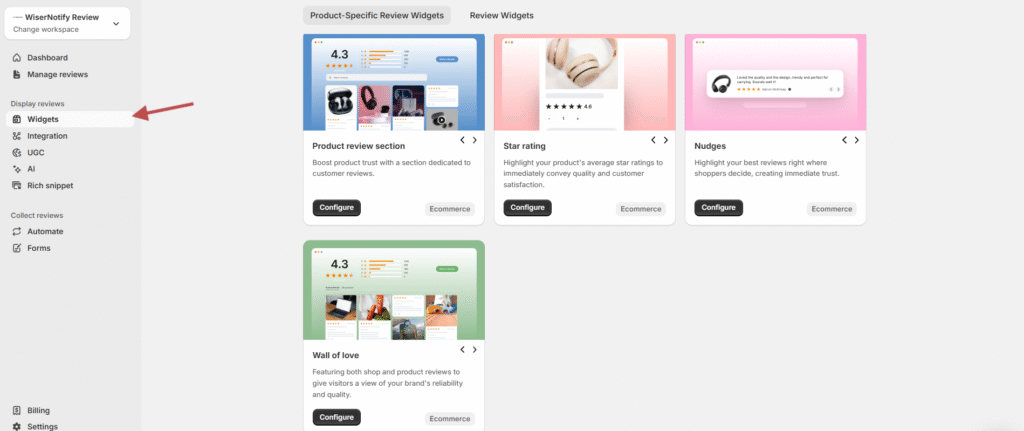
Go to the Widgets section in your WiserReview dashboard
Under the Product-Specific Review Widgets tab, you’ll see available widget types:
- Product Review Section
- Star Rating
- Nudges
- Wall of Love
Click Configure on the widget you want to use.
Step 2: Customize WiserReview Widget Design and Settings
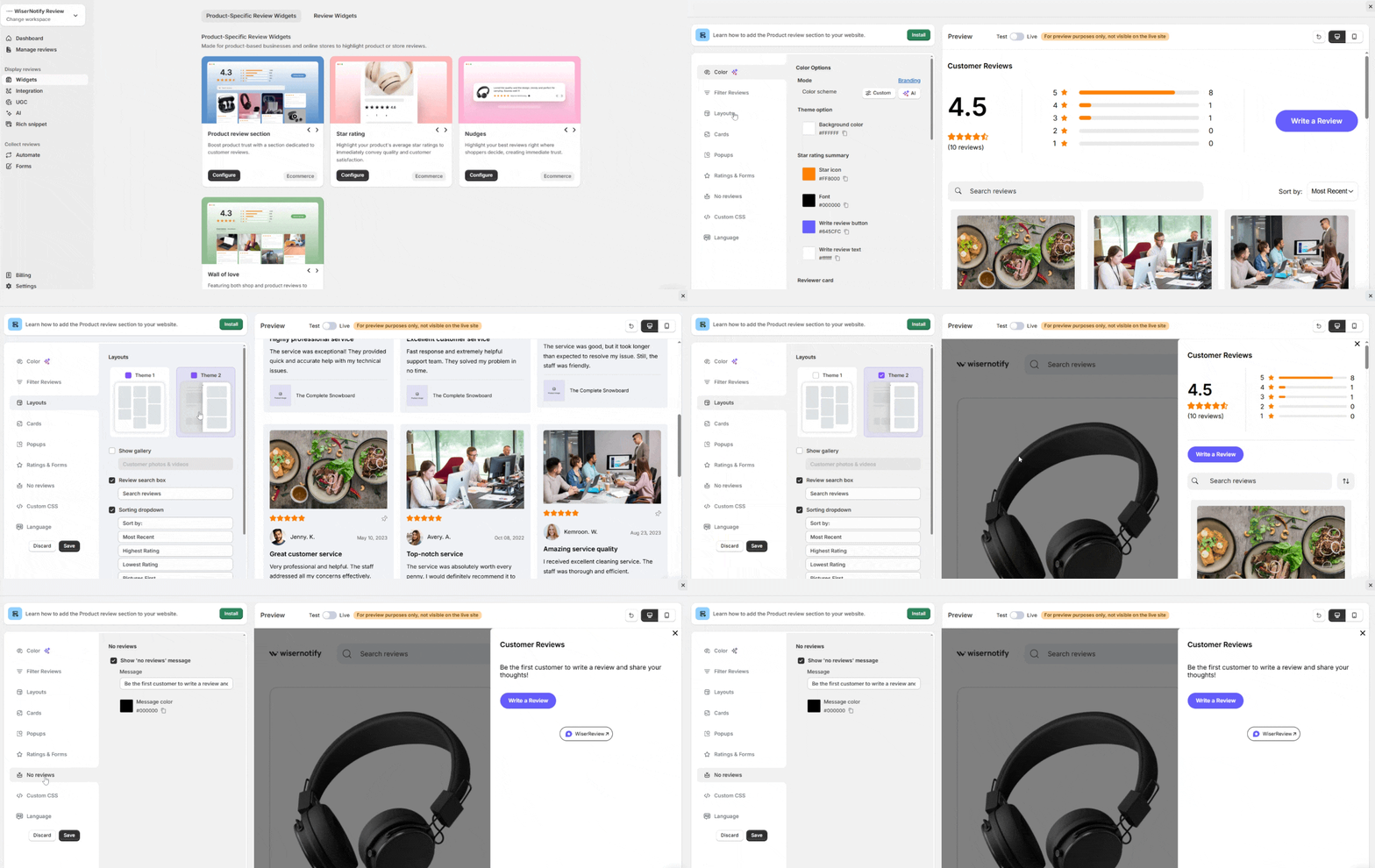
Use the left panel to:
- Adjust color, layout, and card style
- Filter reviews by tag, rating, or verification
- Add optional Custom CSS for advanced styling
Use the Preview area on the right to see changes live.
Step 3: Install the WiserReview Widget on Your Ecwid Store
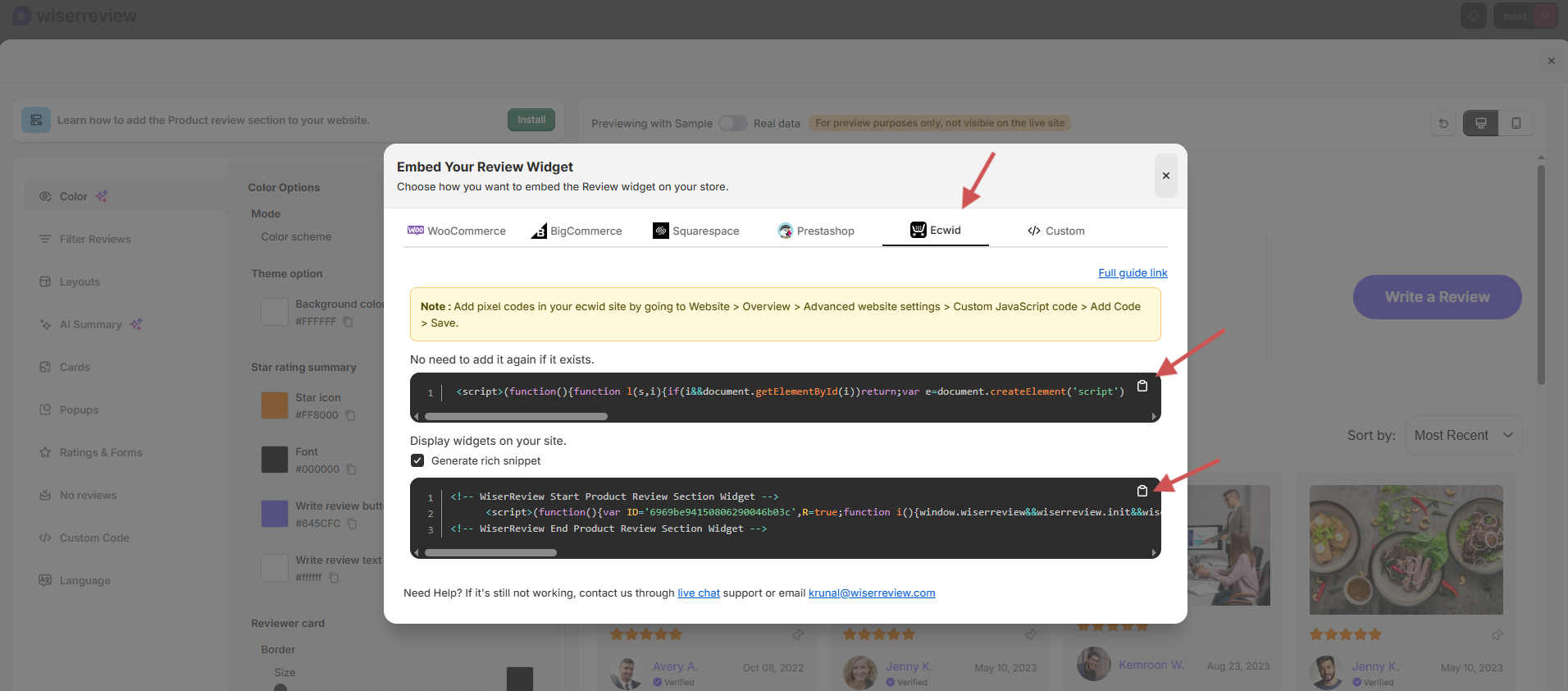
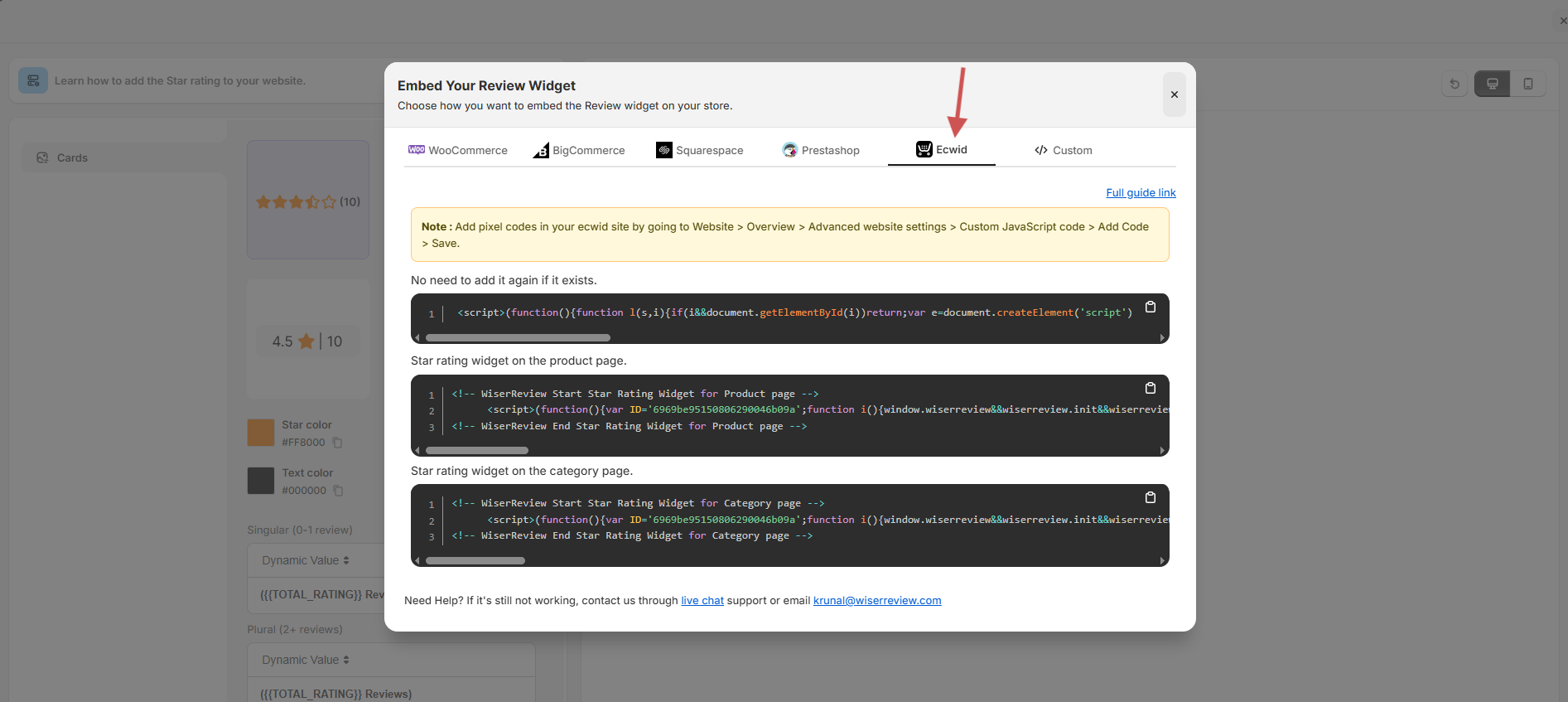
1. After customizing, click the Install button (top left)
2. In the pop-up, switch to the Ecwid tab
- For Product Review Section
- For Star Rating
- For Nudges
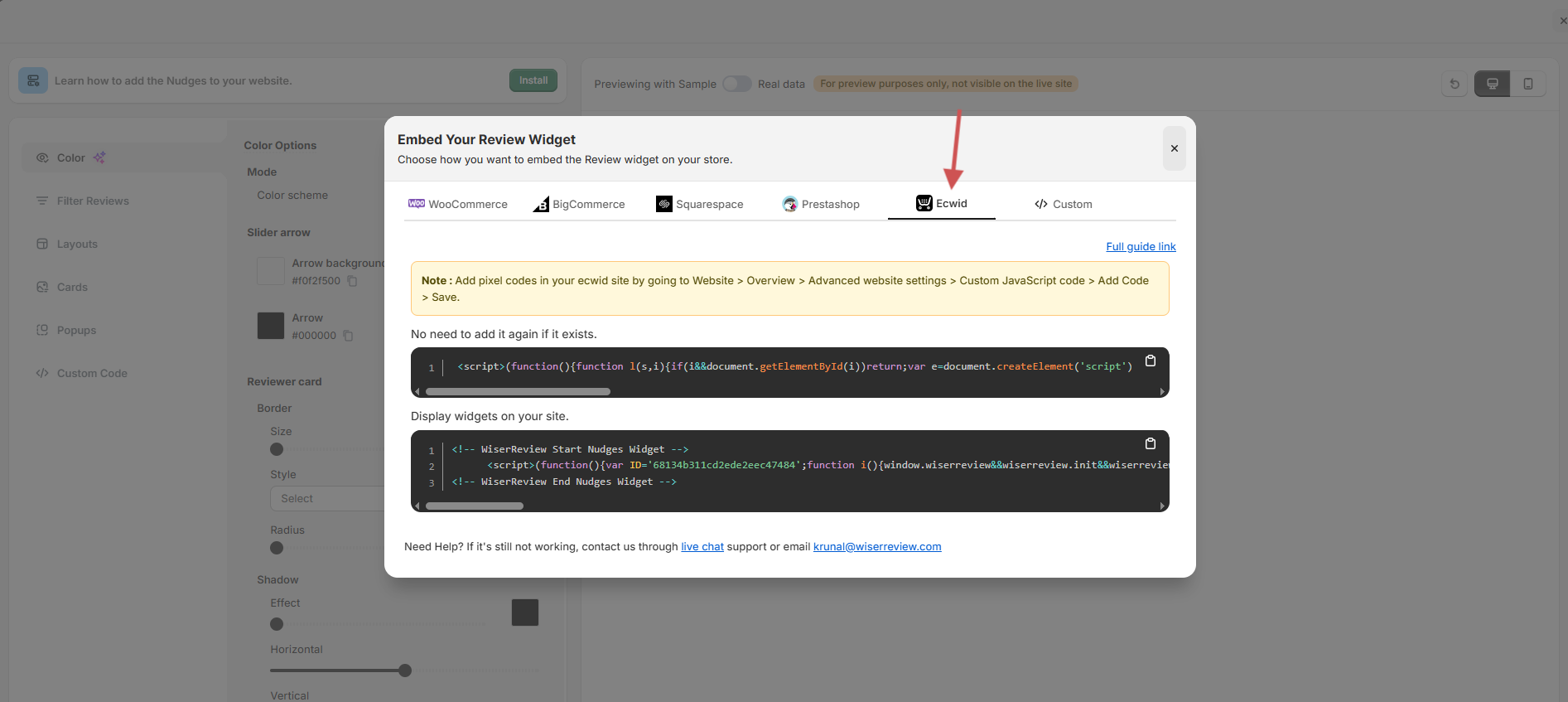
- For the Wall of Love
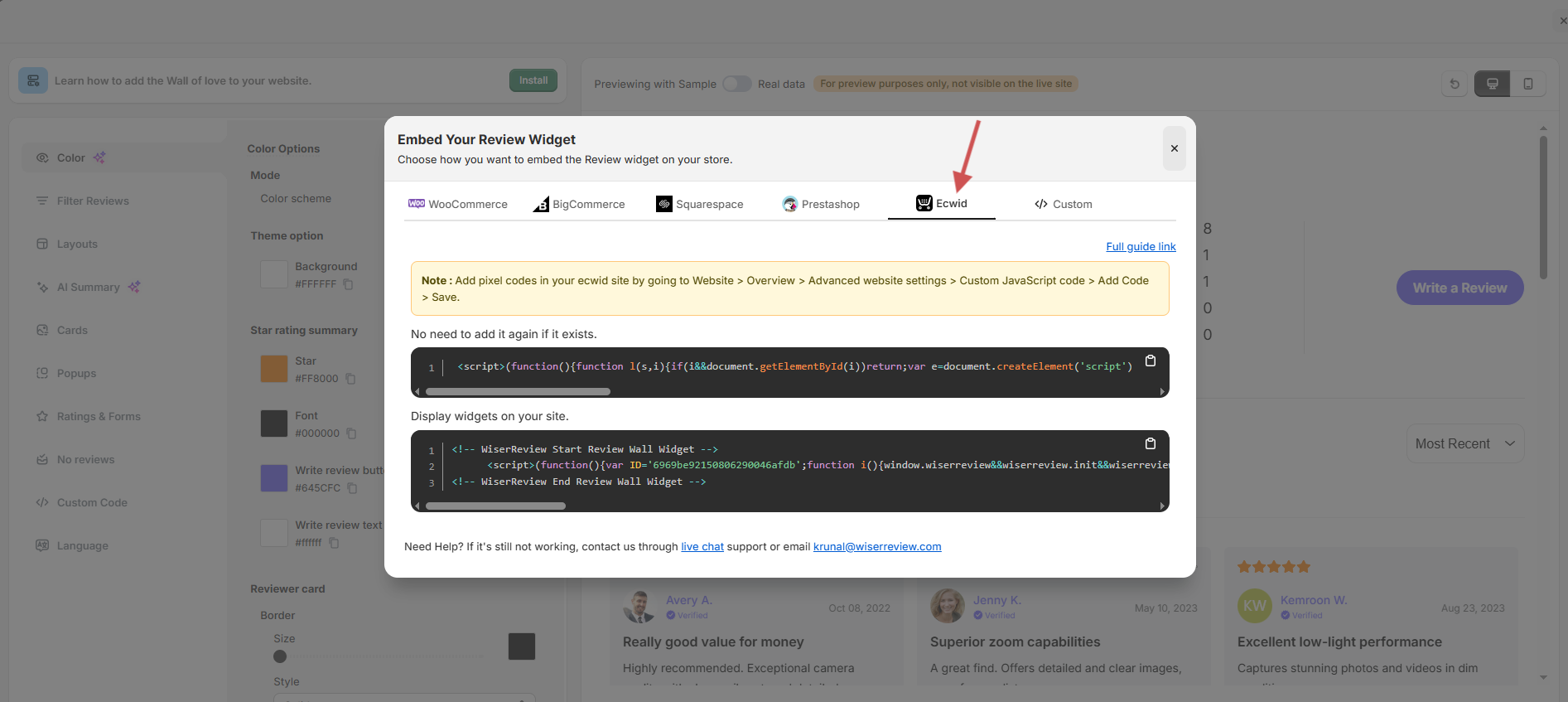
You’ll see two script codes in all four
- Pixel Script (adds tracking. No need to add again if already exists. It is the same for all widget types.)
- Widget Display Script (loads the widget on product pages)
🧩 How to add scripts in Ecwid:
Go to your Ecwid Dashboard
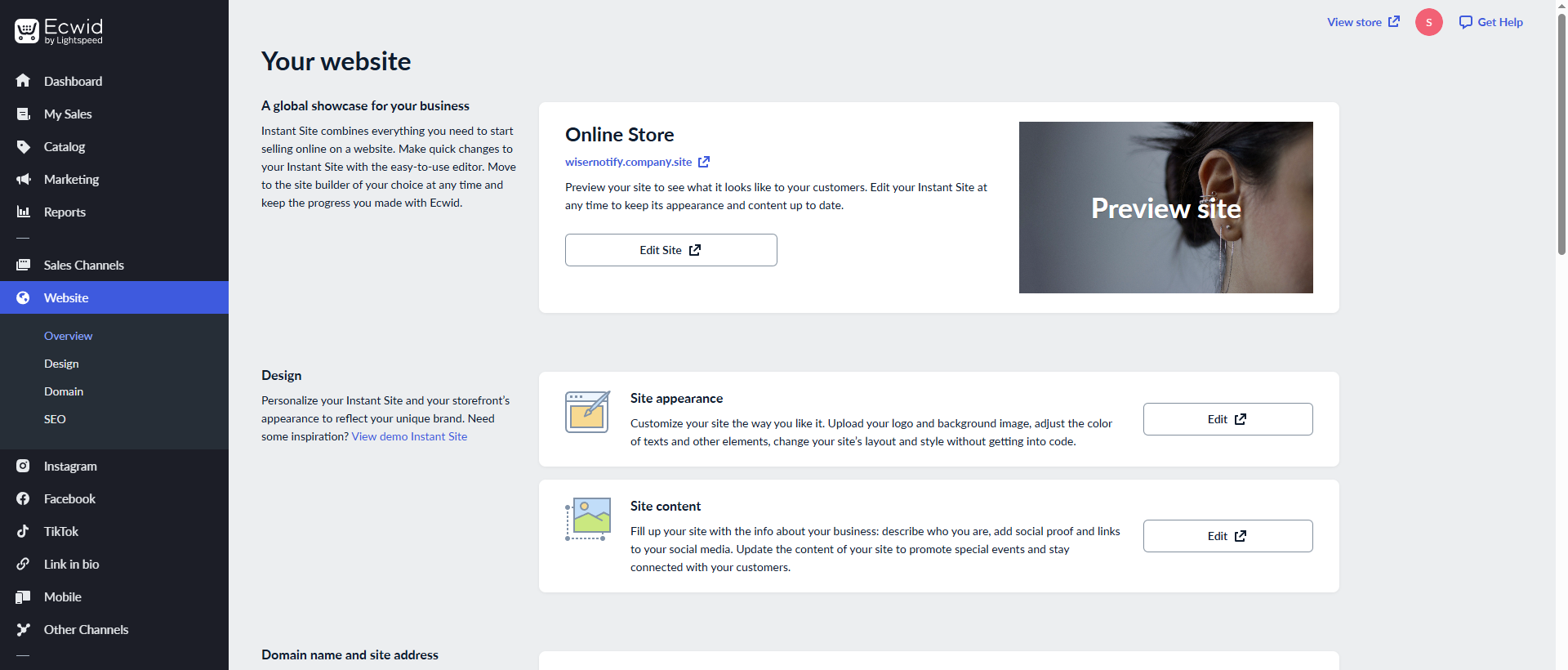
Navigate to:
Website > Overview > Advanced website settings > Custom JavaScript code > Add Code >
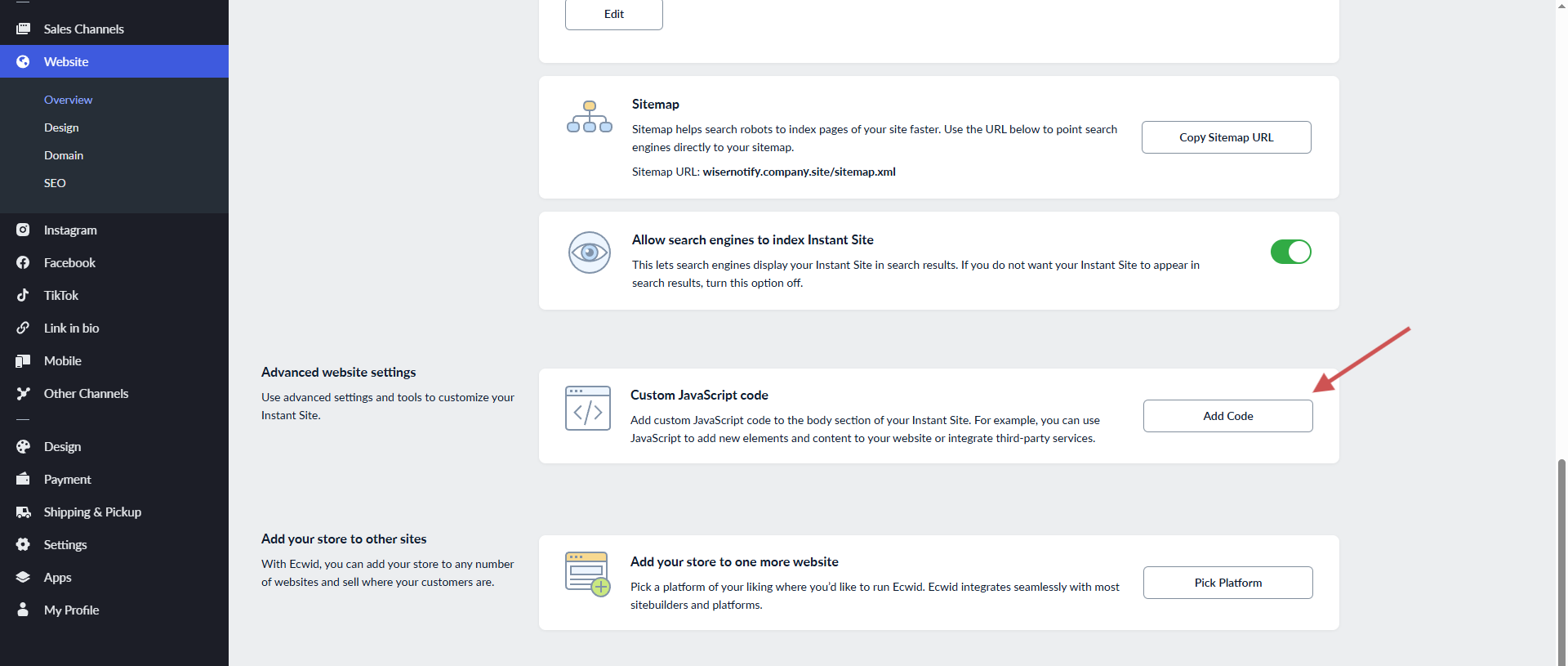
Paste:
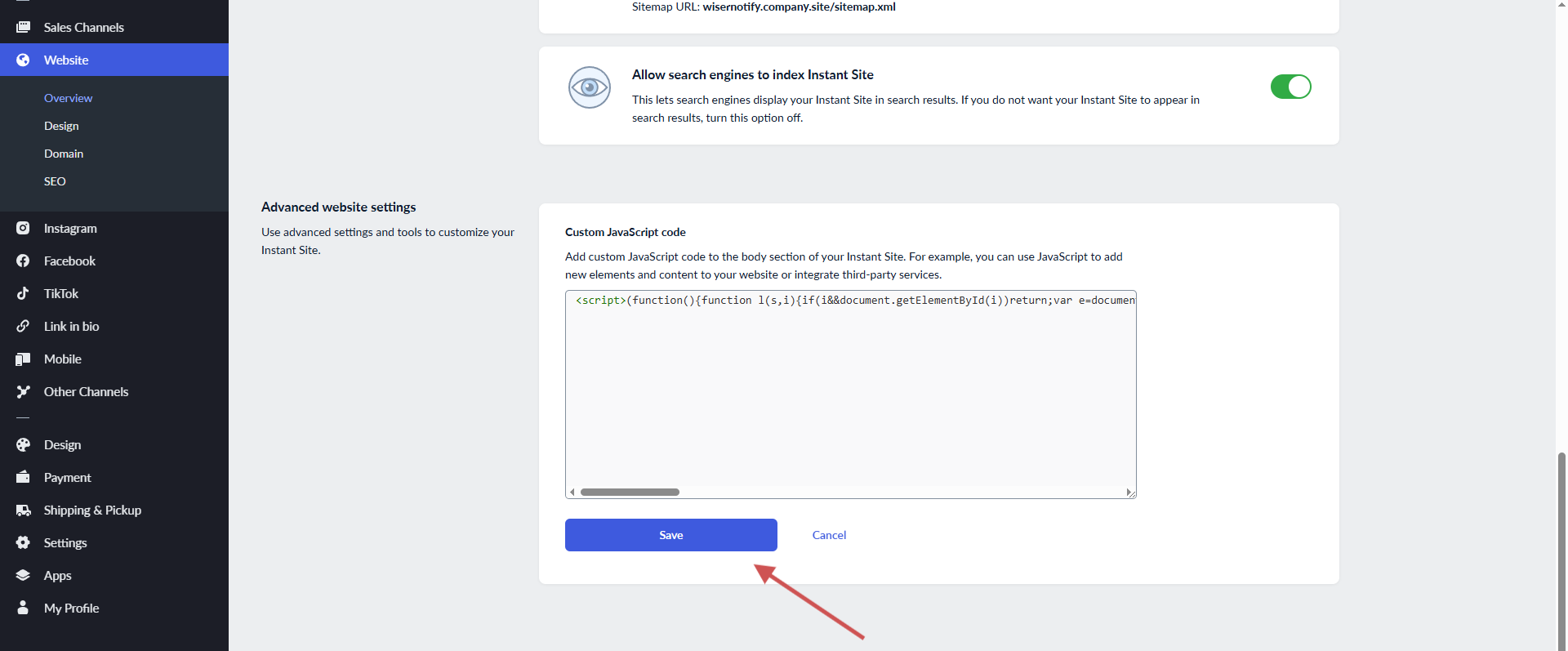
Save.
What Happens Next?
Once installed:
- The widget automatically detects the product being viewed.
- It loads the relevant reviews, ratings, or nudges for that product.
- You can manage visibility, tags, or filters at any time from WiserReview.
WiserReview offers multiple product-specific review widgets, like:
- Product Review Section
- Star Rating
- Nudges
- Wall of Love
These widgets help build trust and increase conversions by showcasing real customer feedback directly on your Ecwid store product pages.